Tags
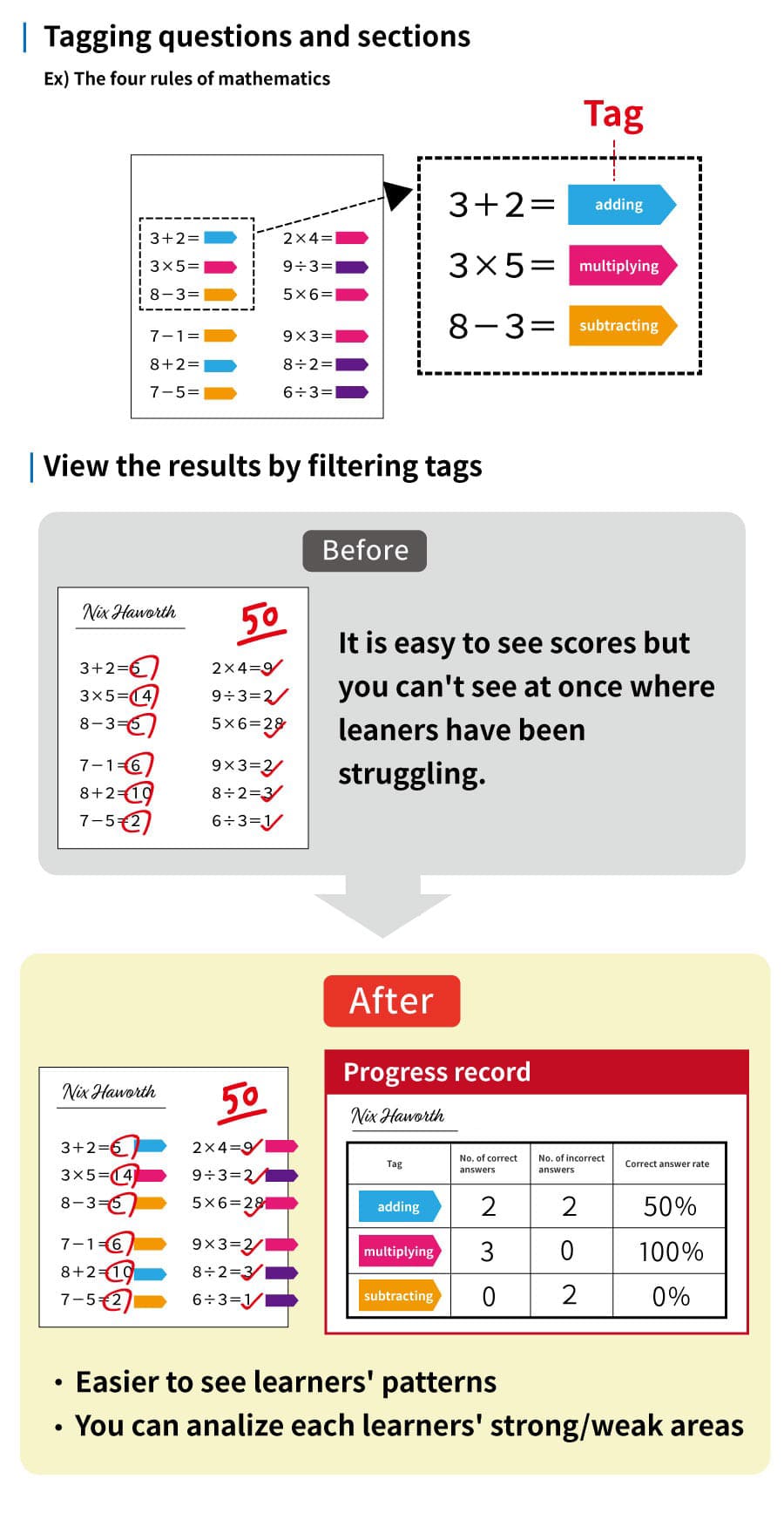
Tagging each section/question can be used to analyze your performance (e.g., to identify areas of weakness).
Tag Overview
Create by Form
01. Tag settings
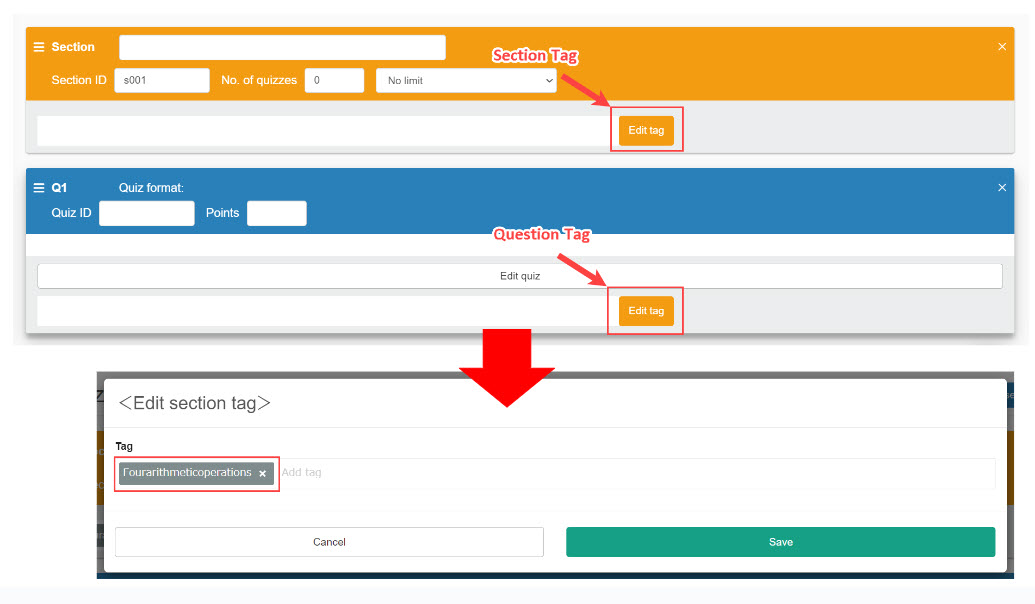
On the Manage contents screen, openQuiz/exam creation form.
Click on the "Edit tag" button and a pop-up will appear, where you can enter tags.
Click Save to finalize.
02. User interface
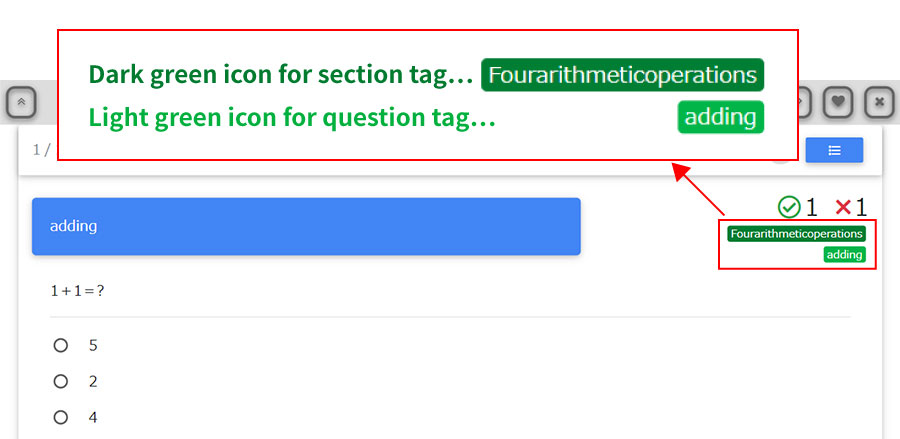
On the learner's screen, tags are displayed in the upper right corner.
Create with text/table format
01. Tag settings
To tag a section, enter (((tag:tag name))) after the section name.
To tag a question, enter (((tag:tag name))) after the question type.
▼When creating with text file
#mode:normal
$$$$$:Introductory question (((tag:geography)))
What is the prefectural capital of Hyogo Prefecture?
sa:(((tag:Japanese geography)))
Kobe City
Himeji City
Hyogo City
▼ When creating in tabular format
| #format:table | ||||
| #mode:normal | ||||
| $$$$$:Introductory question (((tag:geography))) | ||||
| What is the prefectural capital of Hyogo Prefecture? | sa:(((tag:Japanese geography))) | Kobe City | Himeji City | Hyogo City |
02. User interface
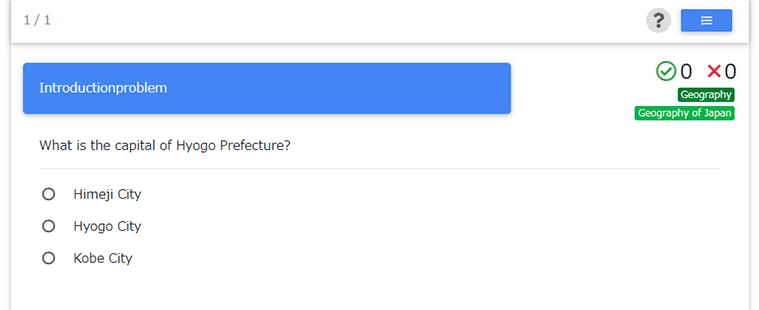
The learner's screen will display the following