
AI Assist - Automatic course generation
<Operation in the Manage contents (Old)>
AI automatically generates a course.
Required
Management role of Content manager (Edit)
AI Assist
AI (ChatGPT-API) will automatically generate a course just by uploading videos and PDFs to learningBOX.
The course includes headings/quizzes/prerequisites etc.
*The course structure generated by AI refers to the template you choose.
Course templates
The following two course templates are available.
Select Corporate training or School.
Corporate training template
This template is designed to consolidate the knowledge and skills learned.
The course structure will be as shown below.
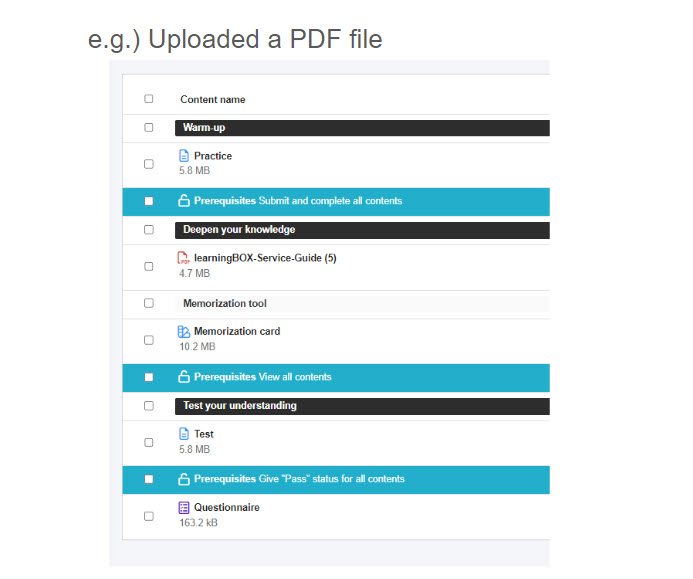
*If you upload a video, video content will be generated.
School template
This template is designed to use in elementary, middle and high school.
The course structure will be as shown below.
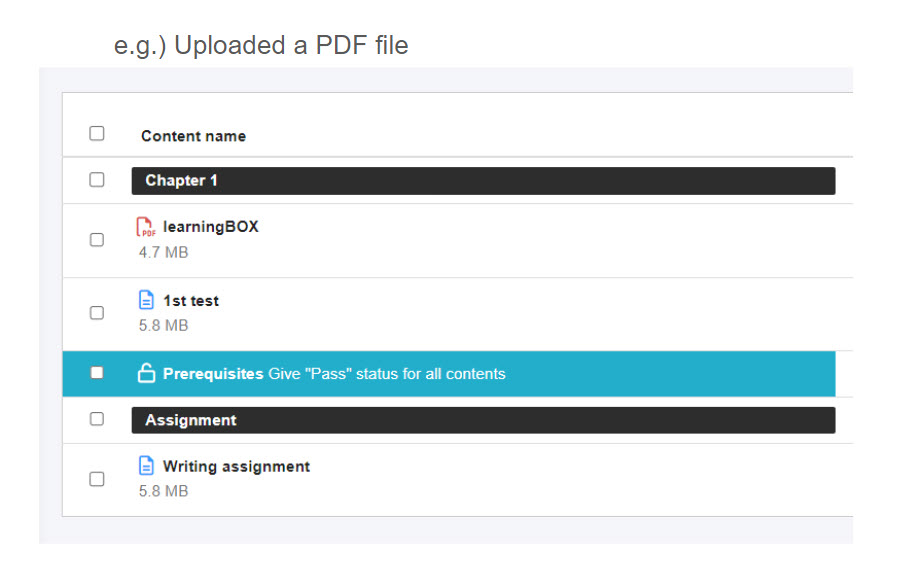
*If you upload a video, video content will be generated.
Quiz generated in a course
Quizzes will be generated based on the audio data and text used in the video or PDF.
*Please refer to the table below for quiz question formats, options, and default values.
Corporate training template
| Content | Default name | Quiz type | Option | Initial value |
| Quizzes/exams | Practice | MCQ (radio button) | Mode | Normal |
| Passing score | 0 pts | |||
| Time limit | 20 sec. | |||
| Unit of time limit | Per question | |||
| Show correct/incorrect answer per question | On | |||
| Test | MCQ (button) | Mode | Normal | |
| Passing score | 100 pts | |||
| Quiz shuffle | On | |||
| Moval | On | |||
| Time limit | 300 sec. |
School template
| Content | Default name | Quiz type | Option | Initial value |
| Quizzes/exams | 1st test | MCQ (radio button) | Mode | Normal |
| Passing score | 100 pts | |||
| Quiz shuffle | On | |||
| Moval | On | |||
| Show correct/incorrect answer per question | On | |||
| Resume/Restart | Restart only | |||
| Quizzes/exams | Writing assignment | MCQ (radio button) | Mode | Normal |
| Passing score | 100 pts | |||
| Moval | On | |||
| Show correct/incorrect answer per question | On | |||
| Hide summary (Result page) | On | |||
| Hide detail section (Result page) | On |
Generate a course with AI Assist
The following explain how to create a course using AI Assist.
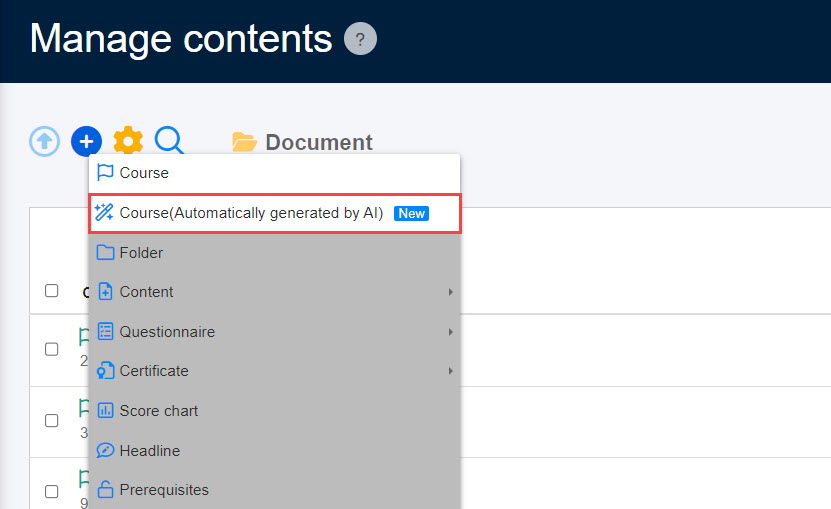
01. Course (Automatically generated by AI)
Go to Manage content and click the "+" icon > Course (Automatically generated by AI)
02. Choose a use case
Select Corporate training or School.
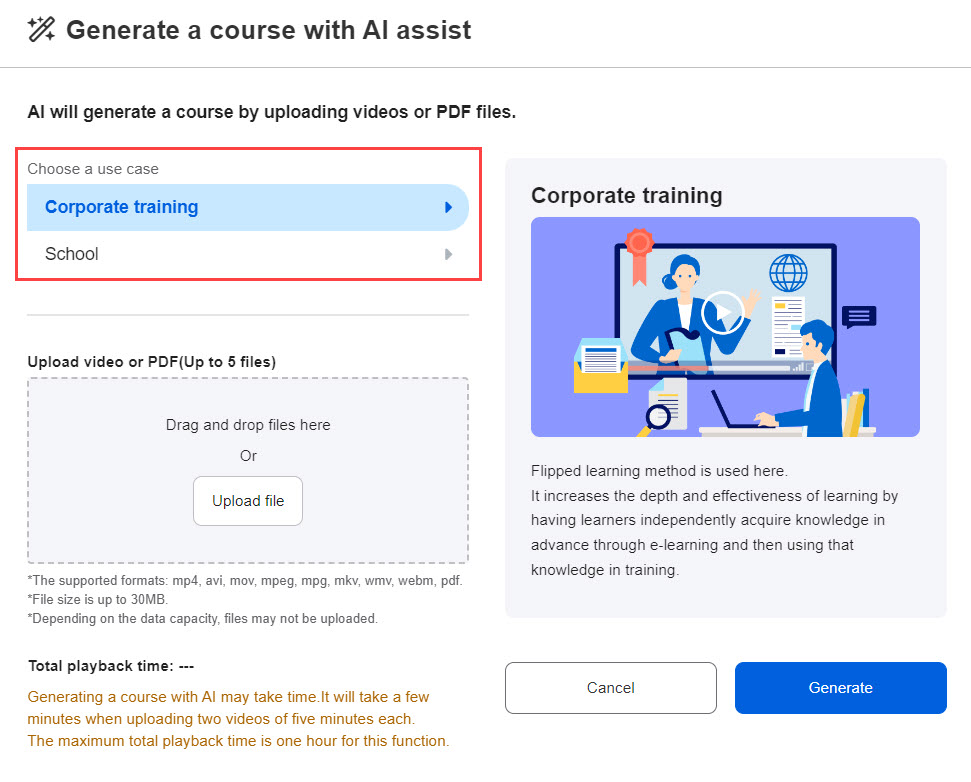
03. Upload video/PDF
Drag and drop or upload a file.
*Up to 5 video/PDF files can be uploaded.
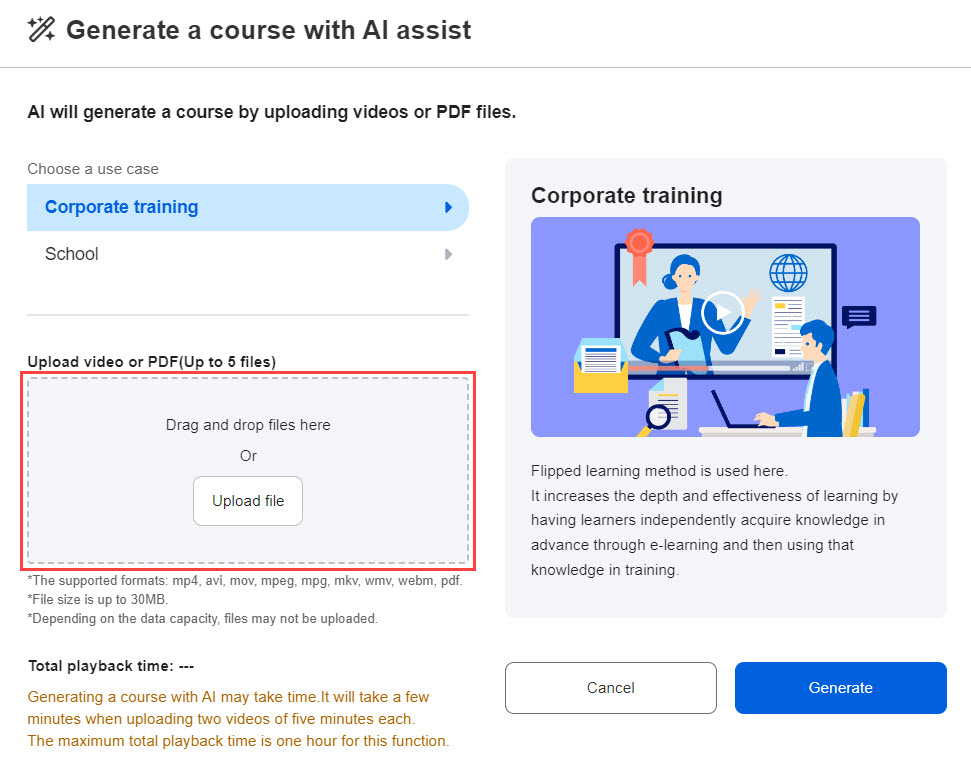
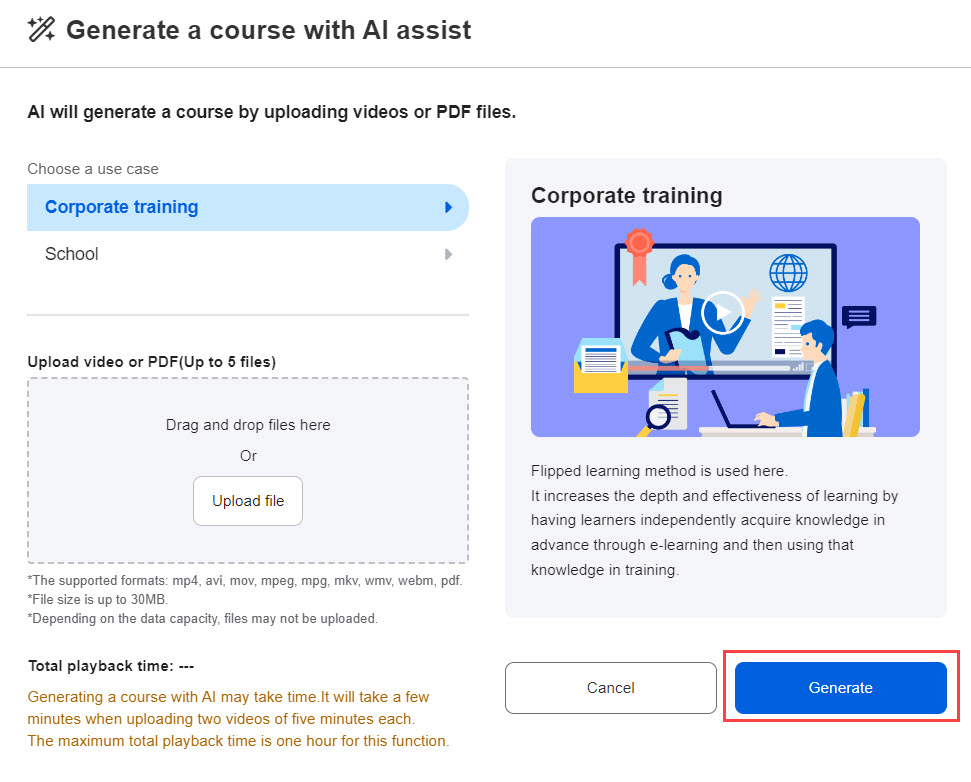
Click "Generate."
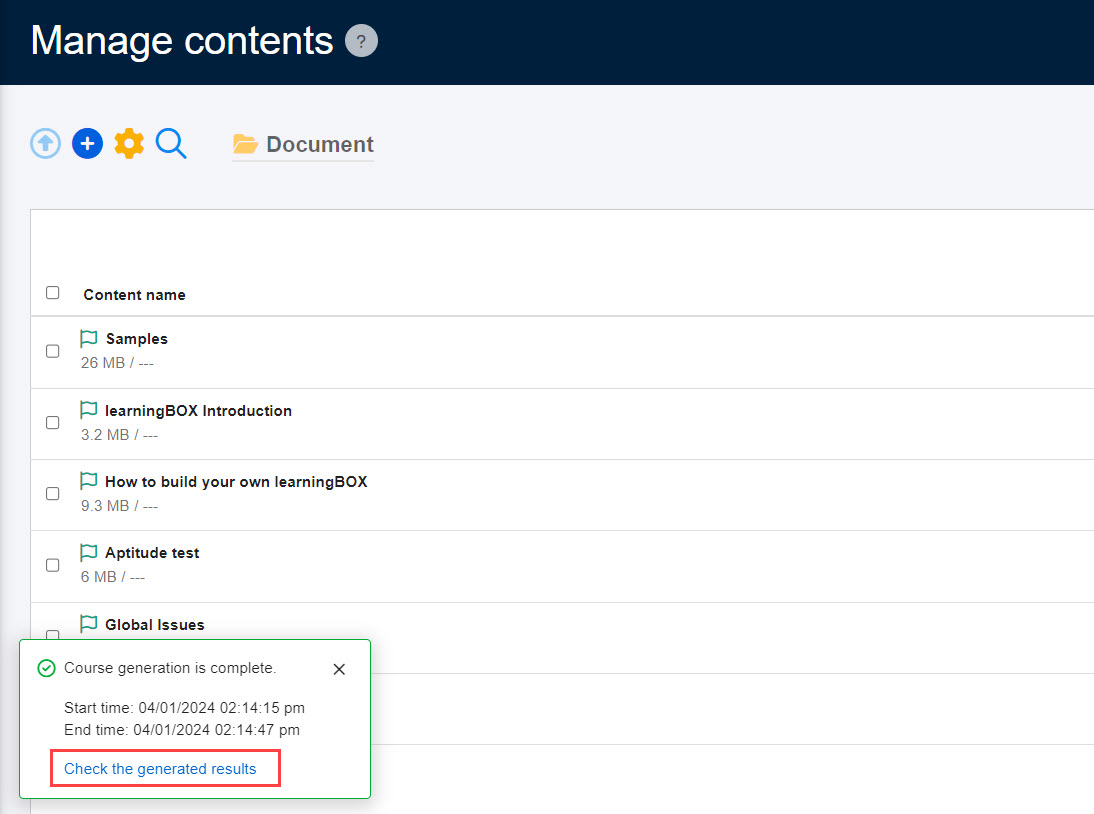
04. Check the generated results
Click on "Check the generated results."
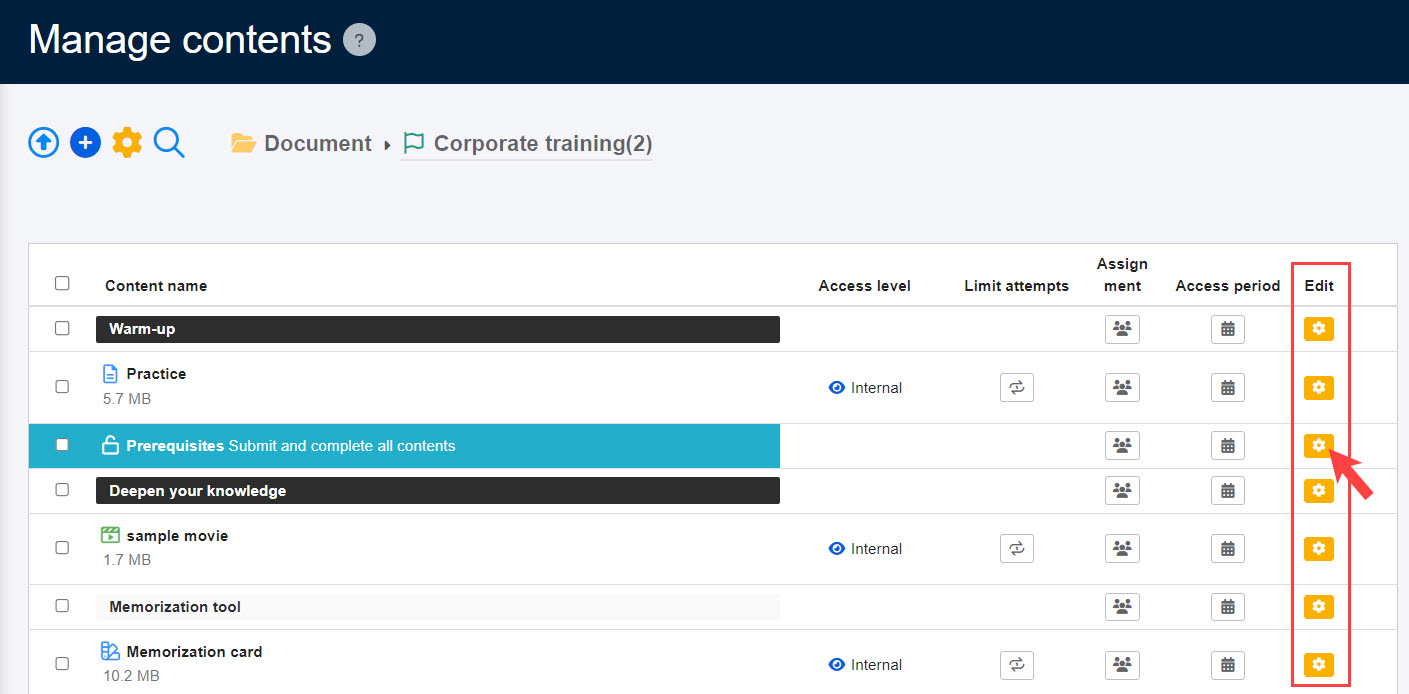
To edit each content in the course, click on the gear icon.
Usage limit
AI Assist has a usage limit depending on your contract.
Note that each use will be counted when you use AI.
*For more details, refer to AI Assist.