
Course Due Date <Operation in Content Management (old)
You can set a due date for the content you are learning.
Required
Management role of Content manager (Edit/View + Assign)
Setting page
01. Open the settings page
Select Manage contents in the side menu.
Right-click on the content in question, or select the gear icon > "Course Due Date".
02. Fill in the form
The following page will appear.
Settings can be applied by group or by user.
Settings applied to individual users will take priority over group settings.
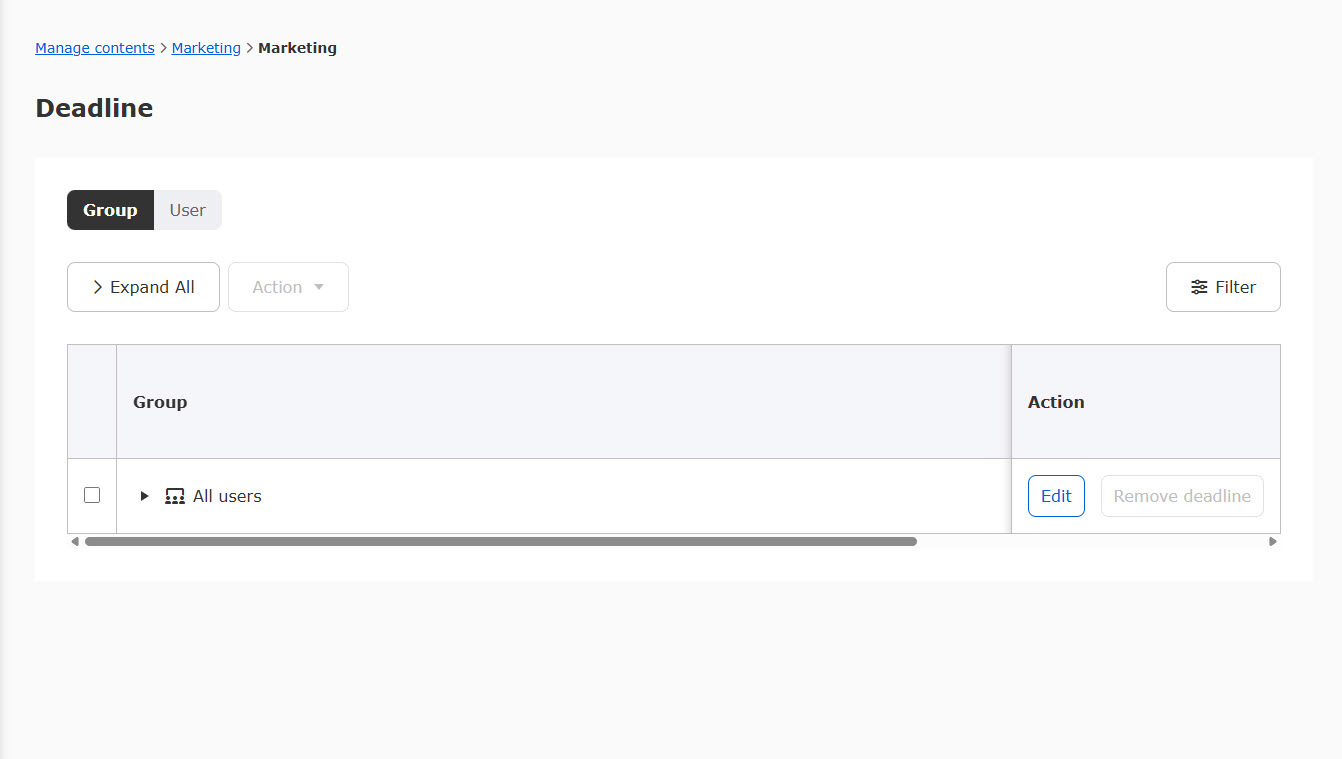
Group tab
You can set deadlines for specific groups.
Groups you have permissions to will be listed.
Click "Expand All" or "Collapse All" at the top left to show/hide the group hierarchy.
If you only have a permission over a sub-group, the parent group will appear in the list but cannot be edited.
01. Set the deadline
There are two ways to set deadlines: individually or in bulk.
▼ Individual method
You can set a deadline for a specific group.
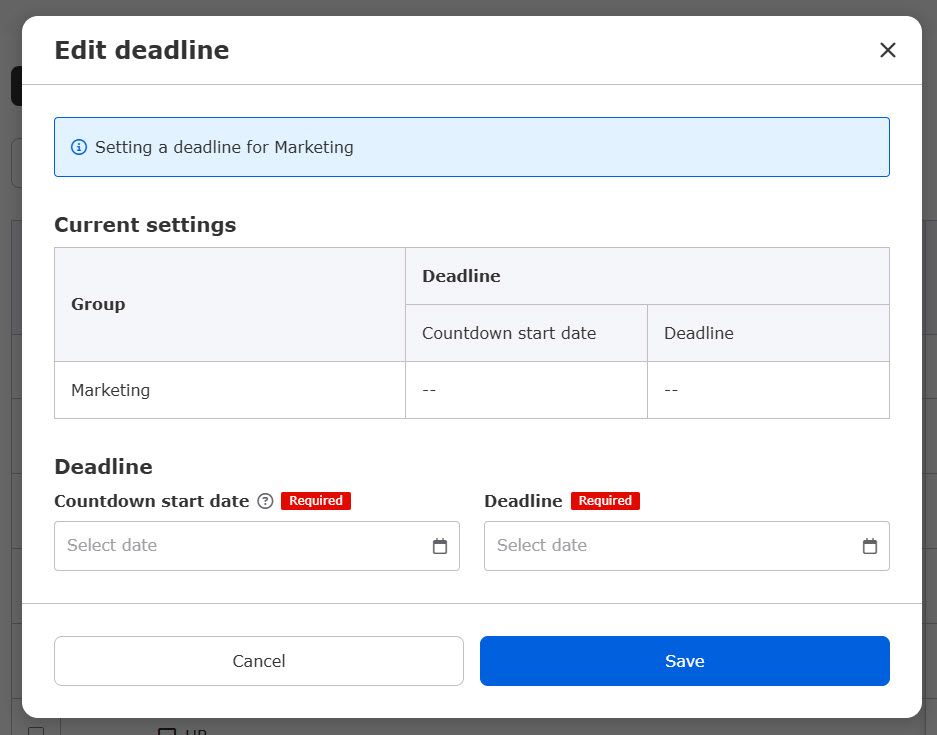
Click "Edit" for the target group.

The following pop-up window will appear.
Click Save to finalize.
- Countdown start date: From this date until the deadline, the remaining days will be highlighted to encourage learning.
- Due date and time: You can set a due date for the content.
▼ Bulk method
You can set a common deadline for multiple groups.
Tick the boxes for the target groups, then select "Action" > "Edit deadline in bulk."
A popup will appear and configure the content.
Click Save to finalize.
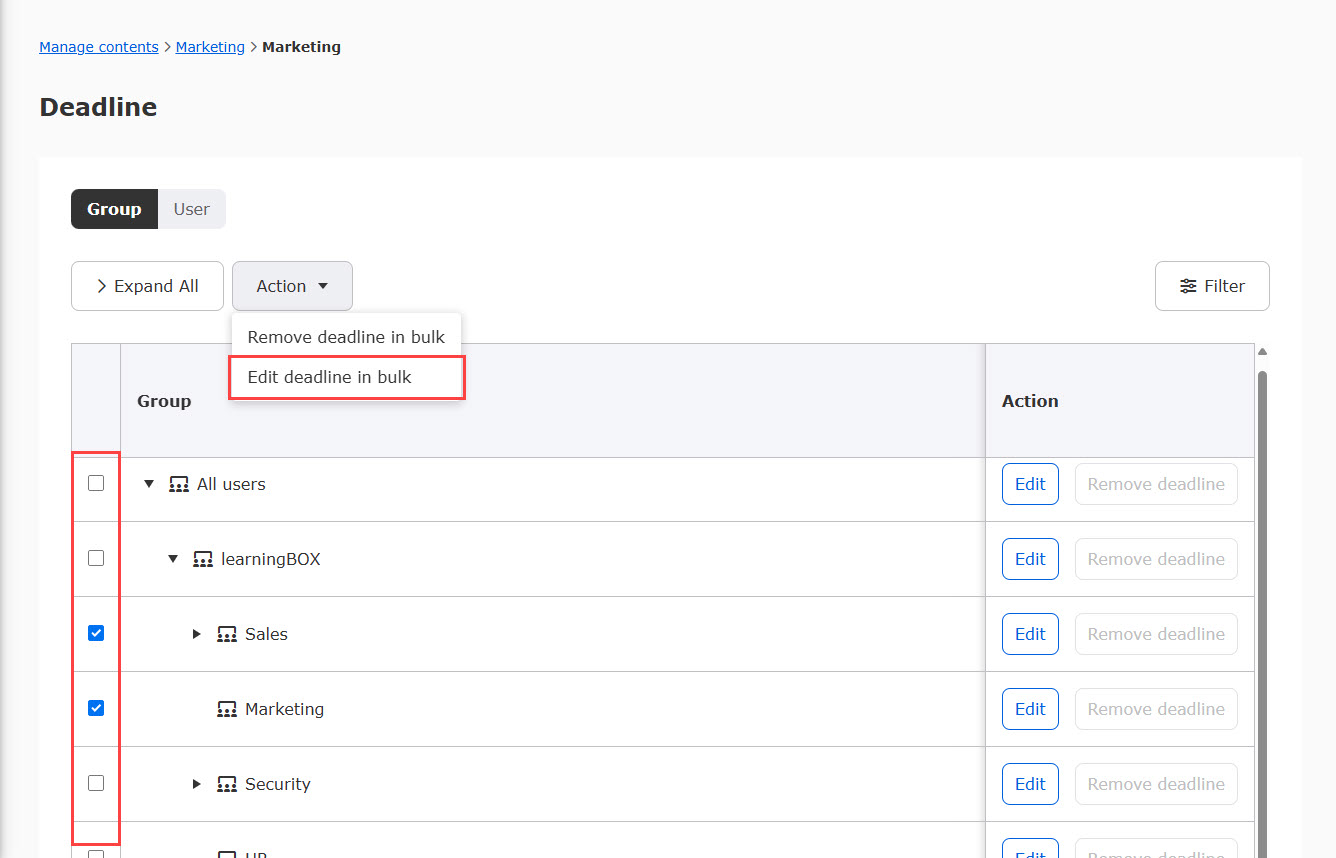
In a group hierarchy, setting a deadline for a parent group will also apply it to all sub-groups.
02. Edit deadline
You can modify the deadlines you have set.
Refer to the "01. Set the deadline" for the process.
03. Delete deadline
You can remove set deadlines.
This can also be done individually or in bulk.
▼ Individual method
Click "Remove deadline" for the target group to remove it.
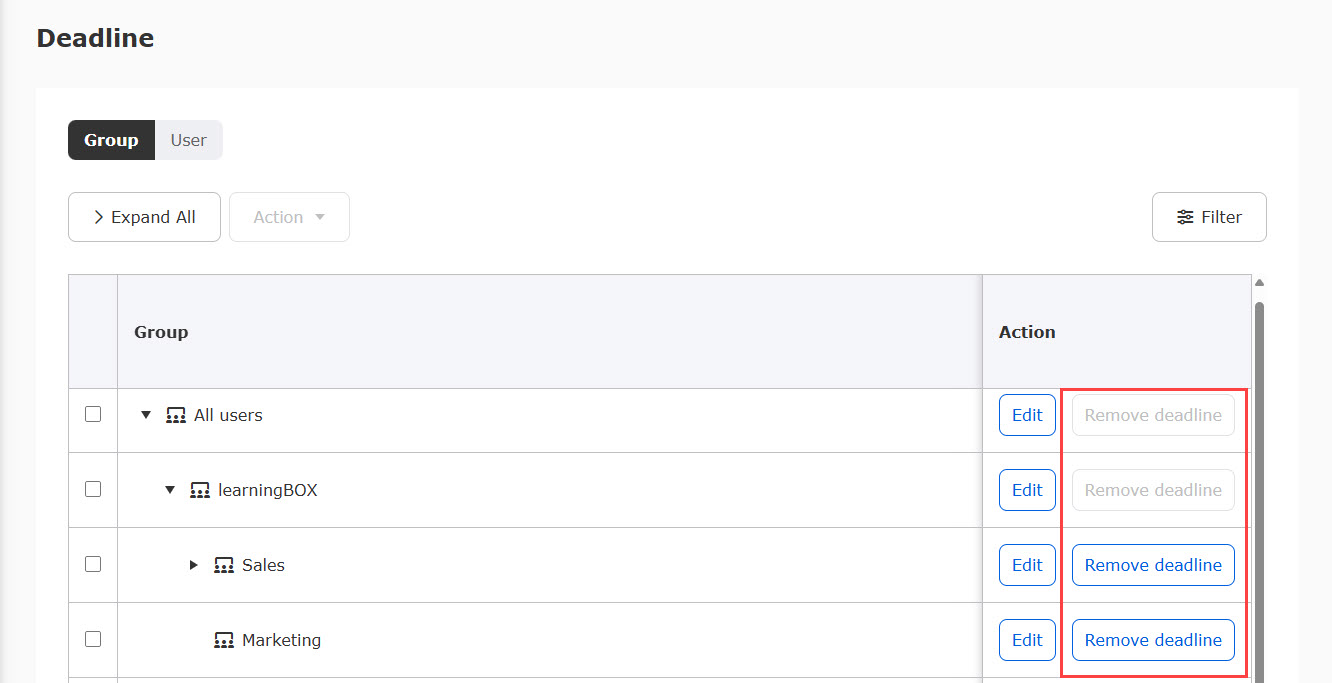
▼ Bulk method
You can remove deadlines for multiple groups at once.
Check the boxes for the target groups > "Actions" > "Remove deadline in bulk."

04. Filter
You can filter the displayed groups based on the following two items.
Click "Unselect all" to reset the filters.
▼ Group
Select the groups you want to display from the list.
▼ Deadline
The following three options are available:
- Show all
- Show No deadline only
- Select dates from the calendar

User
You can set deadlines for specific users.
A list of users you have permissions over will be displayed.
01. Set the deadline
There are two ways to set deadlines: individually or in bulk.
▼ Individual method
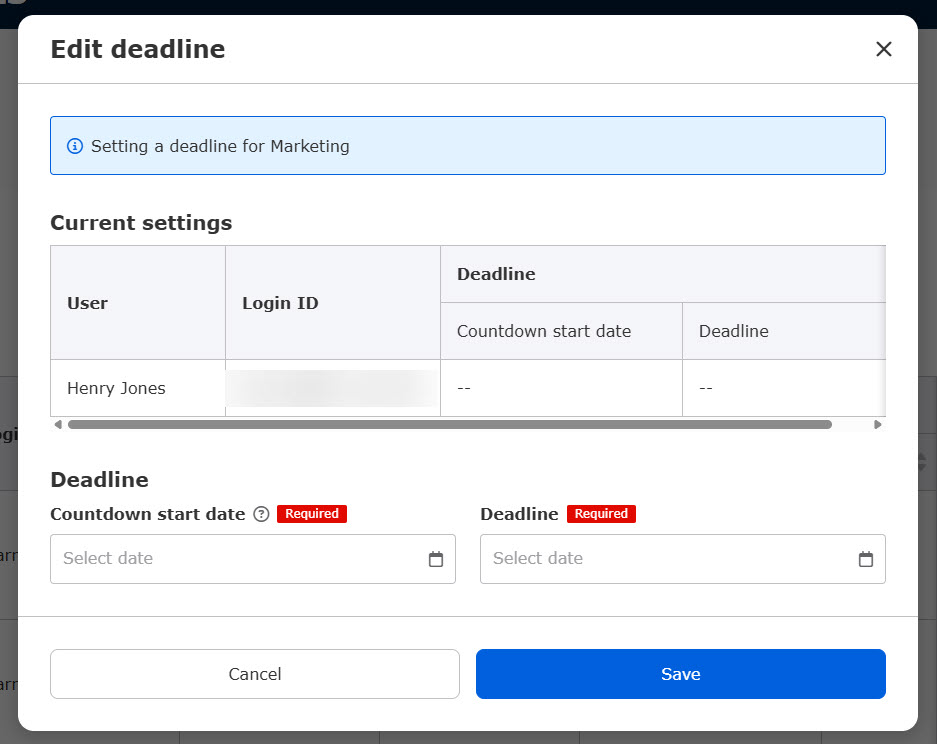
You can set a study deadline for a specific user.
Click "Edit" for the target user.

The following pop-up window will appear.
Click Save to finalize.
- Countdown start date: From this date until the deadline, the remaining days will be highlighted to encourage learning.
- Due date and time: You can set a due date for the content.
▼ Bulk method
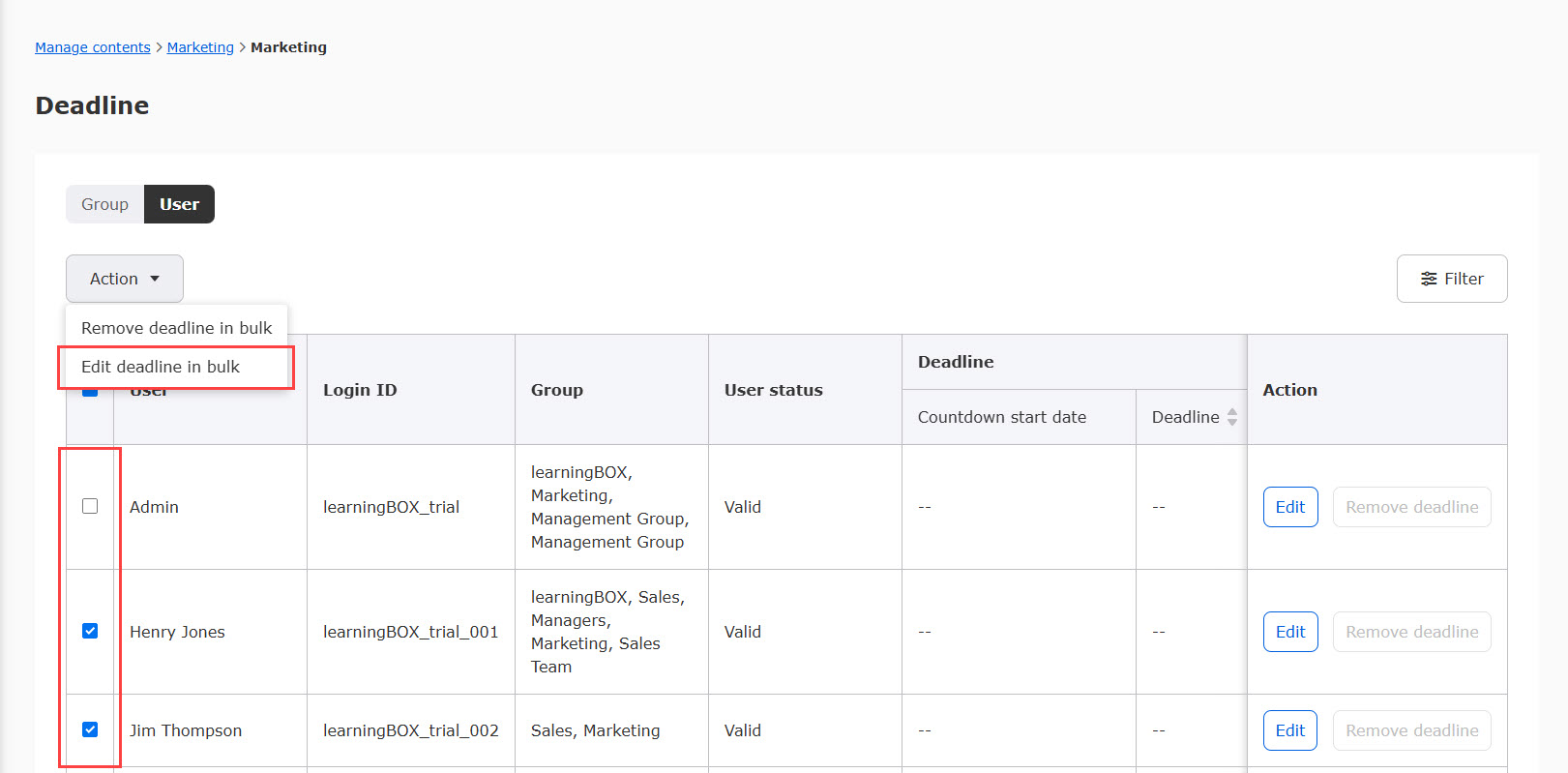
A common due date can be set for multiple users.
Tick the boxes for the target users > "Action" > "Edit deadline in bulk."
A popup will appear and configure the content.
Click Save to finalize.
02. Edit deadline
You can modify the deadlines you have set.
Refer to the "01. Set the deadline" for the process.
03. Delete deadline
You can remove set deadlines.
This can also be done individually or in bulk.
▼ Individual method
Click "Remove deadline" for the target user to remove the deadline.

▼ Bulk method
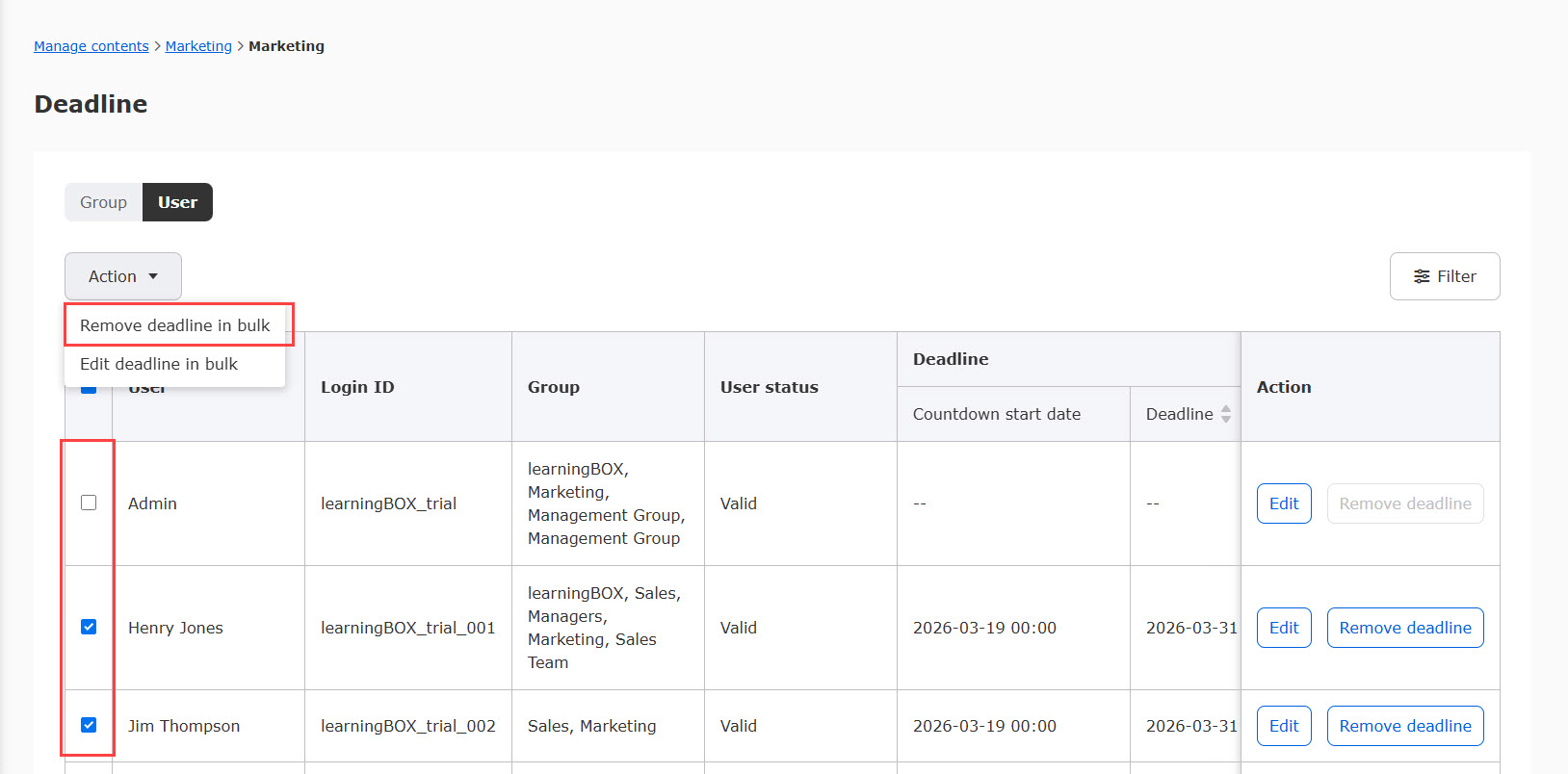
Deadlines set for multiple users can be deleted in bulk.
Tick the box to the target user >"Action" > "Remove deadline in bulk."
04. Filter
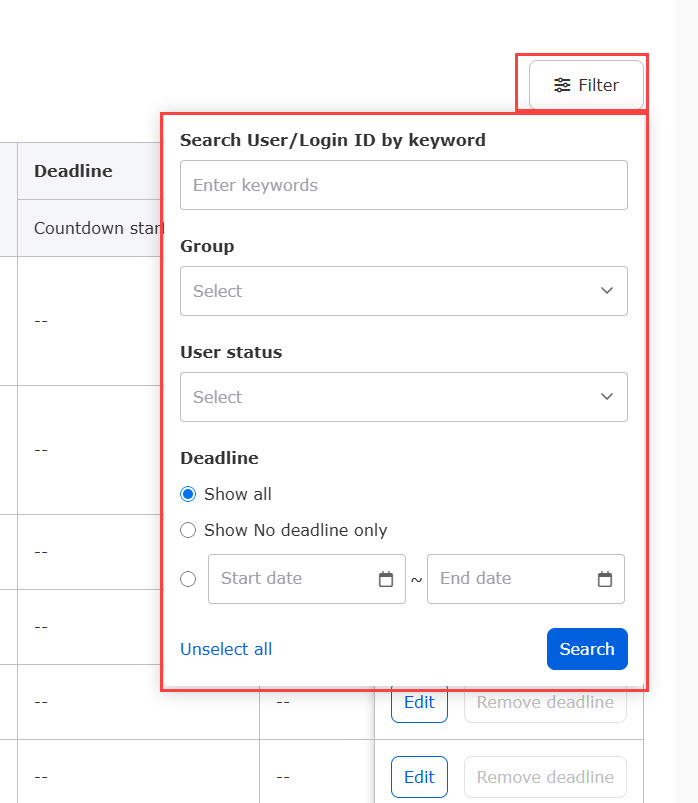
You can filter the displayed users based on the following four items.
Click "Unselect all" to reset the filters.
▼Search by user name/login ID
Enter keywords.
▼ Group
Select the groups you want to display from the list.
▼ User status
Tick the user status you wish to display.
▼ Deadline
The following three options are available:
- Show all
- Show No deadline only
- Select dates from the calendar
User interface
The deadline will be displayed on the following page:
- Search results in the "Choose a course" screen
- Display settings
- Course navigation (learning page)
- My favorites
- Dashboard
▼Sample

The color of the alart will be red when the deadline expires.
Other than the duration you set, the color will be gray.
The user may continue to take the relevant learning content even after the course expiration date has passed.