Group access settings
You can restrict the time range that learners can access learningBOX.
This setting can be applied to specific groups, and users belonging to the group can only log in to learningBOX during the time range you set.
When the accessible time frame has expired, users will be automaticallly logged out.
*This setting will not be applied to the Co-admins.
RequiredManagement role of Co-admin + Group manager (Edit)
Steps
01. Go to Group access settings
Click on the System settings in the side menu, and select the Settings.
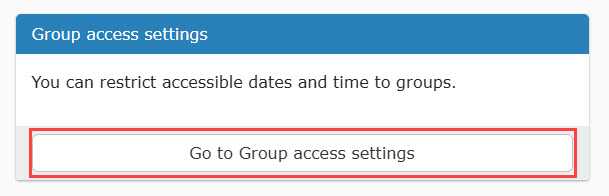
Click on the Go to Group access settings.
02. Interface
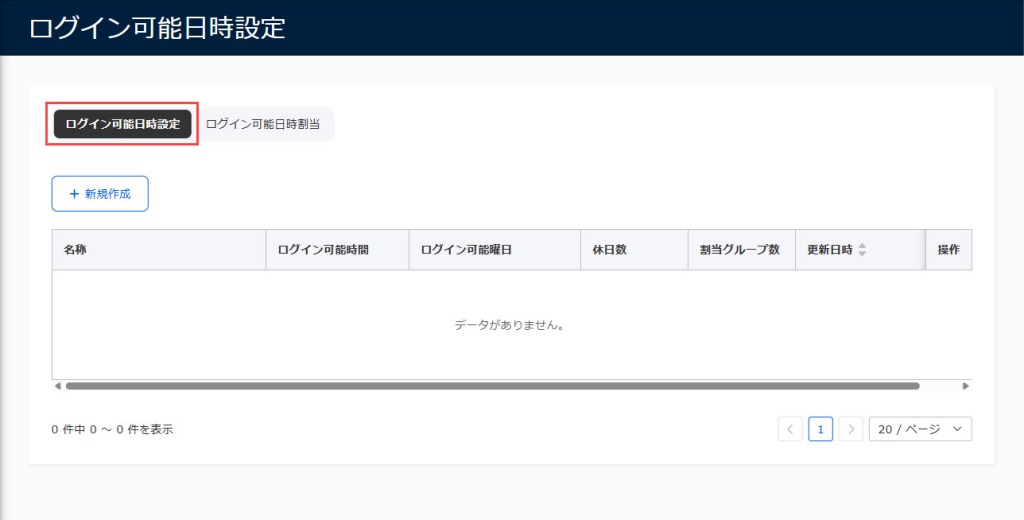
The following page will be displayed.
You will find the two tabs, Group access settings and Group access assignment.
Set the accessible time frame on the Group access settings, and after the process, apply the settings to groups on the Group access assignment.
The following management role are required to apply the settings:
- Group access settings: Co-admin
- Group access assignment: Co-admin + Group manager (Edit)
03. Create group access settings
Click on + Create new.
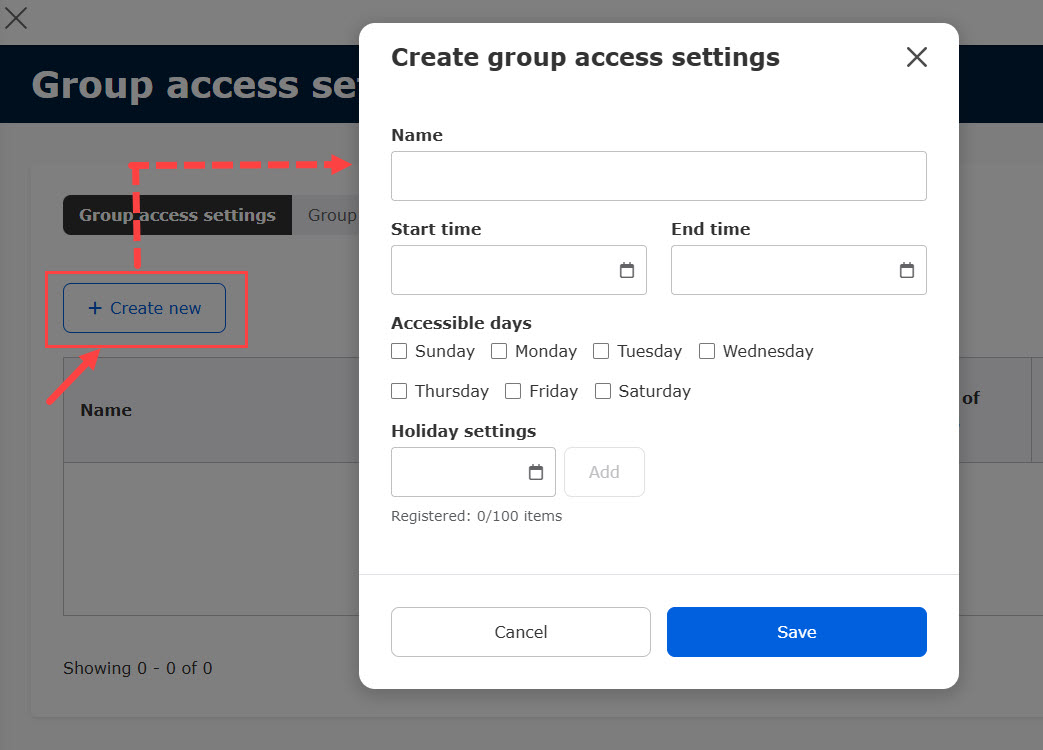
Fill in the form as follows:
・Name: enter a title of within 30 characters
・Start/end time: select the time by clicking on the calender.
・Accessible days: select the days to allow access
・Holiday settings: Up to 100 holidays can be added
Click on the calendar icon, and select a date.
Click on Add.
*Holidays you set will be automatically deleted after a year.
The group access settings will be applied according to each user's time zone registered in each profile.
e.g.) When a user in Tokyo Standard Time zone set 9:00 to 18:00 for the accessible time
・Users in Tokyo Standard Time zone can access from 9:00 to 18:00.
・Users in China Standard Time zone can access from 8:00 to 17:00 (-1h from JST)
・Users in Indian Standard Time zone can access from 5:30 to 14:30 (-3.5hrs from JST)
When you register Japanese and Tokyo standard time in your profile, the holiday settings will be displayed. Selecting Japanese holidays will show all the national holidays untill the next labor Thanksgiving Day automatically. Please note that you will need to apply the holiday settings from the year after next each year.
04. Edit/delete
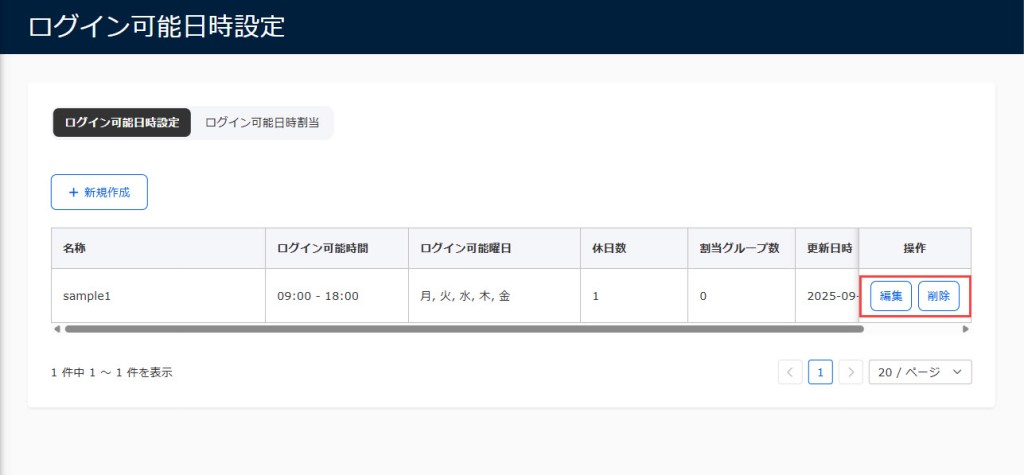
Click "Edit" or "Delete" to edit or delete settings.
05. Create group access assignment
After creating group access settings, apply the settings to a group.
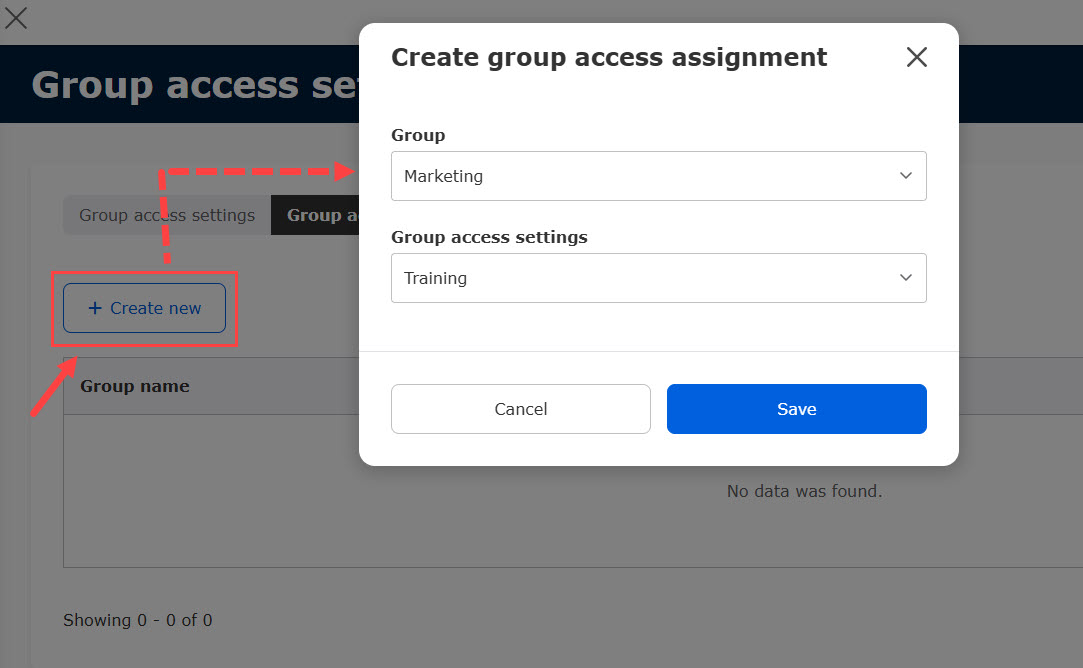
Select the Group access assignment tab, and click on Create new.
Select a group and the settings you created.
*Items displayed will vary according to your management role.
Click Save to finalize.
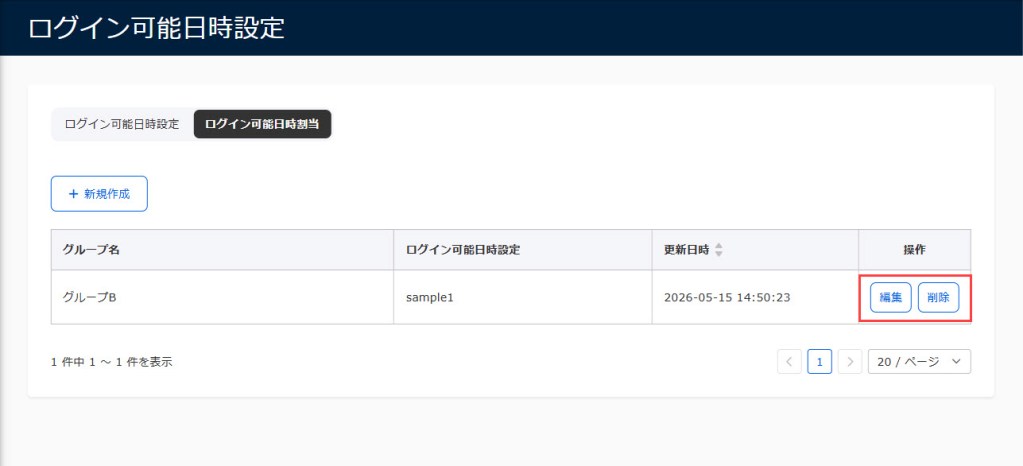
The created settings will be added to the list.

06. Edit/Delete group access assignment
Click "Edit" or "Delete" to edit or delete an assignment.
After setting
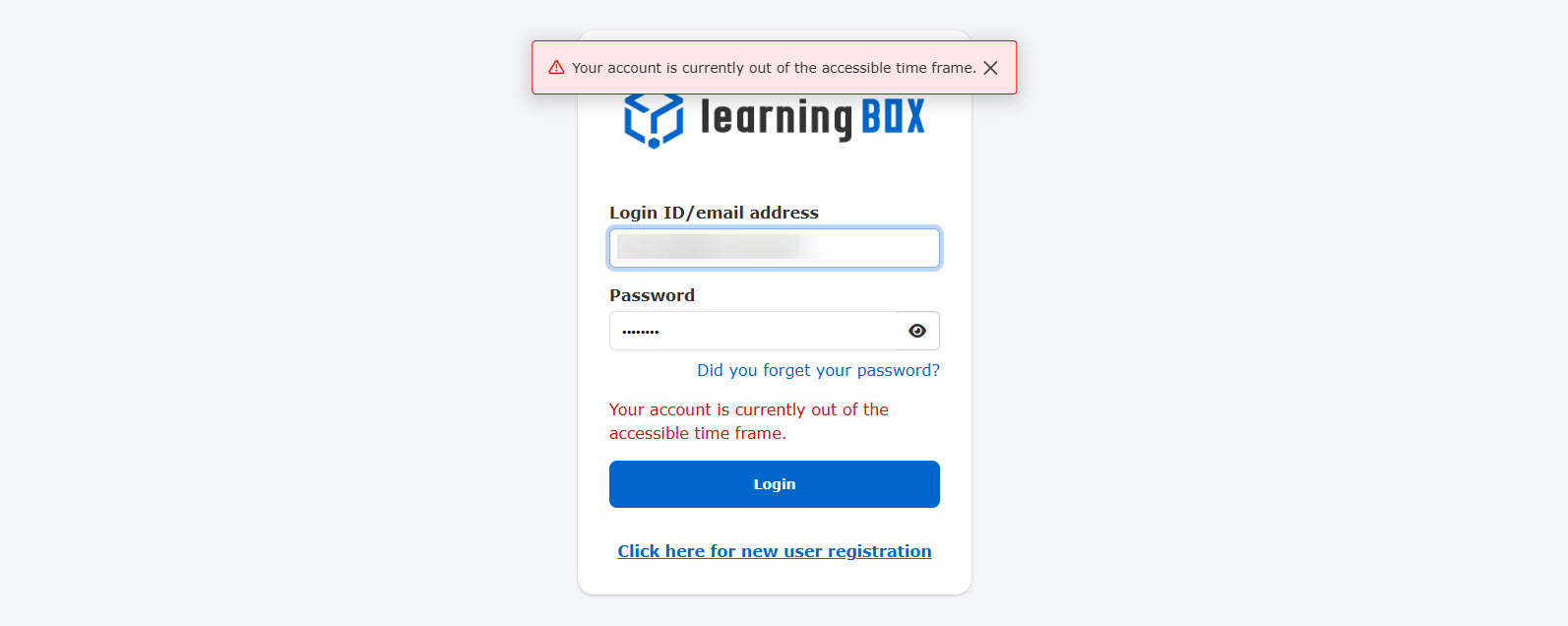
Once the settings are applied, you will not be able to log in to learningBOX as shown below.
*This setting will not be applied to Co-admin.
Five minutes before the end time, an alart will be dispalyed.
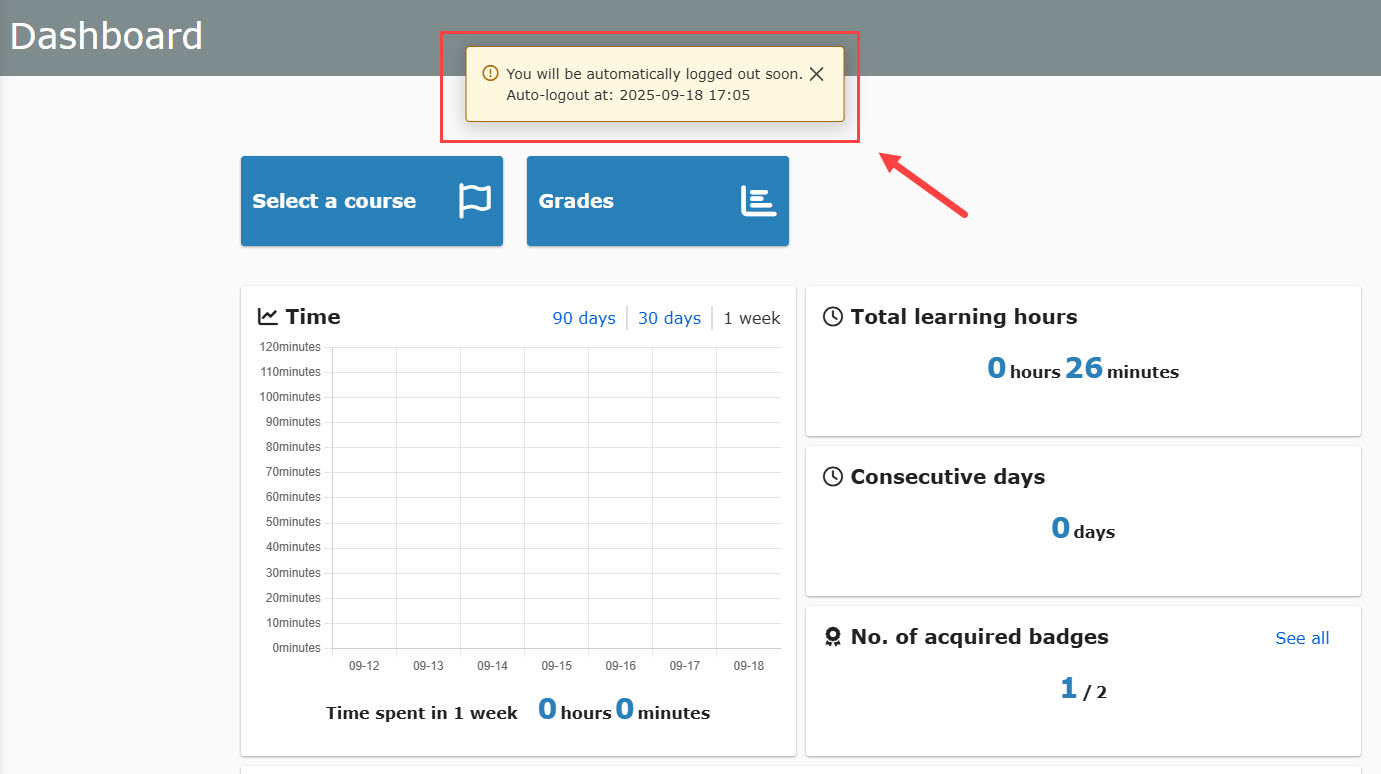
At the specified end time, the user will be automatically logged out.
Please be aware that this applies even while users are working on the content with the attempt limit settings.