
Conversion to specified version <Operation in Content Management (old)
Required
Management role of Content manager (Edit)
You can update or convert generator versions in bulk for specific content types.
*Versions need to be specified beforehand on the "Manage generator version."
For more details, refer to Manage generator version.
Instructions
01. Open the settings page
Select Manage contents in the side menu.
At the top of the screen, select the gear icon > "Convert to Specified Version".
02. Select content
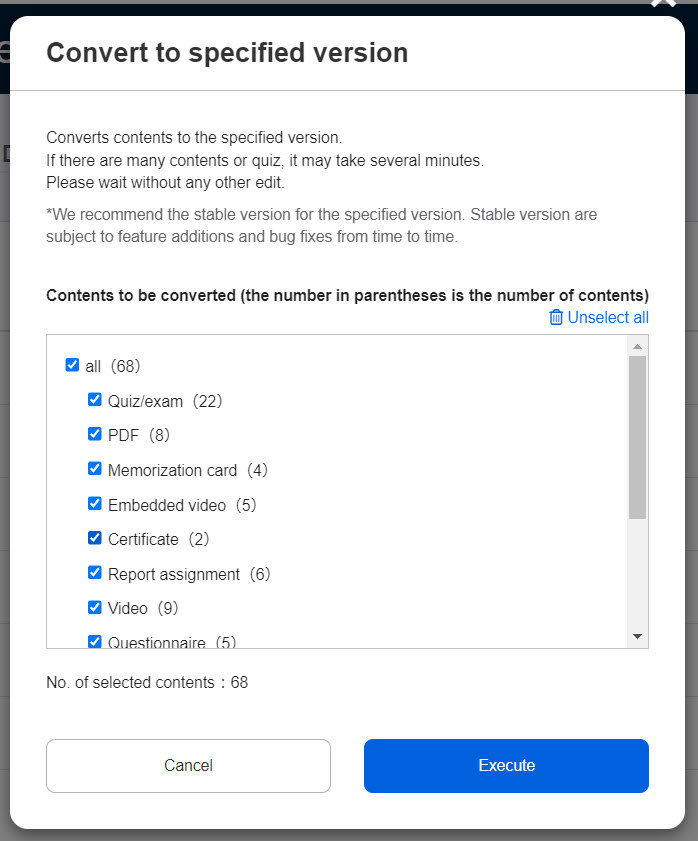
Content types will be listed according to the permission.
The number in parentheses next to each content indicates the number of contents.
Tick the content which you want to specify the version.
Tick "all" to select all content.
Clicking "Unselect all" allows you to unselect all content.
Click "Execute."
Gradebooks, linked content (content distributed via learningBOX-ON, content for which shortcuts have been set, etc.) are not eligible for selection.
Converted content
Depending on where the conversion is executed, the range of content to be converted will be different.
- First page on the Manage content: All content which you have a permission to.
- Course/folder: All content in the course/folder which you have a permission to.
*Each content can also be executed individually from the Edit menu.