
Personality test <Operation in the Manage contents (Old)>
Two methods are available for creating a personality test:
- Create from scratch
- Create using a template
Required
Management role of Content manager (Edit)
Create from scratch
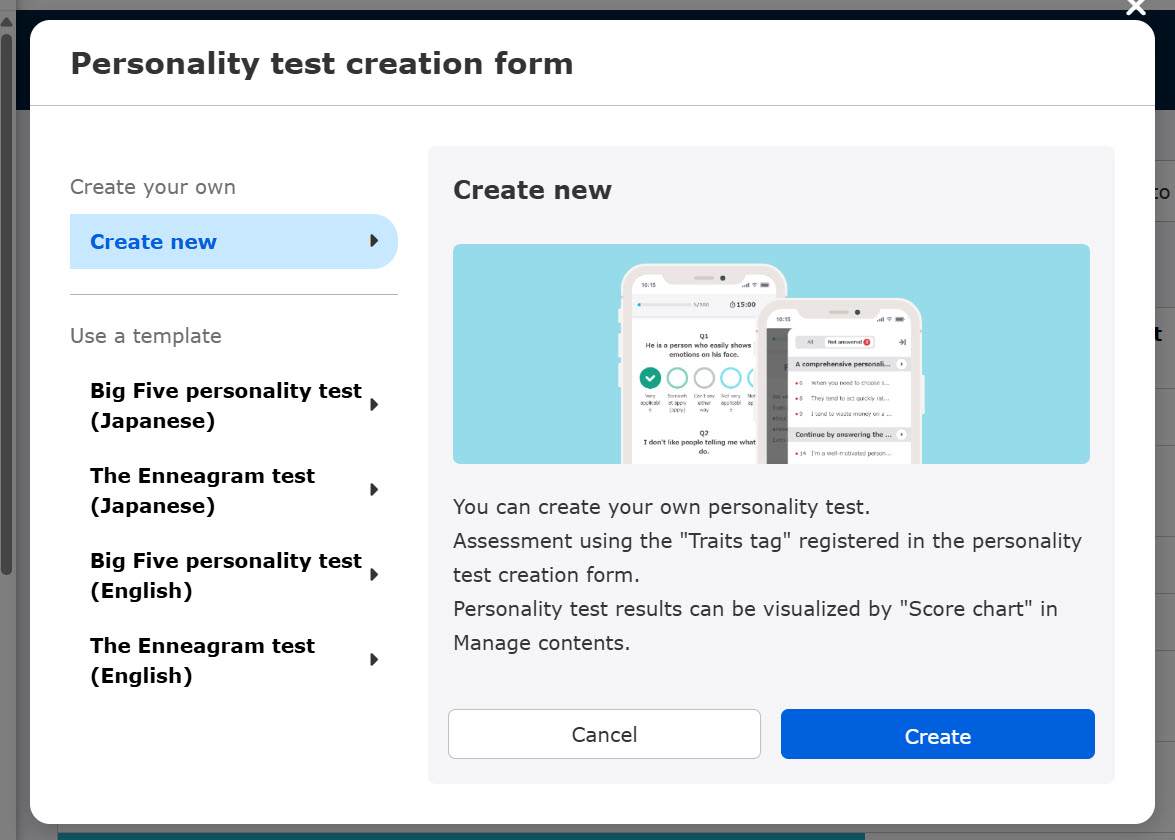
This section explains how to create an original personality test from scratch.
01. Create new
Go to Manage contents and create a course.
Within the course you have created, click the "+" icon > Content > Personality test.
Click on "Create new."
02. Settings
Fill in the required fields for your personality test.

The table below describes each item:
| Name | Description |
| Title | Enter a title of the personality test. |
| Time limit (minutes) | Set the test duration in minutes. Tick No time limit if you do not want a limit. |
| Limitation of responses | Learners can skip questions. To allow the box. Also, you can allow users to move between questions by ticking the Can move to the previous or next question. |
| Choice indication format | Choose whether to display answer choices as Buttons or Text. Button colors can be customized. *For more details, refer to Color settings. |
| Language | Select either Japanese or English. |
03. Add trait tags
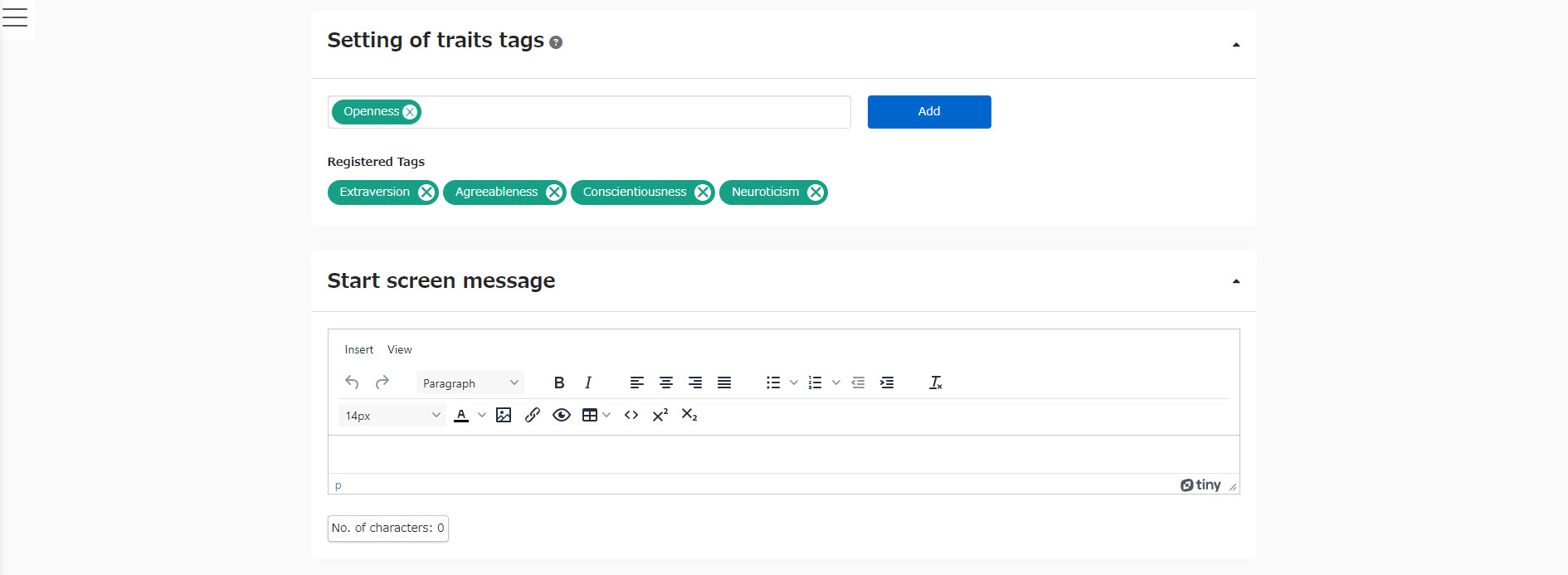
Trait tags are labels used to score and analyze personality test results.
Type a tag into the field and click Add.
*Test results are calculated based on the tags assigned to each question.
04. Start screen message
You can enter a custom message to display to users before they begin the test.

05. Create questions and blocks
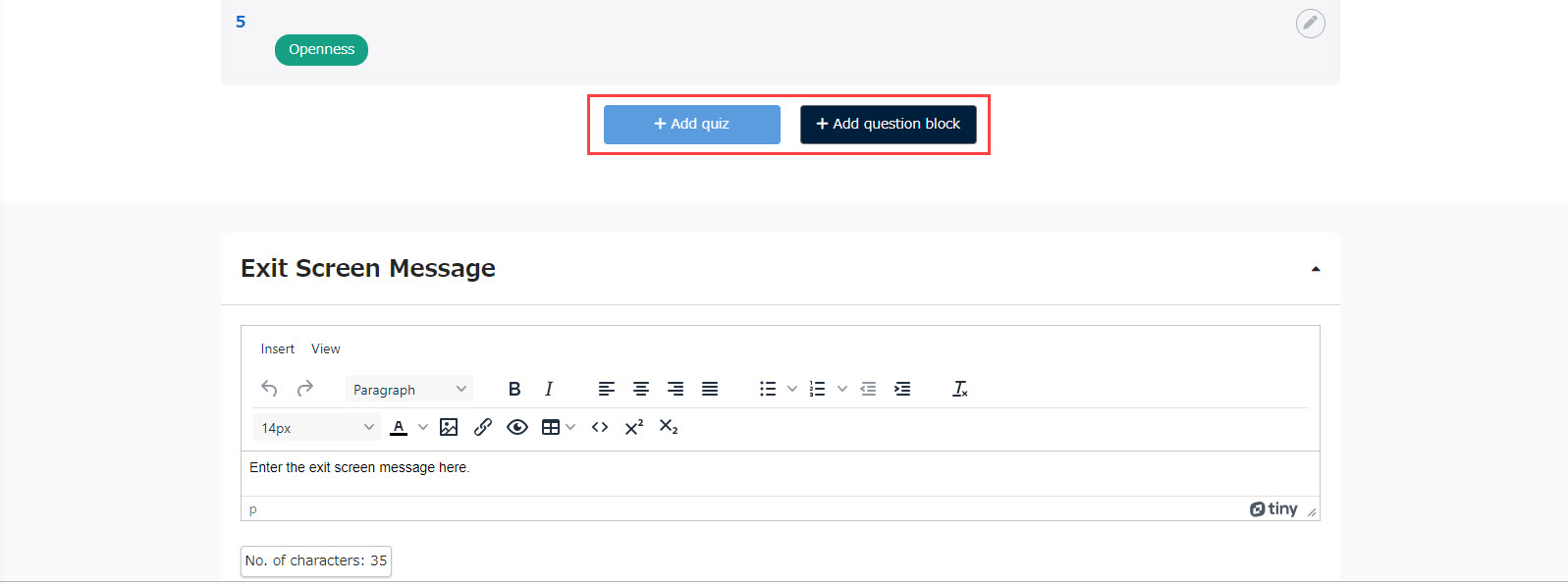
You can organize your test by adding individual questions or grouping them into question blocks.
What is a question block?
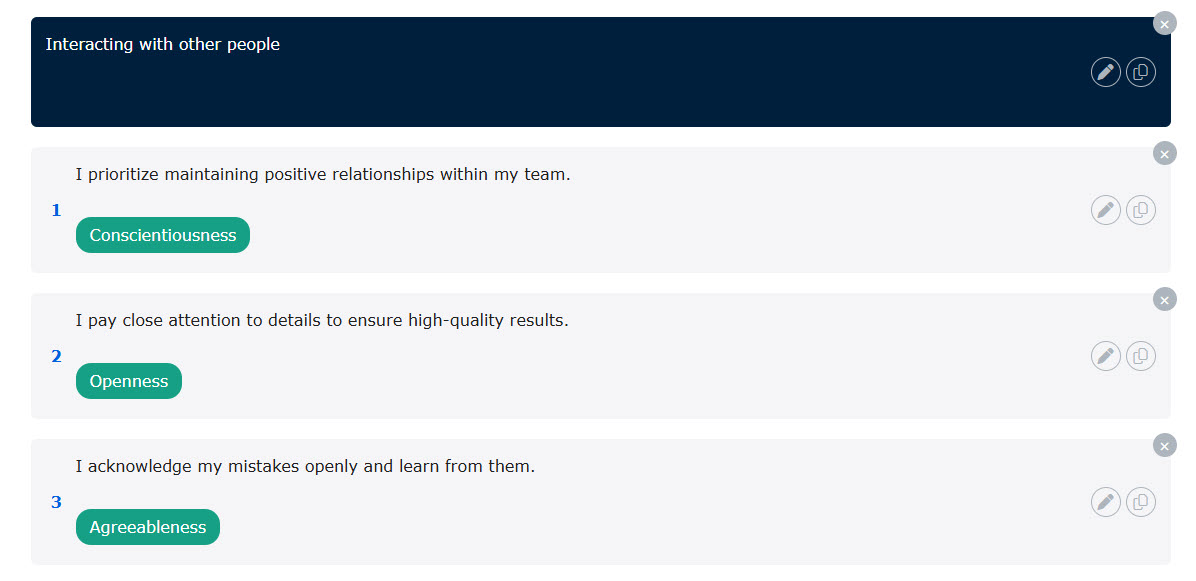
Question blocks allow you to categorize and group related questions together on the same page or section.
Add questions
Click on +Add quiz.
Enter the question text. You can also insert images or videos.
Enter your answer choices.
Click + Add an option to add more choices.

Next, click on + Add to add a trait tag.
Click on Set characteristic tags and select the tags for this question.
Assign a weight value to each choice.
You can assign multiple tags per question.

Setting question and choice IDs
Tick Set IDs for questions and choices to automatically assign unique IDs to them.
These IDs make it easier to identify data when exporting results via API integration.
API integration requires the Customization.

Add question block
Click + Add question block.
Enter a header or description to be displayed at the top of the block.
You can also include images or videos.

06. Edit question
Click the pencil icon to edit a question.
Drag and drop items to reorder them.
Use the duplicate or trash icon to copy or delete items.

07. Exit screen message
You can enter a custom message to display to users as soon as they complete the test.

08. Advanced settings
Configure advanced behavioral options before finishing.
Click Save to finalize.
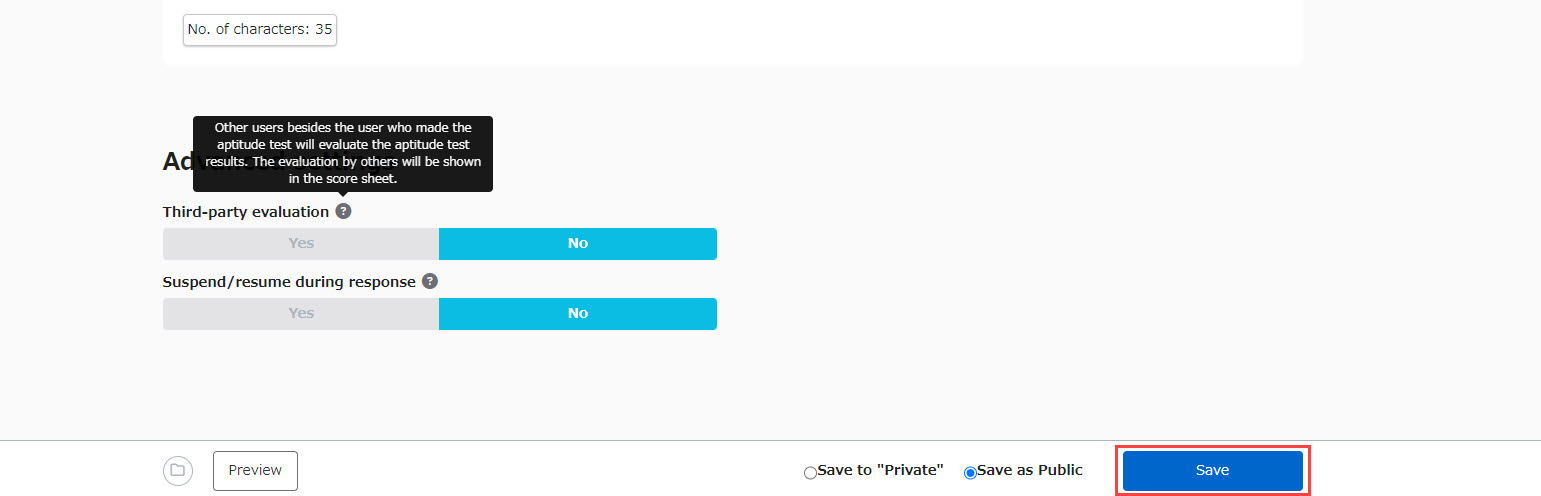
Third-party evaluation
Select Yes if you want external reviewers to evaluate the user's test results.
*For more information, refer to Third-party evaluation.
Suspend/resume during response
Select Yes to allow users to pause and resume the test at any time.
There is no limit to how many times a user can pause.
Create using a template
This section explains how to create a personality test using a template.
The following templates are available in both Japanese and English:
- Big Five Personality Test
- The Enneagram test
Select your preferred template and click Create.
*When using a template, the gradebook is generated automatically.
