
Move content <Operation in the Manage contents (Old)
You can reorder courses, folders and content.
Drag and drop the content where you want to place.
- Make sure not to overlap with other content in the same level of the hierarchy.
To move content to another level of the hierarchy, drag and drop it on the course structure on the right side of the page.
Select Move/Cancel on the popup window.
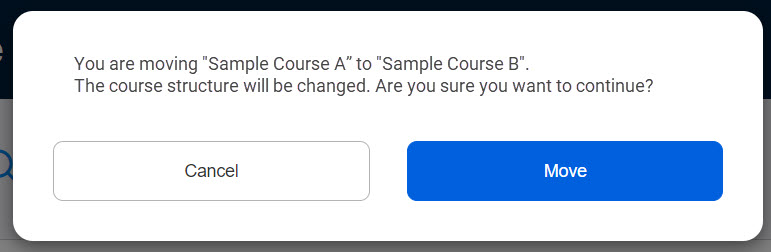
The following explain more details.
Course
To change the course order in the Manage contents, make sure not to overlap with another course.
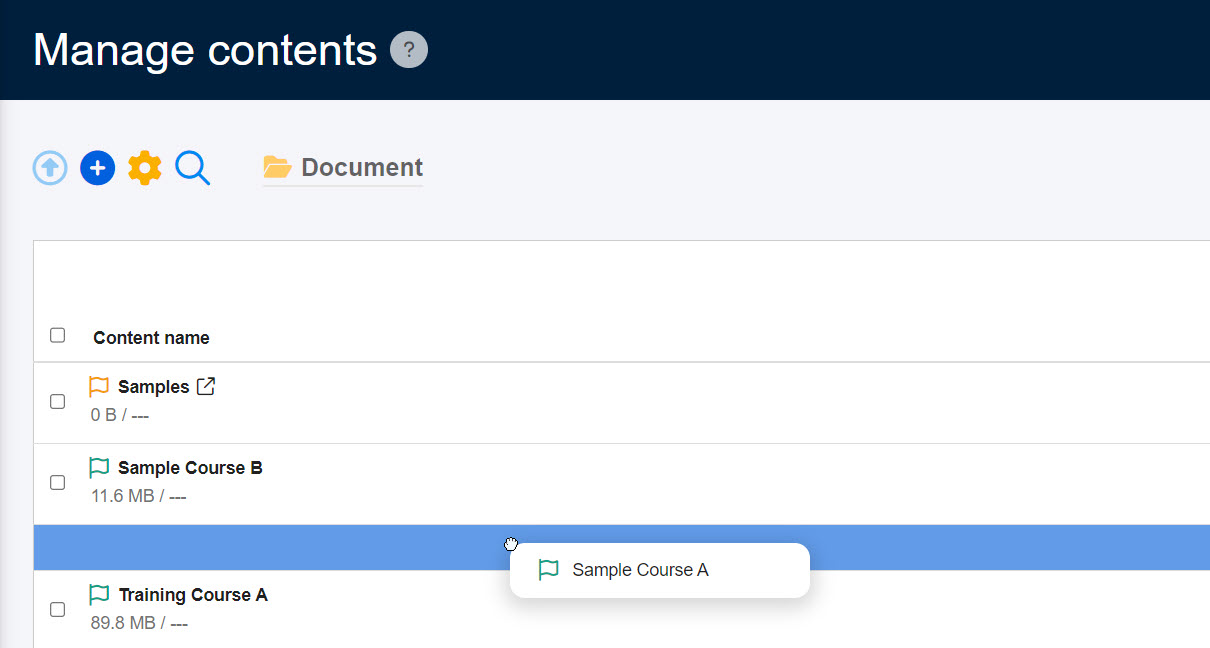
To move a course into another course, drag and drop it so that it overlaps.
*After moving into another course, the course will be automatically changed to a folder.
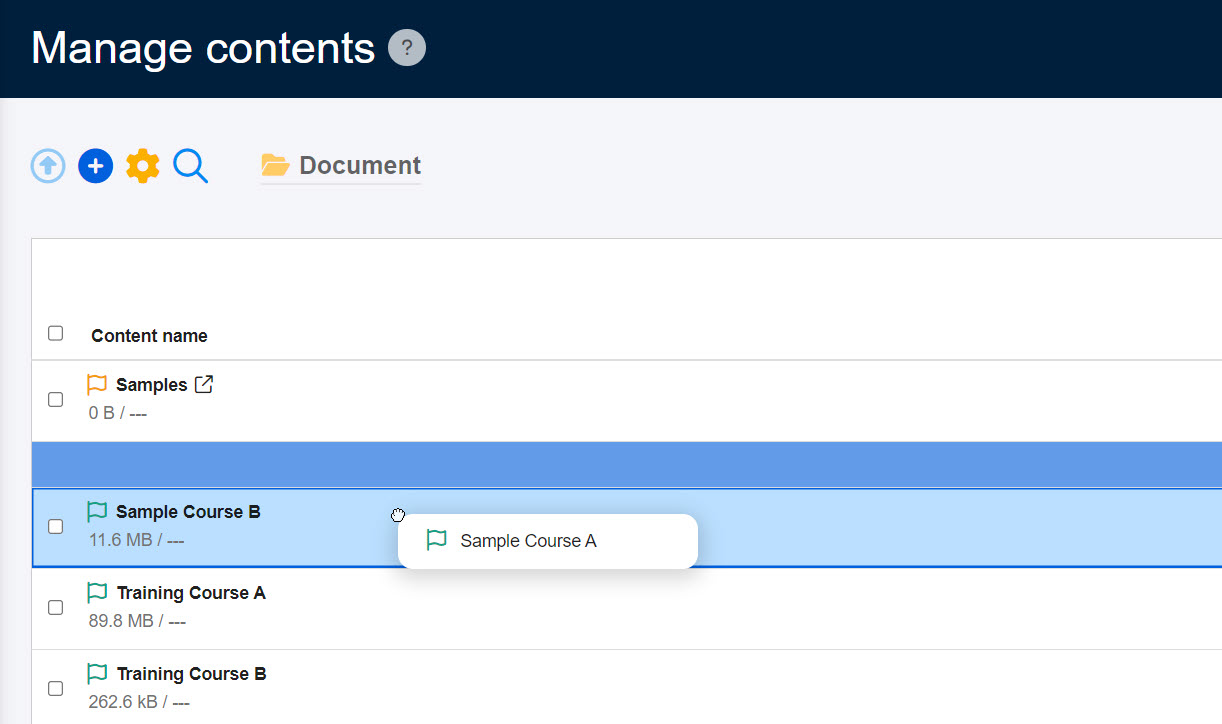
Course shortcuts
Course shortcuts can be moved to another level of the course structure.
After moving into another course, the shortcut course will be automatically changed to a folder.
When you move it to the first level of the course structure, it will be automatically changed to a shortcut course.
Folder
To change folder order within a course, drag and drop the folder not to overlap with another folder.
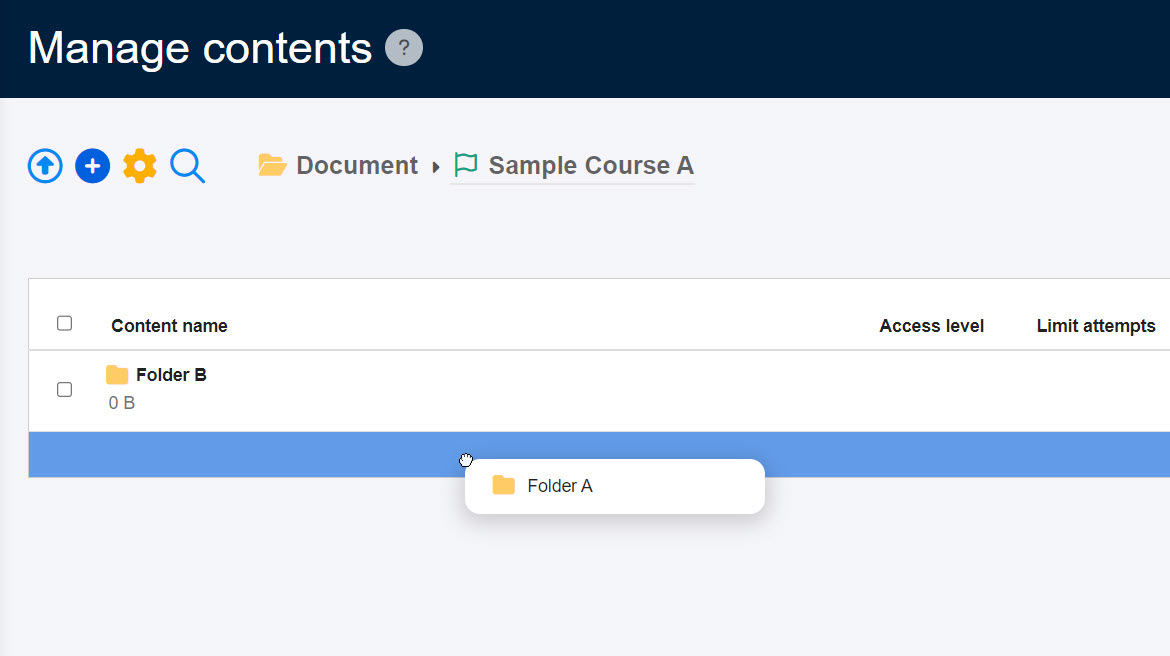
To move a folder into another folder, drag and drop it so that it overlaps with the folder.
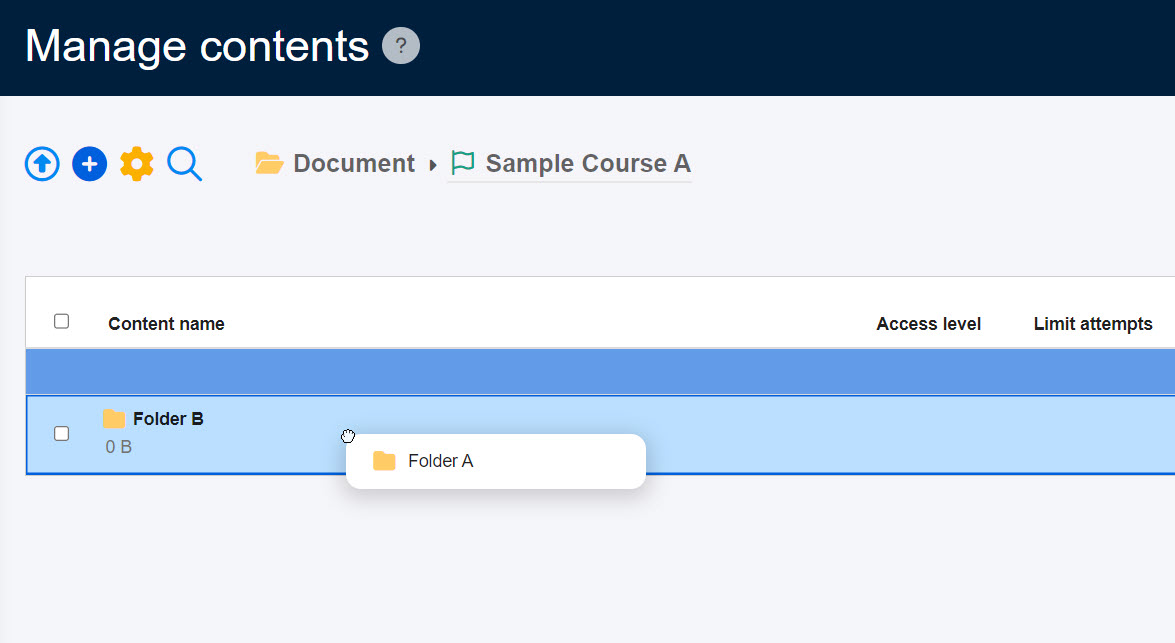
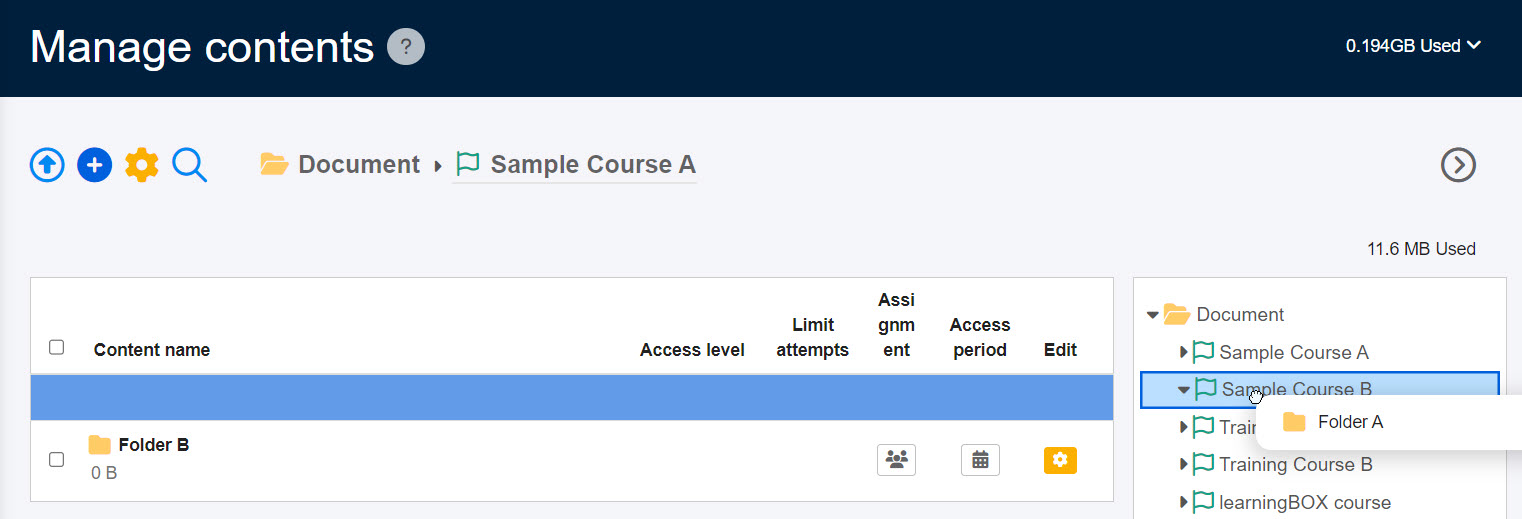
To move a folder into another course, drag and drop it using the course structure on the right side of the page.
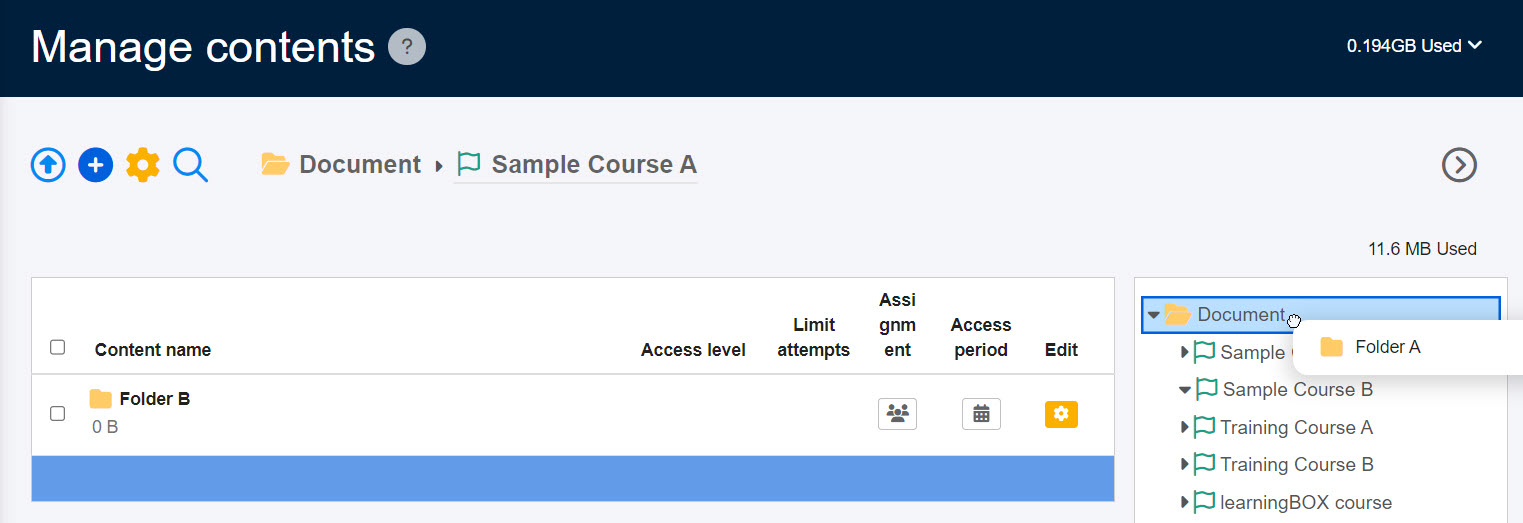
To move a folder to the first level of the course structure, drag and drop it on the folder icon.
*After moving the folder to the first level of the course structure, it will be automatically changed to a course.
Folder shortcut
Once a folder shortcut has been manually created as a folder, it cannot be converted into a standalone course.
Content
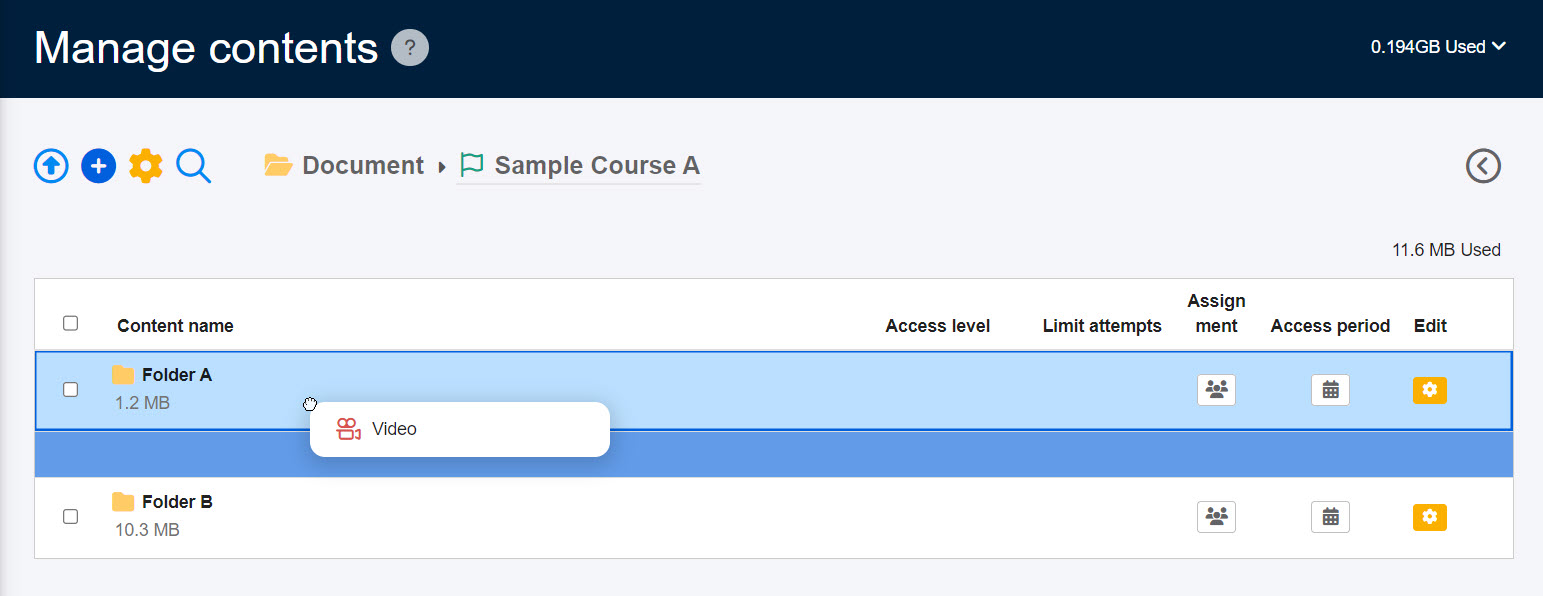
To change content order within a course/folder, drag and drop it where you want to place.
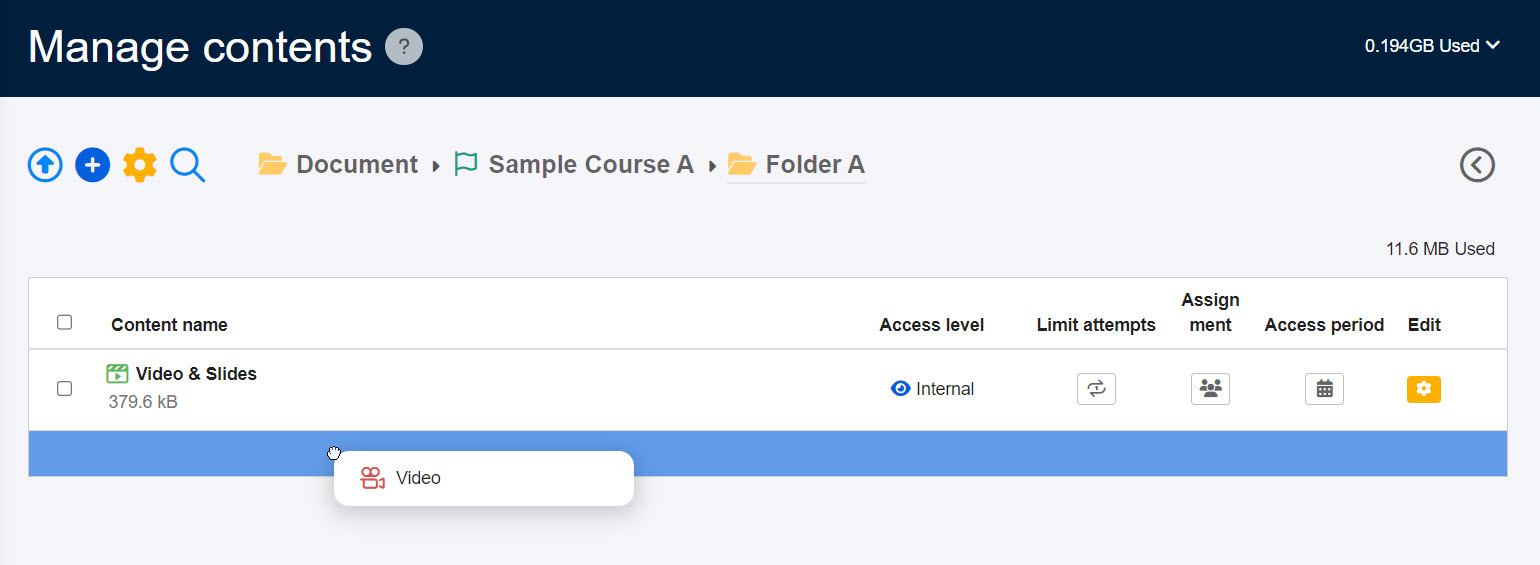
You can move content to another folder as shown blow.
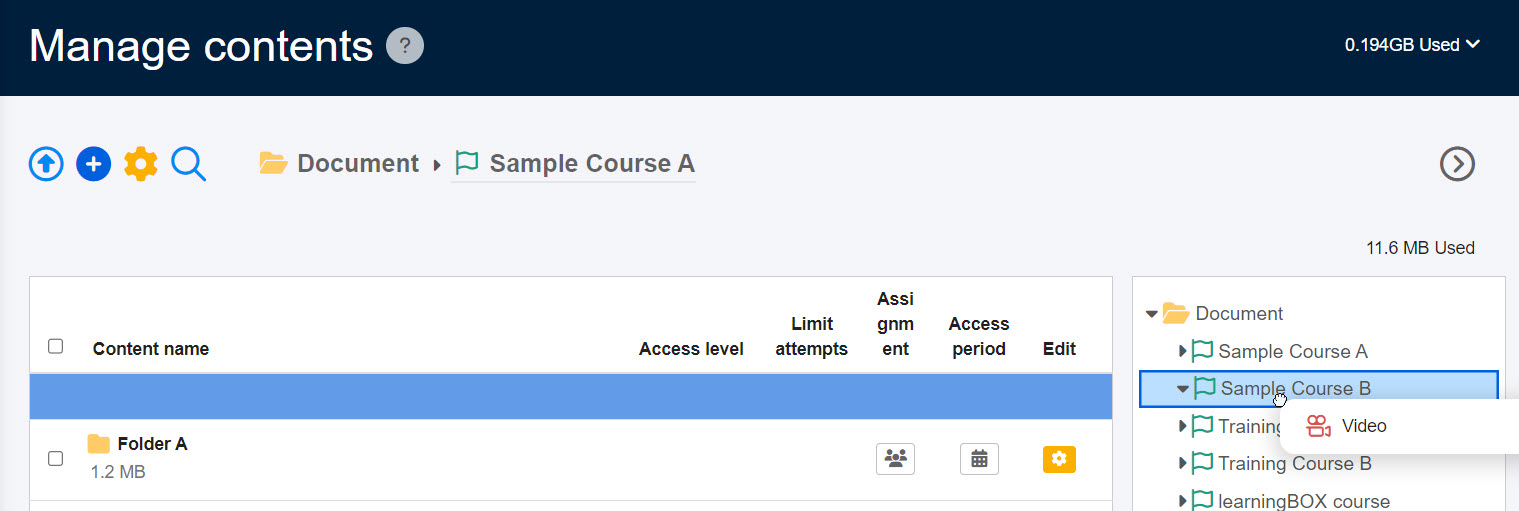
Also, content can be moved to another course.
Important
- Content must be within a course/folder.
- Selective content cannot be moved.
- Content specified in the prerequisites cannot be out of the condition.
- Delivered courses cannot be folders.
- Shortcuts cannot be moved to delivered courses.
- Courses to which course size limits are applied cannot be converted.
- Folders/content cannot be moved to another course when the course size limits exceed.
- Courses which its shortcut exists cannot be converted to folders.
- A shortcut folder must be within a course.
- Courses/folders cannot be moved to the same course/folder or to a lower level folder
- When courses/folders exist in products, they cannot be moved.