
Basic video settings
Configure global video playback settings, including available speeds, default resolution, and formats.
*Select Other settings in the Manage contents > General video settings.
*General video settings are valid for video content on MOVIE Player version 2.1 or later.
Version change on the MOVIE will be reflected in all content.
Required
Management role of Content Manager (Edit) + Co-admin
Version [MOVIE-2.1] or later
Video playback settings
Double speed and video quality can be set on the video playback screen.
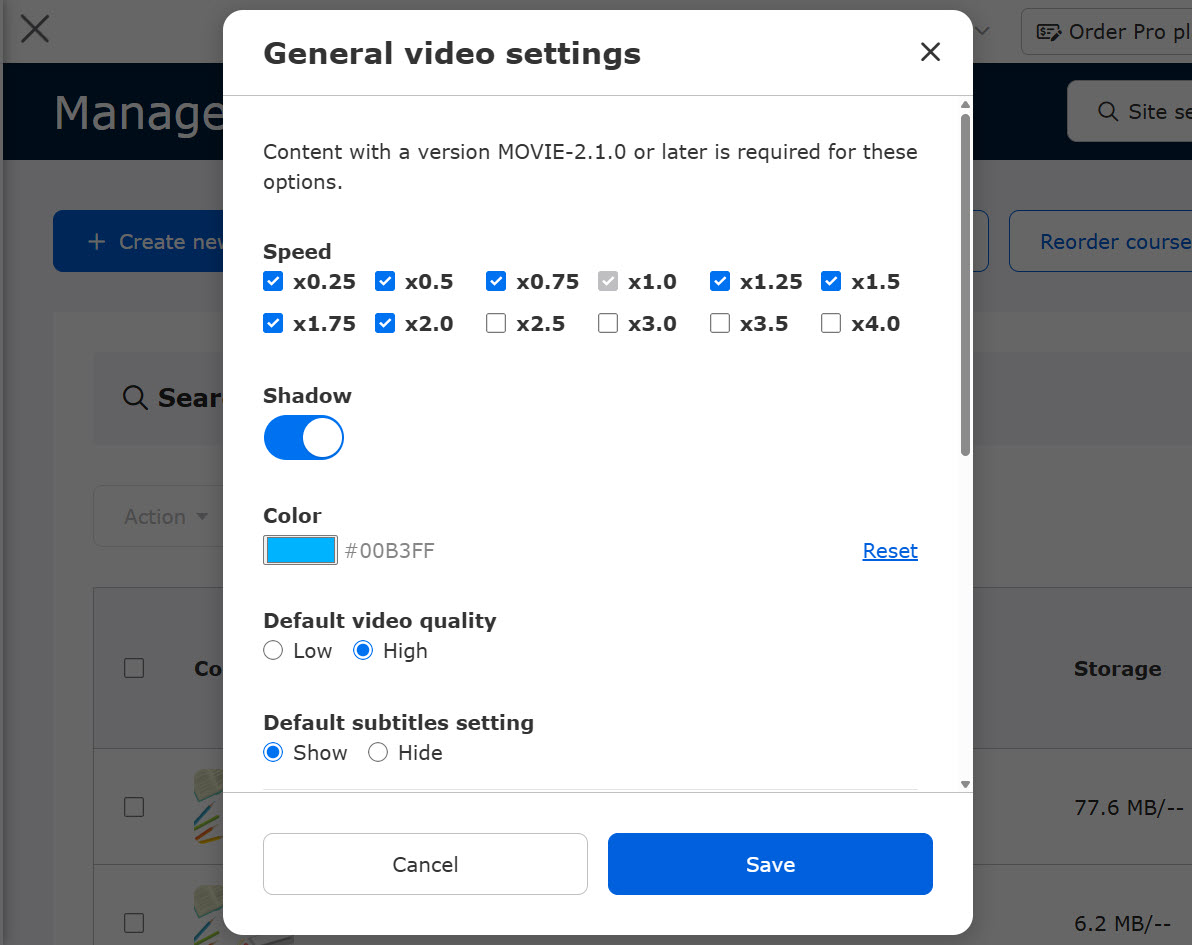
This section includes the following five items.
- Speed
- Shadow
- Color
- Default video quality
- Default subtitles setting
Speed
Learners can change the video playback speed by clicking the gear icon on the screen.
*The items selected under the speed setting in the Basic video settings will be applied.

Shadow
When the shadow setting is enabled, a shadow is added around the playback bar.

Color
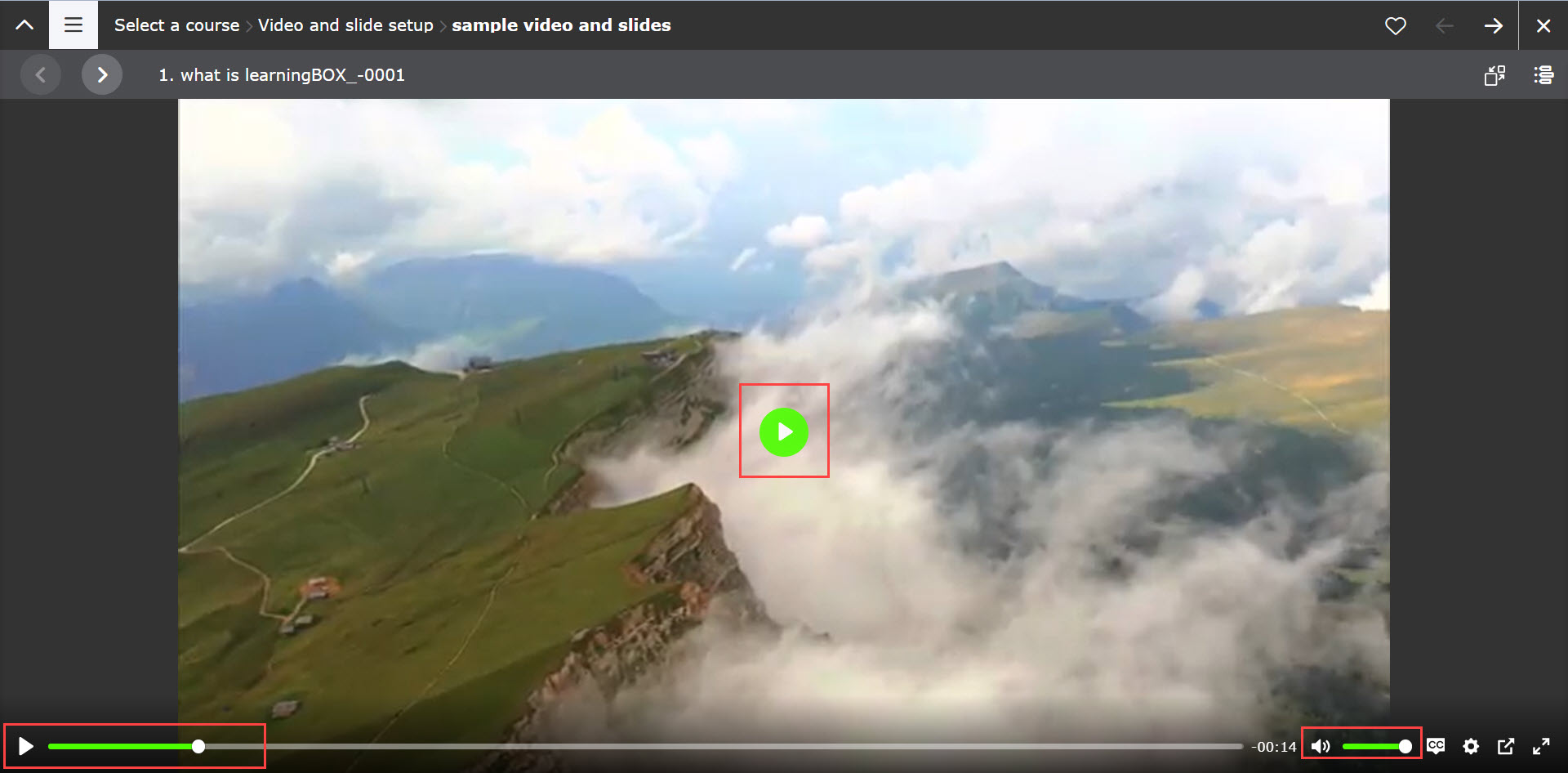
You can change the color displayed when hovering over the playback button, play bar, each icon on the video playback page.
Click Reset to apply the default color.
Default video quality
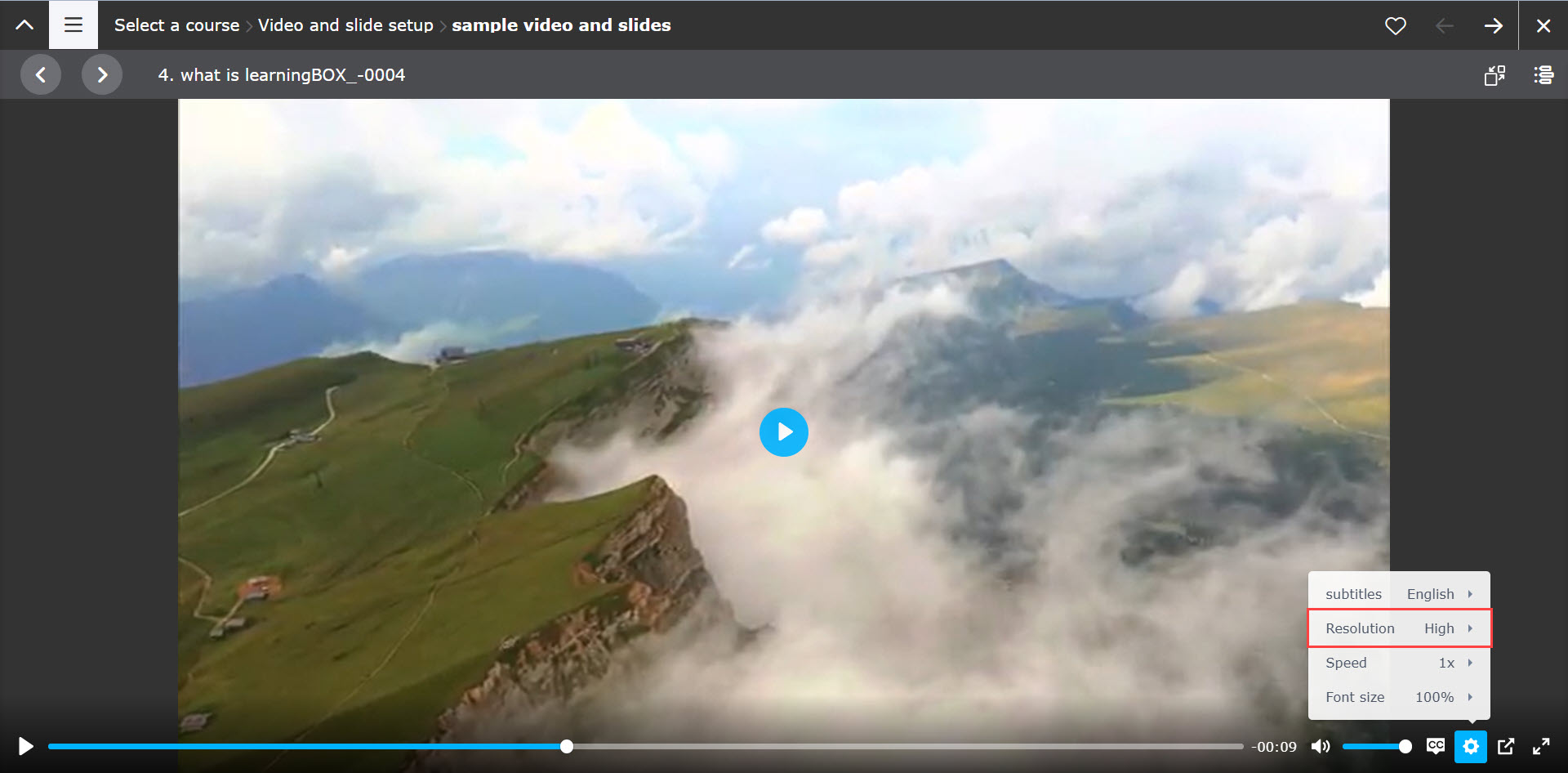
Select Low or High as the default video quality.
You can check or change the settings by clicking on the gear icon in the lower right corner of the video playback screen.
*Depending on your subscription plan, the resolution may not change.
Default subtitles setting
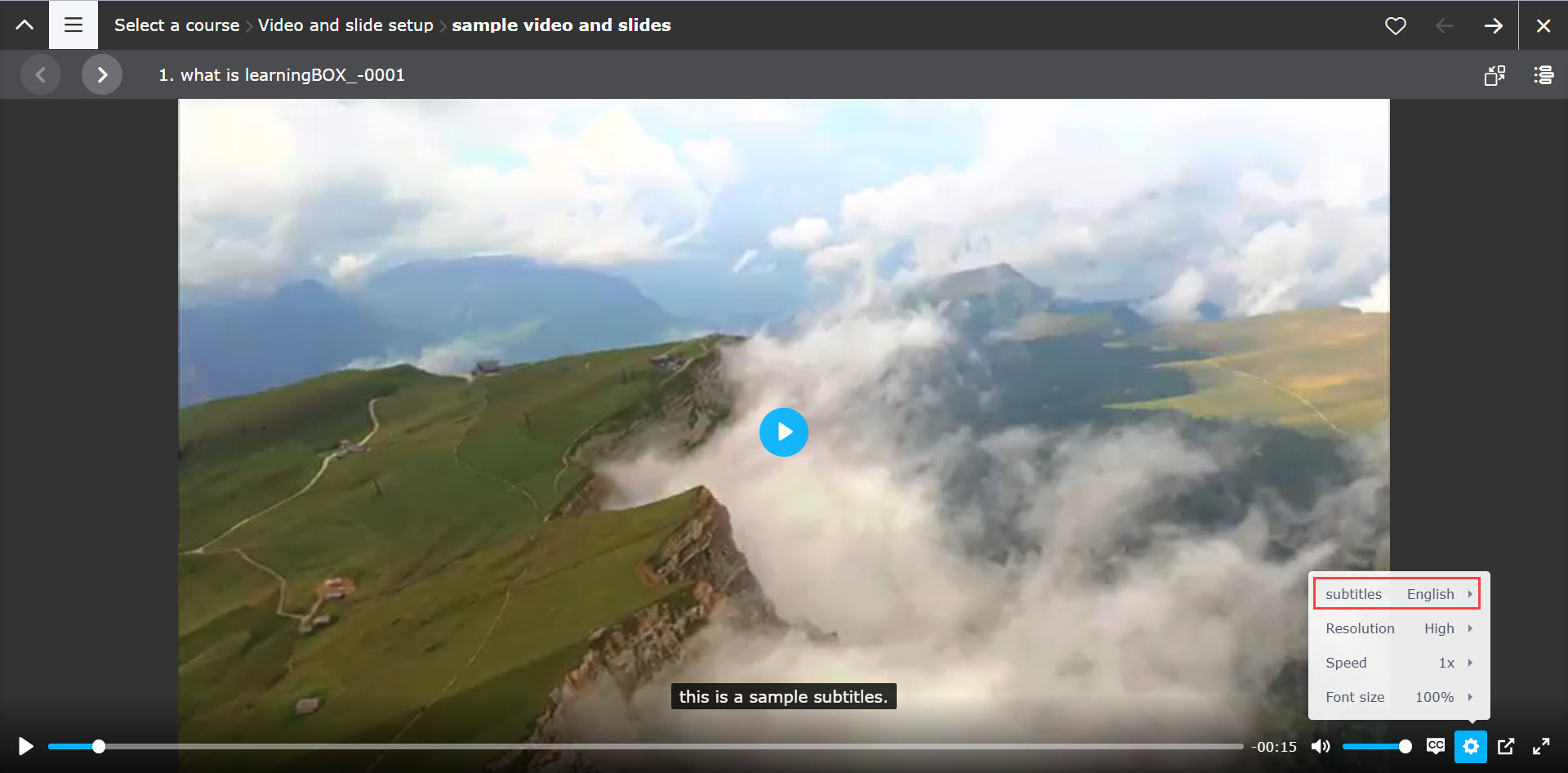
When playing a video, you can choose whether or not to display subtitles as the default setting.
You can switch the setting by clicking the CC icon or the gear icon > Subtitles.
Video and slide layout
The following explain the layout settings for videos and slides.
*For more details, refer to Video and slide settings.
Required
Version [MOVIE-3.0] or later
01. Items
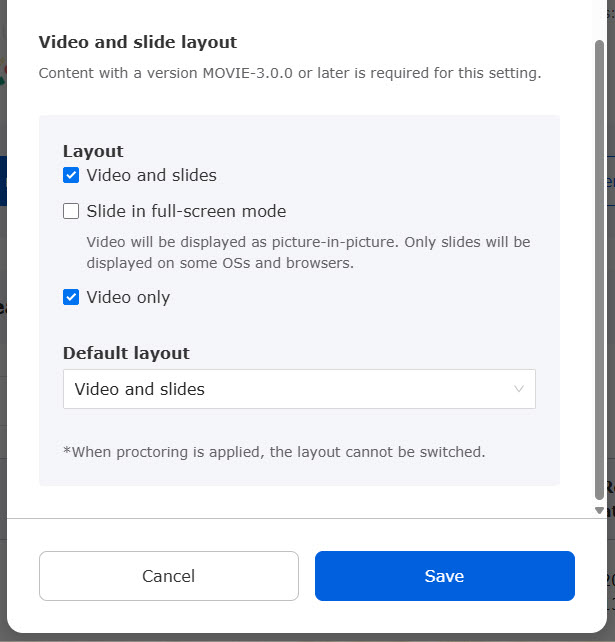
You can select a layout.
Each of these details will be explained below.
02. Layout
Learners can select a layout on the user interface.
The selected layout set in the Basic video settings will be displayed.
The following three layouts are selectable:
- Video and slides
- Slide in full-screen mode
- Video only
When Slide in full-screen mode is selected, the picture-in-picture may not be displayed on some OS or browsers.
03. Default layout
You can set the default layout for learners who take the video or slide for the first time.
Select an account from the drop-down menu.
You can select one from the following:
- Video and slides
- Video only