
Advanced video settings
You can set the content time of video content to be displayed on the course selection screen, course details screen, etc., as desired.
You can also set whether to allow video skip playback.
Required
Management role of Content manager (Edit)
Settings
01. Open the advanced settings
Select Manage contents on the side menu.
Select the "︙" icon > "Advanced Video Settings" for the target video content.
02. Set display time
Set the display time and save it.
- Time can be set to "23:59:59
- When uploading a video, the video time is automatically entered.
- Whan the video file does not contain any time information, "00:00:00" will be displayed.

03. Prohibition of skip playback
To prohibit skip playback of videos, please tick the "Prohibit skip playback" box.
Video time display
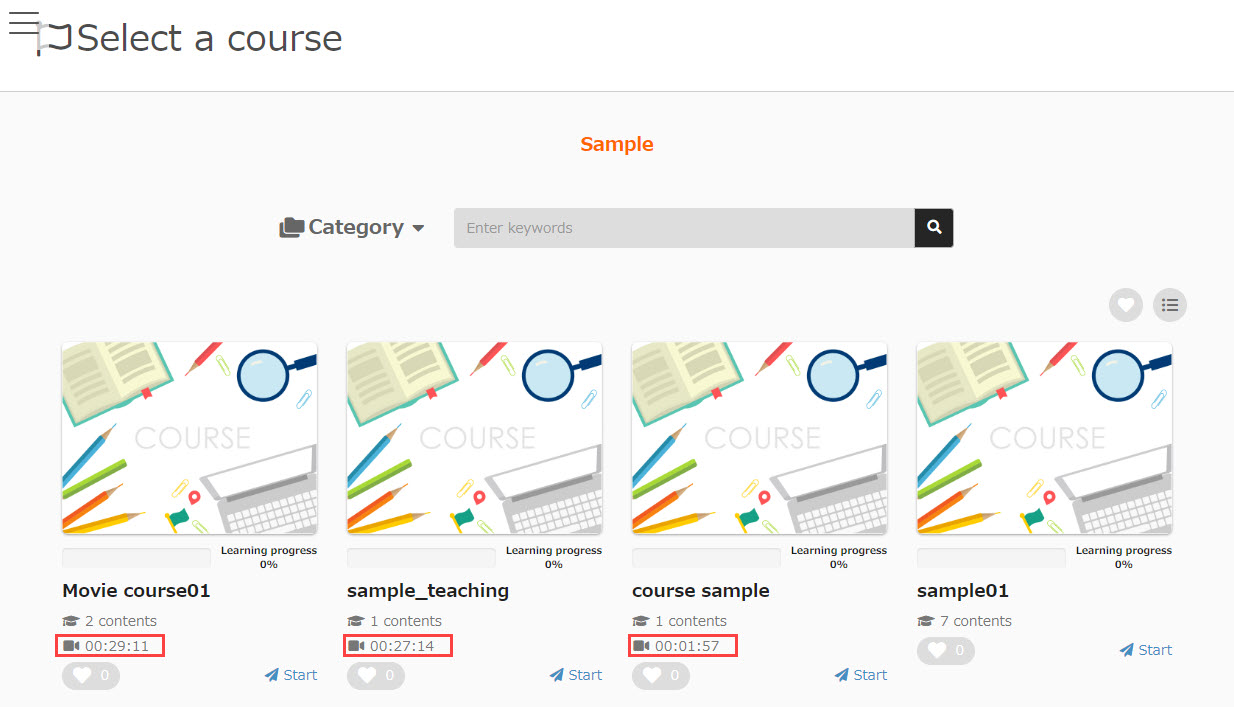
01. Select a course
The total time of video content in the course is displayed.
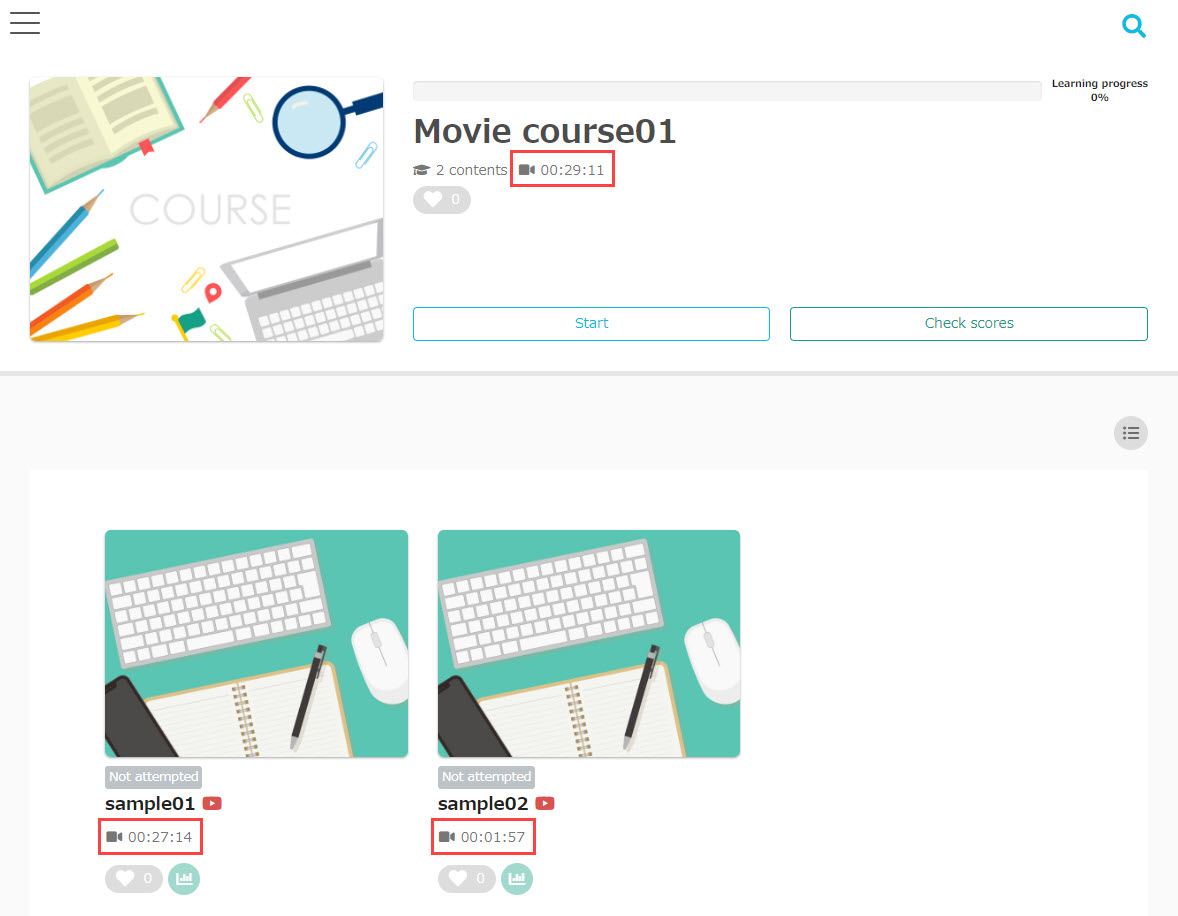
02. Course details
The total time of the video content in the course will be displayed on the top.
Each content shows time of the video itself.
03. New courses on the dashboard
The total time of video content in the course is displayed.
