Clear condition <Operation in Contents Management (old)
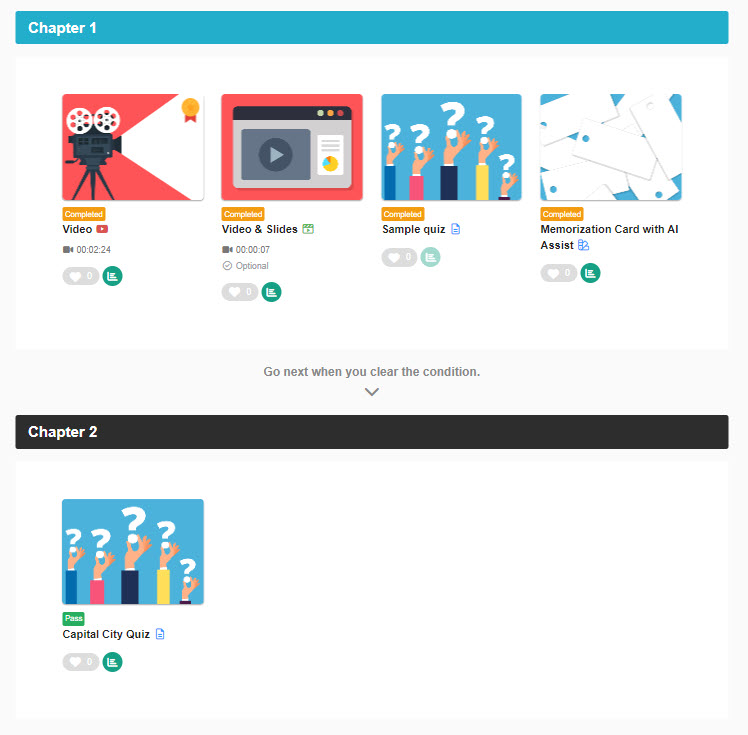
Set requirements that learners must fulfill to unlock subsequent content.
Example: Award a certificate only to learners who pass the exam.
Instructions
01. Go to Manage contents
Click on "Manage contents."
02. Add prerequisite
Select a course you created.
Click the "+" icon > Prerequisites
03. Go to group role settings
A prerequisite is added.
Click the gear icon > Edit prerequisites
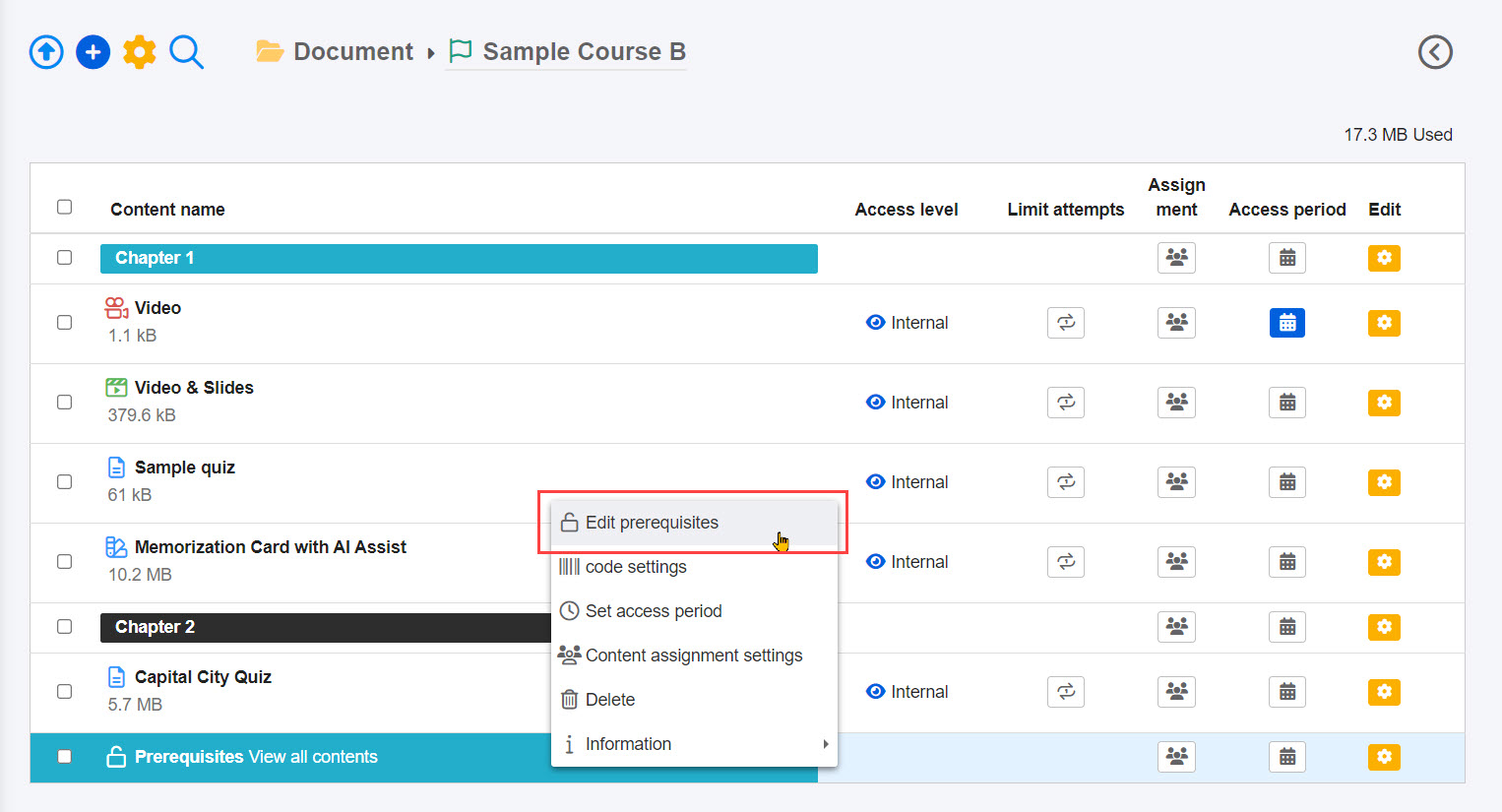
04. Settings
Select a condition from the following:
- View content: When the completion status reaches other than Not attempted, learners can go on to the next content.
- Clear upon submission/completion: The learning status of the target content is marked as "Completed, Awaiting Grading, Responses Submitted, Passed, or Failed."
- Passed: Cleared when the learning status of the target content displays as "Completed Learning," "Completed Responses," or "Passed."
- Acquire badge: When 1 or more eligible badges are acquired, learners can go on to the next content.
- None: Nothing will be set.
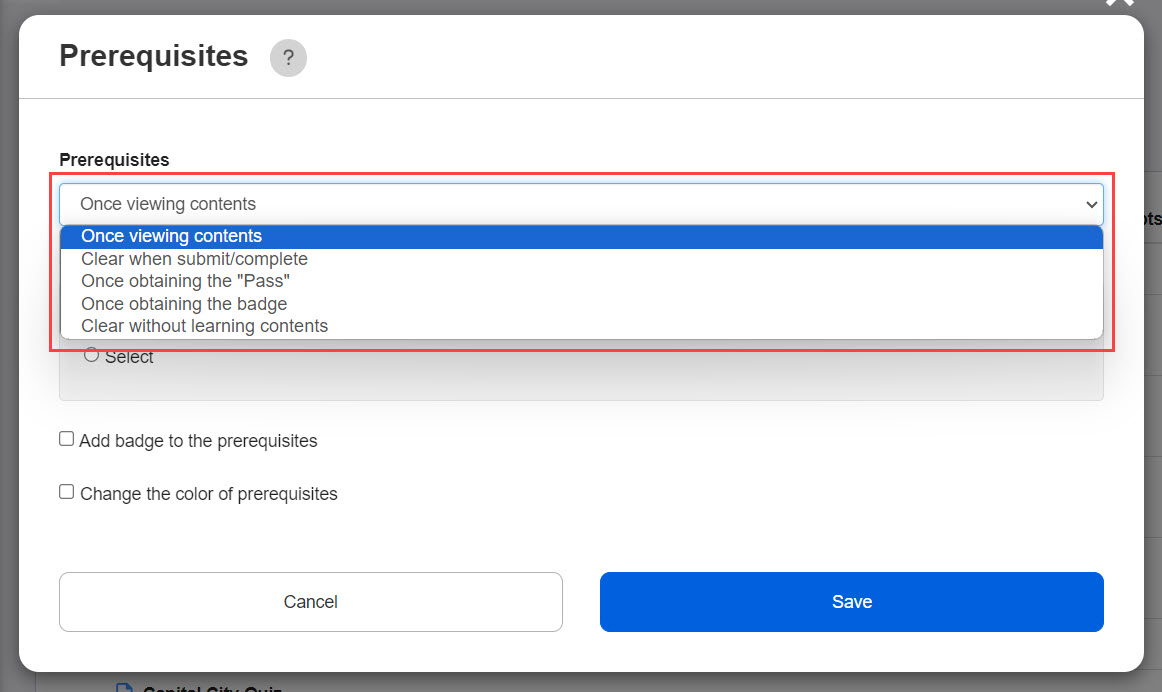
05. Select content
Select content to set the requirement for the prerequisites.
Select All or specify content.
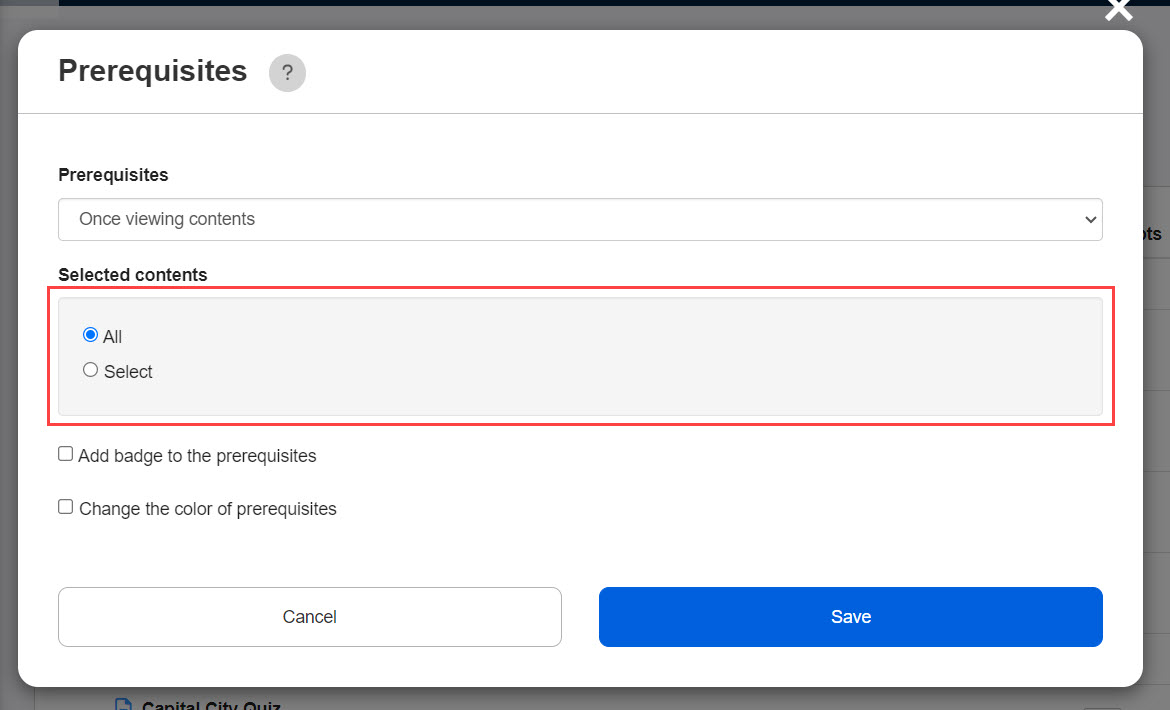
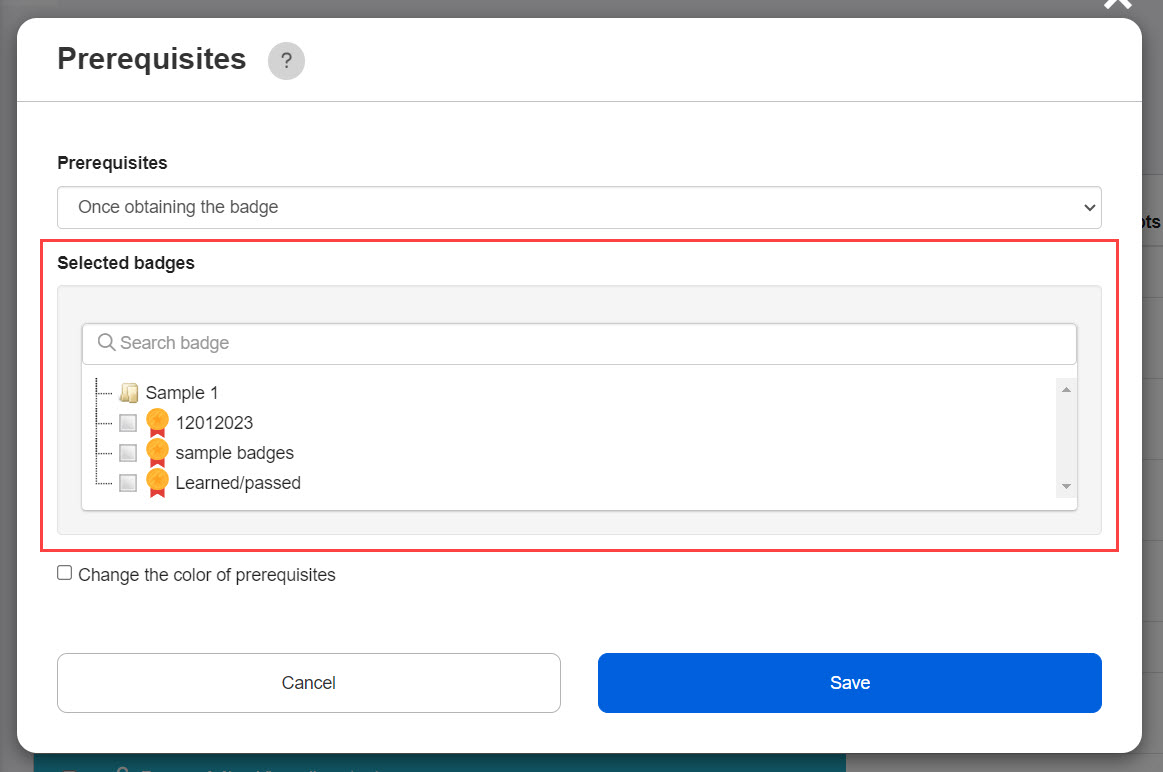
06. Select badge
When "Acquire badge" is selected, specify a badge to apply.
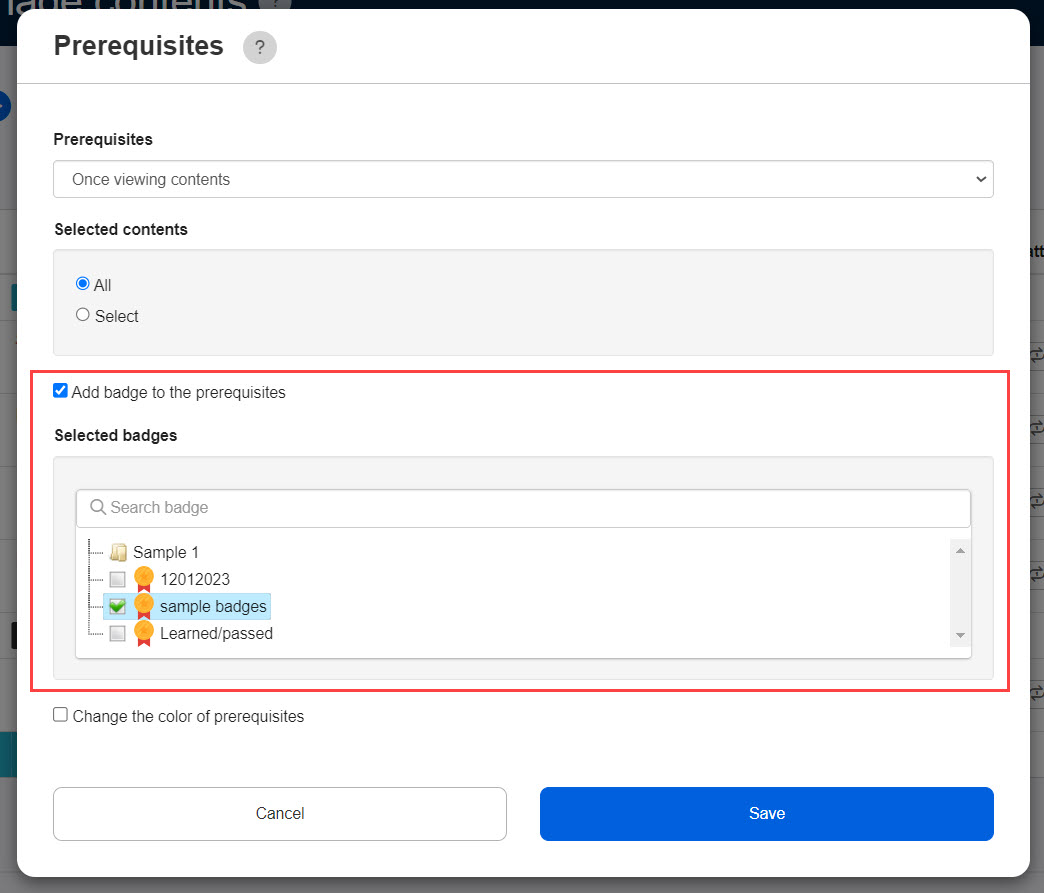
07. Add badge for the prerequisites
Tick "Add badge to the prerequisites" and select the badge(s).
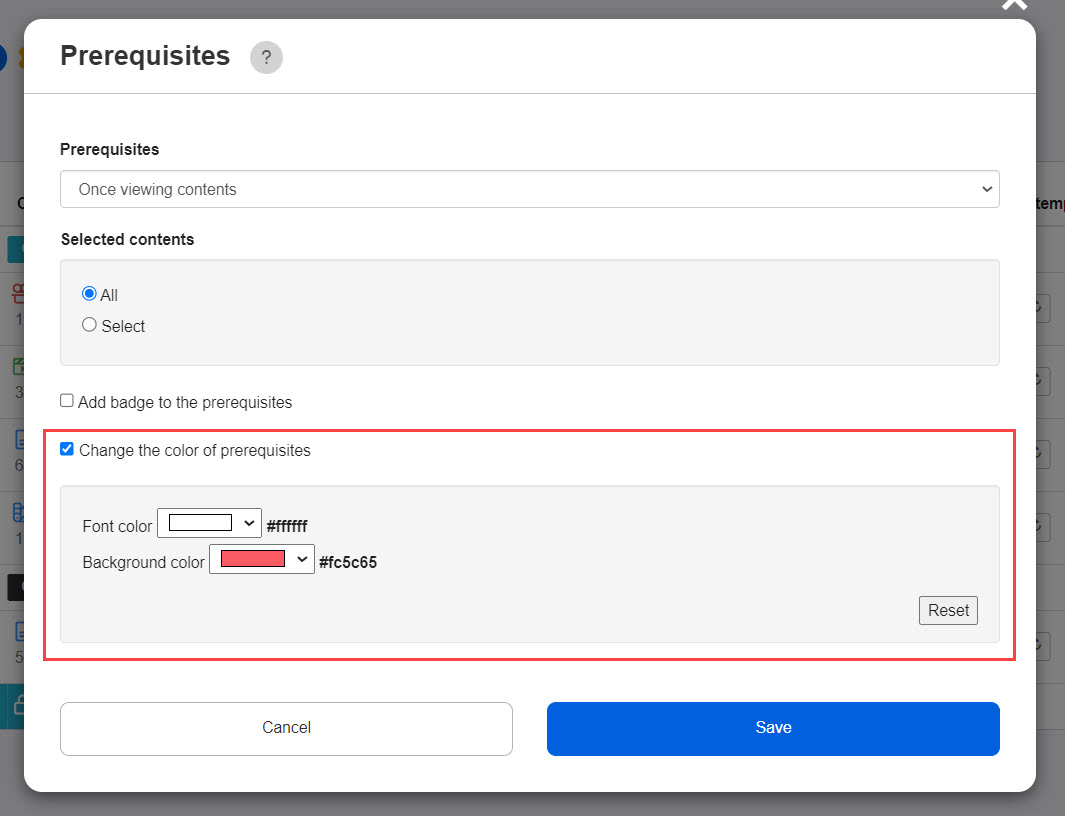
08. Change the color of prerequisite bar
To change the color of a prerequisite bar, tick "Change the color of prerequisite bar."
Select each color from the lists.
You can reset the settings by clicking the Reset button.
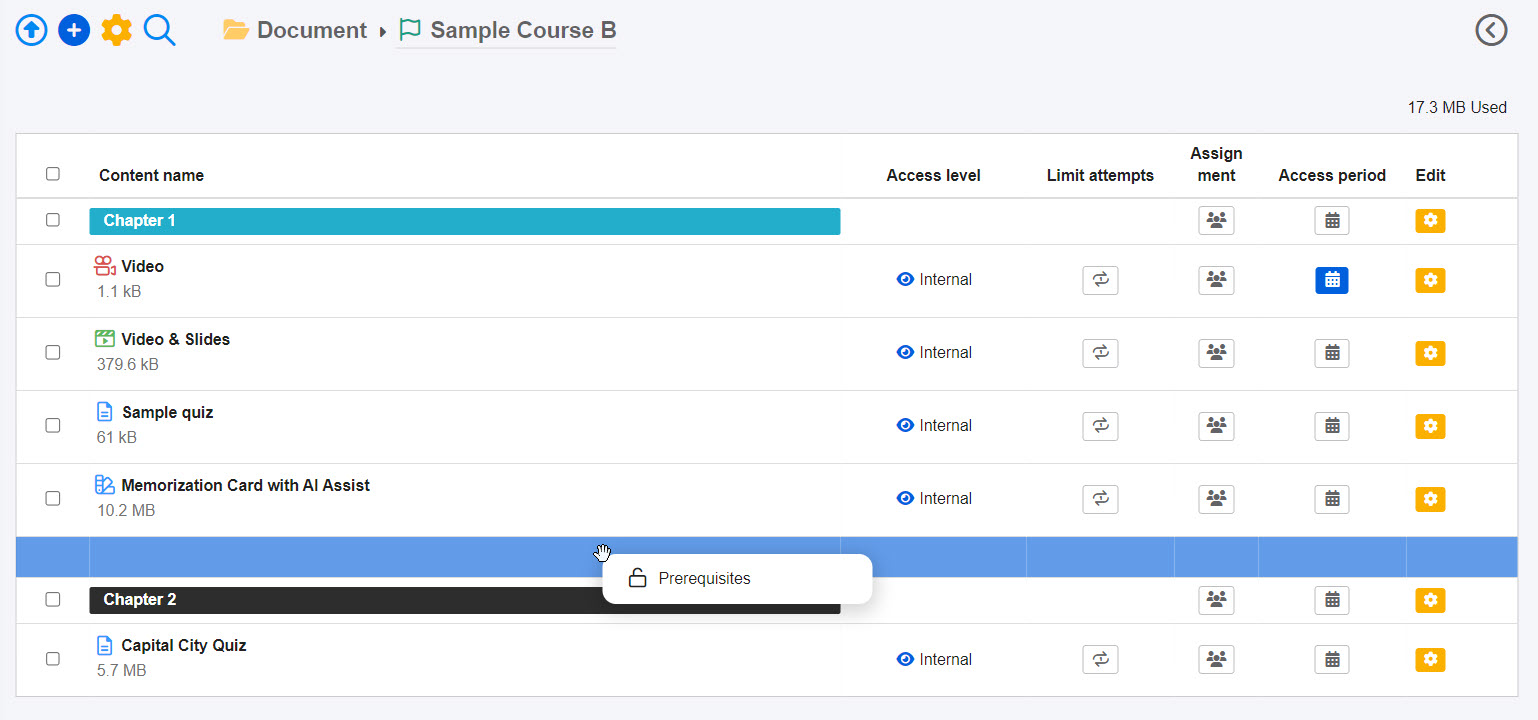
09. Move prerequisite bar
Drag and drop the bar to place it wherever you like.
10. User interface
You cannot proceed to the next content because you have not completed learning the target content.
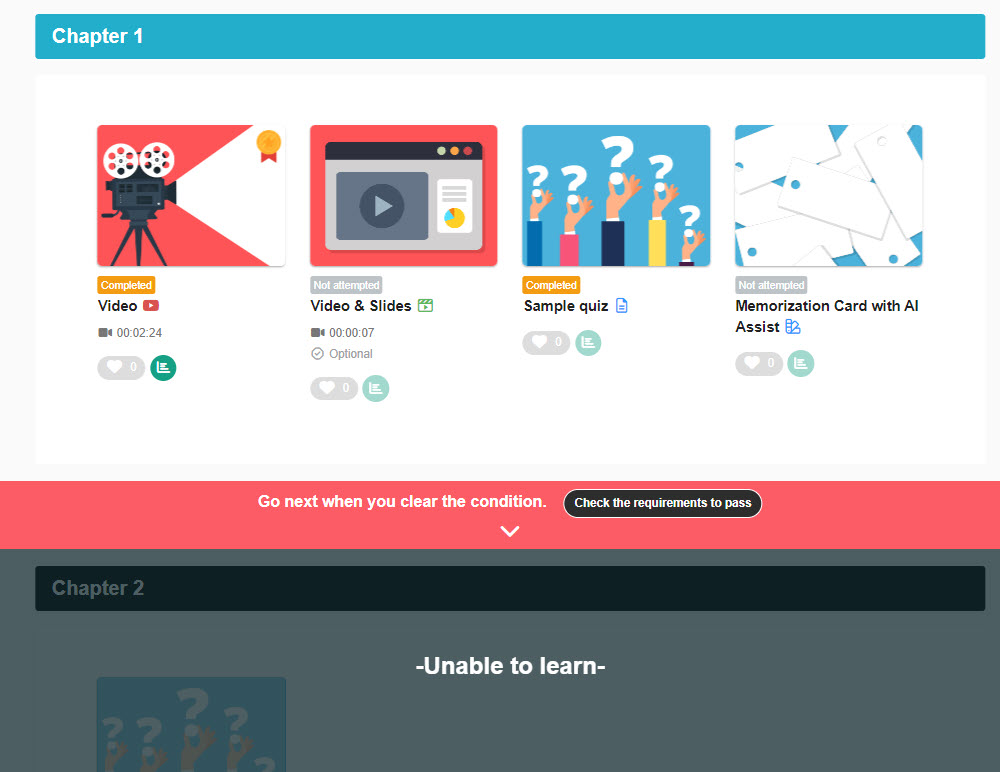
11. Check the requirements to pass
Click on "Check the requirements to pass."
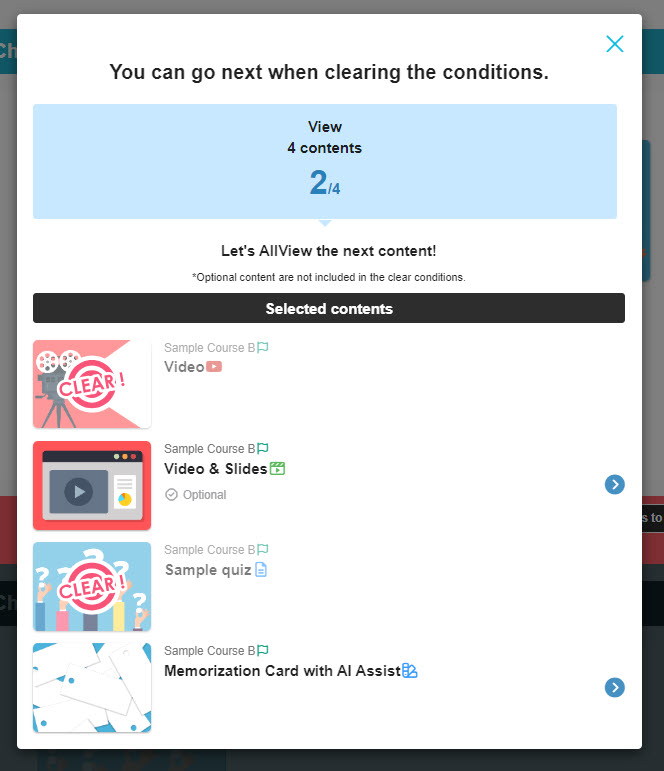
12. When the condition is met
Once you meet the requirements, you can proceed to the next content.