
Individual e-mail notification settings
Users can choose to receive only important notification e-mails.
Also, an admin can send an email as important or not.
Settings by User
01. Go to the profile page
In the upper right corner of the screen, click on Account Name > "Change Profile".
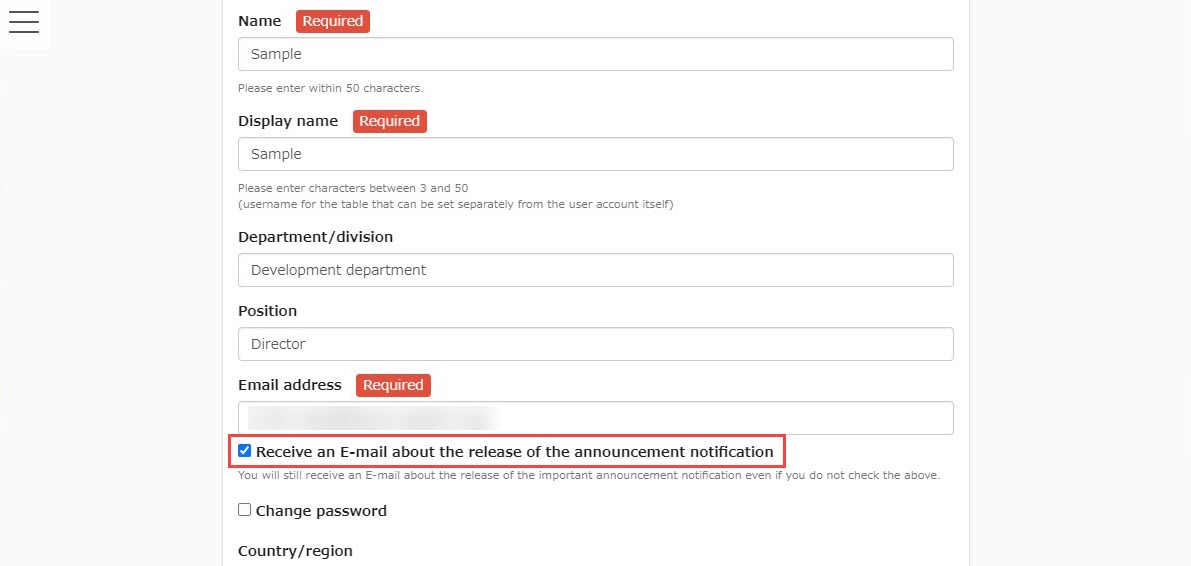
02. Receiving Settings
Tick the box under the Email address to receive notifications.
Save the settings when complete.
Settings by Admin
01. Edit user
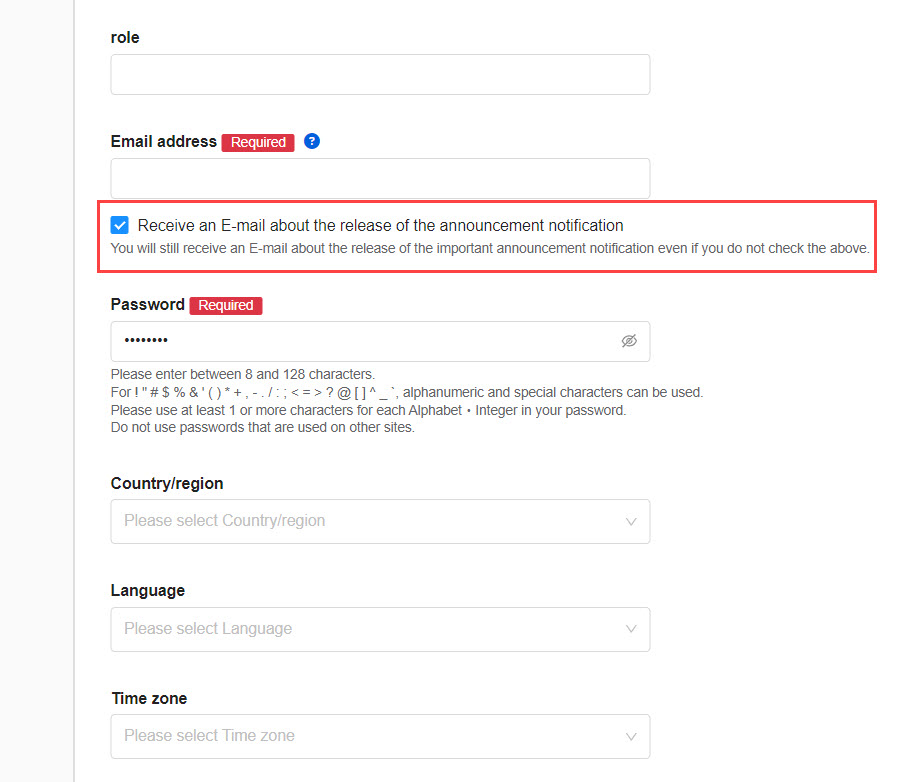
Go to Manage users and click the gear icon on the user you want to edit.
02. Settings
Tick the box under the Email address to receive notifications.
Click Save to finalize.
Batch setting by CSV
01. Download user information
Click the "+" icon in the upper left corner of the Manage users > Batch operation (CSV) > Download users
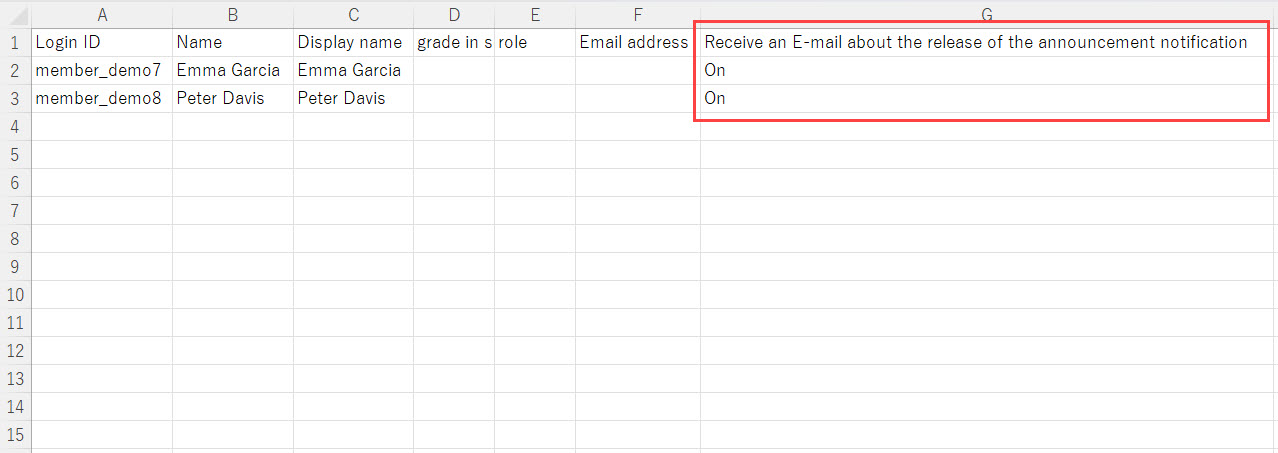
02. Edit CSV
You can set whether the user receives unimportant notification emails.
Enter "On" to receive, or "Off" to not receive.
*If you left blank, it will automatically be set to "On."
03. Batch registration/update
Click the "+" icon in the upper left corner of the Manage users > Batch Operation (CSV) > Batch user registration/update
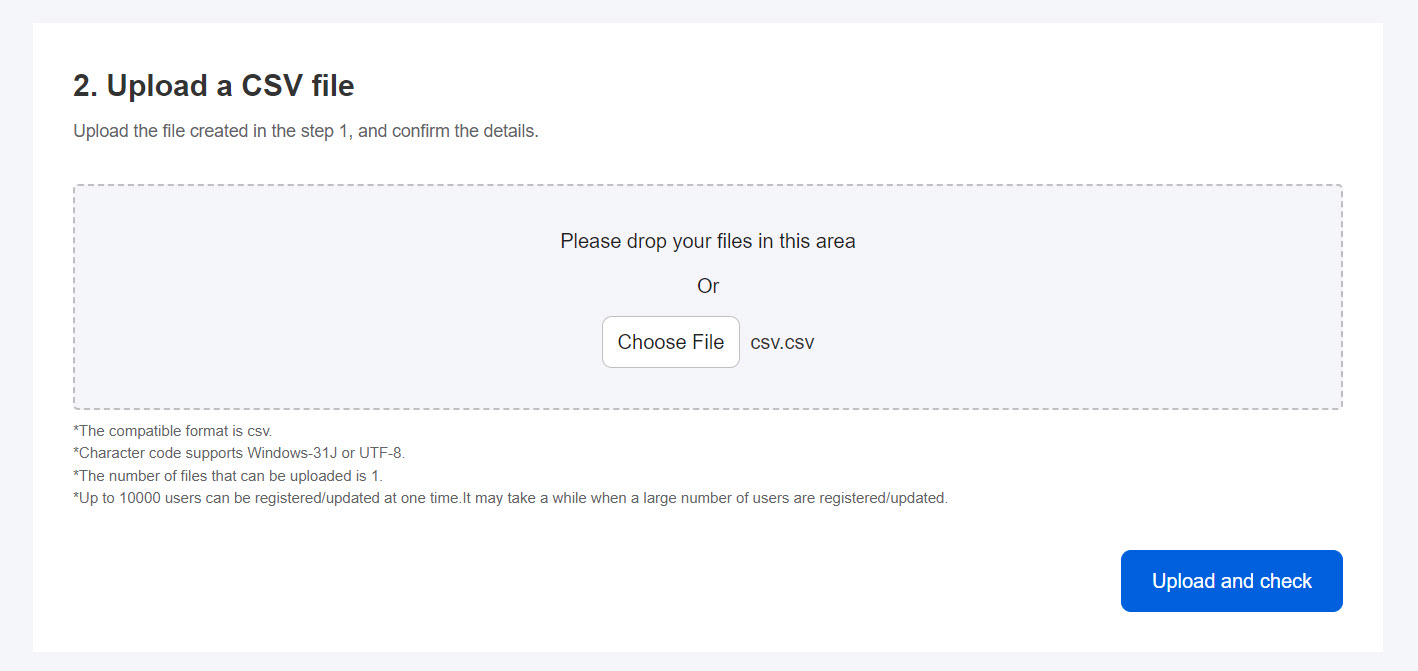
04. Upload CSV
Drag and drop your edited CSV file into the designated gray area, or click Choose File to select it from your device.
Verify the information and click "Execute registration."
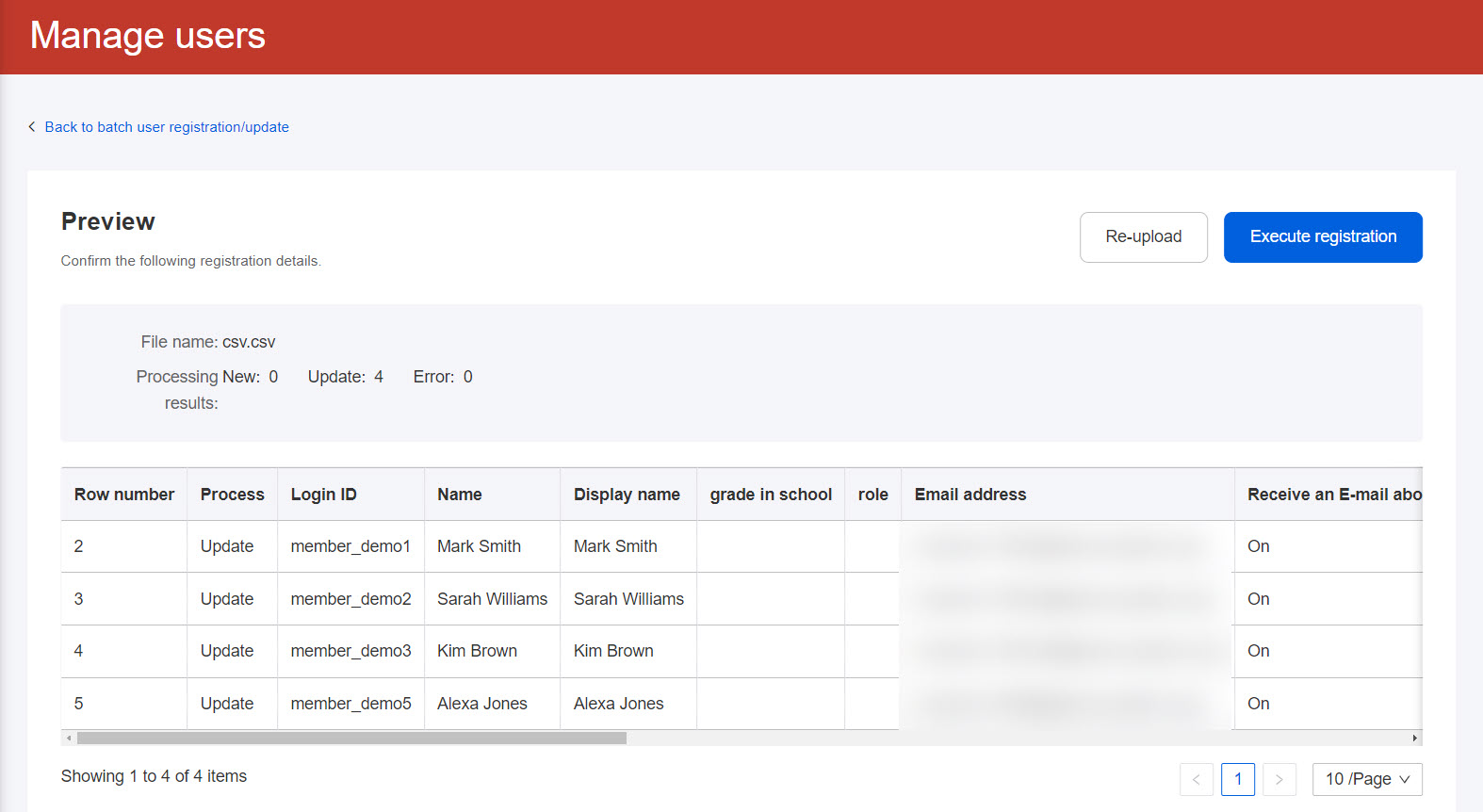
The following window will appear.
For newly added users, invitation emails can be sent. Note that this setting will not be applied to the updates.
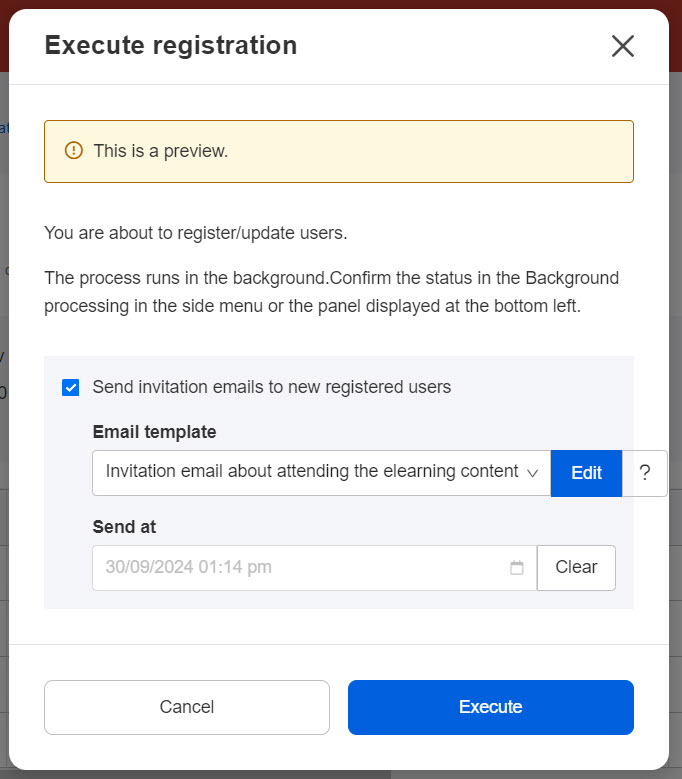
Once you have finalized your preferences, click Execute.
The registration process will run in the background.
You can track the processing status via the status panel in the lower-left corner of the page, or by navigating to "Background processing" in the side menu.
Notification Settings
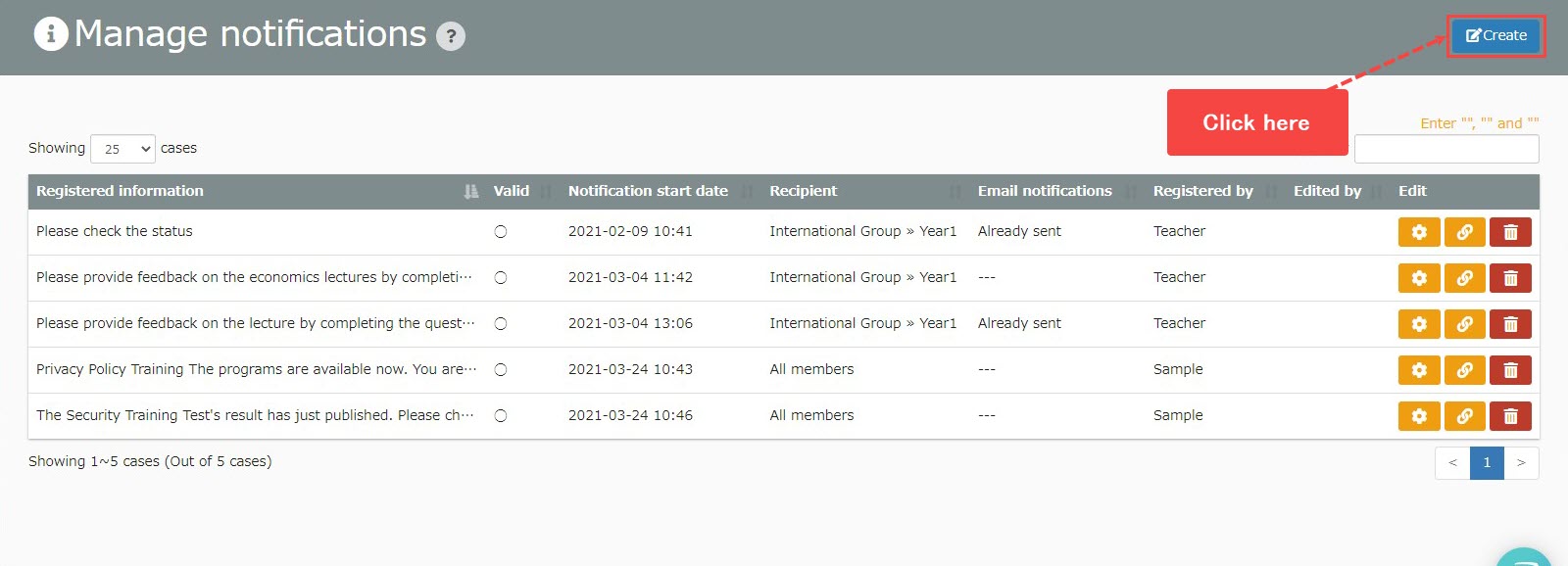
01. Go to Manage notifications
In the side menu, click on Notifications > Manage Notifications
02. Create new
Click on "Create" in the upper right corner of the page.
03. Settings
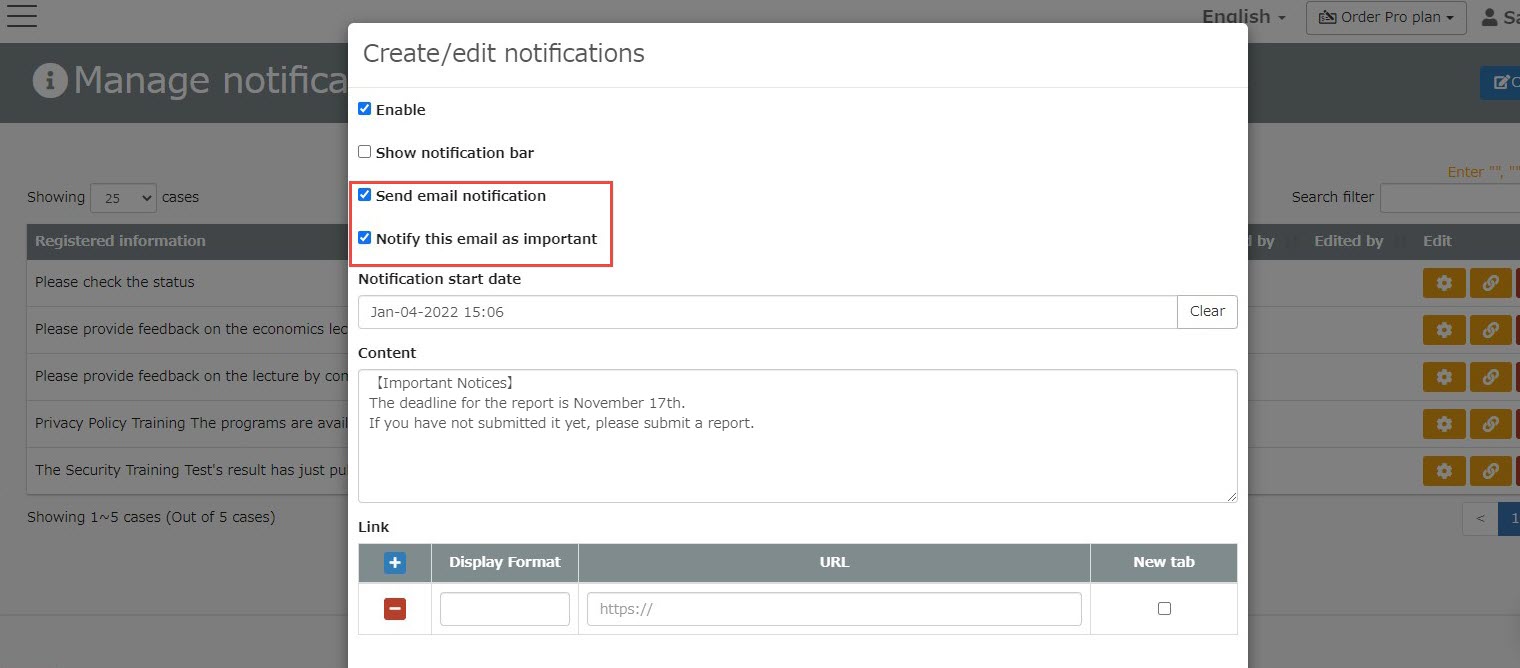
When you want to notify users as important, tick the box next to "Notify this email as important."
*Tick "Send email notification" to activate Noify this email as important.
▼When you select Notify this email as important
Notification emails will be sent regardless of the settings by users.
Also, the sentence, "*This email is important and is being sent to those who do not wish to receive it as well." will be added to the beginning of the body of the email.
04. Others
Set the Notification start date, Content, Recipient, etc. and save the settings.