Score correction setting <Operation in Content Management (old)
After a learner submits a quiz/exam, Grade managers can change the correct answer.
How to set
The following explain the steps for the settings.
Required
Management role of Content manager (Edit)
01. Go to Manage content
Select Manage contents in the side menu.
Create a quiz/exam.
Right-click on the content and select "Correct scores."
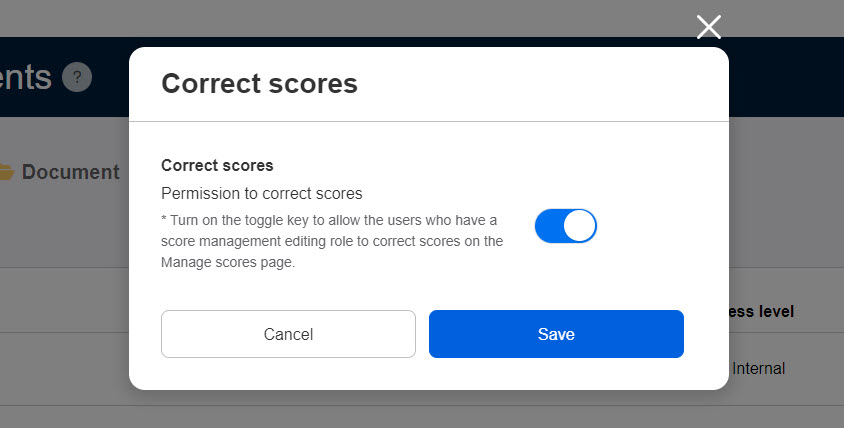
02. Permission to correct scores
Turn the toggle key on to correct answer of the submitted content.
Click Save to finalize.
- Normal mode must be selected in the options of the quiz/exam.
- Once an answer has been edited, >b>Modified will be marked even when you change it to the original answer.
- When content with prerequisites is modified, learners are required to select the modified content again to meet the condition.
Correct answer
Correct answer on the Manage grades.
Required
Grade manager (Edit)
01. Go to Manage grades
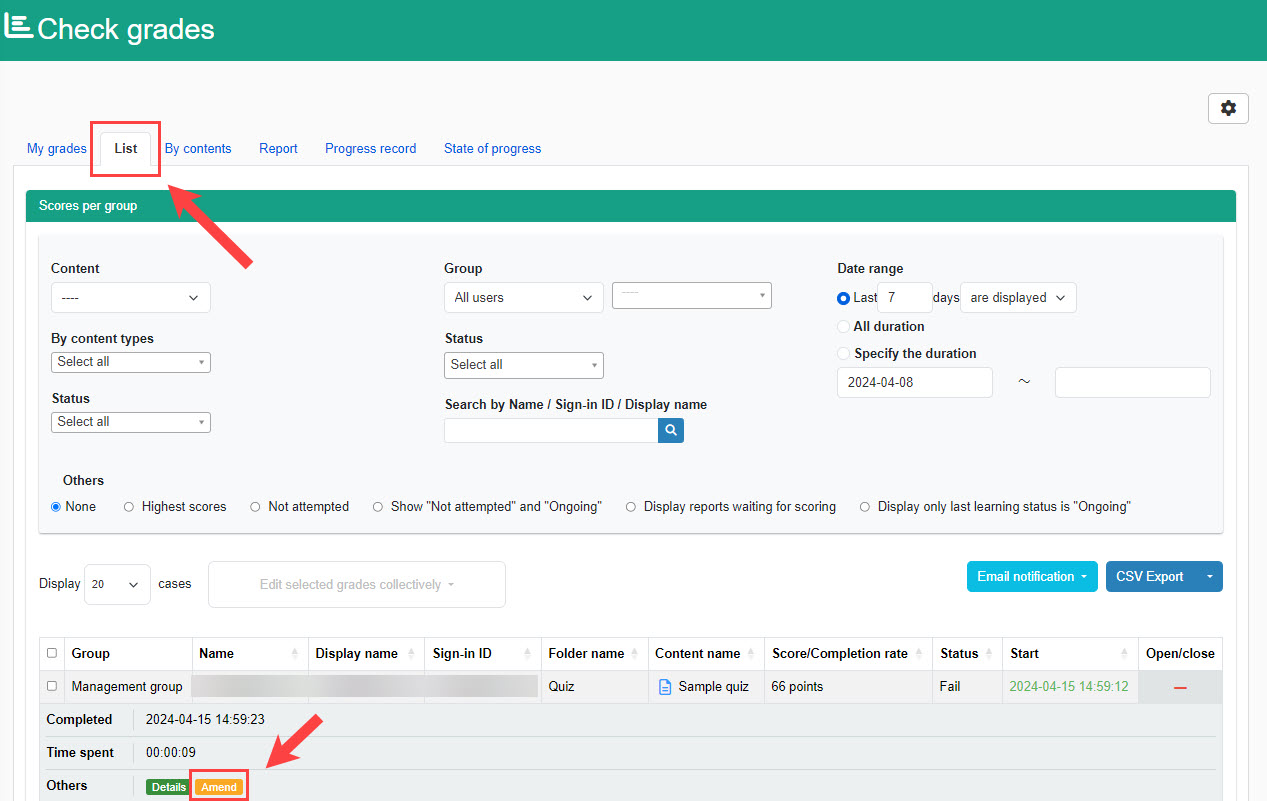
Go to Manage grades and select the List tab.
Click Modify in the target content.
02. Correct answer
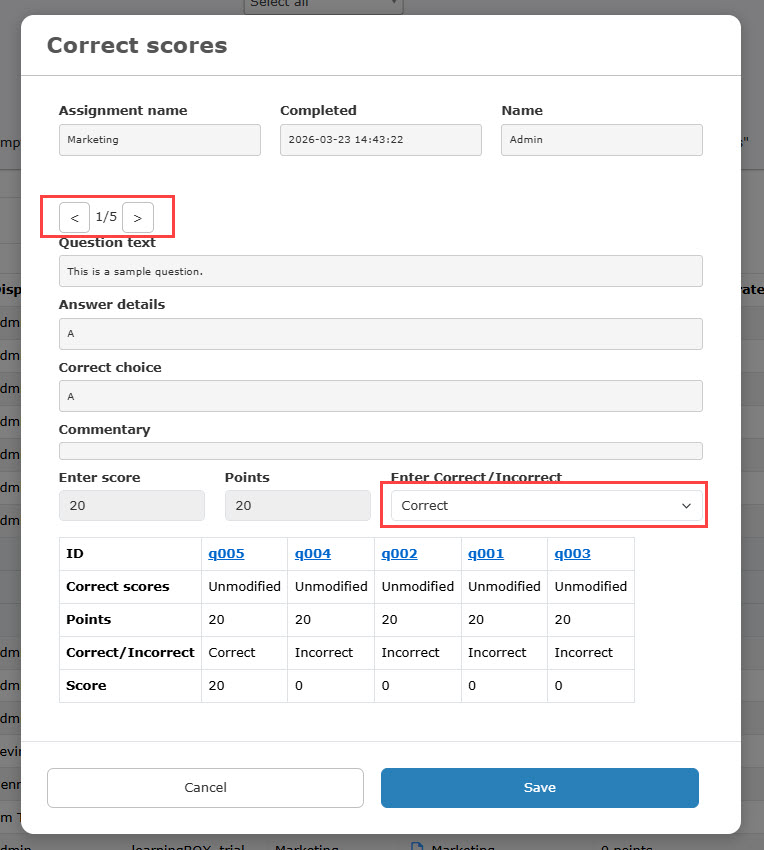
Use the < or > icons to move between questions.
Select Correct or Incorrect.
03. When the answer is edited
The following is the user interface.
When Details is clicked, the question is marked as There are modifed scores.

Acquired badge
Once a badge is given, it will not be removed even when the content no longer meets the requirements to acquire the badge.
Batch correction
Score data can be modified in batch with a CSV file.
01. Go to the By content tab
Go to the By content tab on Manage grades and select the target content.
*It can also be accessed from Manage grades > By content in the side menu.

02. Download CSV file
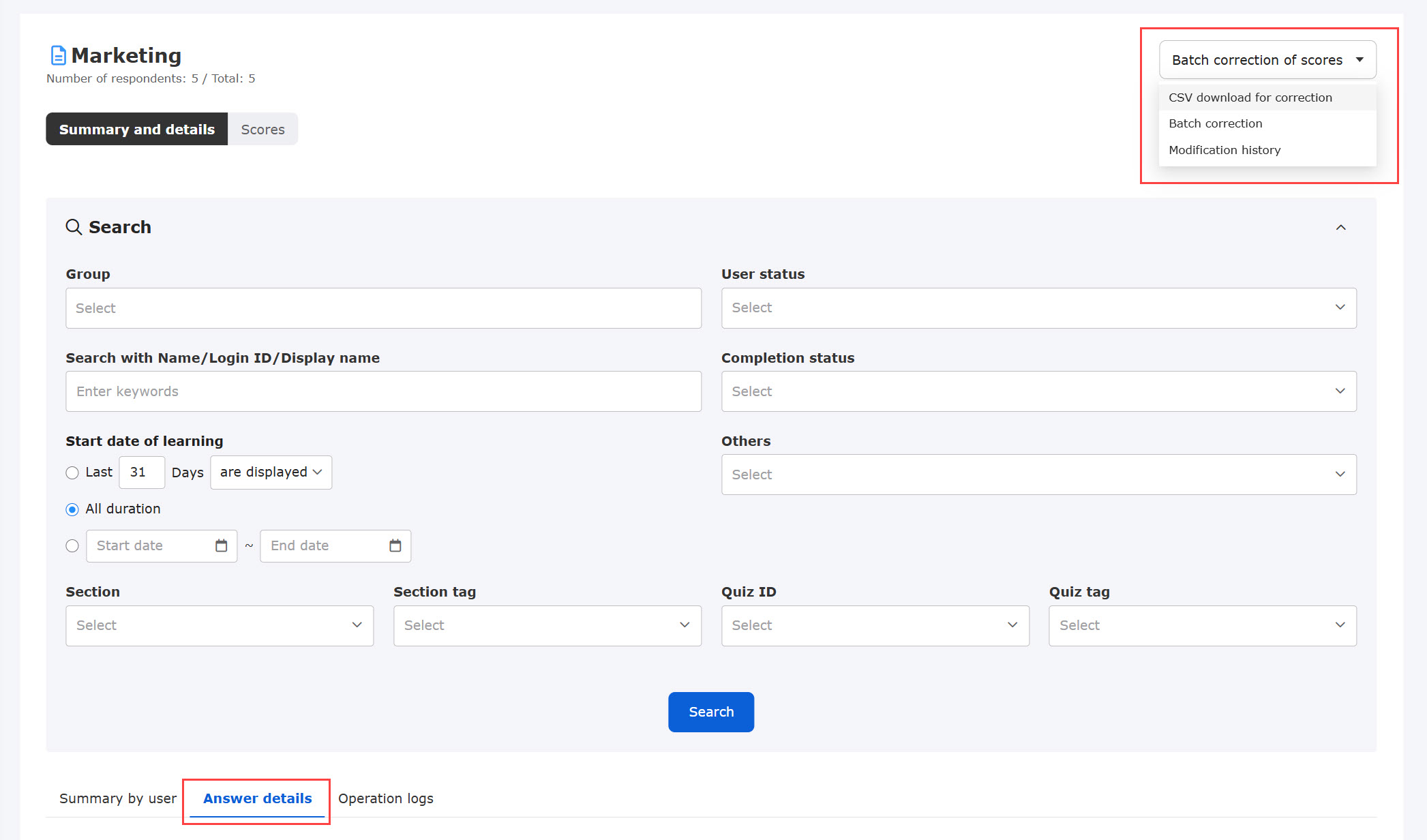
Click the Answer details tab and select Batch correction of scores > CSV download for correction in the upper right corner of the page.
03. Editing CSV
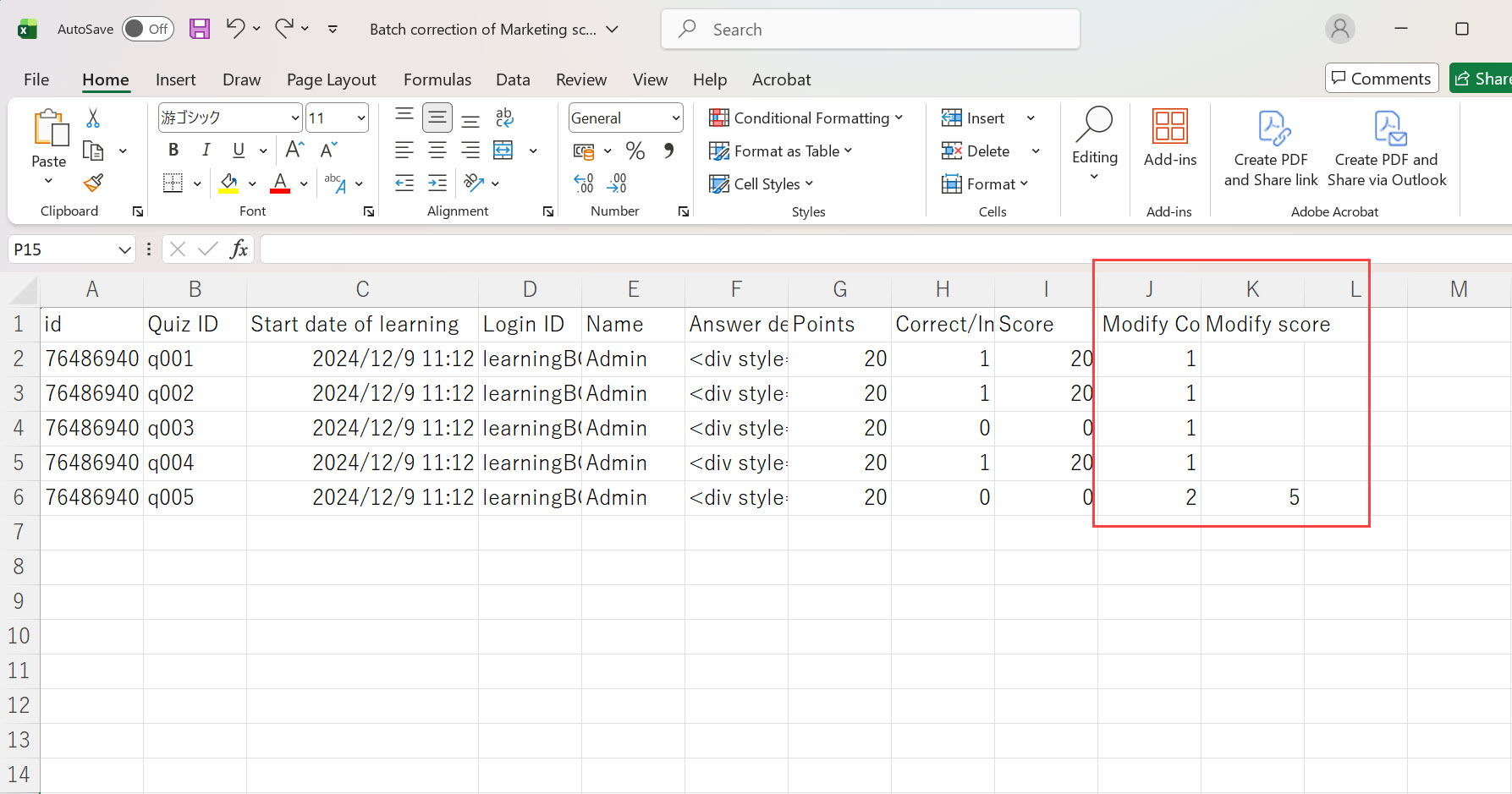
Open the downloaded CSV and enter values in Column J and K.
*Refer to the following rules on how to enter the value.
Rules to create valid CSV files
| Modify answer *Enter number (0 to 2) | Modify score *Enter only partial points | Note |
|---|---|---|
| 0: Incorrect | - | Points will be zero. |
| 1: Correct | - | The max points will be marked. |
| 2: Partial points | Enter a number which is less than the points | Values outside the range cannot be registered. |
04. Batch score correction
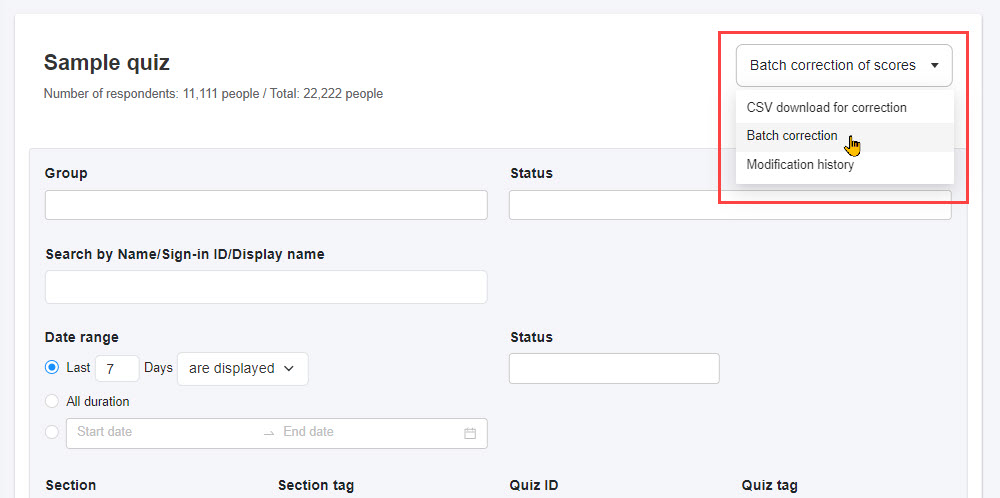
Click the Answer details tab > Batch correction of scores > Batch correction
Upload a modified CSV file.
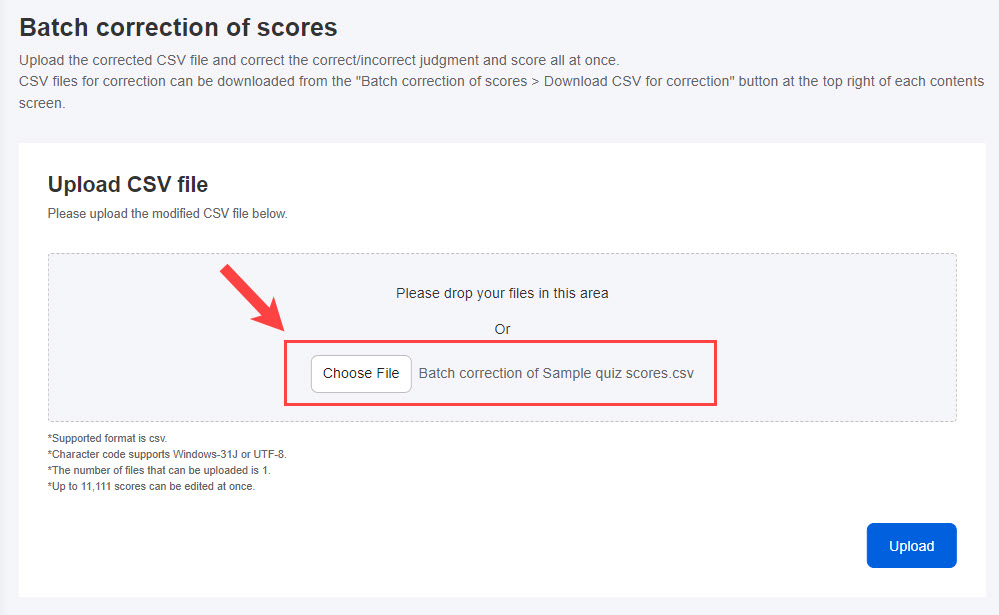
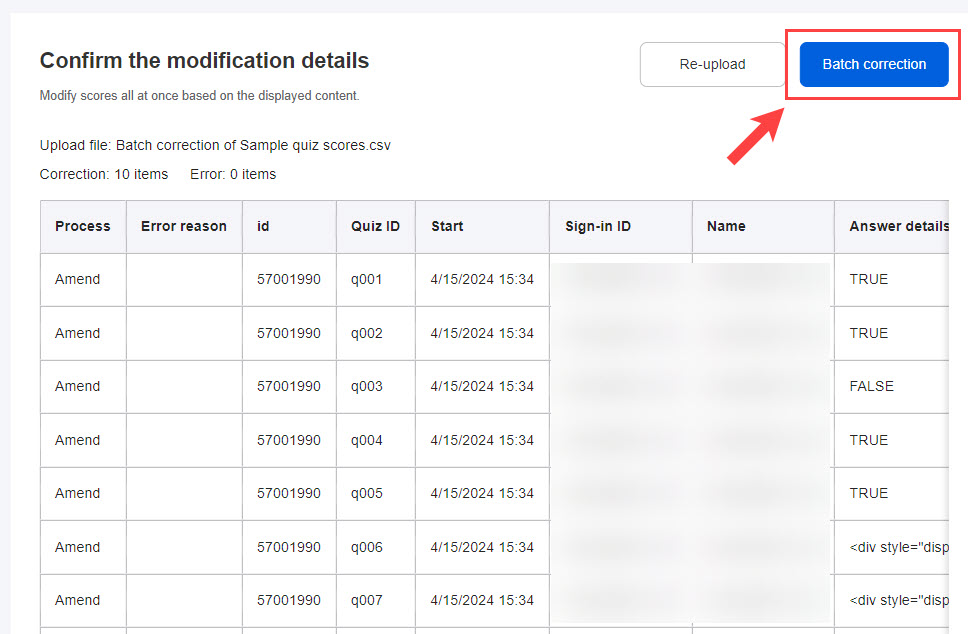
Once the CSV file has been imported, click the "Batch correction."
05. Check modification history
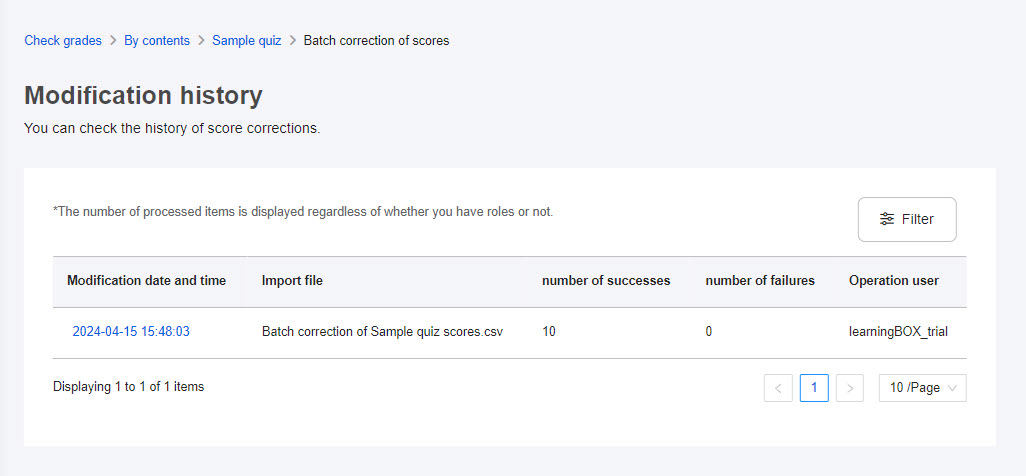
When the upload is complete, the following pop-up window will be displayed.
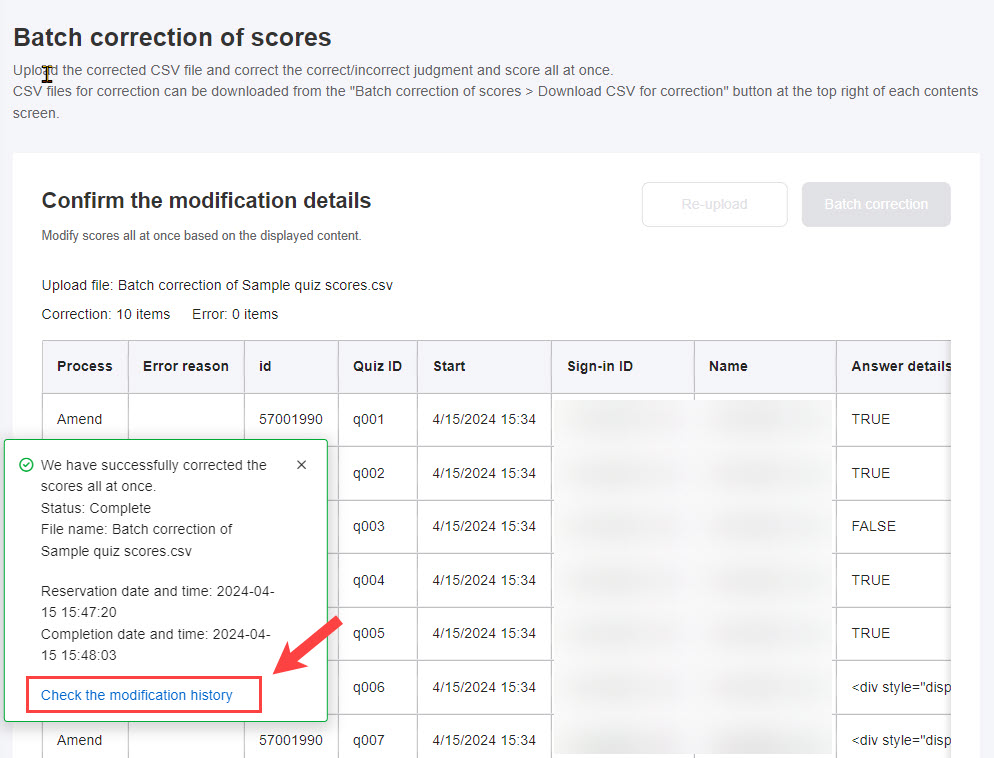
Click Check the modification history.
*The modification history can also be viewed from Batch correction of scores > Modificaiton history in the Answer details tab.