
Shortcut <Operation in Content Management (old)
You can create shortcuts to existing courses, folders, and individual content items.
This allows you to reuse materials across different areas of your platform instantly without having to recreate the same content from scratch.
*You can create a shortcut of a course, folder and content.
Required
Management role of Content manager (Edit)
To use this feature, you must have the Content manager (Edit) for all content permissions.
How to set
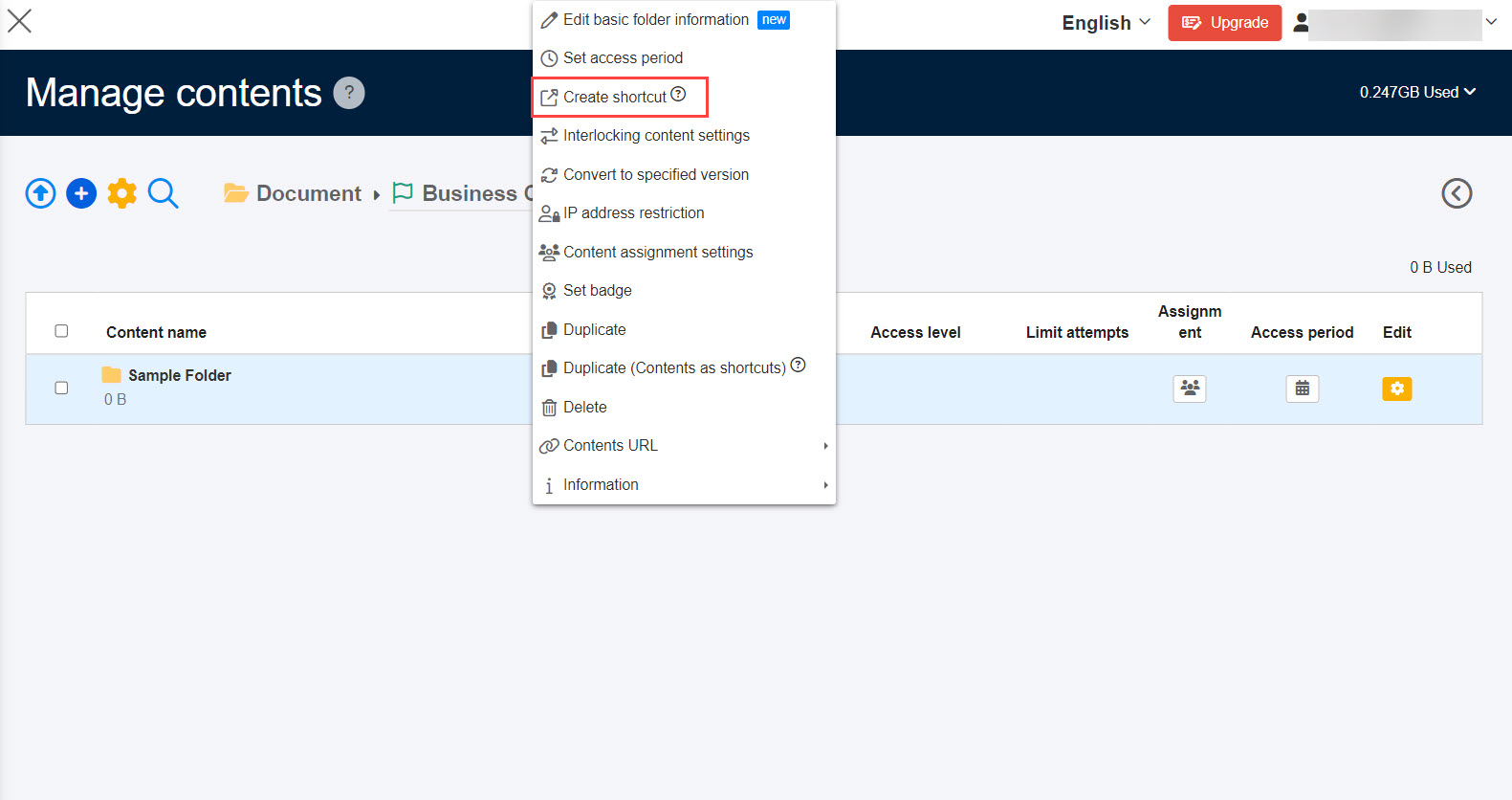
The following example describes how to create a folder shortcut:
01. Go to Manage content
Select Manage contents in the side menu.
Right-click or click the gear icon on the folder, and select "Create shortcut."
02. User interface
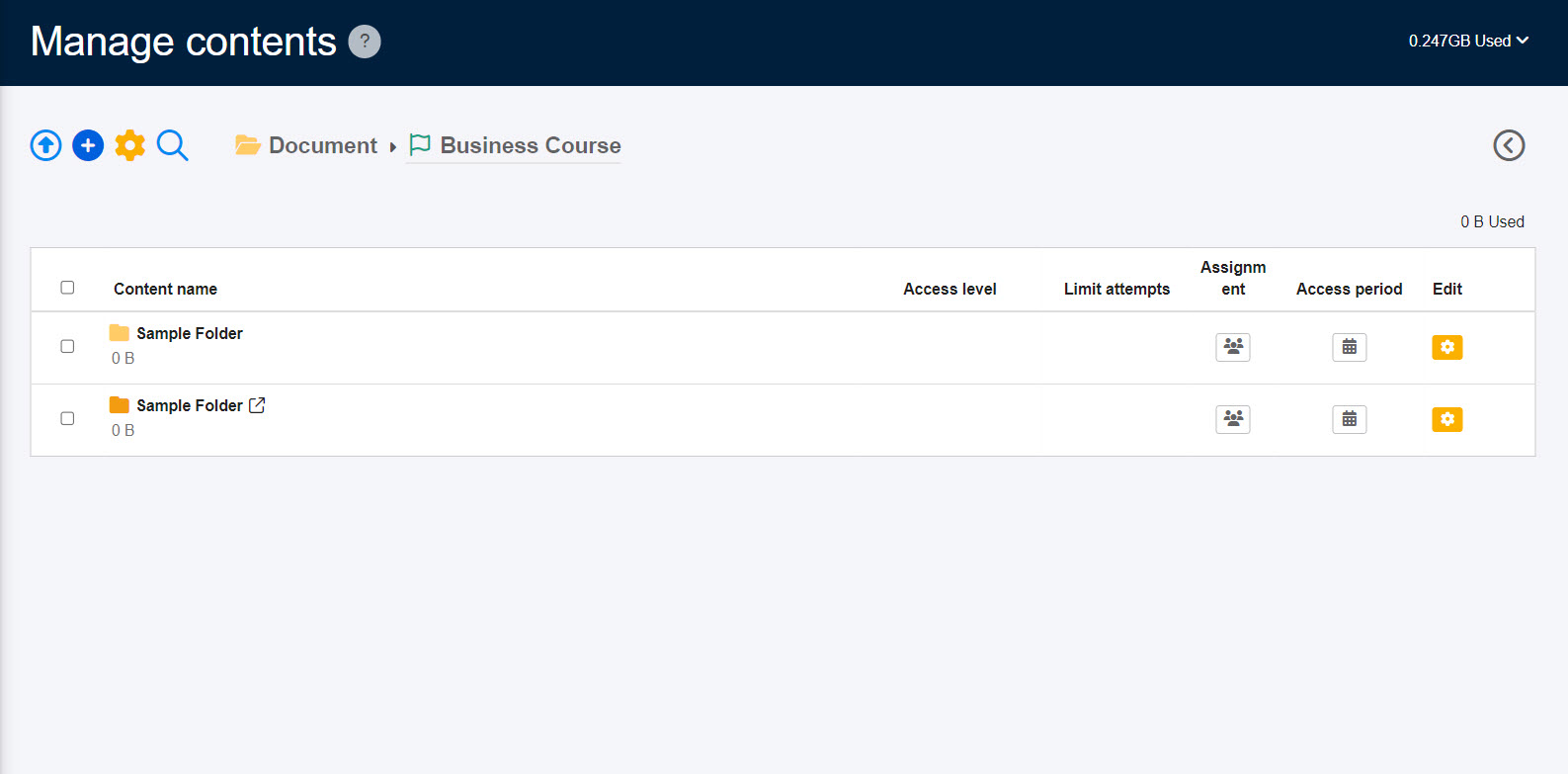
The shortcut will be generated instantly.
Shortcuts are easily identifiable by a distinctive arrow overlay icon.
03. Key characteristics of shortcuts
Shortcuts do not consume additional server storage or data capacity.
When the original source content is edited or updated, those changes are automatically reflected across all of its shortcuts.
*Content assignment and Access period are customizable for each shortcut.
*Grades of the source content and shortcut will be saved separately.
04. Grade of course and folder
Unlike individual content items, the grading logic for a shortcut course or shortcut folder is deeply linked to the source:
When learners complete content inside a shortcut course/folder, their progress and grades are mirrored directly back to the original source course/folder.
Note
On the Manage content page, a shortcut course can be nested inside another course or folder; doing so automatically converts it into a shortcut folder.
Also, the shortcut folder can be move to the first level of the hierarchy again.
In this case, the folder will be automatically changed to the course shortcut.
Once a folder shortcut has been manually created as a folder, it cannot be converted into a standalone course.