
Detection of interrupted data in quizzes/exams
<Operation in the Manage contents (Old)>
Learners can pause a quiz/exam during the attempt by applying the setting.
When the Content manager edits a quiz/exam which learners paused, the changes will not be applied immediately to the learners' page.
To avoid confusion, learningBOX notifies the Content manager of learner pauses before they edit the content.
Resume
You can allow learners to restart/resume a quiz/exam.
01. How to set
Select Manage contents in the side menu.
Select a course and click the "+" icon > "Quiz/exam" > "Create Quiz" or "Create exam"
02. Add option
You can add options in the creation form.
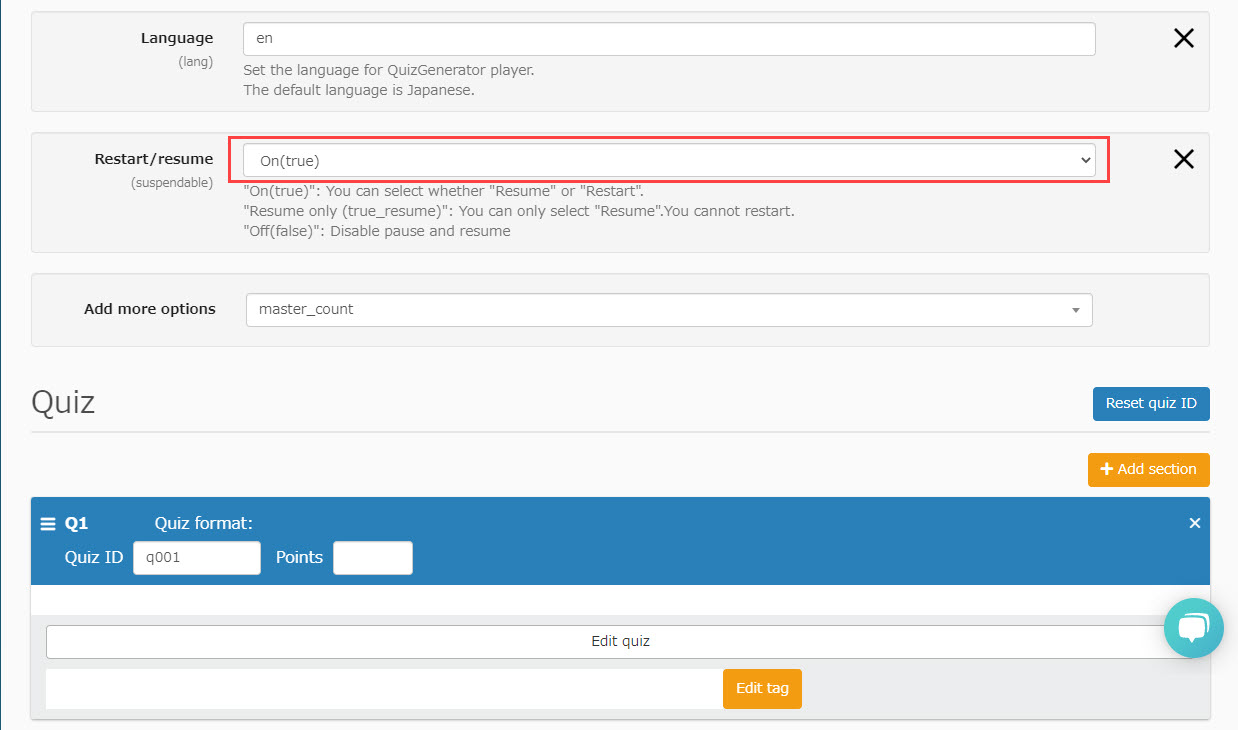
Select the "Restart/resume" option.

03. Option types
Three types of options can be selected:
・On: Learners can choose to "Resume" or "Restart" when resuming.
・Resume only: Learners can resume the quiz/exam.
・Off: Disablepause and resume
Notify paused data
When a Content manager edits a paused quiz/exam, a popup window will notify the pause.
01. Interface
Select Manage contents in the side menu.
Right-click or click the gear icon on the quiz/exam and select "Edit" or "Re-upload."
When there are any paused content, a popup window will be shown as follows.
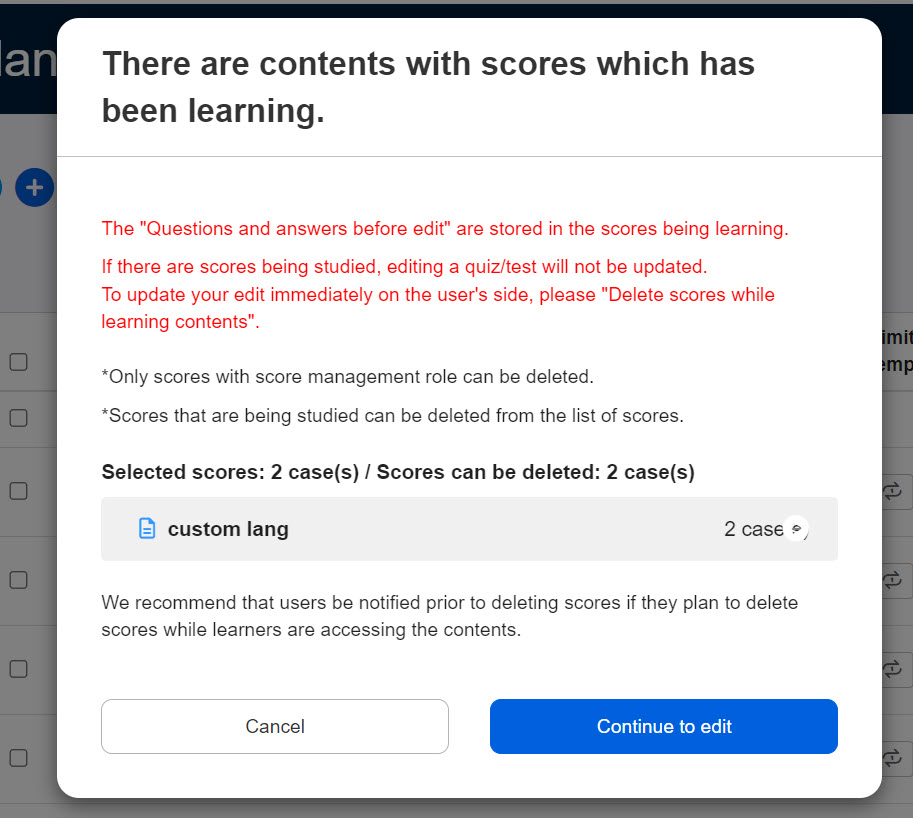
*You can continue to edit or delete paused grades.
Only Content managers who have the management role of Grade manager (Edit) can delete grades.
02. Delete paused data
To delete paused data, click on the content name shown in the popup window.
The Manage grades page will be displayed and delete the grade which you wish to edit.
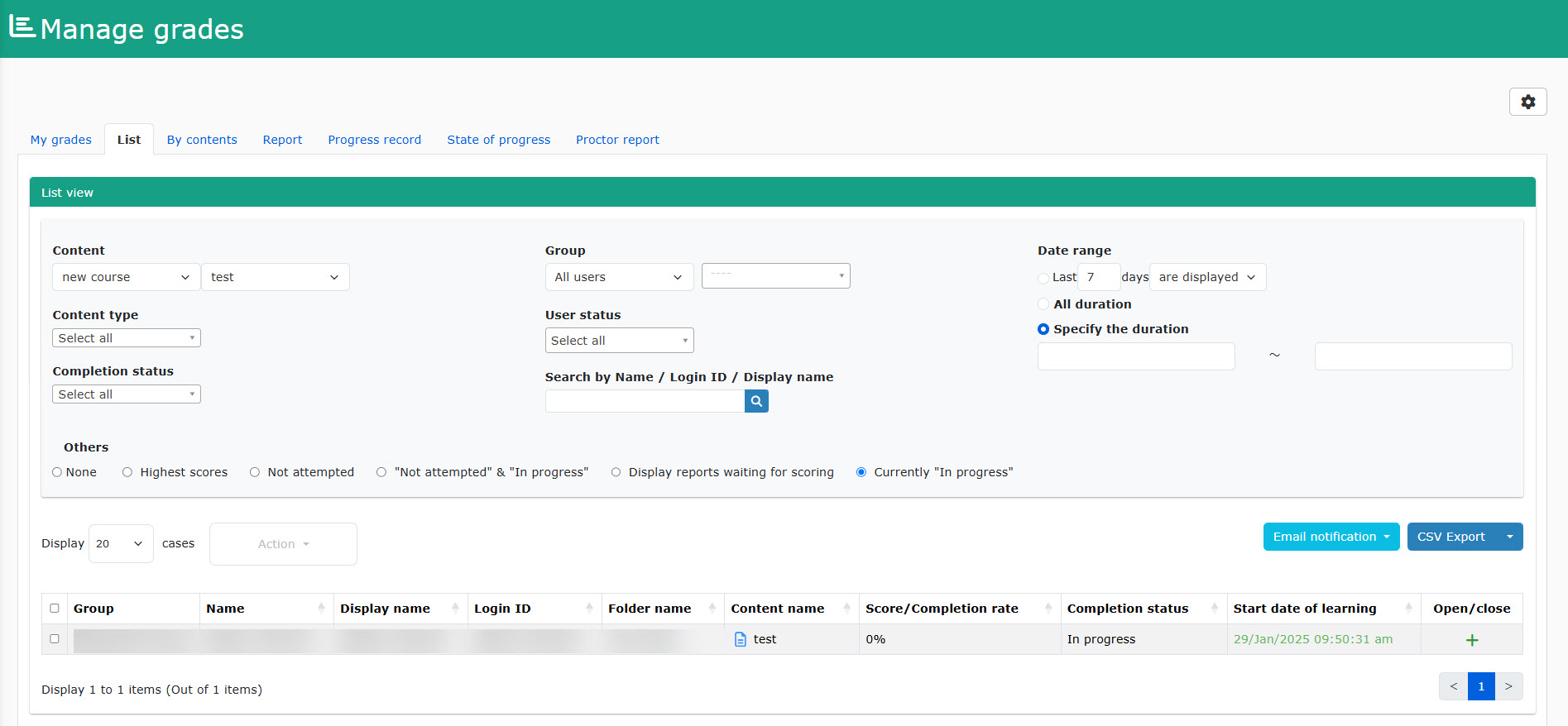
The edited quiz/exam will be updated and the learner needs to restart it.
03. Continue to edit/upload
To edit the quiz/exam without deleting the paused data, click on "Continue to edit."
*To re-upload without deleting the grades, click "Continue to re-upload."
This allows the learner to resume the question where they paused, and the edited content will NOT be displayed on the learner's interface.