
Paused quiz/exam
Learners can pause a quiz/exam during the attempt by applying the setting.
When the Content manager edits a quiz/exam which learners paused, the changes will not be applied immediately to the learners' page.
To avoid confusion, learningBOX notifies the Content manager of learner pauses before they edit the content.
Resume
You can allow learners to restart/resume a quiz/exam.
01. How to set
Select Manage contents in the side menu.
Click a course and click "+ Create new" > "Content" > Select "Quiz" or "Exam."
02. Add option
You can add options in the creation form.
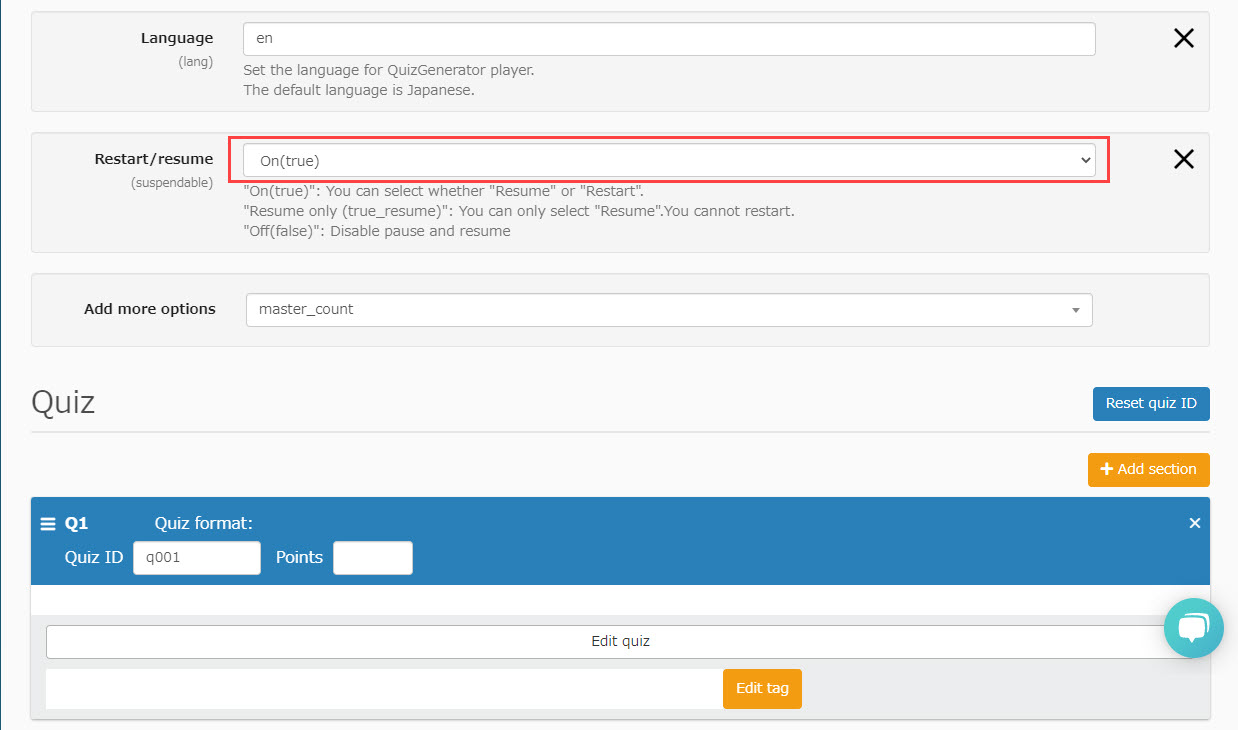
Select the "Restart/resume" option.

03. Option types
Three types of options can be selected:
・On: Learners can choose to "Resume" or "Restart" when resuming.
・Resume only: Learners can resume the quiz/exam.
・Off: Disablepause and resume
Notify paused data
When a Content manager edits a paused quiz/exam, a popup window will notify the pause.
01. Interface
Select Manage contents in the side menu.
Right-click on the quiz/exam or click on the "︙" icon and select "Edit Quiz/Test" or "Re-upload."
When there are any paused content, a popup window will be shown as follows.
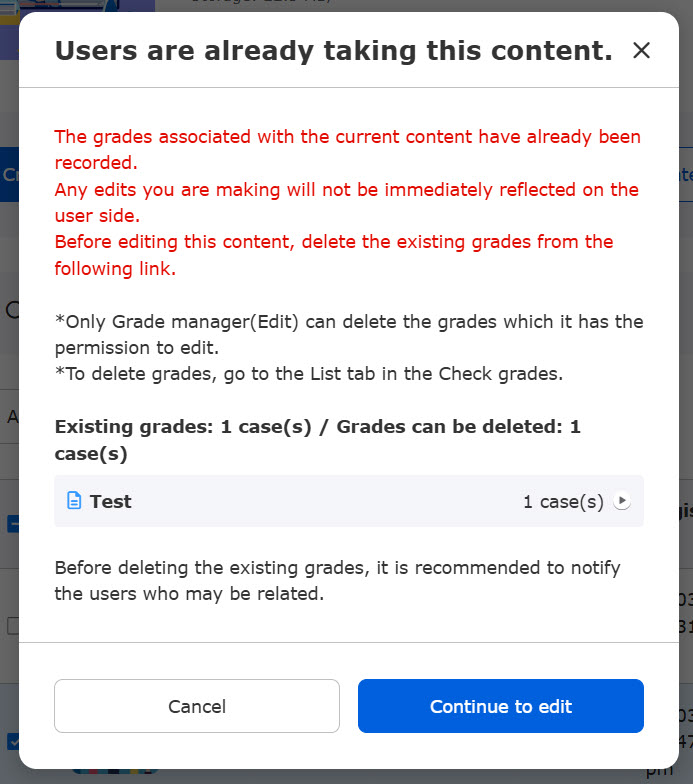
*You can continue to edit or delete paused grades.
Both management roles of Content manager and Grade manager (Edit) are required to access the Manage grades page.
02. Delete paused data
To delete paused data, click on the content name shown in the popup window.
The Manage grades page will be displayed and delete the grade which you wish to edit.
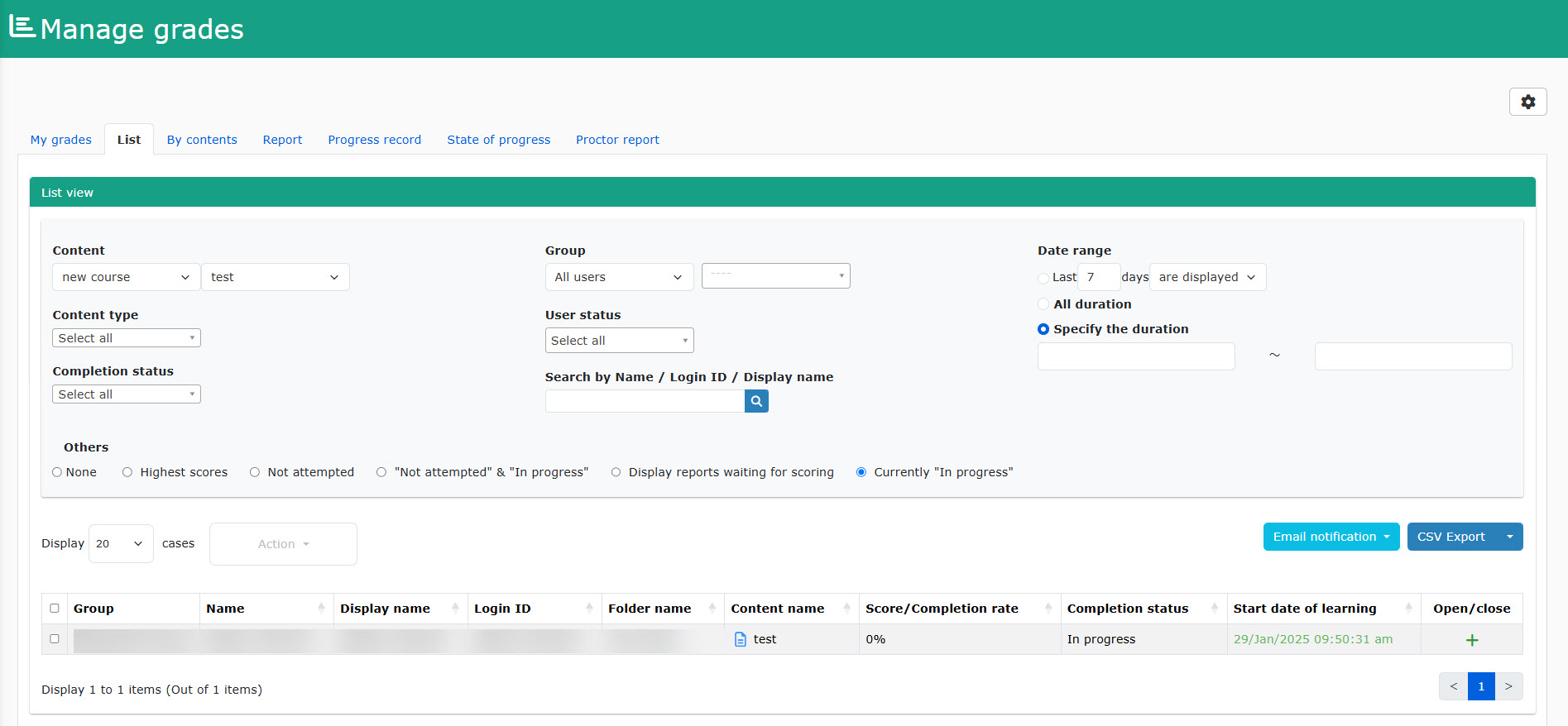
The edited quiz/exam will be updated and the learner needs to restart it.
03. Continue to edit/upload
To edit the quiz/exam without deleting the paused data, click on "Continue to edit."
*To re-upload without deleting the grades, click "Continue to re-upload."
This allows the learner to resume the question where they paused, and the edited content will NOT be displayed on the learner's interface.