Publication period <Operation in Content Management (old)
You can set the duration to open courses, folders, and content to learners.
Groups and all users can be selected.
Required
Management role of Content manager (Edit/View + Assign)
Select group and period
01. Go to the Access period page
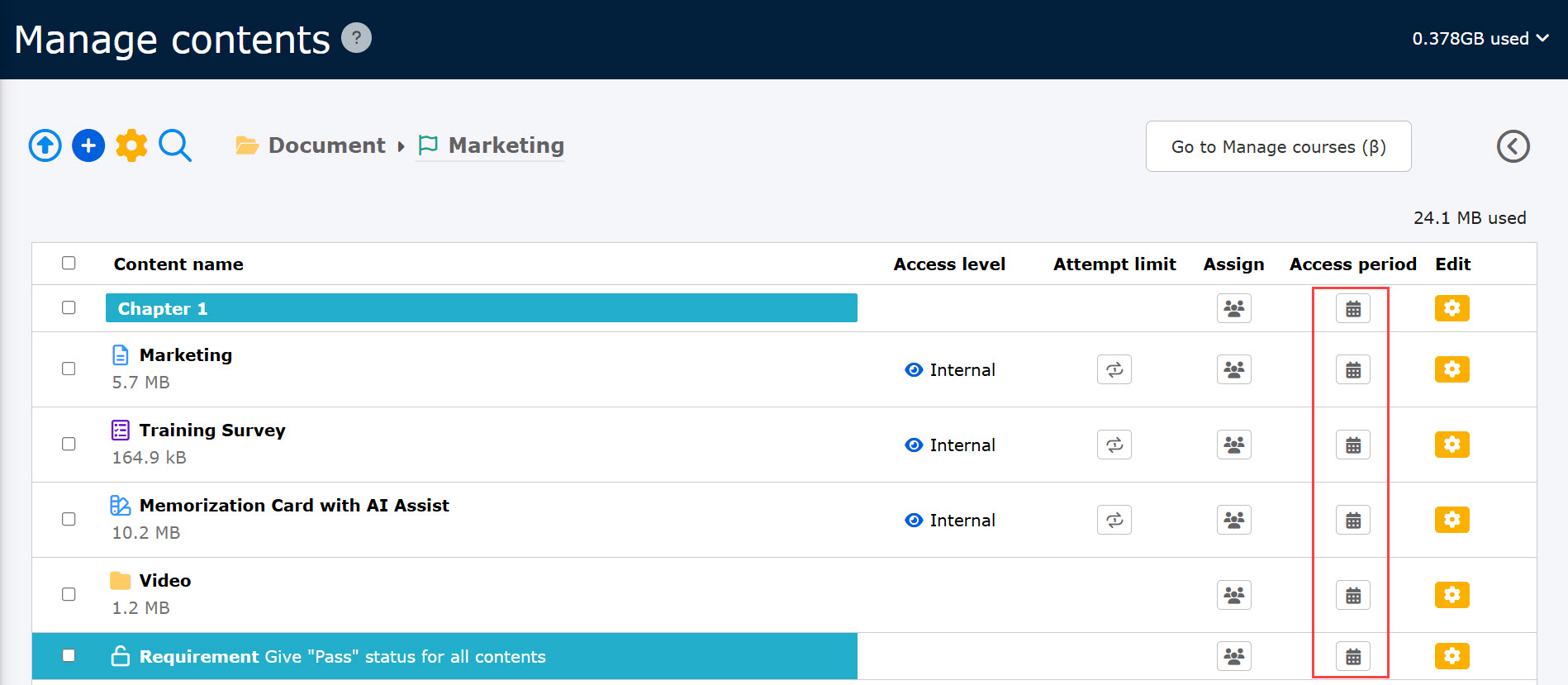
Select Manage contents in the side menu.
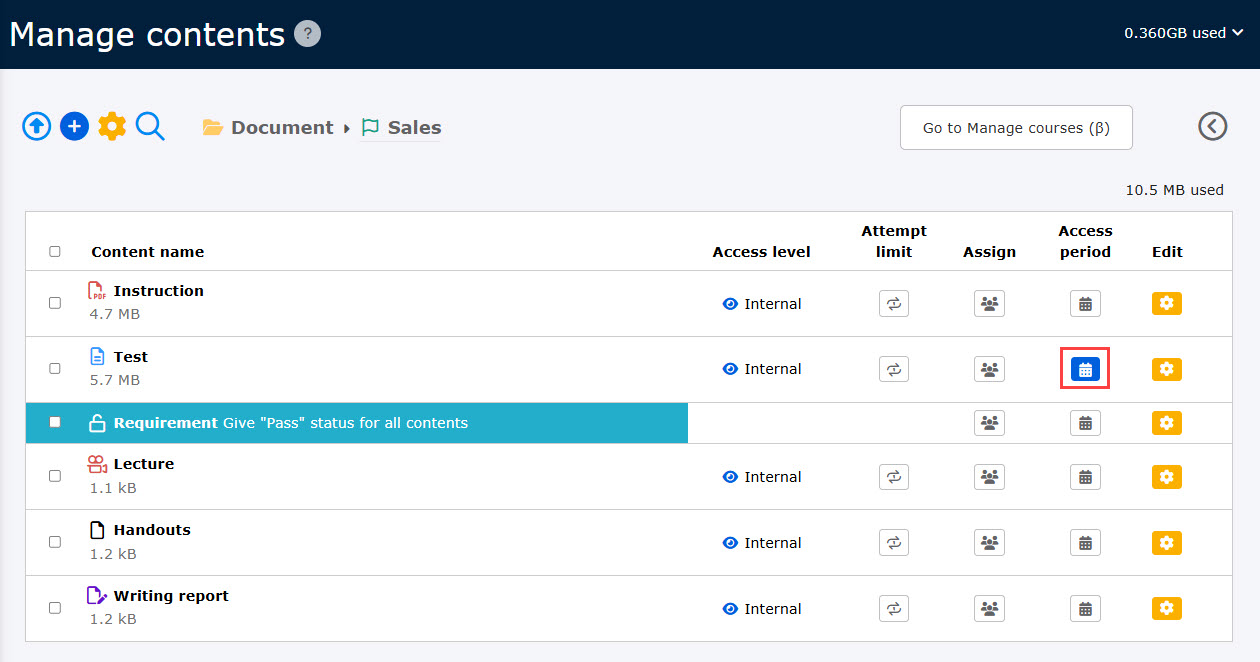
Click on the calendar icon on the content.
02. Add Access period
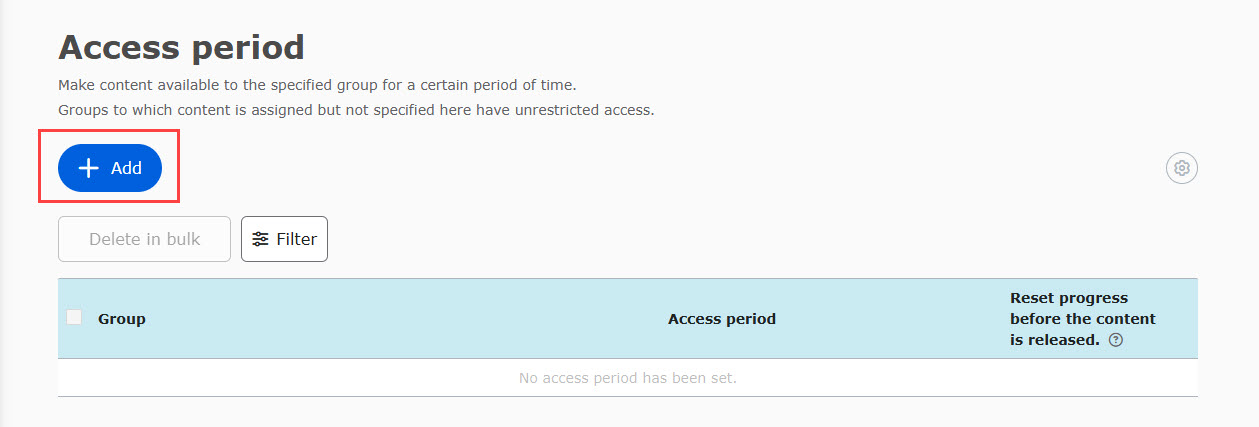
Click +Add to add an Access period.
03. Settings
Set each item in the window.
Save your changes once all settings are complete.
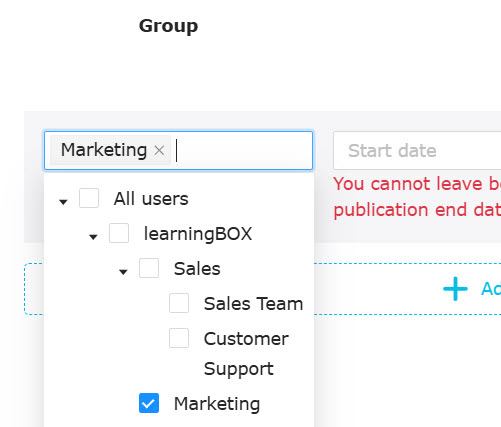
Group
Groups will be listed when you click the Select group window.
Tick the group(s) to set the period.
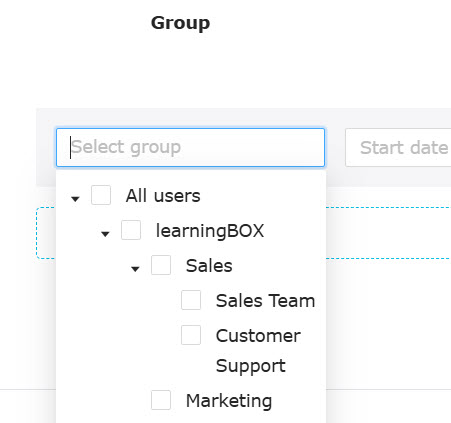
Untick or click the X button to unselect the group.
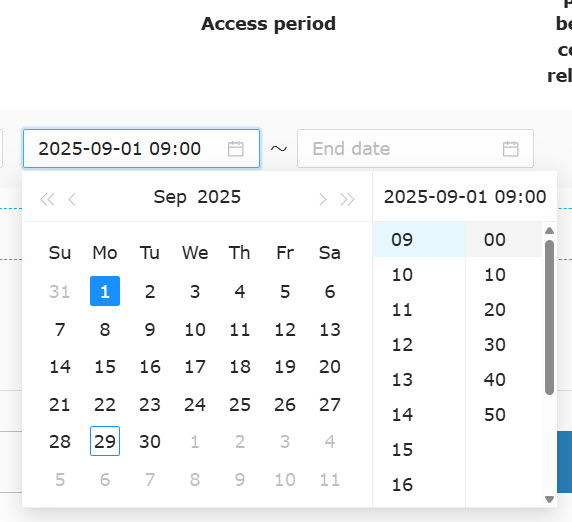
Access period
Set the Access period to open the content to the selected group(s).
Click on the calendar bar to select the start/end date.
*When only the date is selected, the current time is automatically entered.
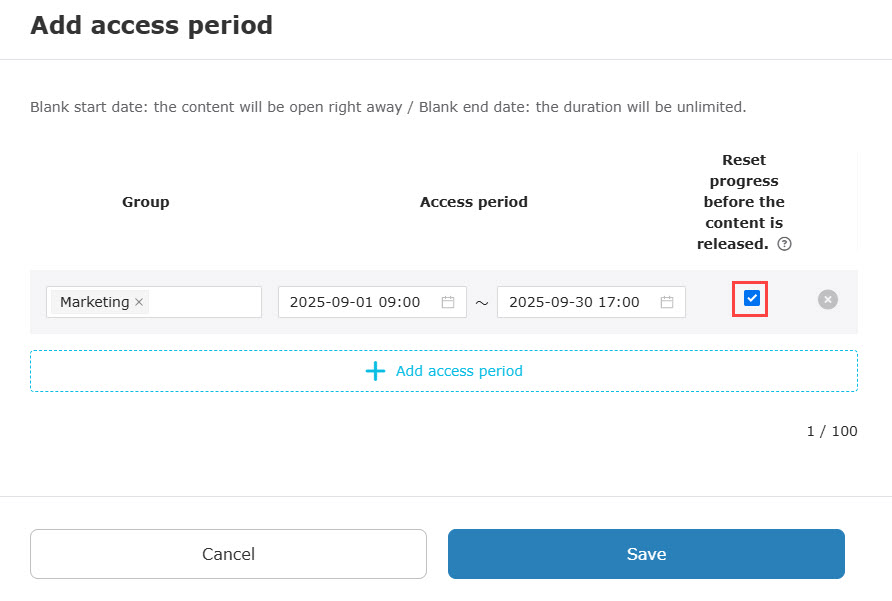
Reset progress before the content is released
This function is applicable when multiple publication periods are set for the same group for a certain content.
Ticking the checkbox will reset the completion status on the user interface to "Not attempted" before the beginning of the next Access period.
*You cannot set this option to headings, prerequisites and selective content.
Required
Management role of Content manager (Edit/View + Assign)
You can manually edit the completion status to "Not attempted" for individual grades after the attempt is completed.
*For more details, refer to By contents, Batch operation.
After the end of the Access period and before the start of the next period, the completion status on the user interface will be "Not attempted." However, this may not be applied depending on the conditions set.
The following explain some exceptions.
▼Applied
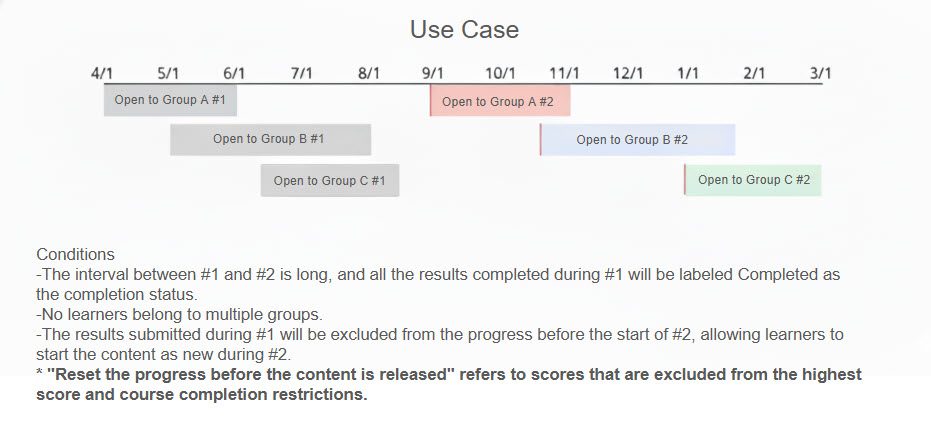
▼Not applied
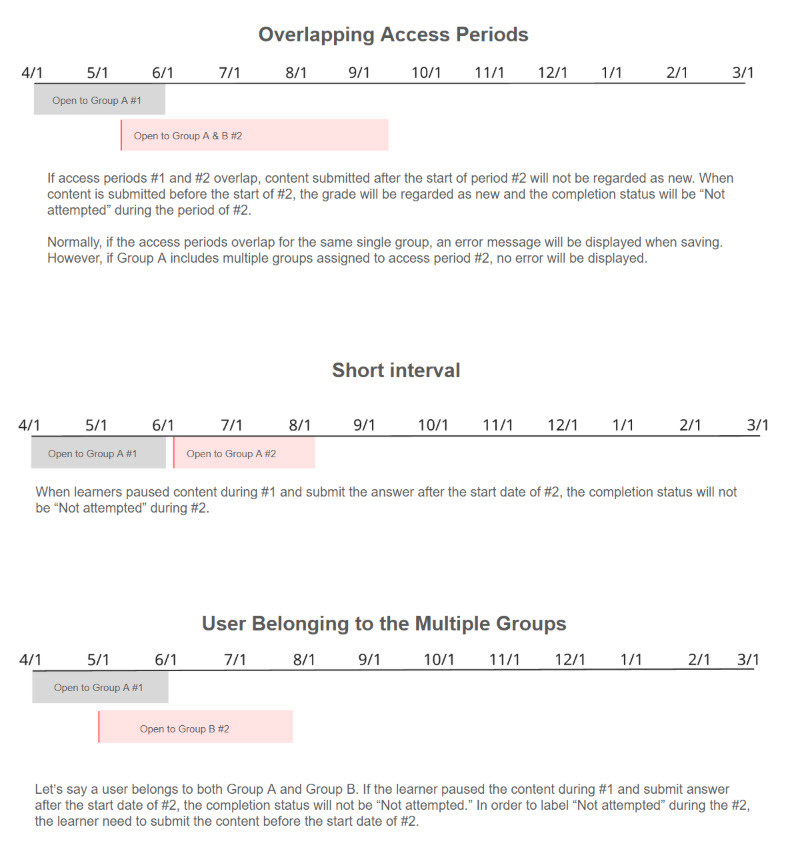
04. Add another Access period
Click on + Add access period.
Refer to the above Step 03. Settings to veiw how to apply the settings.
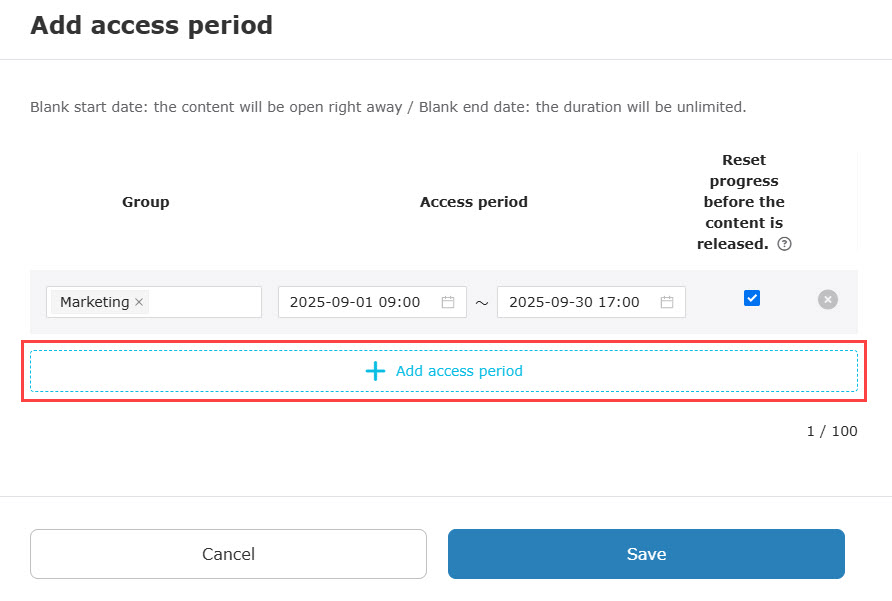
05. Delete Access period
Click the X button to delete the period.
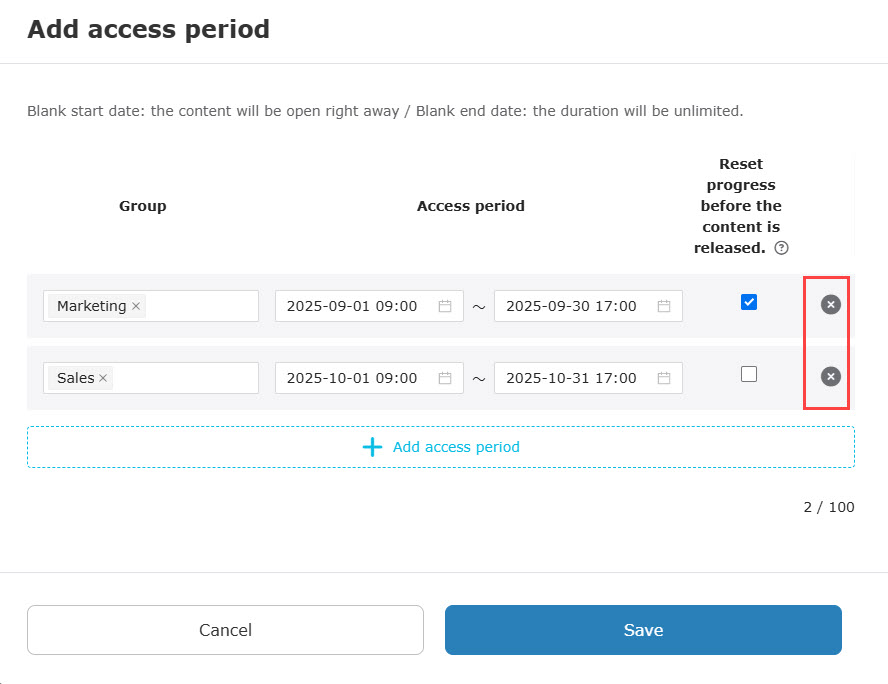
06. List
The Access period you have created will be listed as follows.
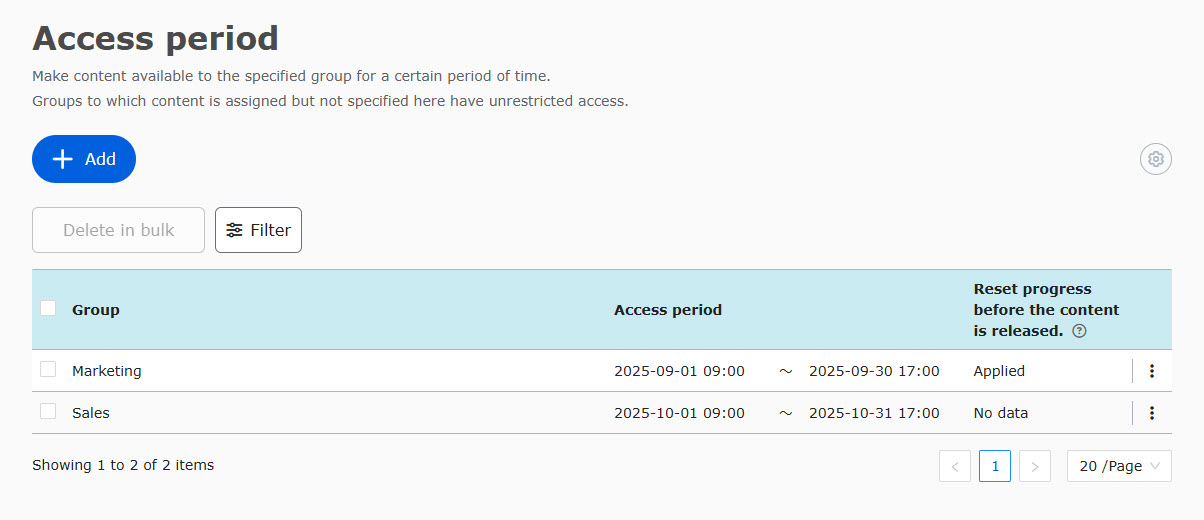
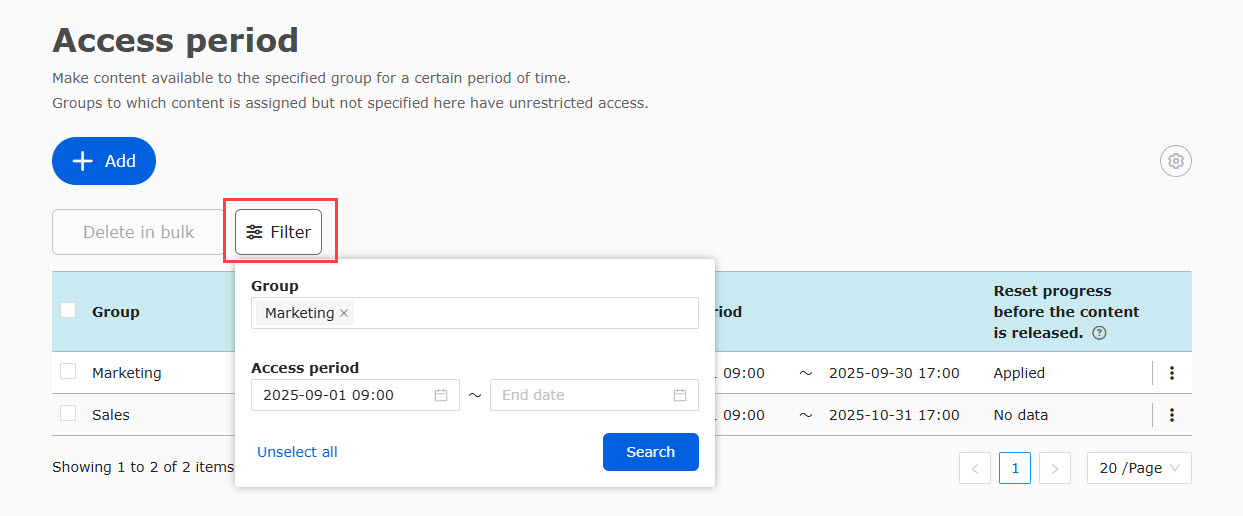
07. Filter
You can sort the setting by group/Access period.
Click the X button to delete an item.
Click on Unselect all to reset the conditions.
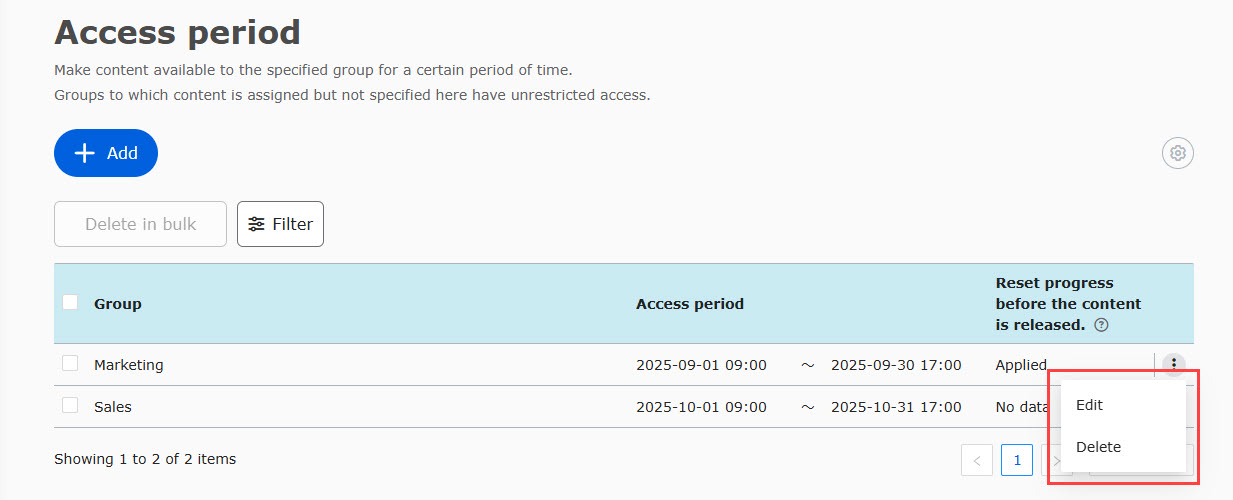
08. Edit/Delete
To edit the setting, click on the "︙" icon.
Refer to 03. Settings to find how to edit the settings.
Also, you can delete the setting from the icon.
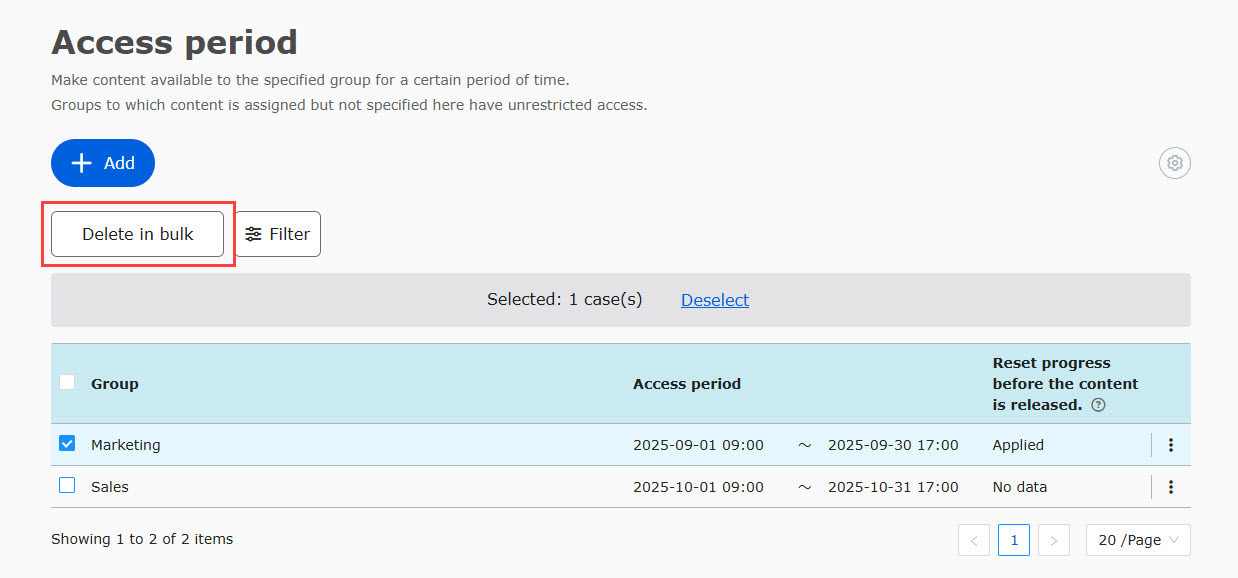
To delete multiple settings in bulk, tick the boxes and click "Delete in bulk."
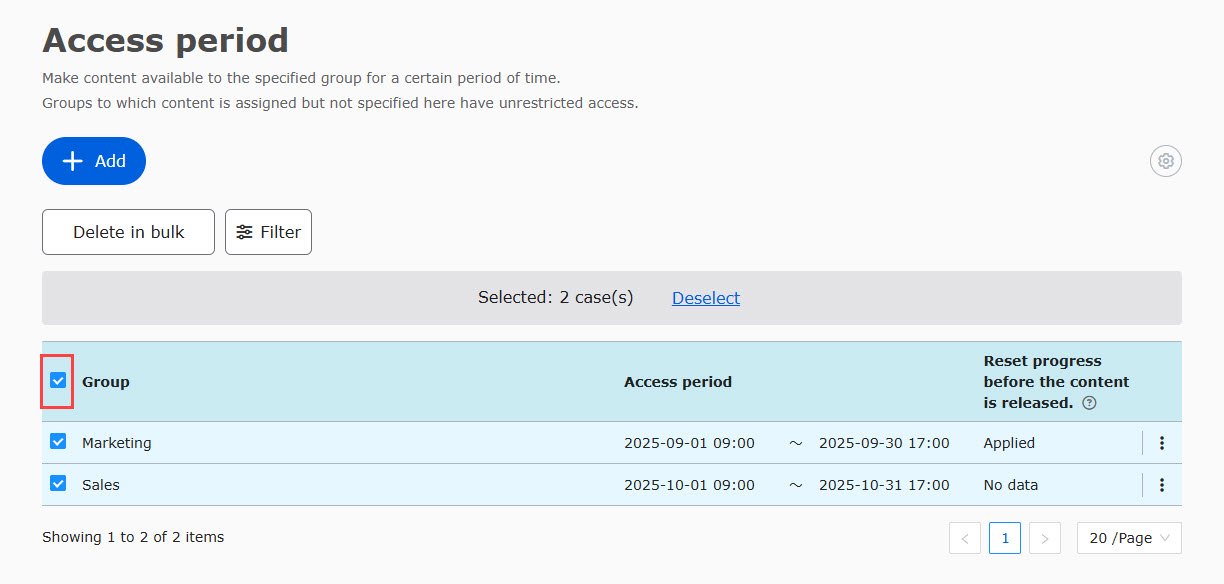
You can select all items by clicking the box next to the Group.
When a large number of Access periods across pages are selected, a button will be shown to select all items.
This action allows you to delete all in bulk.
Advanced settings
You can show/hide the course when it has not started yet or already ended.
01. Advanced settings
Click the gear icon shown below.
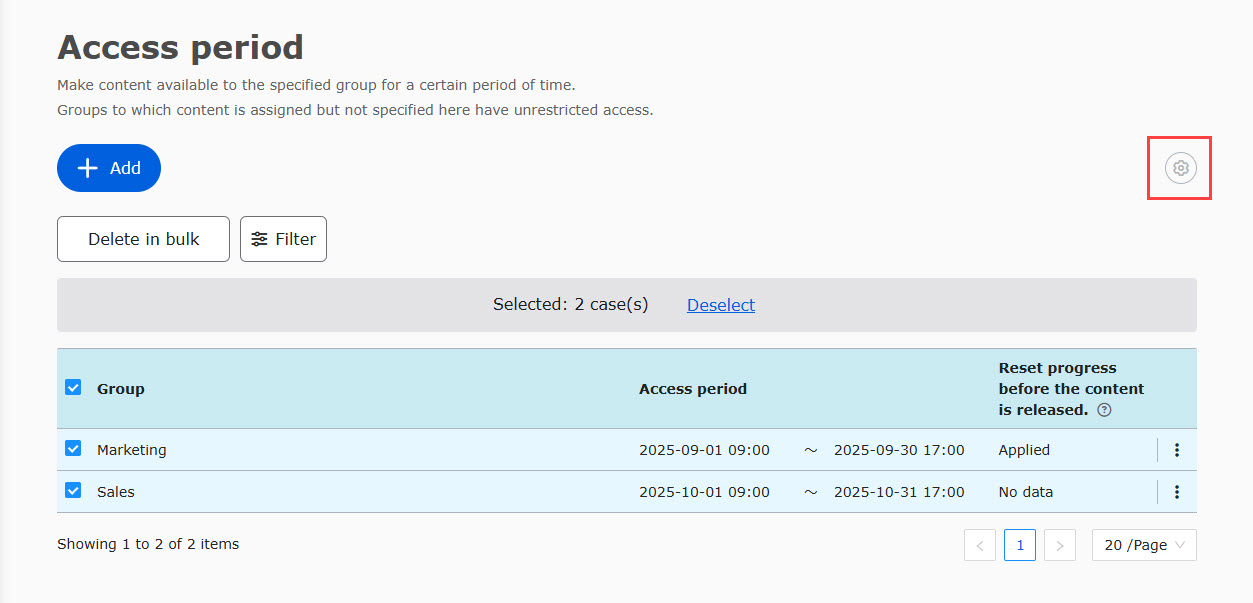
Choose either to show content in grayed out or Hide.
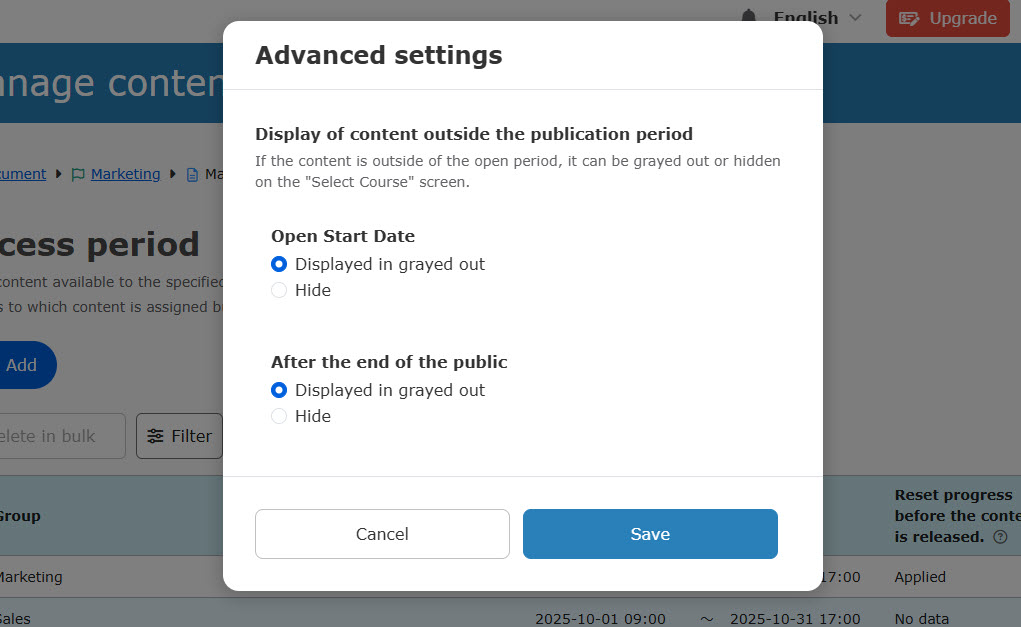
Headings/Selective content/Prerequisites will always be hidden during the unscheduled Access period.
After the settings
Icon
When the Access period is set, the icon will be colored.
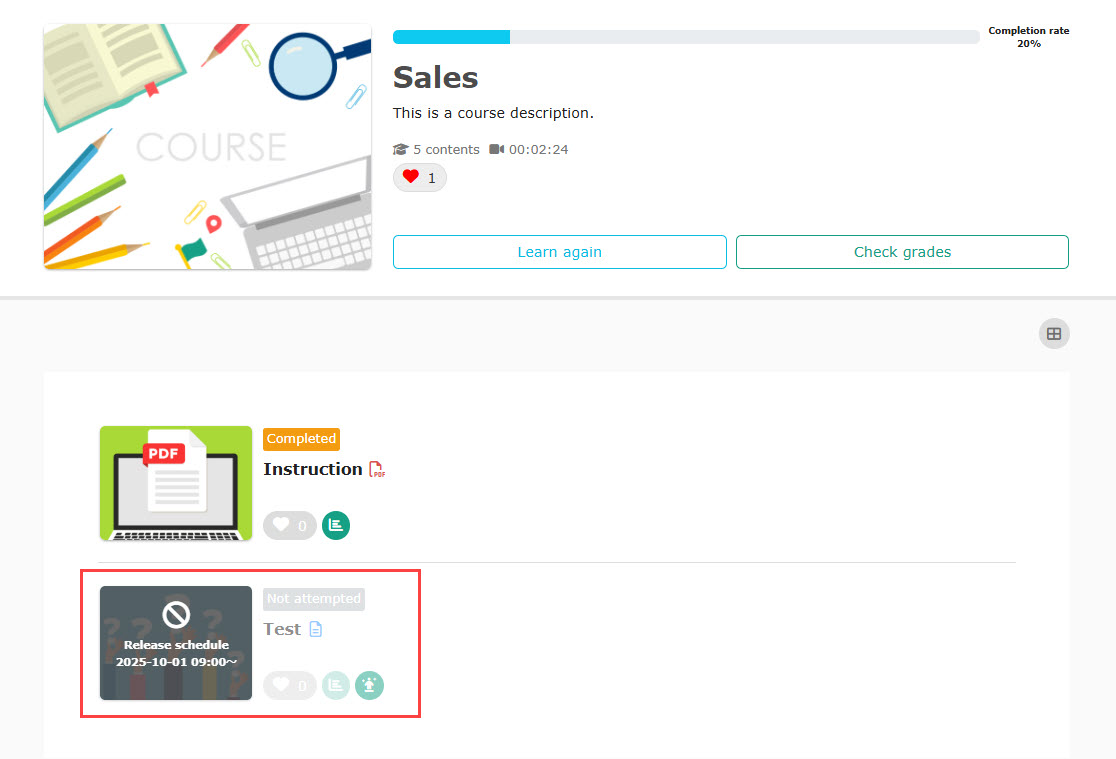
On the Select a course page
▼If set to grayed out
The content is displayed in grayed out and learners cannot select it.
▼If set to hide
The content will not be displayed.