
Content Allocation (Operated by Content Management) <Operation by Content Management (old)
Learners can take content on their pages by assigning content.
This can also be configured from Manage users.
Required
Content manager (Assign)
Instructions
01. Go to Manage content
Select Manage contents in the side menu.
Click the group icon on the content.
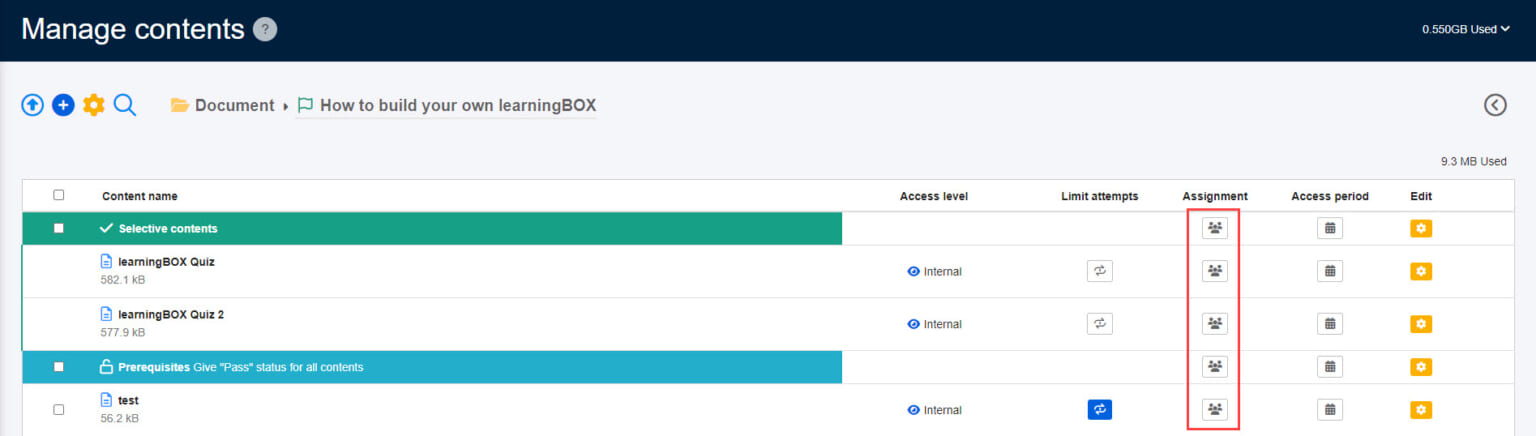
02. Select groups or individuals
Select groups or individuals.
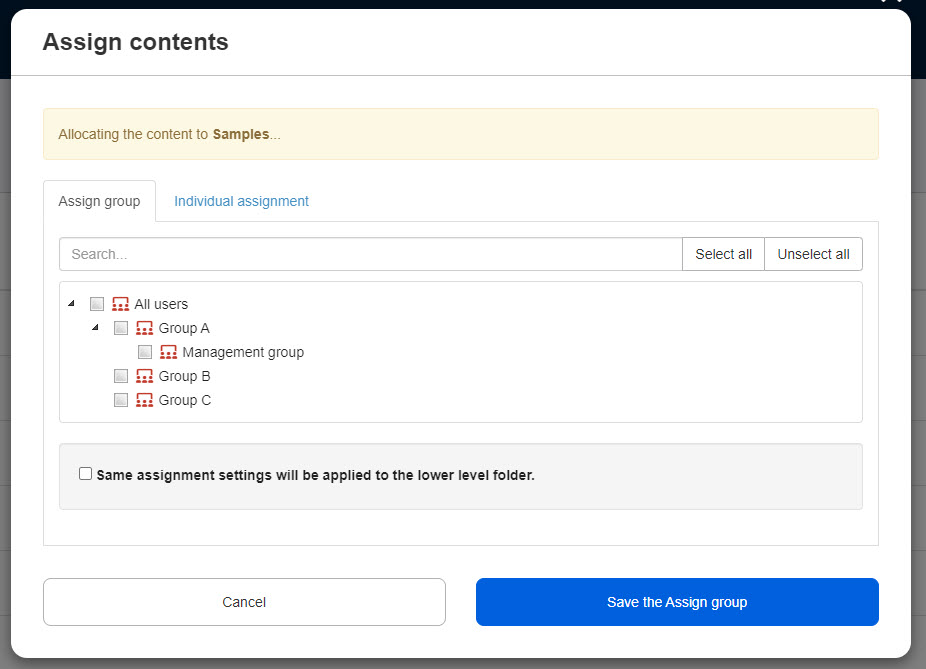
Assign content to groups
Tick the groups you wish to assign.
To unselect the item, click the checkbox again.
Click on "Select all" to select all users.
Save the settings.
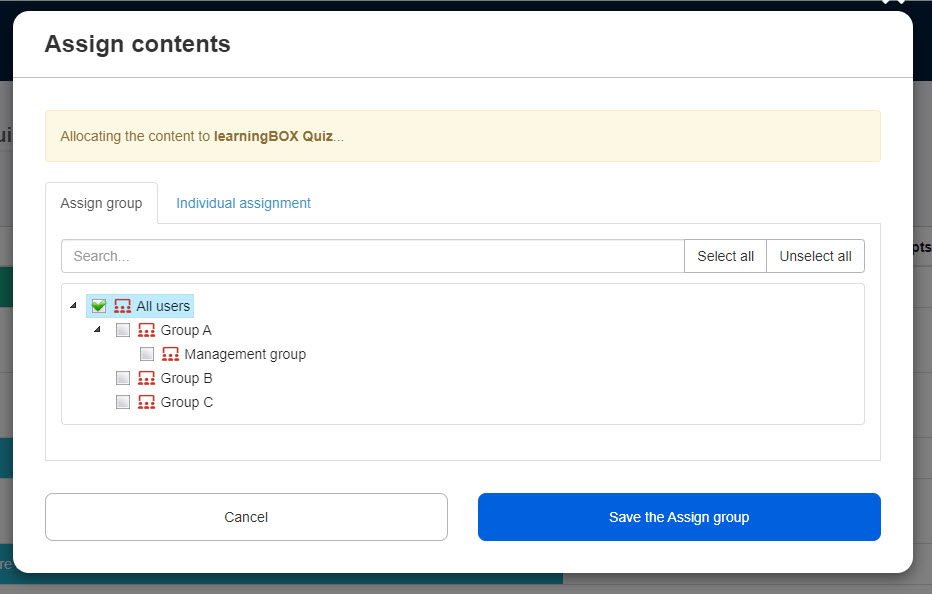
Assign content to individuals
Select users to assign.
*Batch selection is available on each page.
You can search users by name/login ID/display name in the search bar.
To unselect the item, click the checkbox again.
Selected users will be listed at the bottom.
Click "Cancel" to un-select the user.
Save the settings.
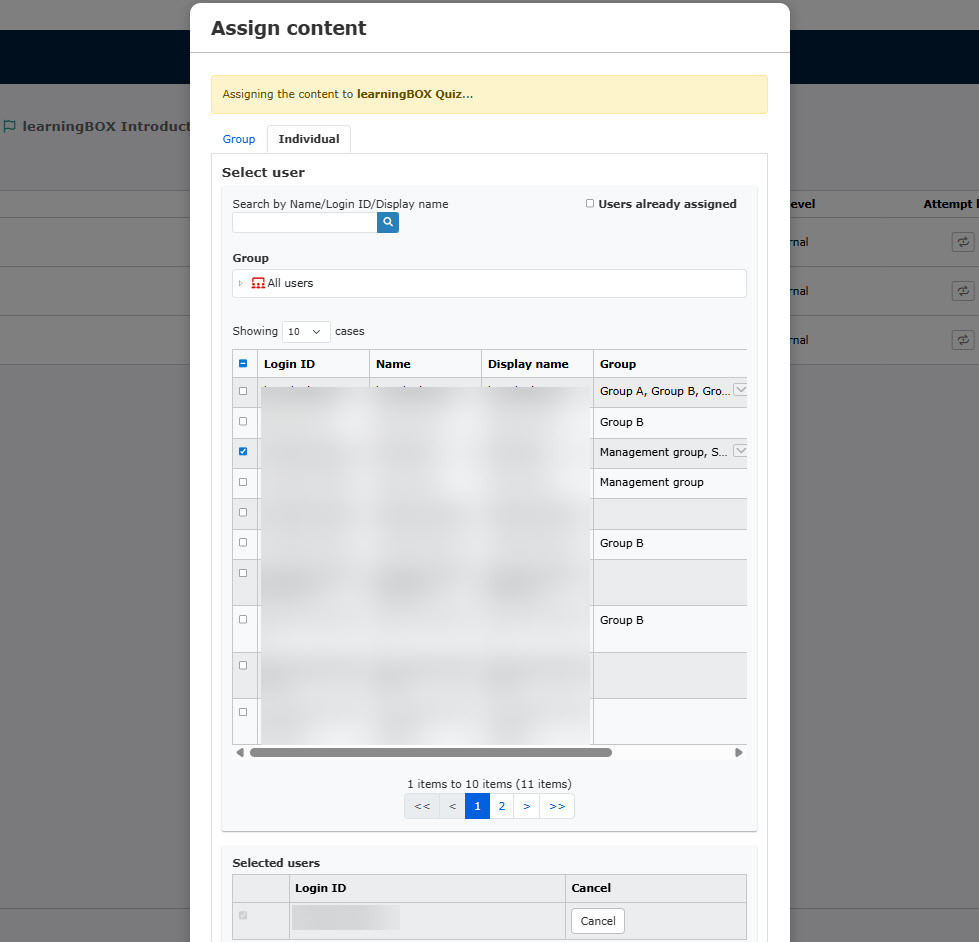
*If already assigned to individuals:
To find users who have already been assigned, tick the box in the search area.
After searching users and unselect them, they will be listed in the Selected users section.
Click "Cancel" to assign the user again.
When the course has a folder/folders, the same groups or individuals can be assigned to the folders. To apply the same setting, tick the box.

03. Icon
When the content is assigned, the icon will turn to be blue.
Note
When assigning courses, please be aware of the following two points:
▼ When a folder in a course is assigned
When assigning a folder within a course, be sure to tick the "Same assignment settings will be applied to the lower level folder" to show the content on the Select a course.
*When there are any content which has already been assigned, the settings will be overwritten by ticking the box.
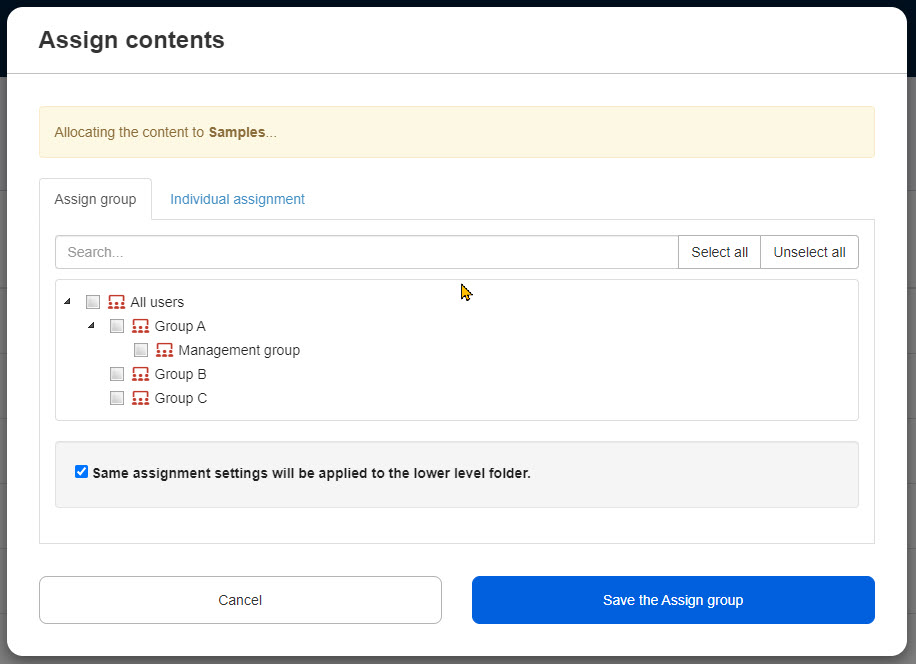
▼ To assign only specific content within a course
When assigning specific content within a course, DO NOT assign the course to group(s)/user(s).
Click the course and assign content to group(s)/user(s).