
Embedded video <Operation in Content Management (old)
You can use embed codes to create YouTube and other videos as content.
Live videos from YouTube and Vimeo are also available within the learningBOX.
Creation of embedded video
01. Create a course
First, create a course in the Manage contents.
*For details on course creation, refer to Course/Folder.
02. Open the embedded video page
Click on the course you created.
Click the "+" icon > Content > Embedded video
03. Settings
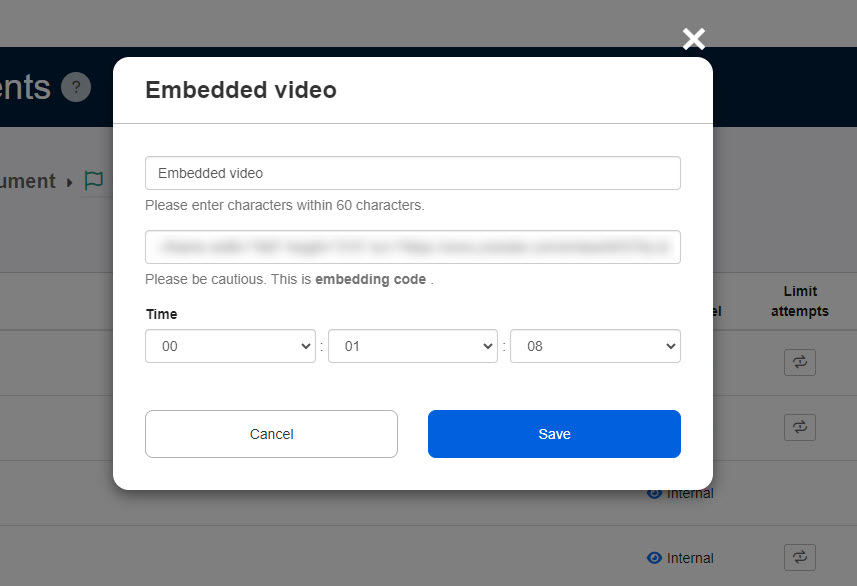
First, enter the title of the video.
Next, paste the embed code.
*The playback time will be automatically entered.
Click Save to finalize.
When "Enable privacy-enhanced mode." is ticked, the playback time will not be automatically entered.
User interface
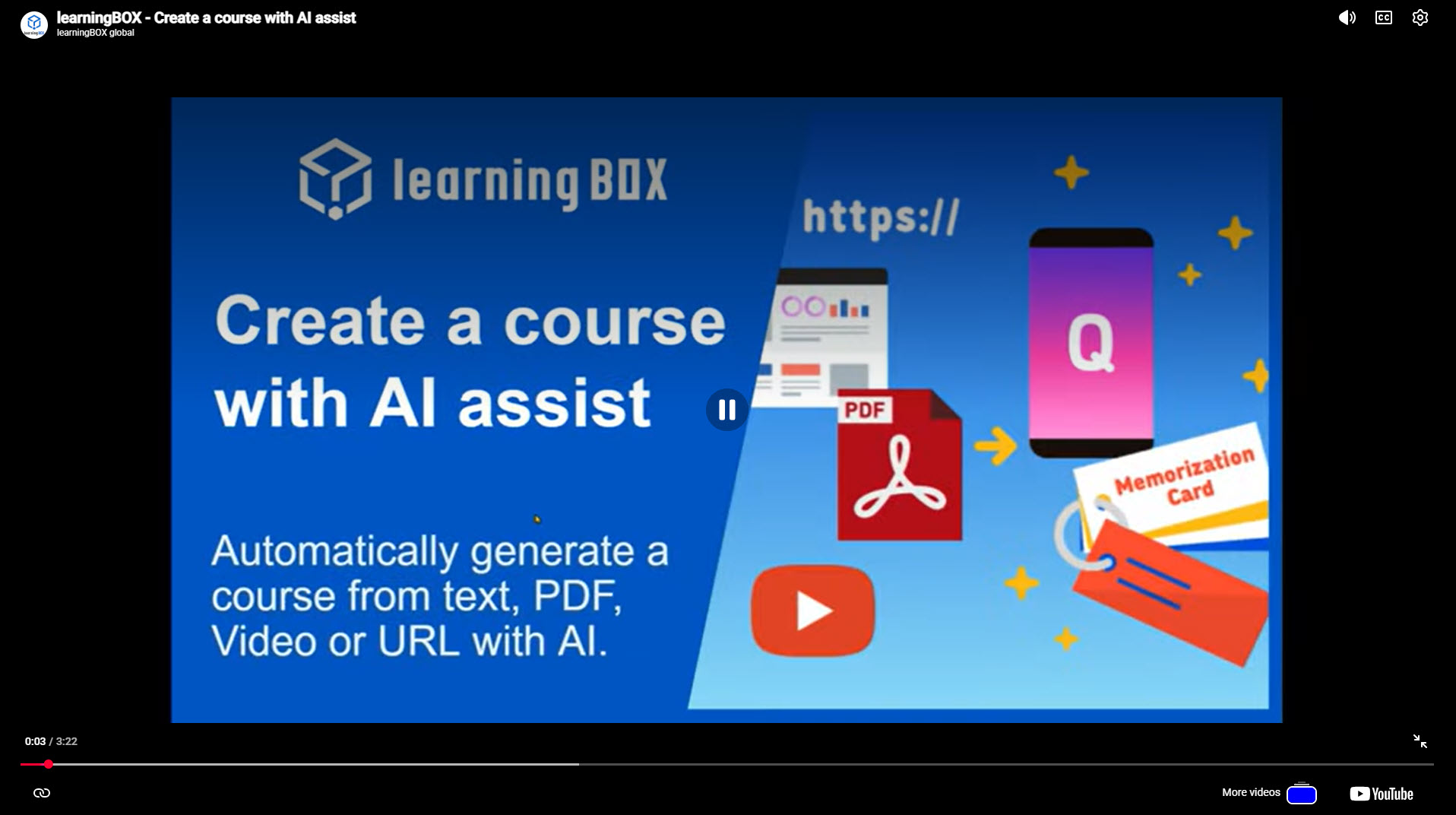
The following is a sample playback page.
Edit embedded video
01. Go to Manage contents
Click on the Manage contents in the side menu.
02. Edit
Right-click on the target embedded video or select the gear icon on the far right > "Edit Embedded Video".