
Course/Folder <Operation in the Manage contents (Old)>
This page explains courses/folders.
Difference between course and folder
Each course should have content so that learners can access content within the course.
When you create multiple content, you can organize the content using folders within a course.
This will help you manage content more efficiently.
Course
The following explain courses.
Courses can be created on either of the following screens.
- Manage courses (β)
- Manage contents
Create a course
01. Go to Manage content
Select Manage contents in the side menu.
Click on the "+" icon > "Course"
02. Create a course
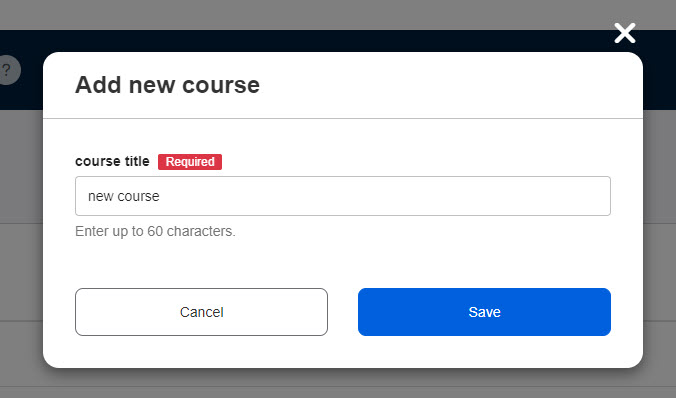
Enter a title of the course and save it.
Content can be added within a course.
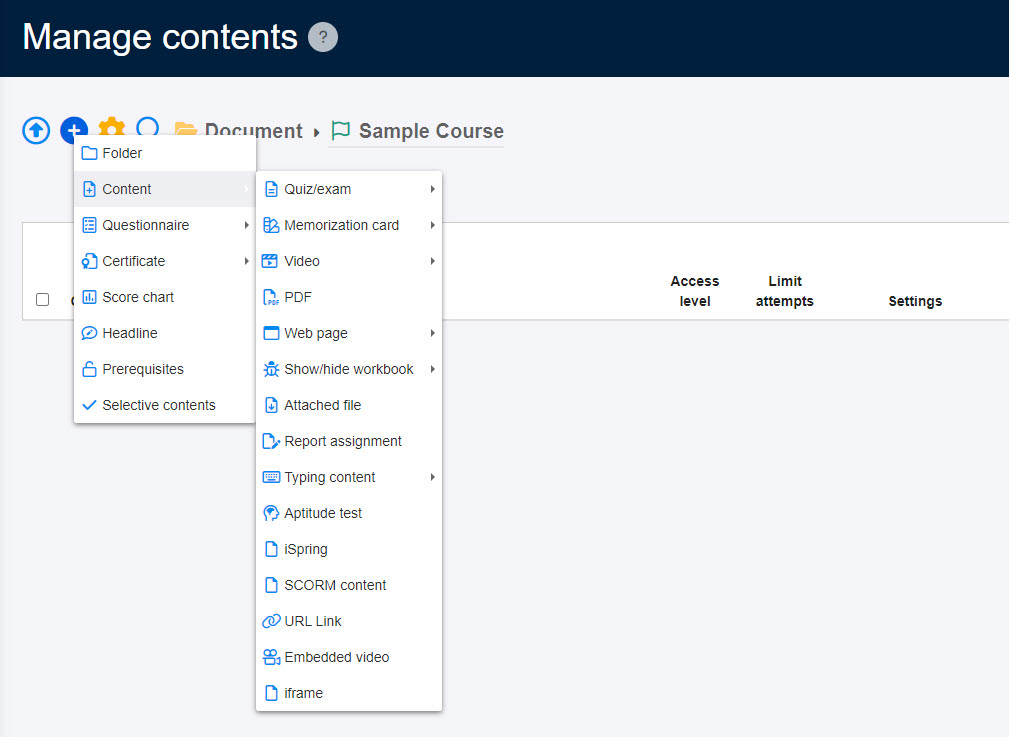
Click on the course you have created and select content from the "+" icon.
Generate a course with AI
AI (via the ChatGPT API) can automatically generate a structured course simply by uploading videos or PDF files to learningBOX.
*For more details, refer to AI Assist | Automatic course generation.
Course settings
This function allows you to set a variety of options regarding a course.
*For more details, refer to Course settings.
Status and content to learn
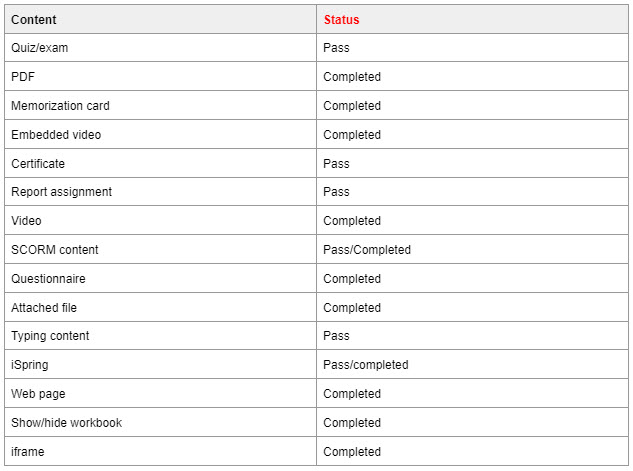
When a learner clicks "Start" on a course after the second time, the passed content will be skipped and the next content will be automatically shown according to the priority order of the status.
Priority order:
In progress > Not attempted > Fail > Resubmit
Folder
The following explain folders.
Create a folder
Create a course before adding a folder.
01. Create a course
*For more details, refer to Create a course.
02. Go to the course you created
Click on the course you have created.
Click on the "+" icon > "Folder"
03. Create a folder
Enter a title and save it.

To create content in a folder, click on the folder you have created, and go to the "+" icon.