
Proctoring
AI-powered proctoring features will prevent impersonation and cheating, and helps in fair evaluation of grades.
To ensure that suspicious behavior is prevented, we recommend setting the Attempt limit to one.
The following content is available for AI proctoring:
- Quizzes/exams
- Videos
- Personality test
To activate the proctoring features on the Quiz/Exam, the mode must be the Nomal mode.
Required
Management role of Content manager (Edit)
Steps
01. Open the settings page
Select Manage contents in the side menu.
In the upper right corner of the screen, select "Other Settings" > "Fraud Prevention".

02. Create a new template
Click on "+ Create new."

03. Detailed settings
Enter a template name.

Set the following three items.
1. Facial authentication
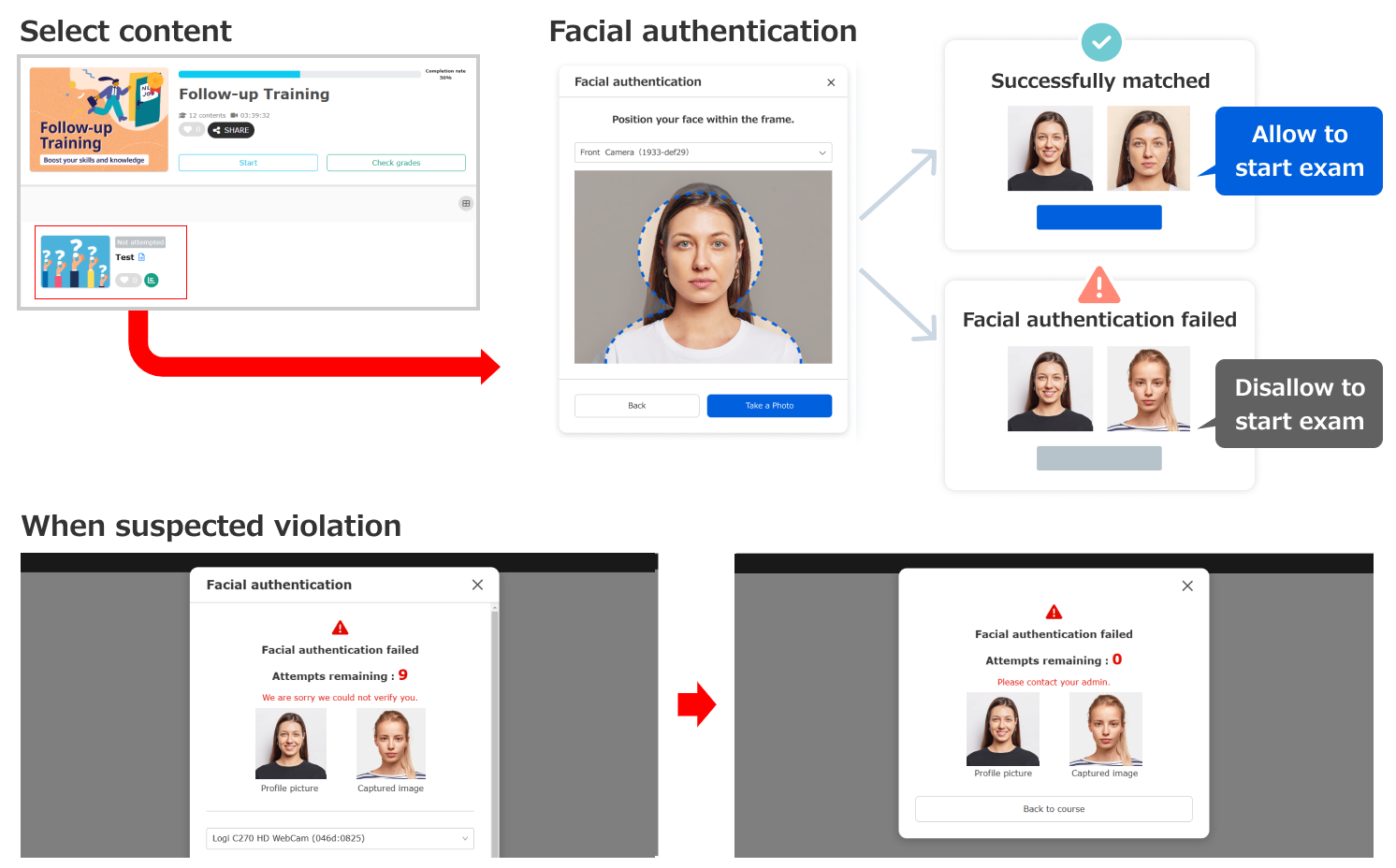
The learner's "identity photo" is registered in advance, and facial recognition is performed by AI at the start of the test.
To use this function, tick the "Use Pre-facial authentication."
When setting up facial authentication, the user's profile picture must be registered and consent for use is required in advance.
To register a photo, refer to Account sign-up settings.
▼ Match rates of facial recognition
It refers to the degree to which a facial image can be correctly authenticated.
AI compares two images and recognizes the learner based on the match rates.
*The default value is 70%.
▼Conditions of suspicious behaviors
You can set the number of failures that are regarded as Suspected violation in facial authentication.
▼When suspicious behavior is detected
You can choose whether or not to allow learners to continue taking the course if they are suspected of cheating by facial authentication.
If you select "Disallow to take the exam," you can exclude the grades for facial authentication failures. (*Applies to video content only).
Tick the box to exclude the grade.
2. Browser proctoring
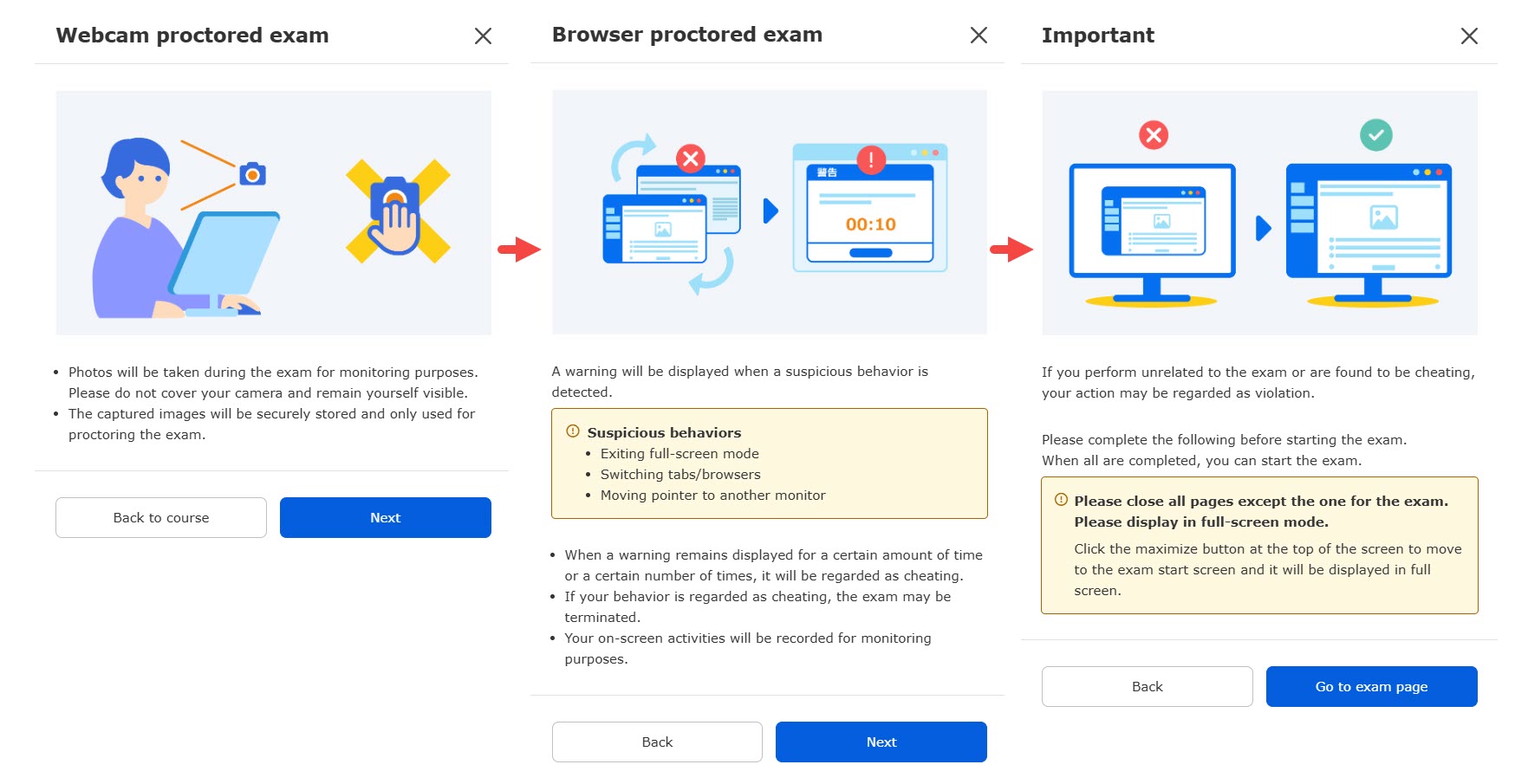
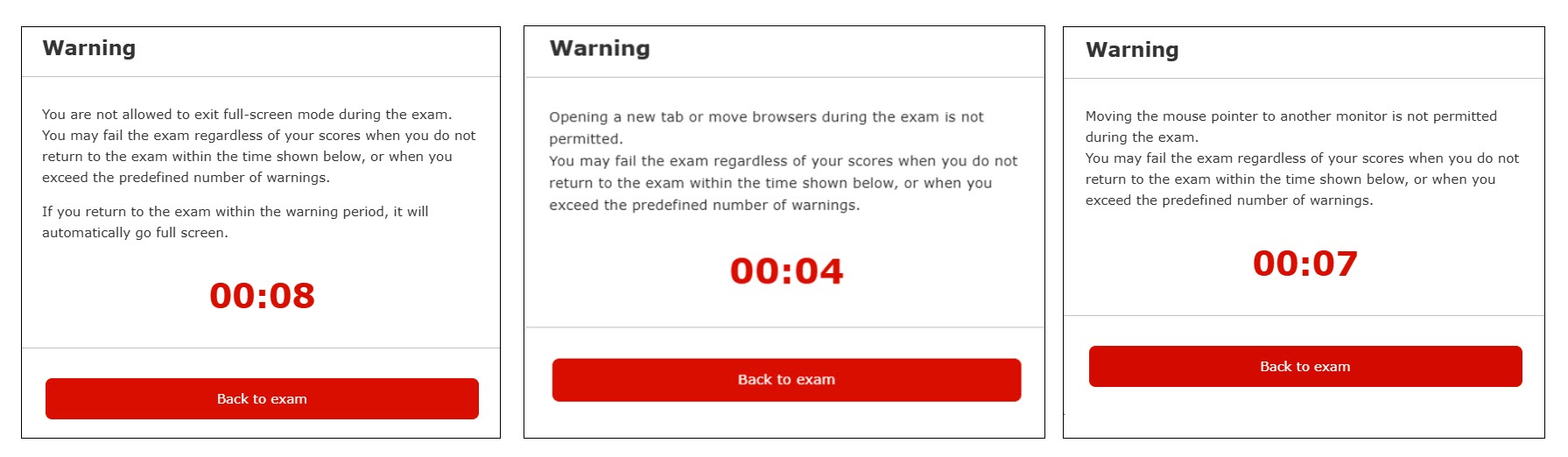
Exams can be terminated by displaying a warning if the learner exits full screen, moves a tab or browser, or move the pointer to a different monitor during the exam.
If you wish to use this service, tick the box of the "Show warning when suspicious behaviors detected."
▼Conditions of suspicious behaviors
You can set the time from when the warning is displayed to when learners return to the exam.
You can also set the number of warnings to be displayed when a suspecious behavior is detected by browser proctoring.
▼When suspicious behavior is detected
If the browser monitoring determines that there is a suspicious behavior, you can choose whether to continue or terminate the exam.
If you select the Termination, you can also exclude the terminated grade.
*Only applied to the video content.
Tick the box to exclude the grade.
3. Photo capturing during the exam
Learners' behaviors can be captured during the exam.
You can select when to capture images as follows:
Please tick the one you prefer (*You can choose both).
- Capture randomly
- Capture when a warning is issued
Learners' behaviors and captured photos during the exam will be stored in the "Proctor report."
Facial authentication and photo capturing require a Standard or above plan.
04. Apply to content
Apply the settings made in Step 03 to content.
Select the "Apply to content" tab.
Tick the content you wish to apply and save.
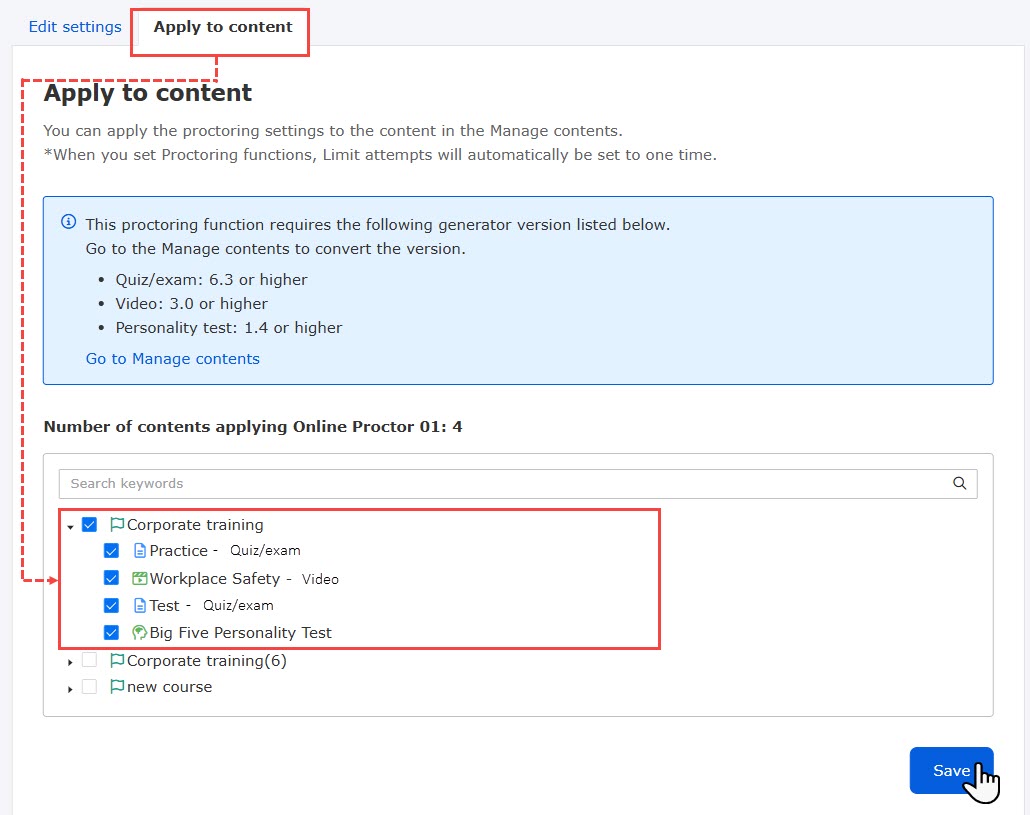
Note that if the generator version is changed to the unsupported version for the proctoring features, the features will no longer be applied.
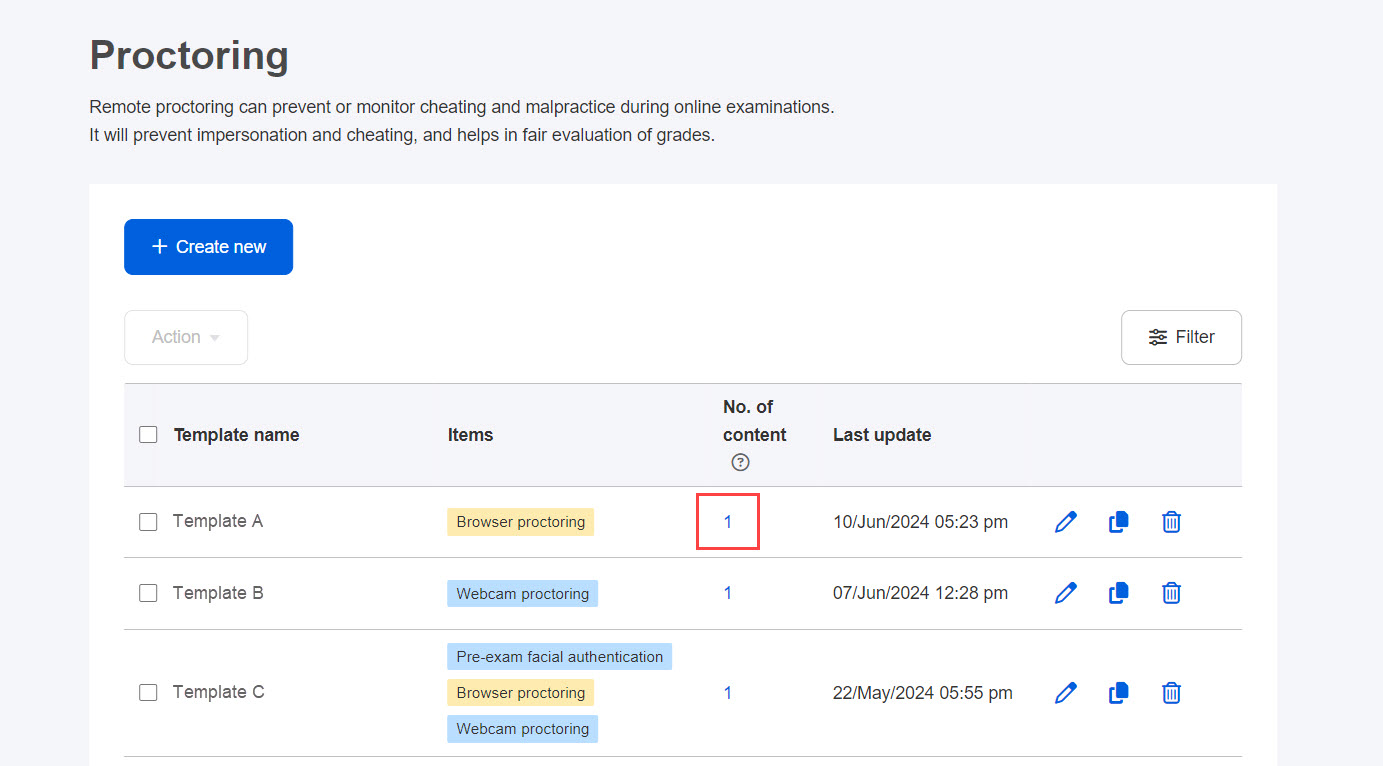
05. Templates
The templates you have created are displayed in a list, and you can check the setting items, the number of applications, and the date of the last update.
*"Number of content" will be updated when the template is applied to the content.
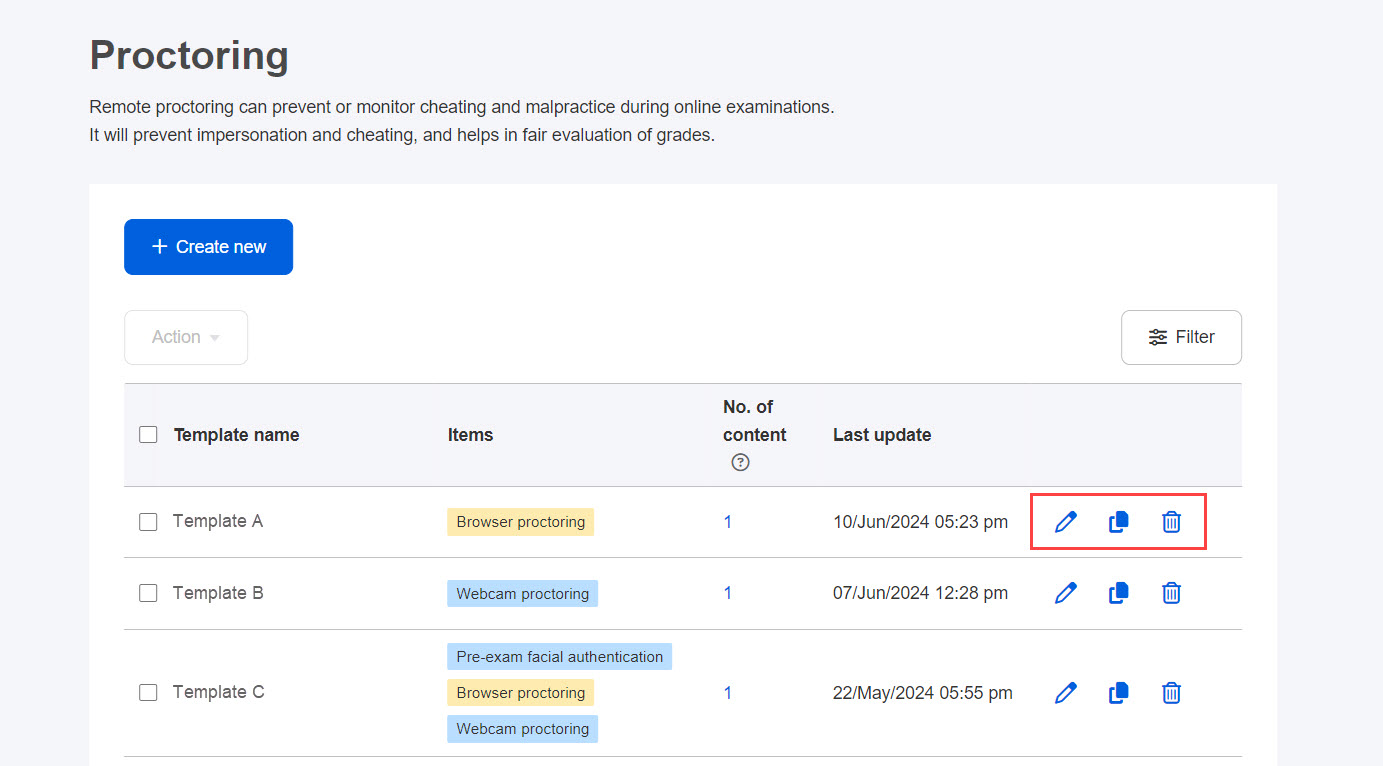
06. Edit/Duplicate/Delete template
You can edit, duplicate and delete from the following three icons in the red frame.
To search a template, click the Filter button.
・To edit templates in this page, the management role of Content manager (Edit) is required.
・According to the assigned Management role, you can apply the templates to content.
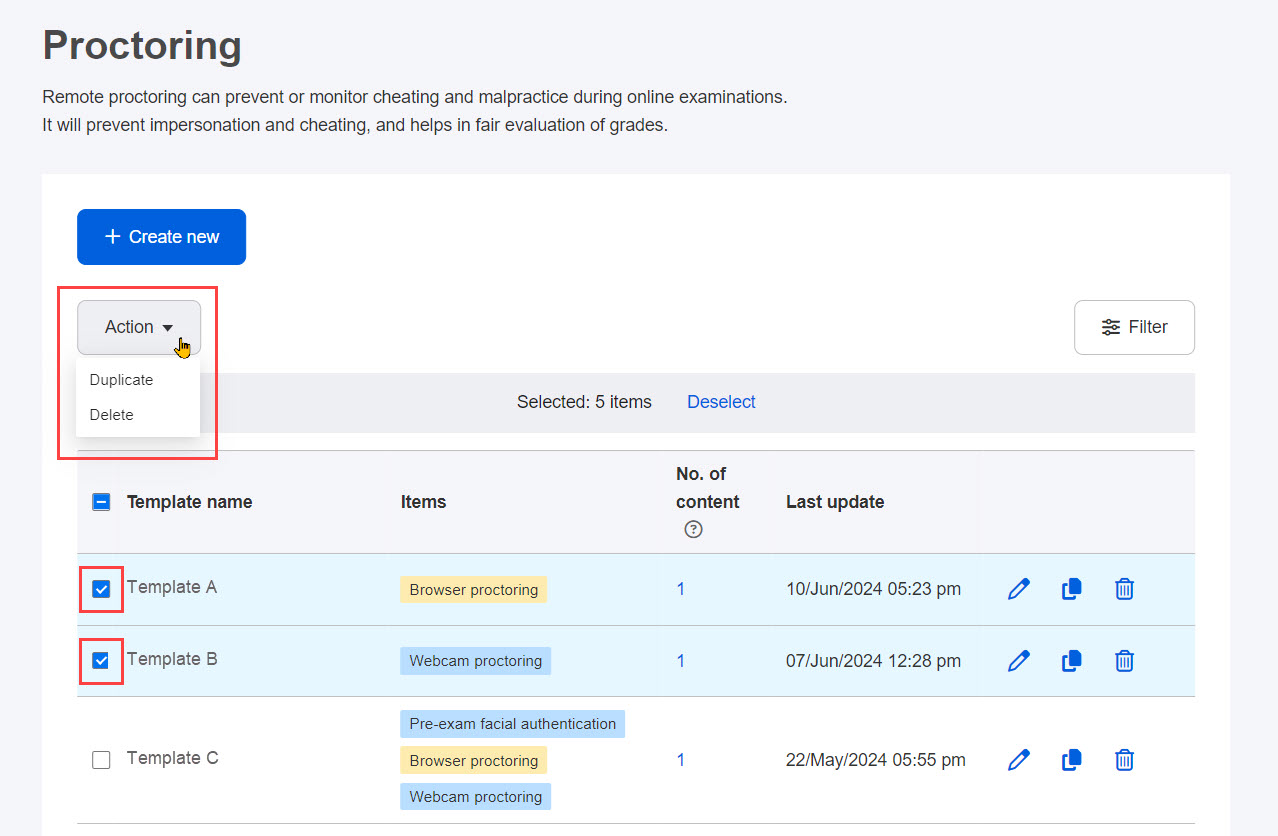
07. Duplicate/delete templates in bulk
Tick the boxes and click "Action."
Choose "Duplicate" or "Delete."
User interface
1. Facial authentication
2. Browser proctoring / 3. Photo capturing during an exam
If the full screen is released, moved to another tab or another browser, or the mouse pointer is moved to another monitor during the test, a warning will be displayed.
Suspicion level
Suspicion level can be viewed on the grade page.
*For more details, refer to Proctor report.