Acquired badges
You can view the badge information acquired by learners.
You can search badges by its name, content or other criteria.
Also, badges which learners have already acquired can be deleted.
*For more details, refer to Manage badges.
Required
Management role of Grade manager (Edit/View)
Actions for acquired badges require the management role of Grade manager(Edit).
Interface
01. Go to Manage grades
Select "Acquired bandges" on the side menu.
You can view a list of badges acquired by users who you have a permission to.
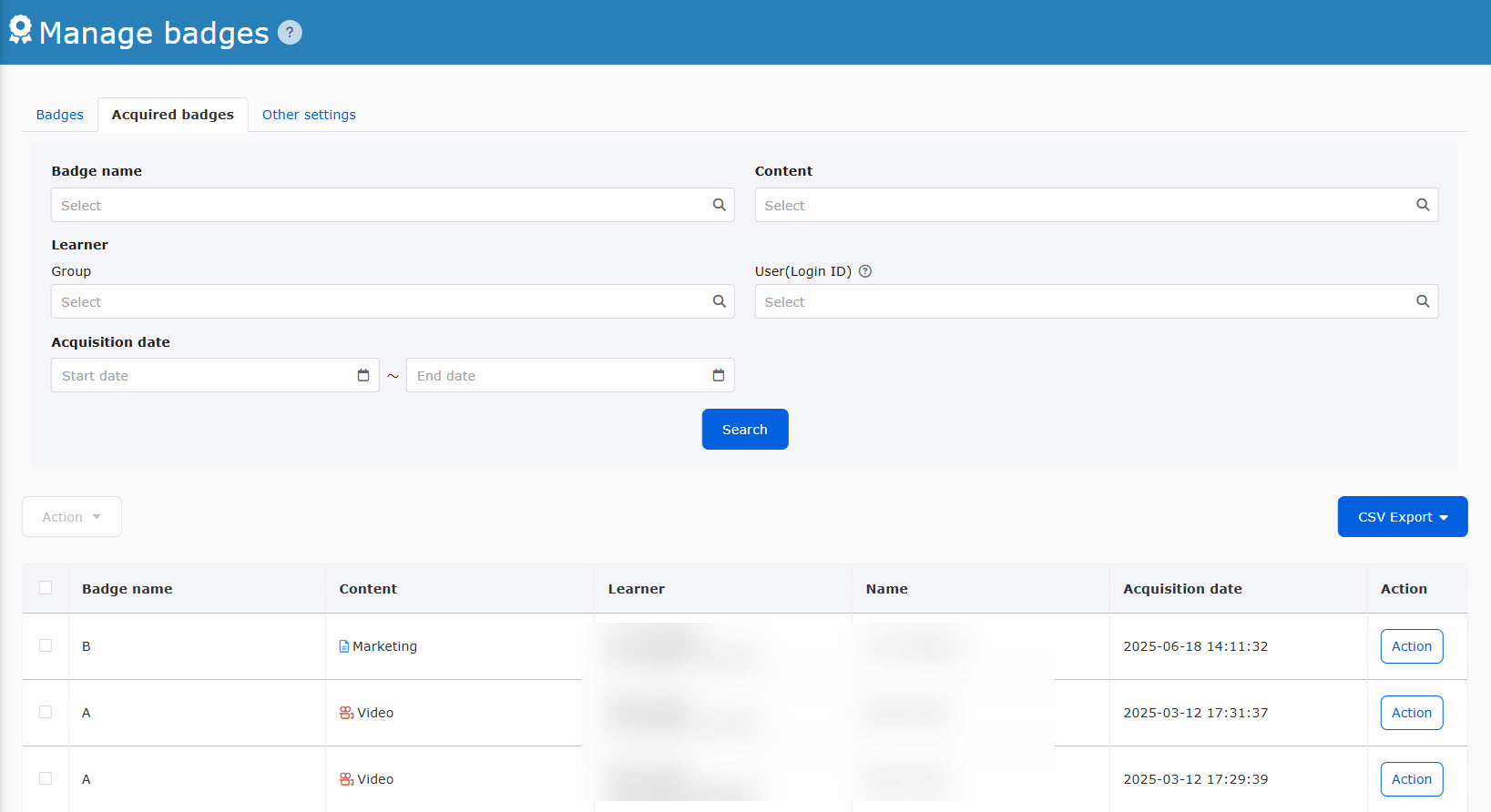
The following will be displayed
- Badge name
- Content
- Learner
- Name
- Acquired date and time
02. Search
In the search field, you can search badges users have already acquired.
Click on "Search" after selecting items from the following.
- Badge name: Select a badge name
- Content: Select course/folder/content
- Learner : Select group/user (login ID)
- Date Earned: Select the period during which you earned the badge.
03. Change acquisition date and time
You can manually change the date and time the badge is taken.
Click on "Actions" and select "Change acquired date."
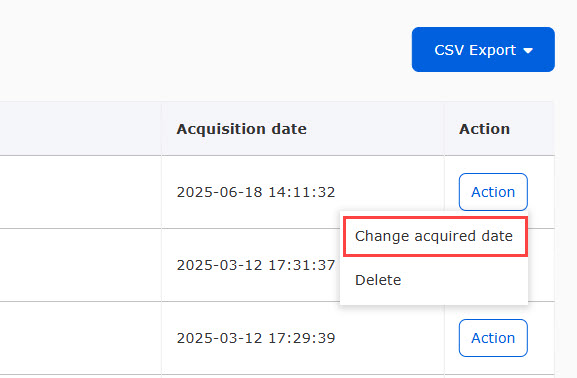
The following window will appear.
Select a date from the calendar, and click "OK."
Click on "Edit" to finish.
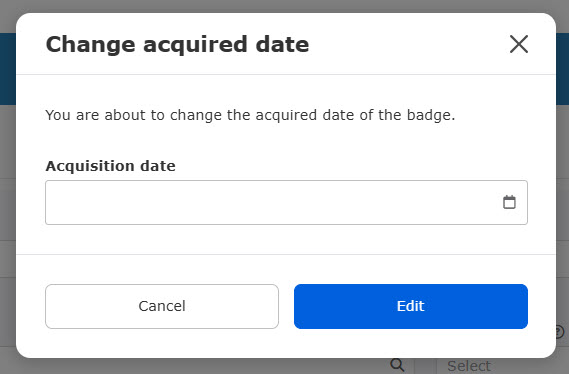
Batch operation
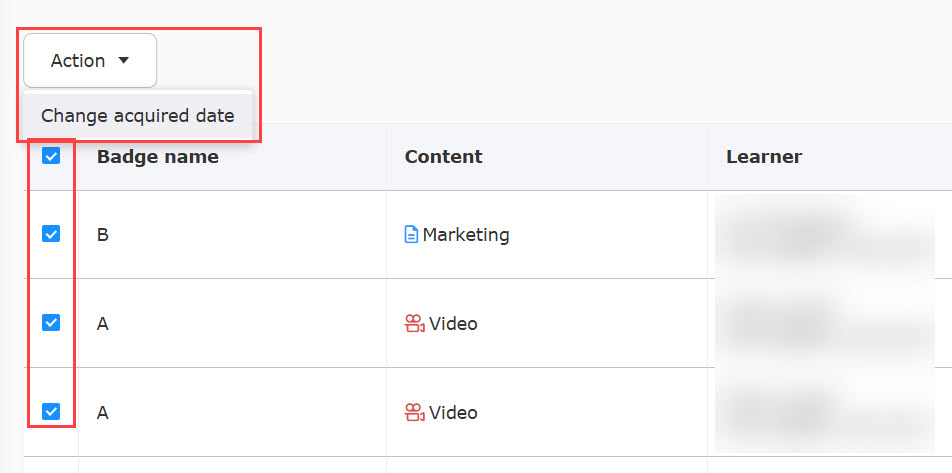
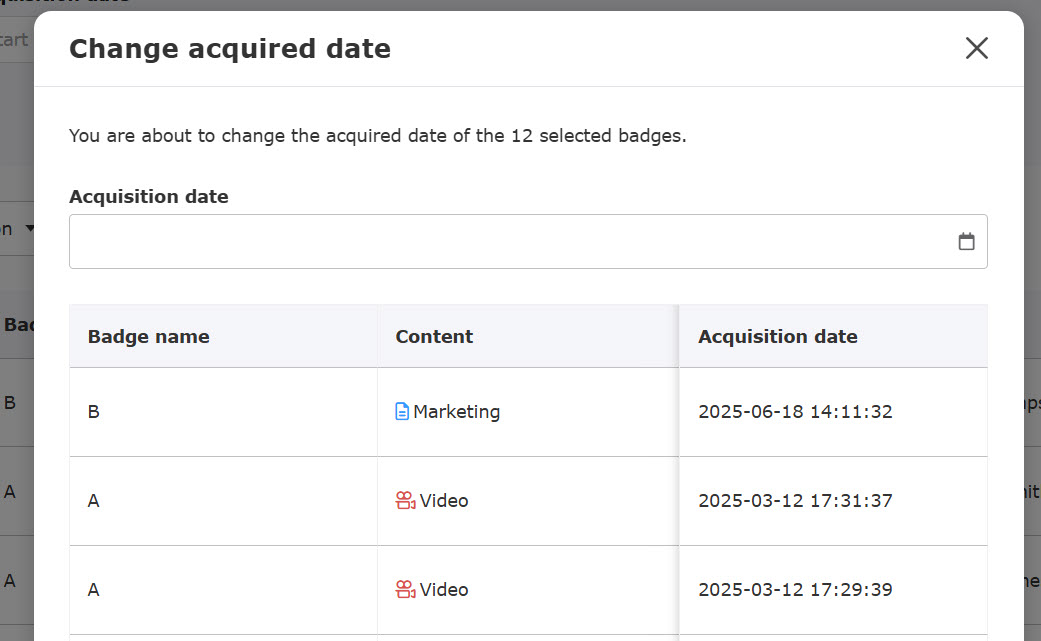
The acquisition date of multiple badges can be changed in bulk.
Tick the boxes to the left of the badge and click on "Action" > "Change acquired date."
The following window will appear.
Select a date from the calendar, and click "OK."
Click on "Edit" to finish.
04. Delete a badge
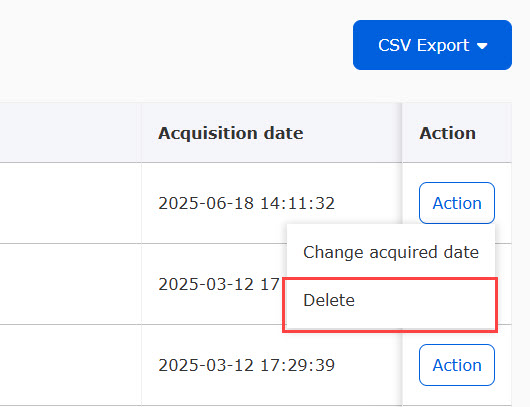
You can delete badges given to users.
Click on "Actions" for the badge in question and select "Delete".
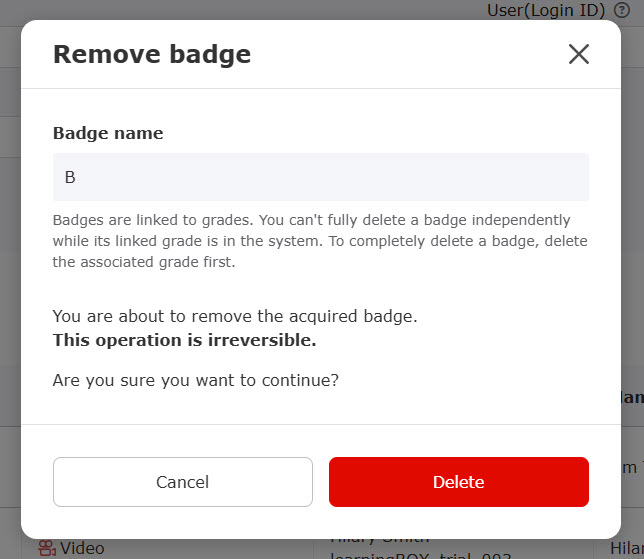
The following window will appear.
Confirm the content and click "Delete."
CSV export
Acquired badges can be exported via a CSV file.
01. Export
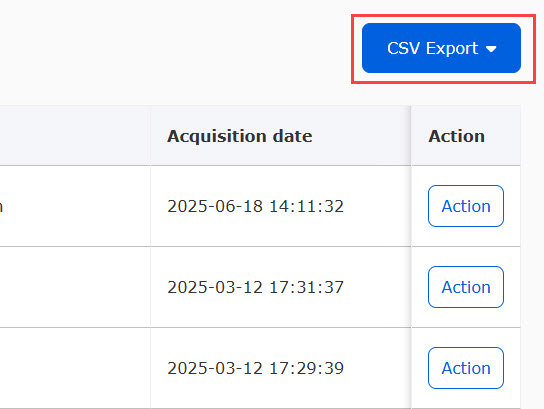
Click on "CSV Export."
Download badge information.
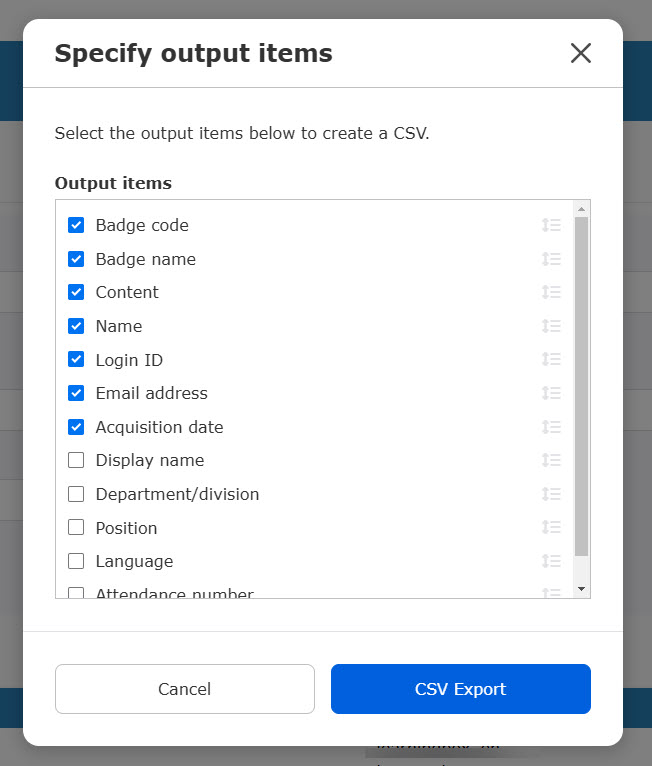
02. Items
You can specify items to output in CSV.
Click the ▼ to the right of "CSV Export" and select "Specify output items."
Tick the items to output and click "CSV Export."
The order of each item can be edited by drag and drop.