
iSpring <Operation in Content Management (old)
Video presentation in PowerPoint can be uploaded.
*For more details, refer to iSpring - Presentation Materials.
Upload iSpring Materials
01. Create a course
First, create a course in the Manage contents.
*For details on course creation, refer to Course/Folder.
02. Open the Upload iSpring content screen.
Click on the course you created.
In the upper left corner of the screen, select the "+" icon > "Content" > "iSpring".
03. Settings
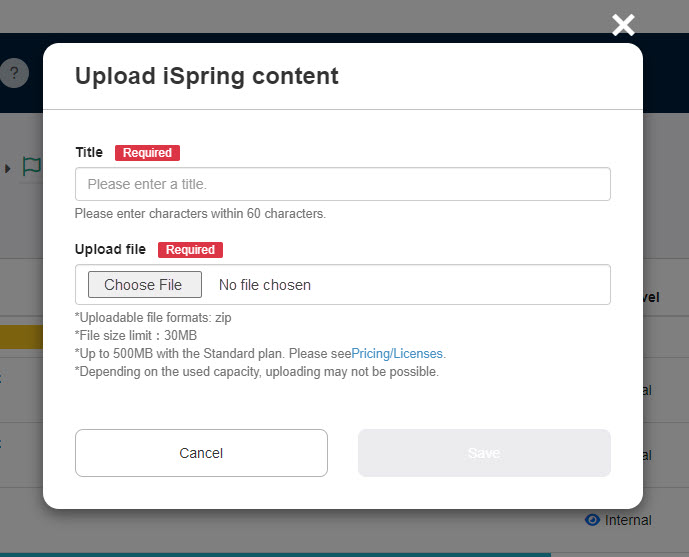
First, enter the title of the content.
Click on "Choose File" to upload an iSpring file.
Click Save to finalize.
Download iSpring content
iSpring content can be downloaded.
01. Go to Manage contents
Click on the Manage contents in the side menu.
02. Download
Right-click on the target iSpring content or select the gear icon on the far right > "Download".
Re-upload iSpring content
Once created, iSpring content can be replaced with other iSpring content.
01. Go to Manage contents
Click on the Manage contents in the side menu.
02. Re-upload
Right-click on the target iSpring content or select the gear icon on the far right > "Re-upload".