Certificates
When learners pass or complete a course, you can issue certificates.
TLearners can view their earned certificates on the list page.
*For more information on creating certificates, refer to Certificate.
Menu
The tabs displayed on this page will vary depending on the user's management role.
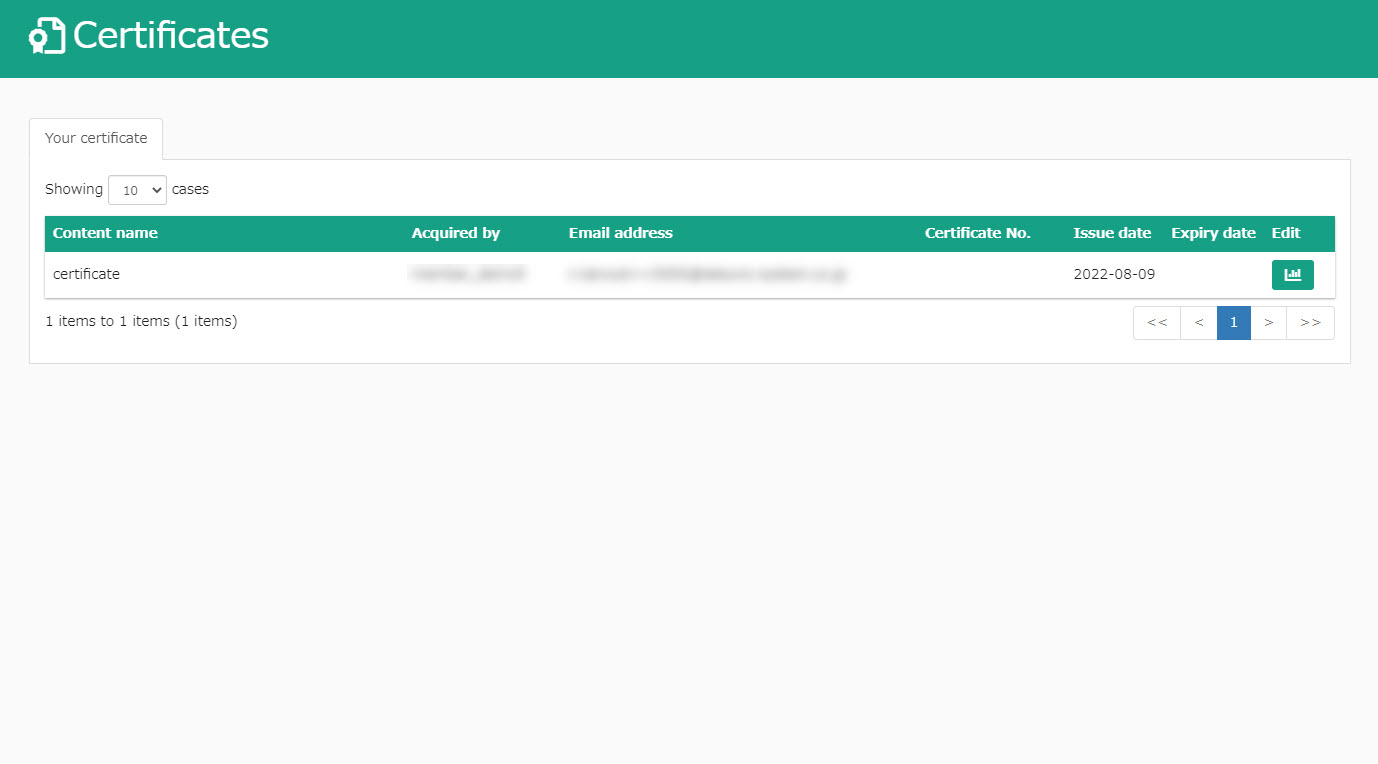
▼Users without management roles
Only the Your certificate tab is visible.
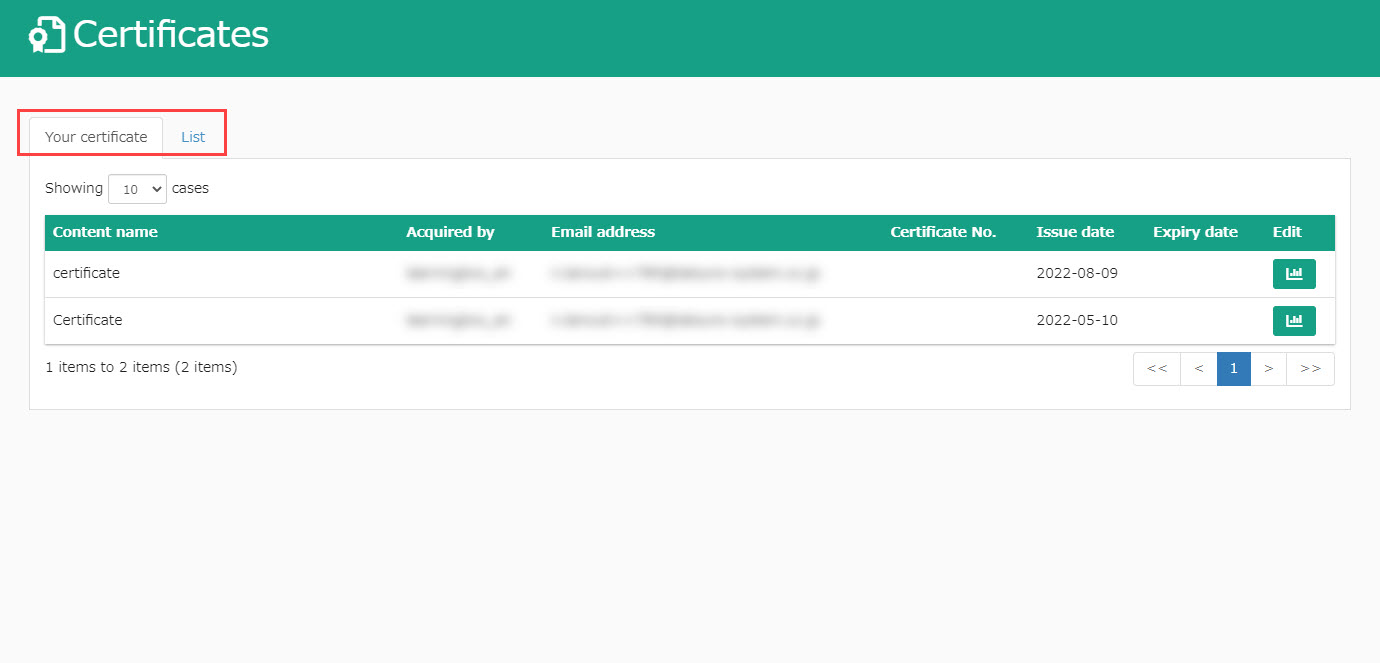
▼ Grade manager/Admins
Both the Your certificate and List tabs are visible.
Your certificate
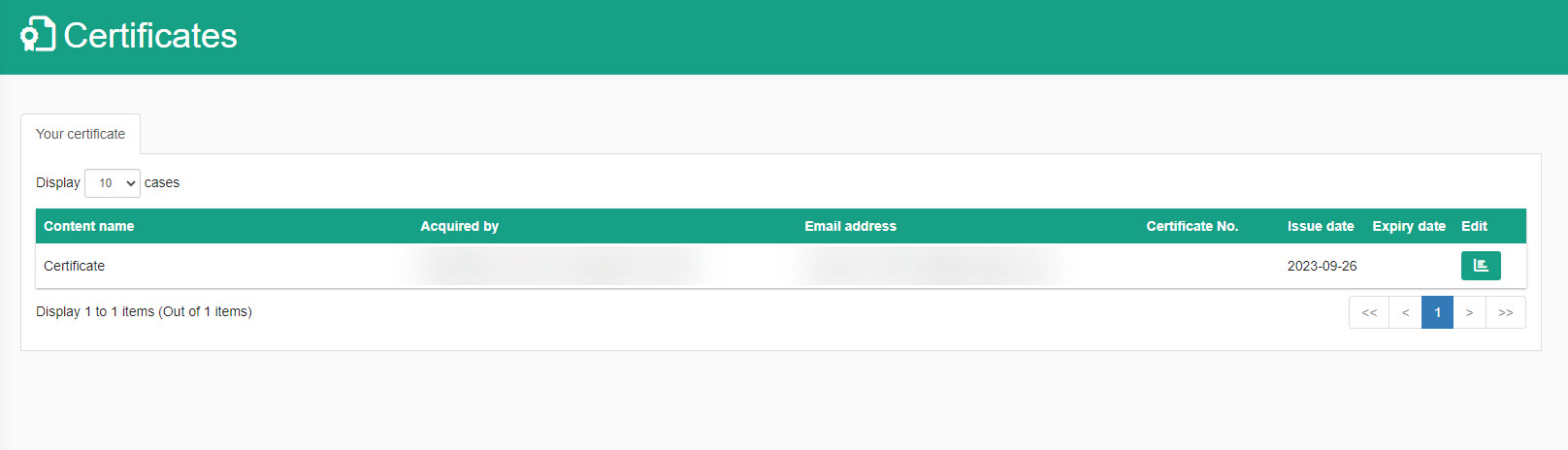
Your acquired certificates will be listed here.
01. Go to Manage grades
Certificates learners have acquired will be listed.
02. Sample
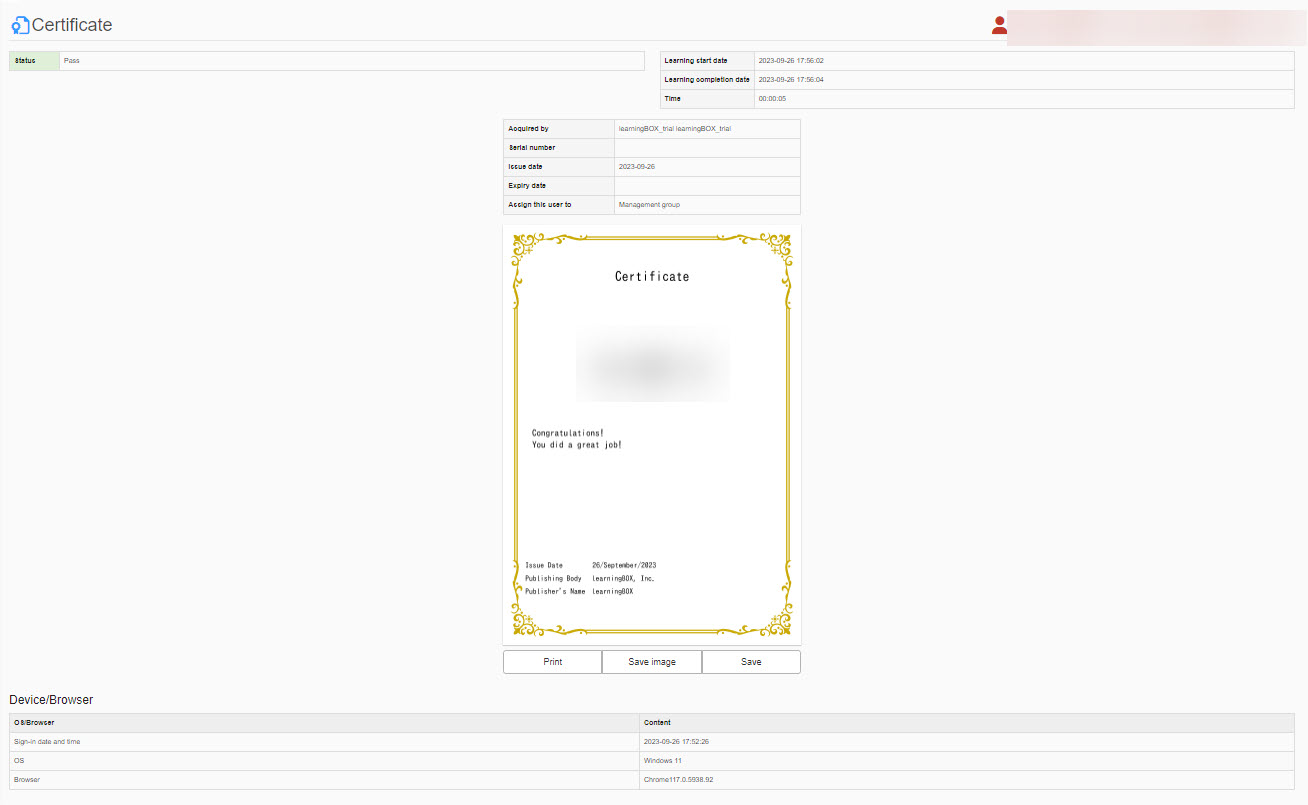
Click on the green icon under the Your certification tab to view the details of a certificate.
You can print the certificate or save it as an image/PDF.
Device and browser information will also be displayed at the bottom of the page.
List
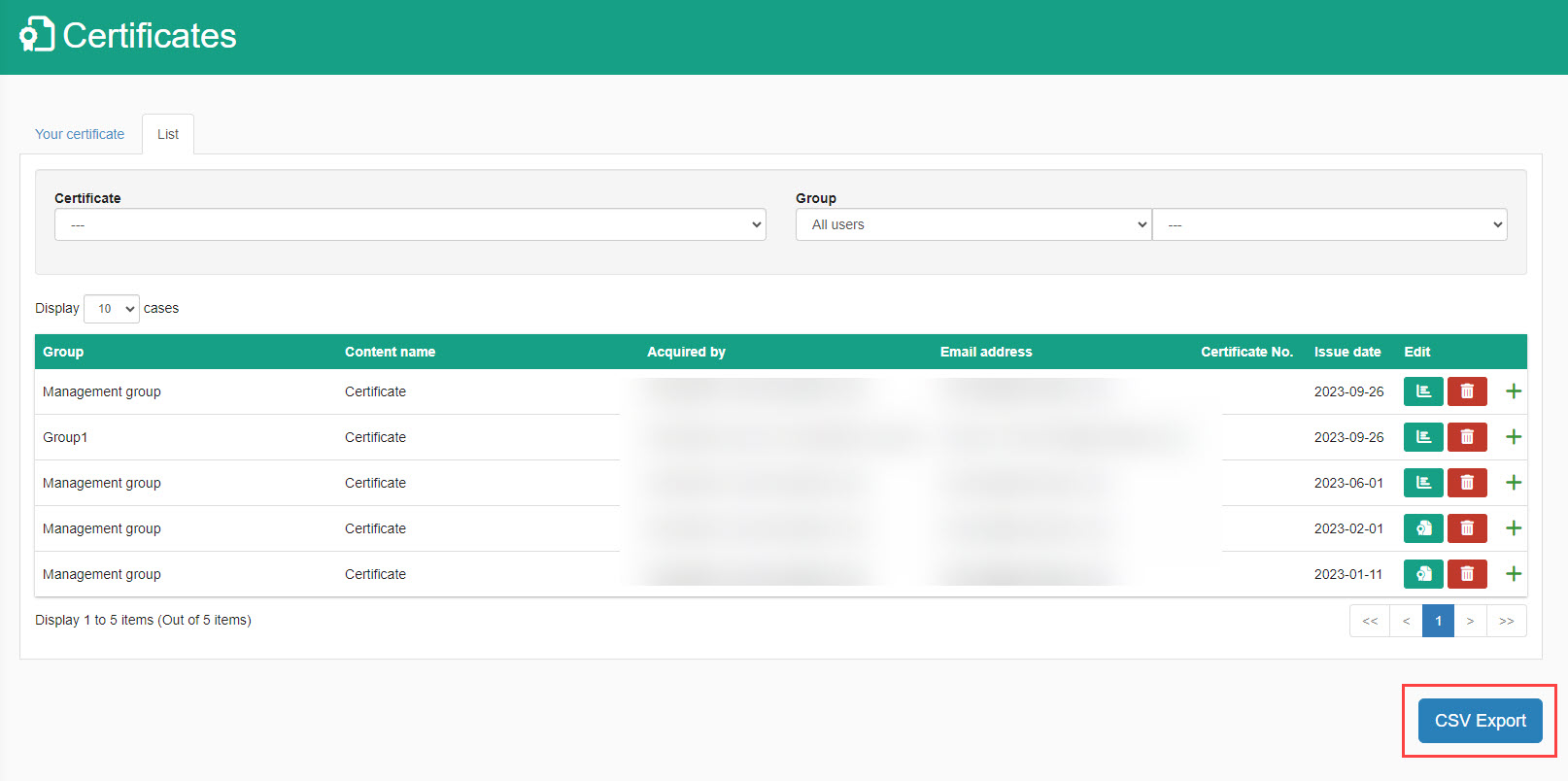
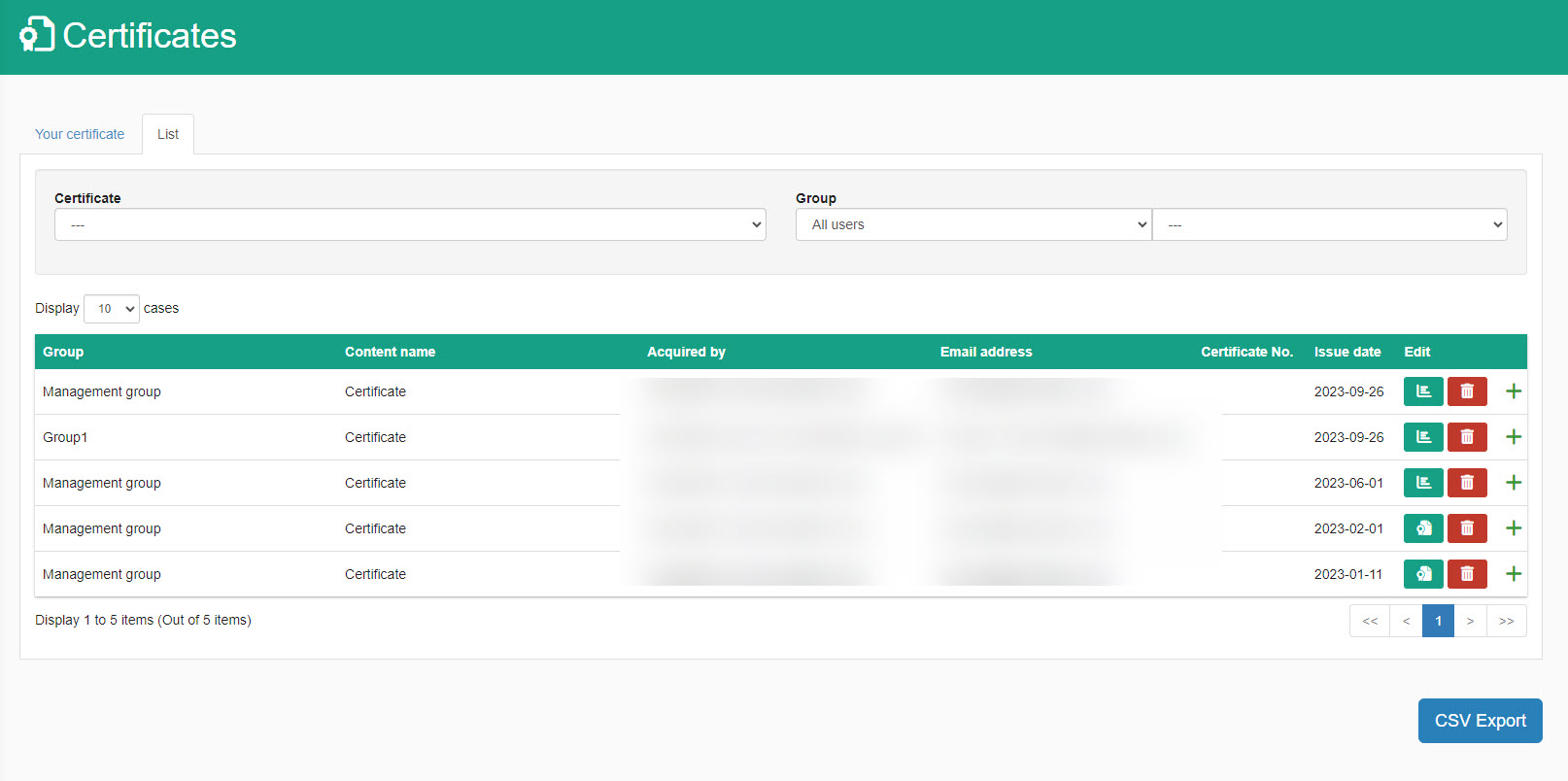
Admin/Grade managers can view the certificates acquired by all users.
01. Go to Manage grades
This list displays all certificates, including those earned by Admins and Grade managers.
You can filter the acquired certificates by groups or specific users.
02. Sample
Click on the green icon under the Your certification tab to view the details of a certificate.
You can print the certificate or save it as an image/PDF.
Device and browser information will also be displayed at the bottom of the page.
03. Delete certificate
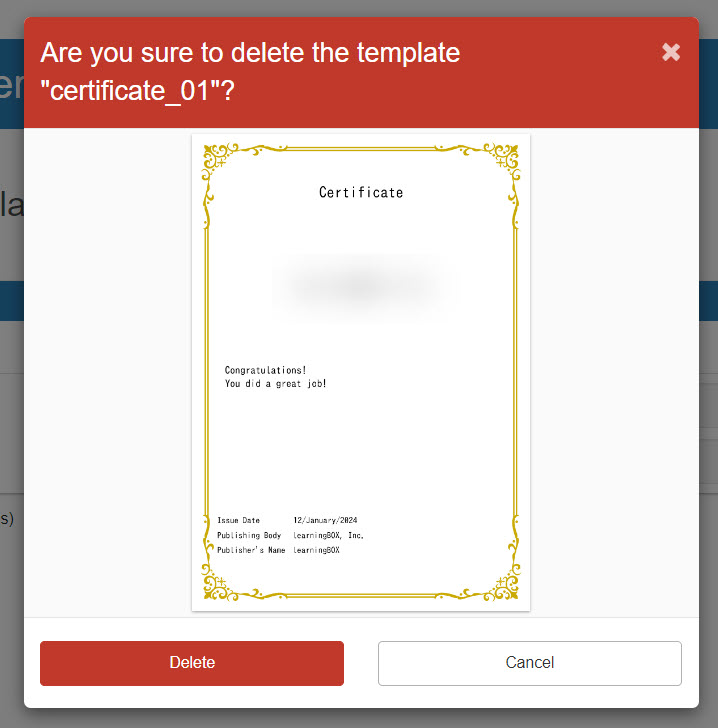
Click on the trash can icon on the certificate you want to remove.
When the confirmation message appears, click Delete.
04. CSV export
*This action is restricted to Admins only
To export the list of certificates, go to the List tab.
Click CSV Export.