Upload video in bulk <Operation in the Manage contents (Old)>
Multiple video items can be uploaded at once.
Required
Management role of Content manager (Edit)
Supported file types:
mp4, avi, mov, mpeg, mpg, mkv, wmv, webm
Upload video
01. Create a course
First, create a course in the Manage contents.
To upload a video to an existing course, click on the course in question.
*For details on course creation, refer to Course/Folder.
02. Open the video upload page
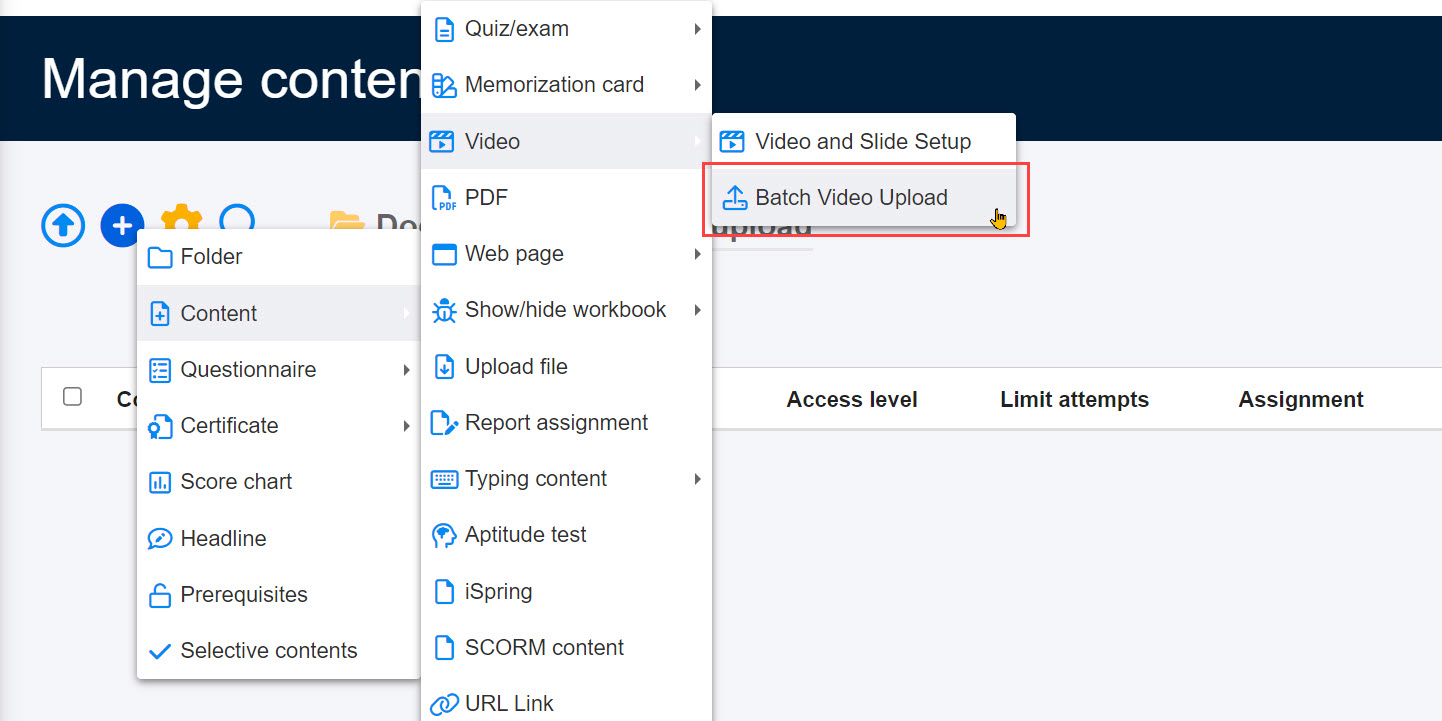
Select the "+" icon > "Content" > "Videos" > "Batch Video Upload".
03. Choose video files
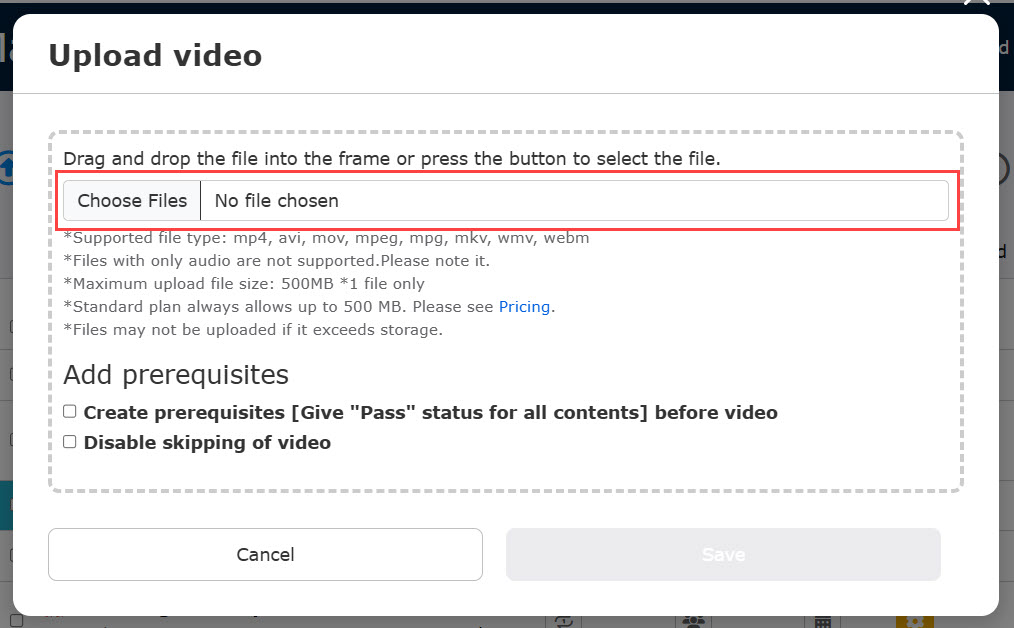
Click "Choose File" to select the video files you want to upload.
Multiple video files can be selected.
04. Set prerequisites
Configure the following two settings:
▼Create prerequisites [Give "Pass" status for all content] before video
Ticking this box allows you to set the condition that learners must pass all the content in the course/folder before going on to the video content.
▼Disable skipping of video
Tick the box if you do not want users to skip ahead during video playback.
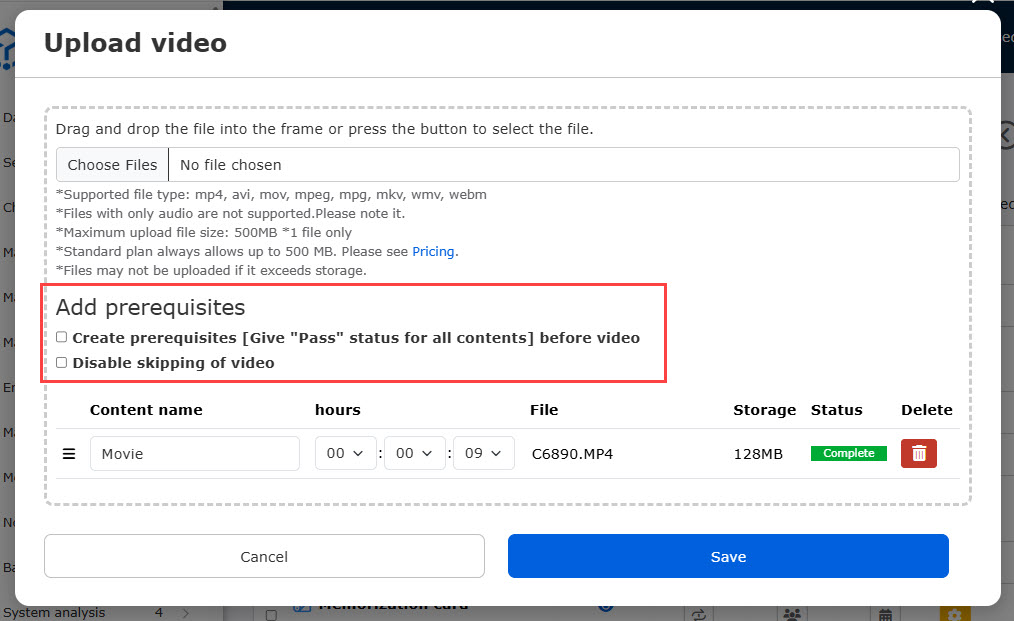
Save your changes once all settings are complete.
Access level
When the video player is set to 【MOVIE-3.0】 or higher, the "Attempt limits" will not be dispalyed in the menu list.
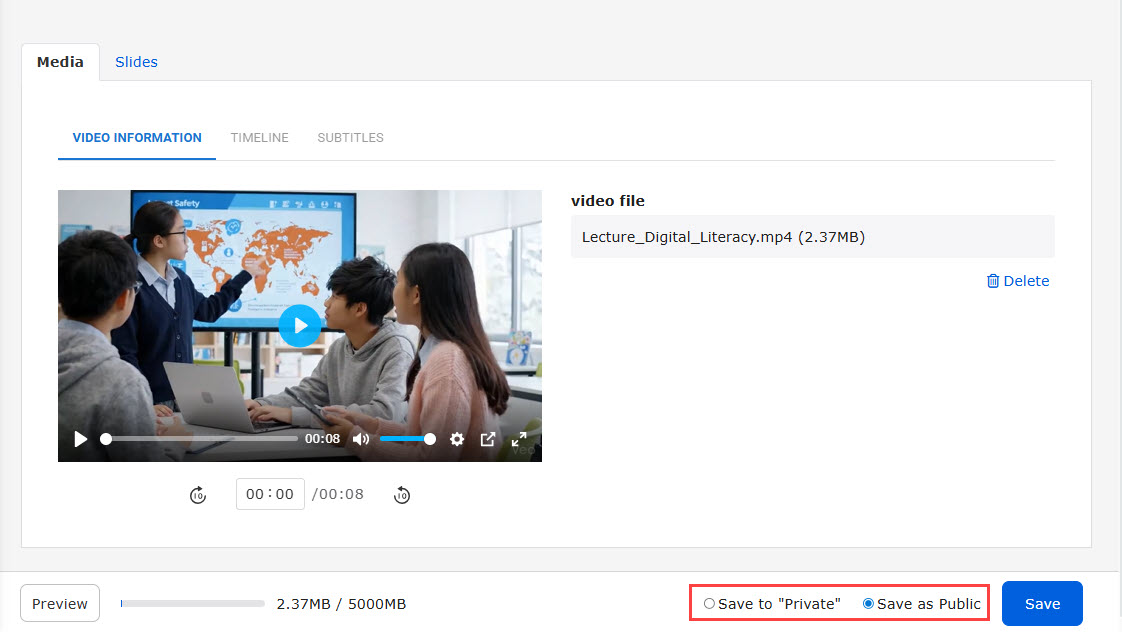
To set the Access level, click the gear icon > "Video and Slide Setup," and save as public/to private.
*For video shortcuts, "Access level" will appear in the Edit menu.
User interface
The following is the learner's page.
The playback bar will be shown or hidden according to the settings.
The video quality and playback speed can be selected from the gear icon, and picture-in-picture and full-screen switching are also available.
*For more details, refer to Basic video settings.
If a user stops watching a video partway through, playback will resume from where they left off the next time they open it.