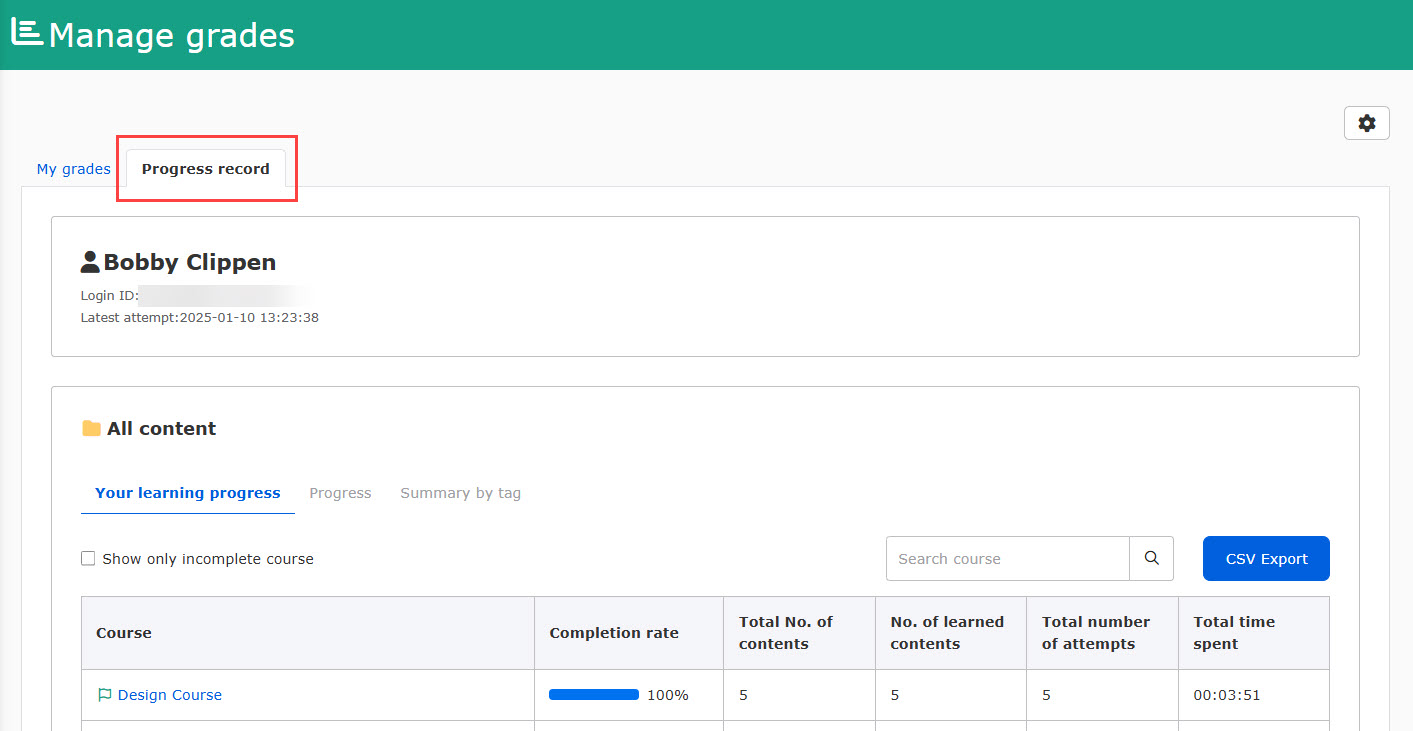
Progress record
In your personal study log, you can check your study progress—such as how much you’ve studied each day and how far you’ve gotten.
*Go to "Check grades" > "Progress record" in the side menu.
You can hide learners' progress records.
For more information, see "Gear icon in Manage gradesPlease refer to "Setting up your own results viewing" in the "My results viewing settings" section.
Items on Progress record
The last date which the learner attempts will be shown at the top of the page.
The details will be listed in the table.
Check grade data
In the Progress record tab, the following three tabs will be displayed:
Learning progress
In this tab, you can check the completion rate of each course, folder and content. Also, incomplete courses will be filtered by ticking the box on the top of the table. Selected data can be exported as a CSV file.
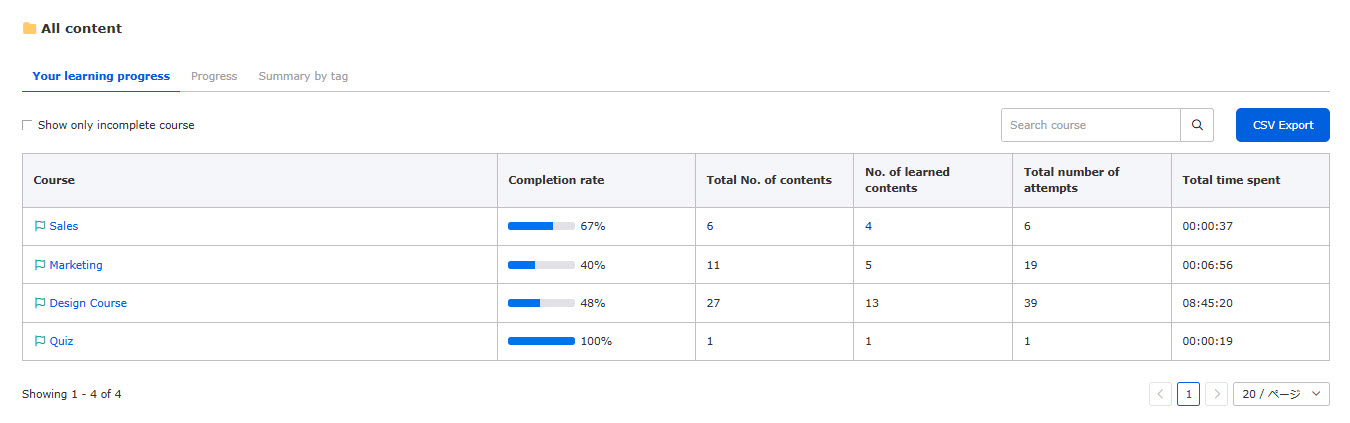
Click on a course to see the details of each folder and content within the course.
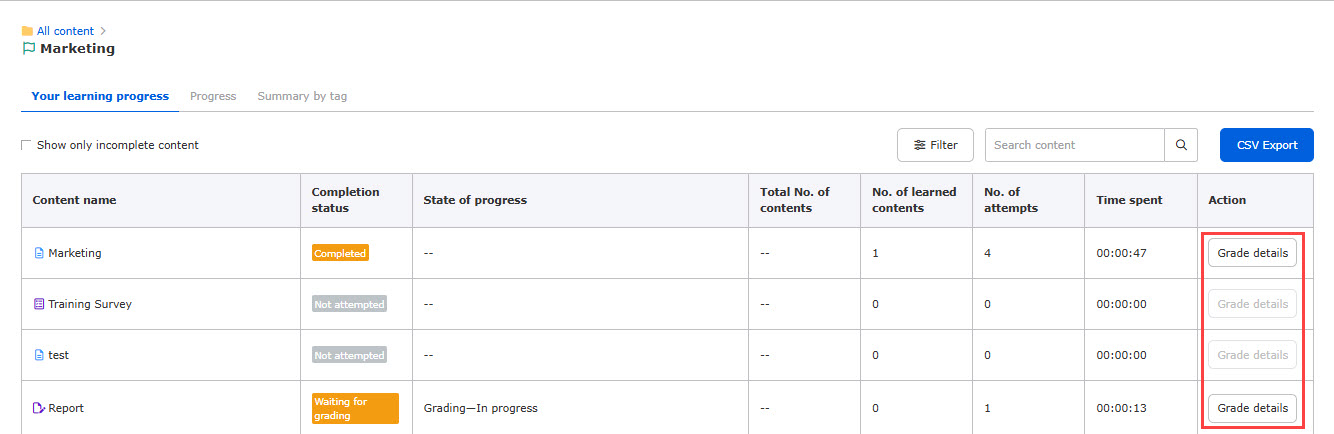
You can specify the completion status and number of attempts by clicking Filter.
To check the details, click "Grade details."
Progress
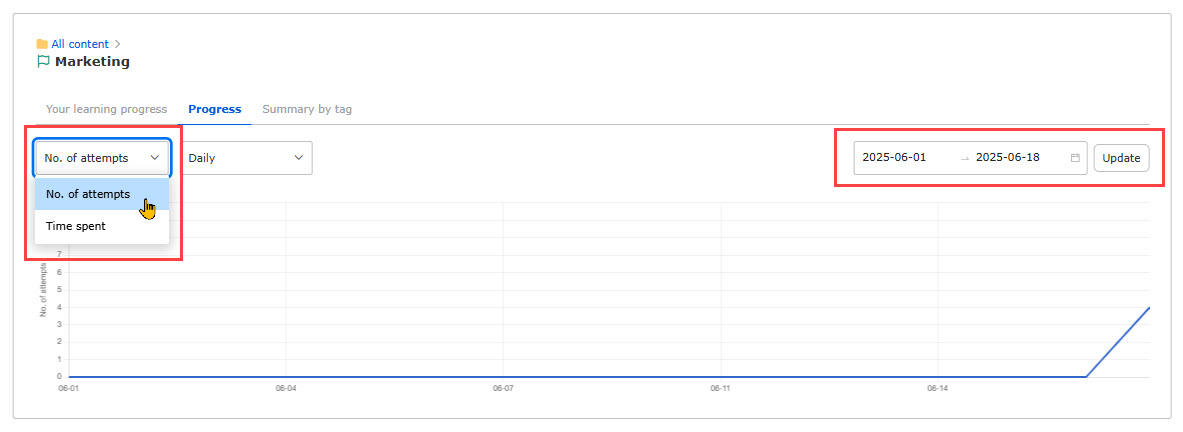
In the Progress tab, the graph shows the number of attempts or time spent within the speficied time range.
You can toggle the view between Overall and Daily analytics.
Summary by tag
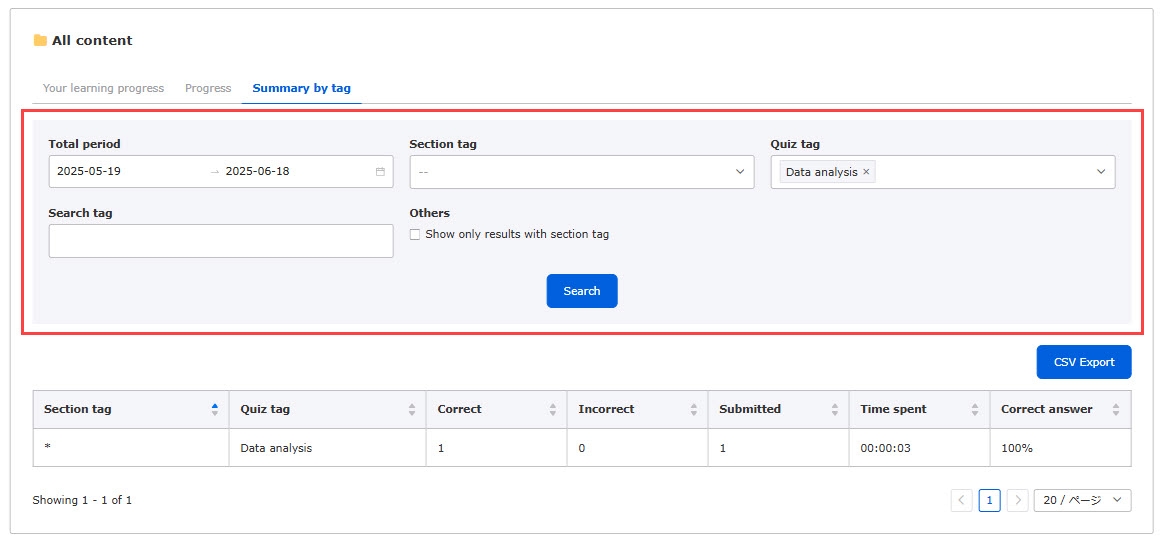
This tab describes the summary of correct/incorrect answers, correct answer rate and more items according to the set tabs.
You can search data in the search field.
*For more details about the tag settings, refer to Tags.