
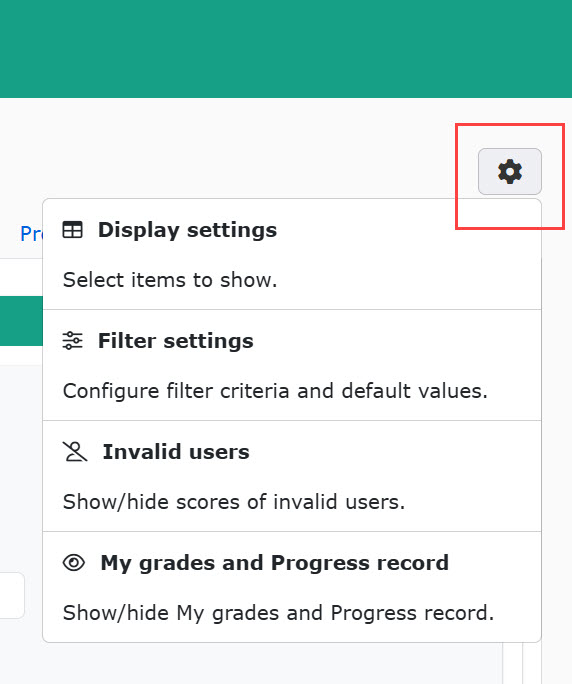
Gear icon in Manage grades
Clicking the gear icon in Manage grades allows you to configure advanced grade settings.
Required
Management role of Grade manager (Edit all users & content)
No special permissions are required to edit the Display settings.
Menu
You can configure settings for the following five menu items.
- Display settings
- Filter settings
- Invalid users
- My grades and Progress record
- Grade before answering
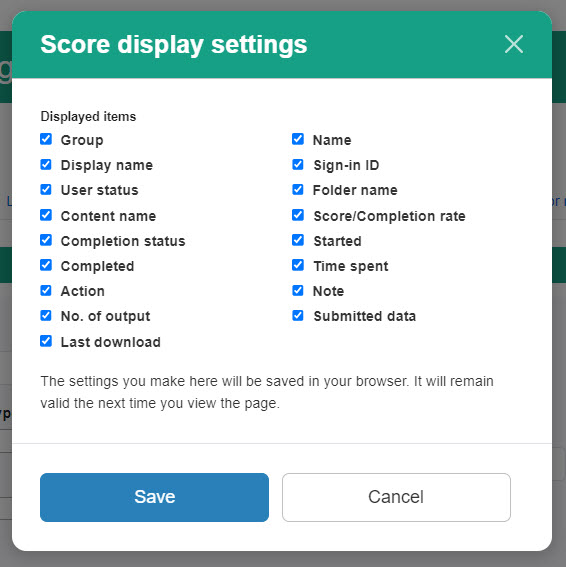
Display settings
Select which items to display on the Manage grades page.
Tick the boxes for the items you wish to display.
Available options depend on your management role.
Check the items as follows:
- Grade manager (Edit): Controls items displayed on the My grades, List, and Report pages.
- Grade Manager (View): Controls items displayed on the My grades and List pages.
- Standard Users (No Role): Controls items displayed on their personal My grades page.
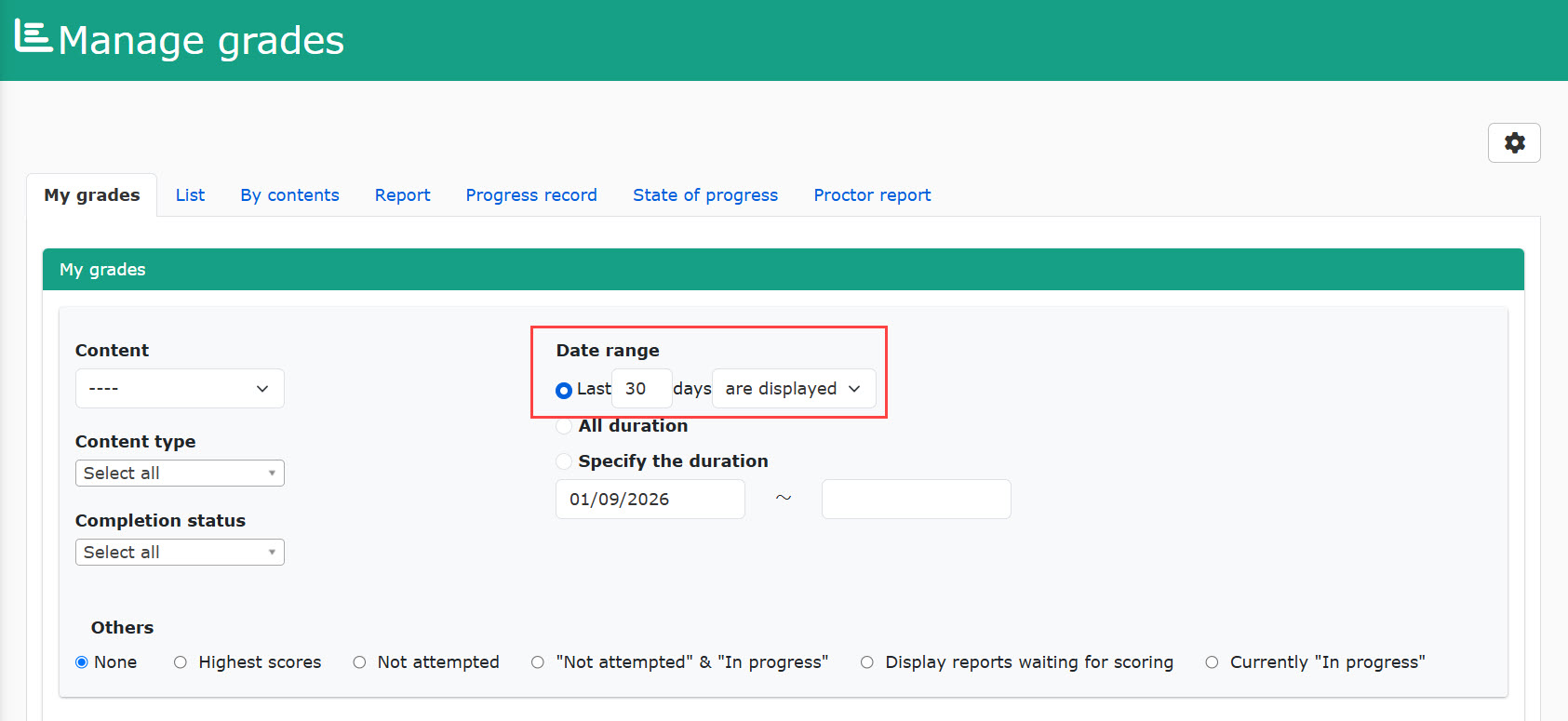
Filter settings
You can set a default date range for the Filter settings in the Manage grades page.
Enter a number between 1 and 60, and save the setting.
*The default value is 7 days.

This setting applies to the following pages:
- My grades
- List
- Writing assignment
- State of progress
- Proctor report
Invalid users
Choose whether to show or hide the grades of users whose account status is set to Invalid.
*For more details, refer to Invalid users.
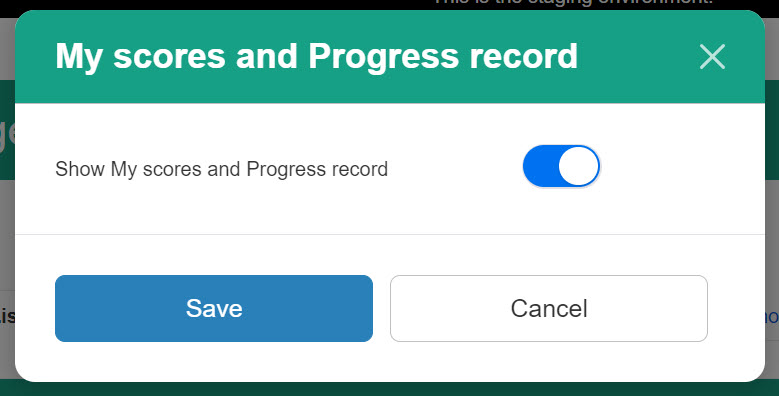
My grades and Progress record
Toggle whether to show or hide the My grades and Progress record sections for general users.
Turn the toggle On to show them.
*Regardless of this setting, Admins and Grade managers can always access both sections from the side menu.
Grade before answering
Choose whether to display or hide grades that carry the Before answering status.
*This menu is only visible on the List tab of the Manage grades page.
What does Before answering mean?
This status is applied when a learner opens a piece of content (or starts a device compatibility test) but closes it immediately without actually answering or starting it.
*With a device test, it will be applied when learners close the test without starting.
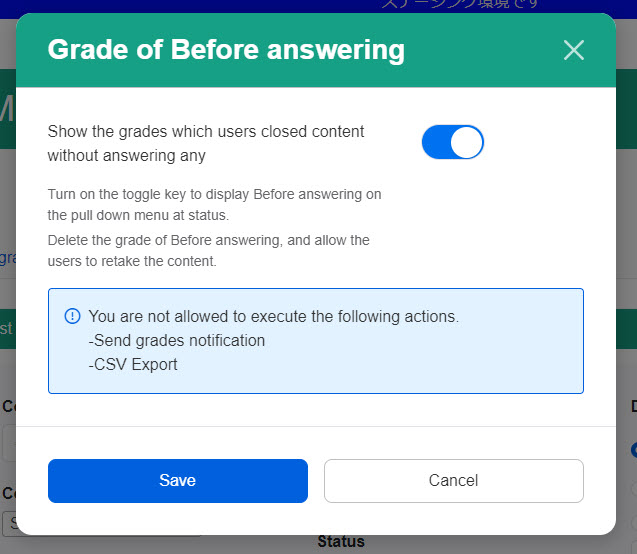
When this toggle is turned On, the following changes occur:
- Grades marked Before answering will appear in your data.
- Before answering will become available as a filter option in the Completion status dropdown list.
*This completion status will be only displayed on the List tab in the Manage grades.
Delete "Before answering" grades
When the filter is on, you can select and delete Before answering records directly from the List tab.
*This feature is designed to clean up accidental accidental system locks, such as network drops on tests with strict attempt limits. Unless you have a specific reason to monitor these incomplete attempts, we recommend keeping this setting turned Off.
Email notification/ CSV Export
If you filter your list by only the Before answering status, email notifications and CSV exports will be disabled.
If you select multiple completion statuses at once, you can still export or send notifications, but any records marked Before answering will be automatically excluded from the final file/email.