Manage instruction
This function allows users to inform description or instruction about the content before learners start the selected content.
How to set
Required
Management role of Content manager (Edit)
01. Select Instruction
Select Manage contents in the side menu.
Right-click on the content or click on the "︙" icon and select Instruction.

02. Create template
Select Create new from the drop-down menu.
*Manage instruction.

04. Settings

Fill in the following items.
Click Save to finalize.
▼ Code
Set a unique code. (Letters, numbers and "_" are available.)
▼ Display name
Enter a name of the template.
▼Outline
Enter the text you want to display, such as content descriptions or important notes.
You can insert tables, images, URLs and more.
▼ Start button text
You can edit the button text on the start button.
User interface
01. Go to Select a course
Click on the Select a course.
02. Start a course
Select the content which you applied the instruction to.
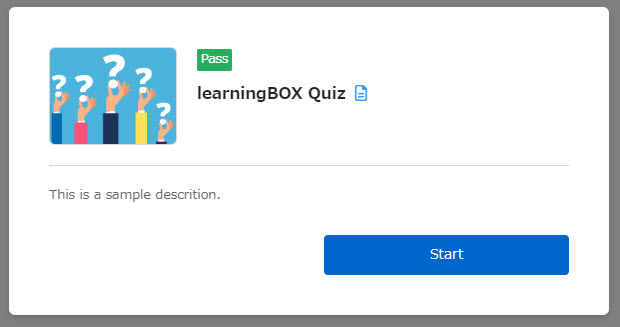
The outline is displayed in the pop-up window.
Click the button to start the content.
Manage templates
This section describes instruction templates.
01. Go to Manage instructions
Select the Manage content in the side menu > Manage instructions.
02. Interface
The following page will appear.
This section explains what you can configure in this page.

03. Create new template
Click Create new.
*For more details on the input items, refer to How to set.
04. Delete template
Tick the checkbox to the left of the target template.
Click on Delete selected template.
05. Edit a template
Click Edit on the target template.
*For details on items to edit, refer to How to set.
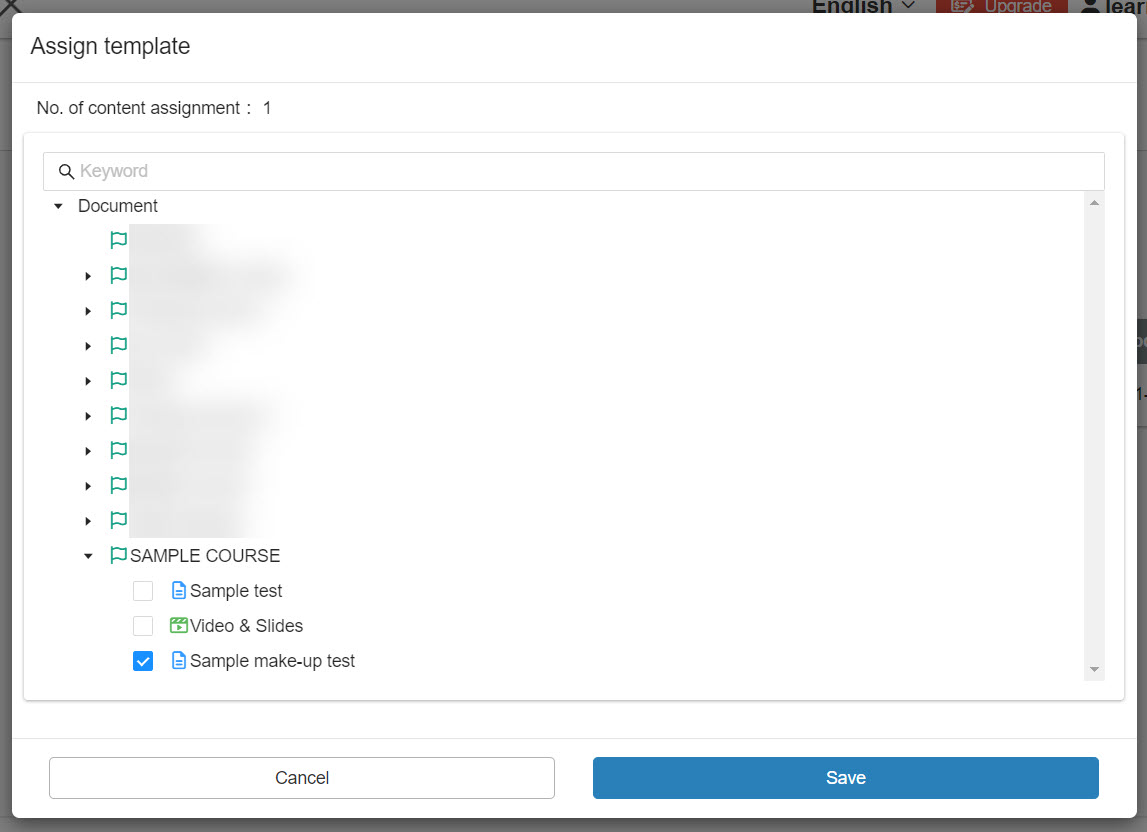
06. Assign template
Click Assign for the target template.
Tick the content you want to assign and save the settings.
*You can configure the same settings on the Manage content as well.
For more details, refer to How to set.