Bookmark
During quizzes and exams, learners can bookmark questions to flag them for review.
Bookmarked questions are compiled into a list, allowing learners to easily jump back to any marked item.
Required
[QUIZ-6.5.0] or later, Manager role of Content manager (edit) for the settings
Settings
To set the bookmark function, go to the Manage contents.
01. Create quiz/exam
Click "Contents" on the Dashboard or "Manage contents" on the side menu.
*For more details, refer to Create quiz/exam.
02. Requirements
To use the bookmark function, all of the following conditions are required.
Select options in the Quiz/exam creation form.
*The bookmark option will be automatically displayed on the user interface when the conditions are met.
| Options | Details |
|---|---|
| Mode | Normal mode |
| Movable | On |
| Hide "Questions" button | Off |
| Show correct/incorrect per question | Off |
When you want to use bookmark function using sections, be sure to select No limit for the section settings.
User interface
The following explain the user interface.
01. Start content
Click on the Select a course on the Dashboard or the side menu.
Select a quiz/exam in which the option is set.
02. Bookmark
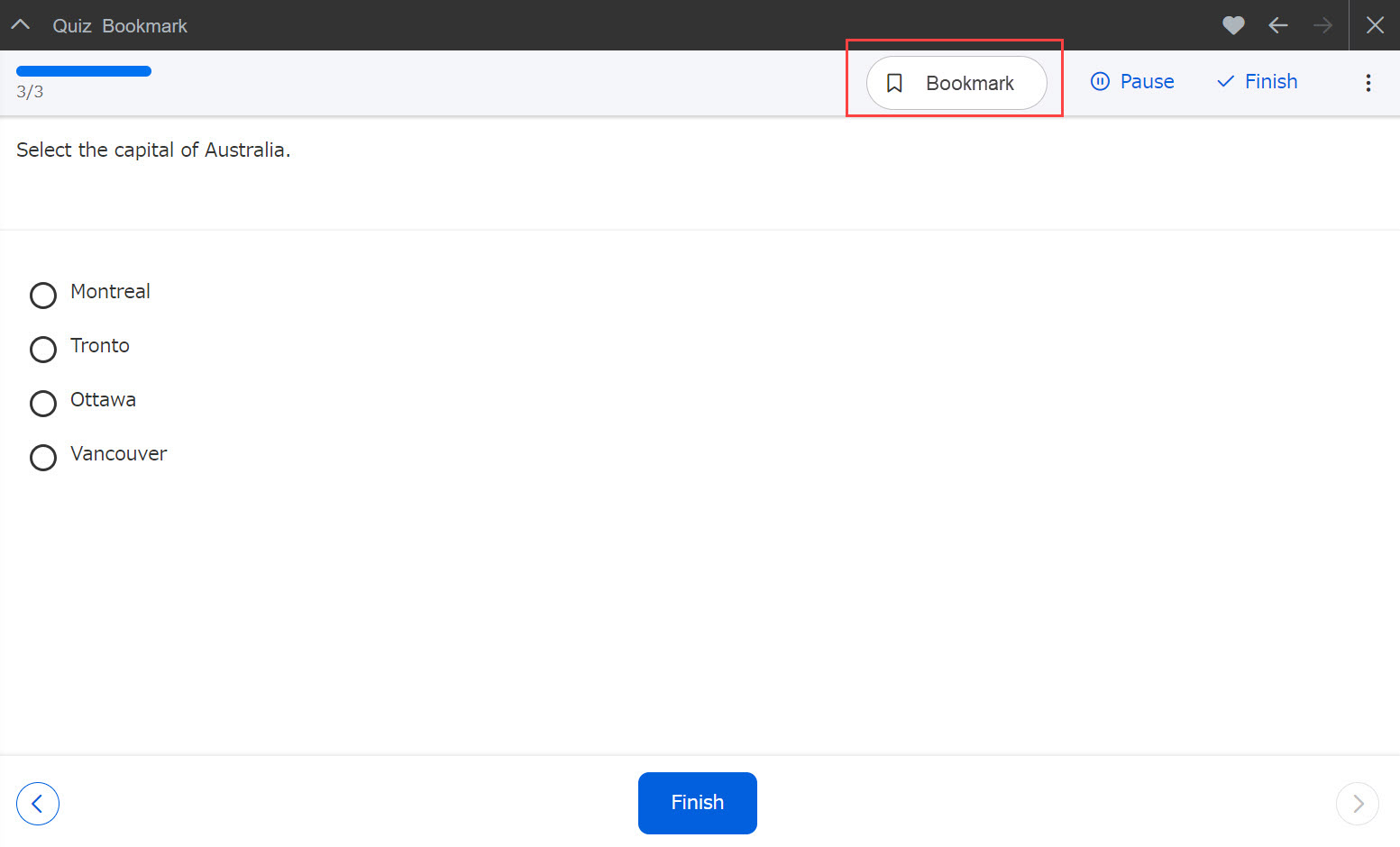
The Bookmark button will be displayed in the upper right corner of each question.
Click on it to bookmark the question.
To remove the bookmark, click the button again.
03. Question list
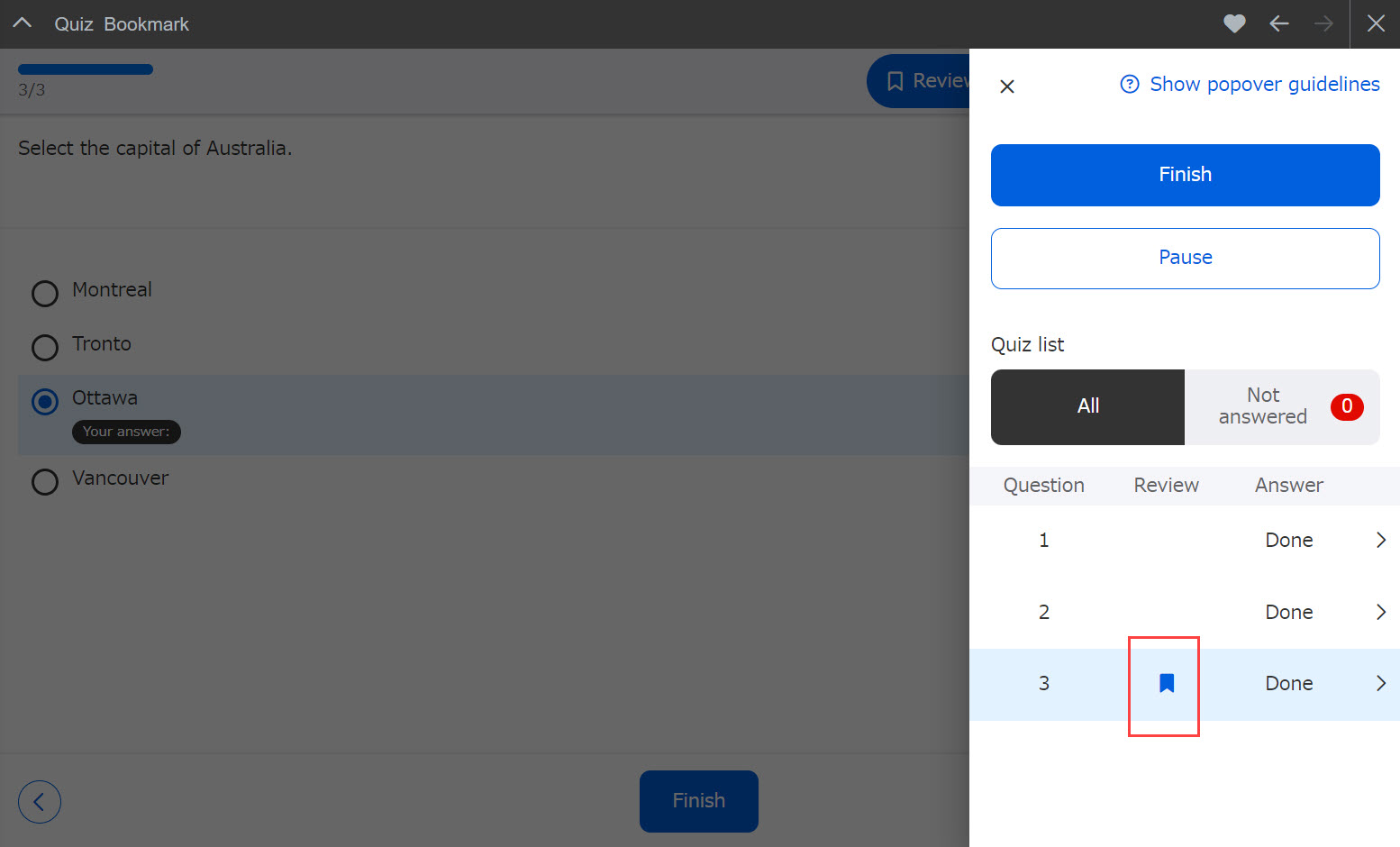
Click on the "︙" icon in the upper right corner of the screen to see a list of questions as shown below.
In the Review column, the icon in the image below will be displayed for questions that learners have bookmarked.
Learners can jump to the question by clicking the icon.