Selective contents
Allow learners to choose from multiple content options.
Required
Management role of Content manager (Edit)
Settings
01. Create a course
First, create a course in the Manage contents.
*For details on course creation, refer to Course/Folder.
02. Gear icon
Click on the course you created.
In the upper left corner of the page, click "+ Create new" > "Selective content."
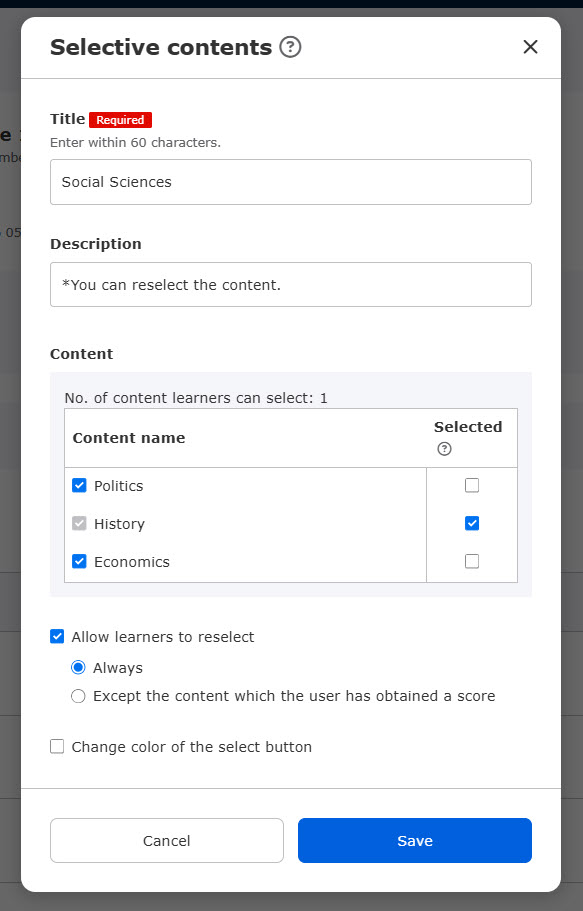
The following pop-up window will open.

03. Title/Description
Enter a title for the selective content and, if applicable, a description of the selection.
04. Contents
Tick content which learners can select.
Select between 2 and 20 content.
Content can be selected when adjacent.
As shown below, when (Workbook A) is selected, (Answer for the assignment) cannot be selected.
However, when (Lecture) is selected, (Answer for the assignment/Report) can be selected.

Selected box
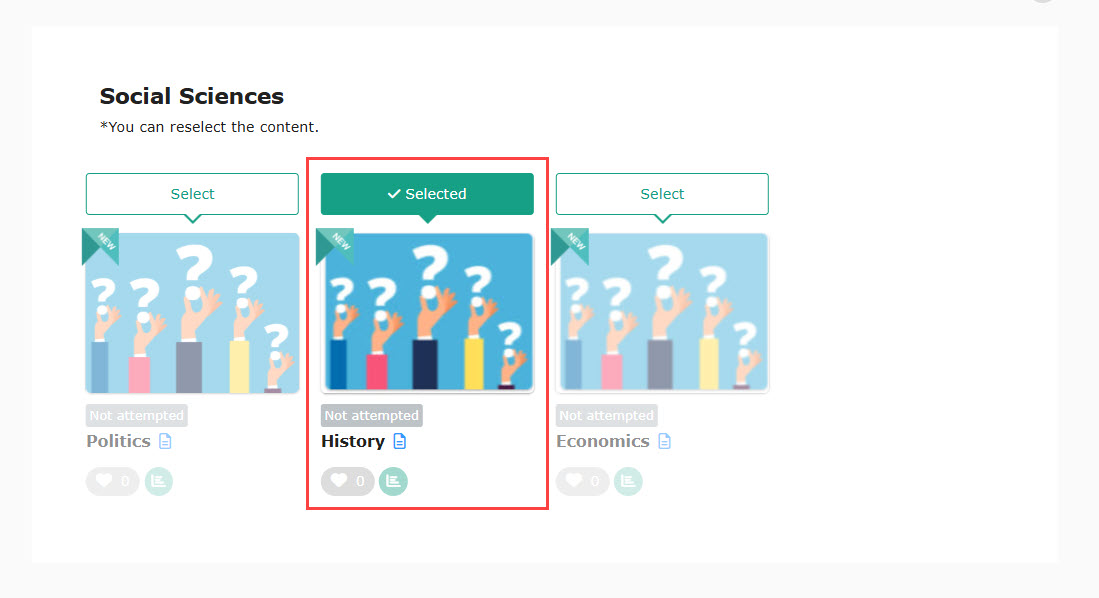
On the learner's screen, you can set the content you have ticked to be selected from the beginning.
▼User interface
05. Reselect by learner
Tick the box when you allow learners to reselect content.
You can select from the following two options.

▼Always
Learners can always change the selected content.
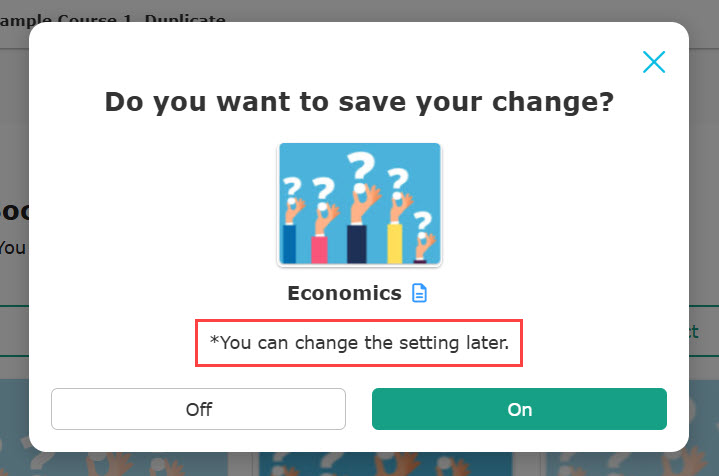
▼Except the content which the user has obtained a score
Learners cannot change their selection when the learner has already obtained the score.

Important
The following describes the user interface when a content is set as required and untick "Allow learners to reselect." Learners can only select the required content.
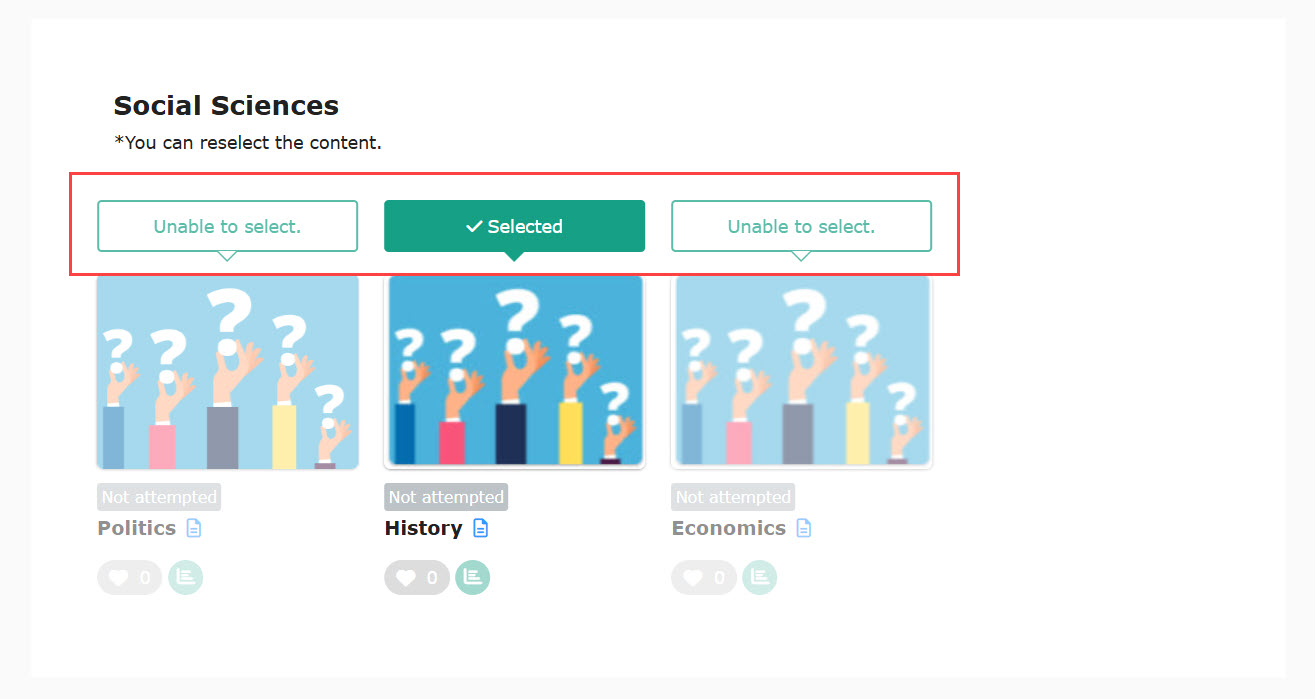
06. Change color of selection buttons
The button color displayed when learners select content can be customized.
Tick the box to enable this feature.
You can set the text color, border color, and background color, respectively.
Click the frame and select a color on the pop-up window.
*For more details, refer to Color settings.

Save your changes once all settings are complete.
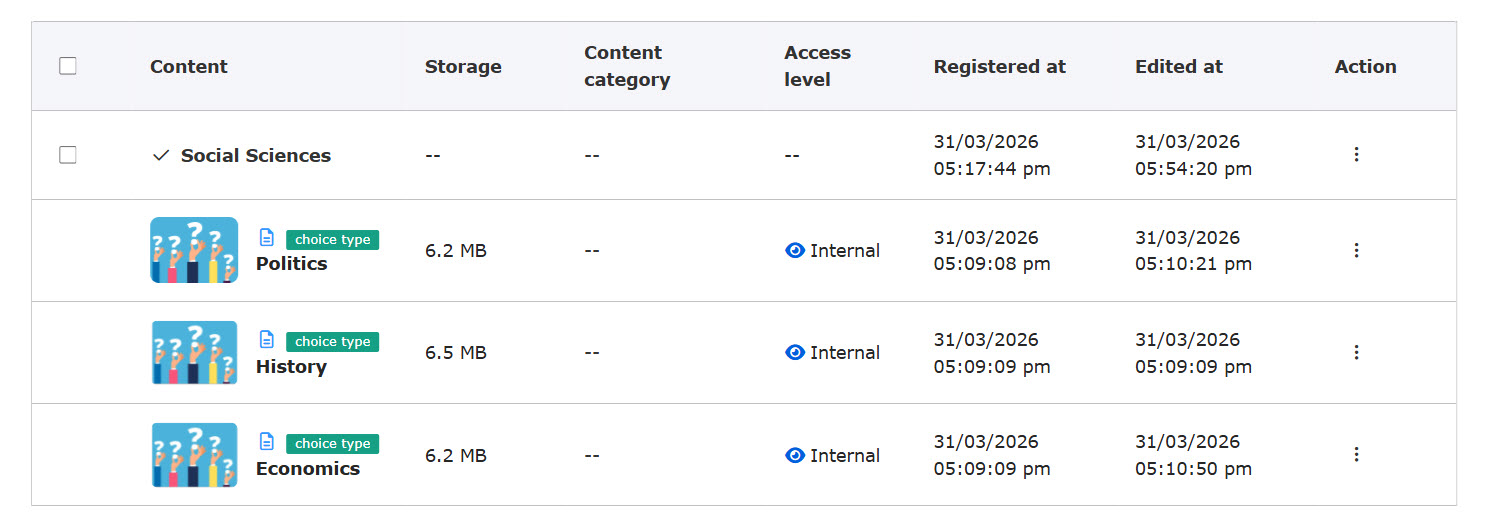
07. Display on the content management screen
When selective content is set up, it is displayed as follows.