Exam mode
You can show or hide exam results such as pass/fail status and scores.
Required
Management role of Content manager (Edit)
Steps
01. Go to the Exam mode
Select Manage contents in the side menu.
Right-click content or click on the "︙" icon and select "Exam mode."

-Quiz/exam
-Report assignment
-Typing content
-iSpring
-SCORM
*According to the content type, selectable options will be different.
02. Options
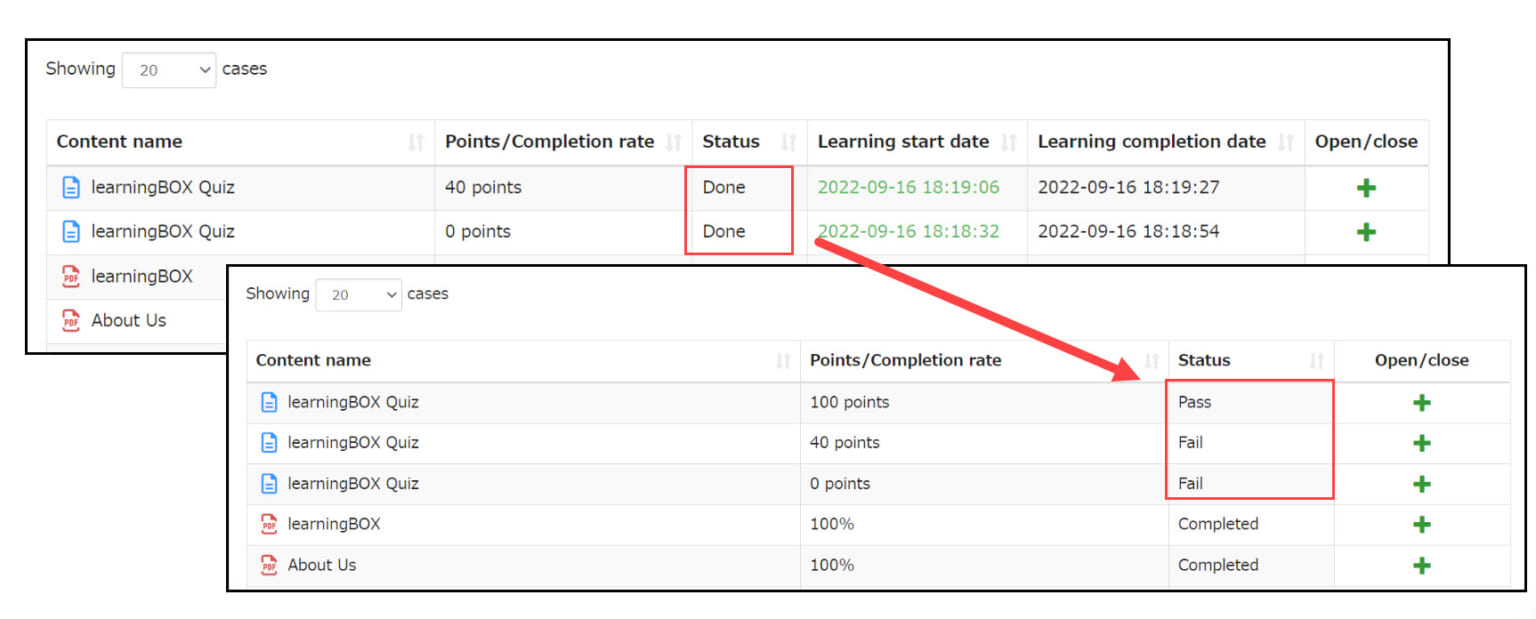
You can show or hide the following items: completion status, scores, answer details and header in the user interface.
*For more details about All settings, refer to All settings.

03. User interface
Click on "Check grades" in the side menu.
Hide scores
When "Show points" is set to off, learners cannot view their score.
▼ Manage grades

▼ Answer detailss

Hide items on the answer details
When all items in the answer details are set to Off, correct/incorrect answers and commentary for each question will not be displayed.
▼ Answer detailss

Hide details
If "Show Details" is turned off, you will not be able to view grade details from the study and grade management screens.
▼Select a course

▼ Manage grades

All settings
Select conditions to apply the exam mode.
The following four choices are available:
- Always: The settings will always be applied.
- Until submitted or completed: When learners submit or complete the item, the item set to turned Off will be On.
- Until passed: When learners pass the exam, the item set to Off will be turned On.
- Applies until grades are returned: When the grade of the submission is returned to the learner, the items turned Off will be turned On.

e.g.) When "Until passed" is selected and the status is set to Off
The completion status of "Done" will be shown until the condition meets.