
Basic settings
Configure general settings for the entire training feature.
What is the Training feature?
Multiple courses can be combined to build a single training program.
This allows learners to select and reserve training courses from the list, and take it within the specified period.
Required
Customization options, managment role of Content manager (Edit)
How to set
Follow the steps below to configure each setting.
*Be sure to click "Save" at the bottom of the screen to apply your changes.
01. Open the settings page
On the side menu, select Basic training settings.
02. Settings
Configure the following items:
▼Review feature
Allows users to post and view training reviews.
Turn on the toggle to enable this feature.
▼Allow user cancellations
Choose whether learners can cancel their training reservations.
Turn on the toggle to allow cancellations.
▼Require login to view list
Hides the training list from unauthenticated users.
Turn on the toggle to require a login.
*When enabled, all SHARE buttons are automatically hidden.
▼SHARE button image
Customizes the image shown in the pop-up window when a user clicks the SHARE button on a training details page (used for sharing training on social media).
Click Choose File to upload a custom image.
▼ Hashtags
Set default hashtags to include when training is shared on social media.

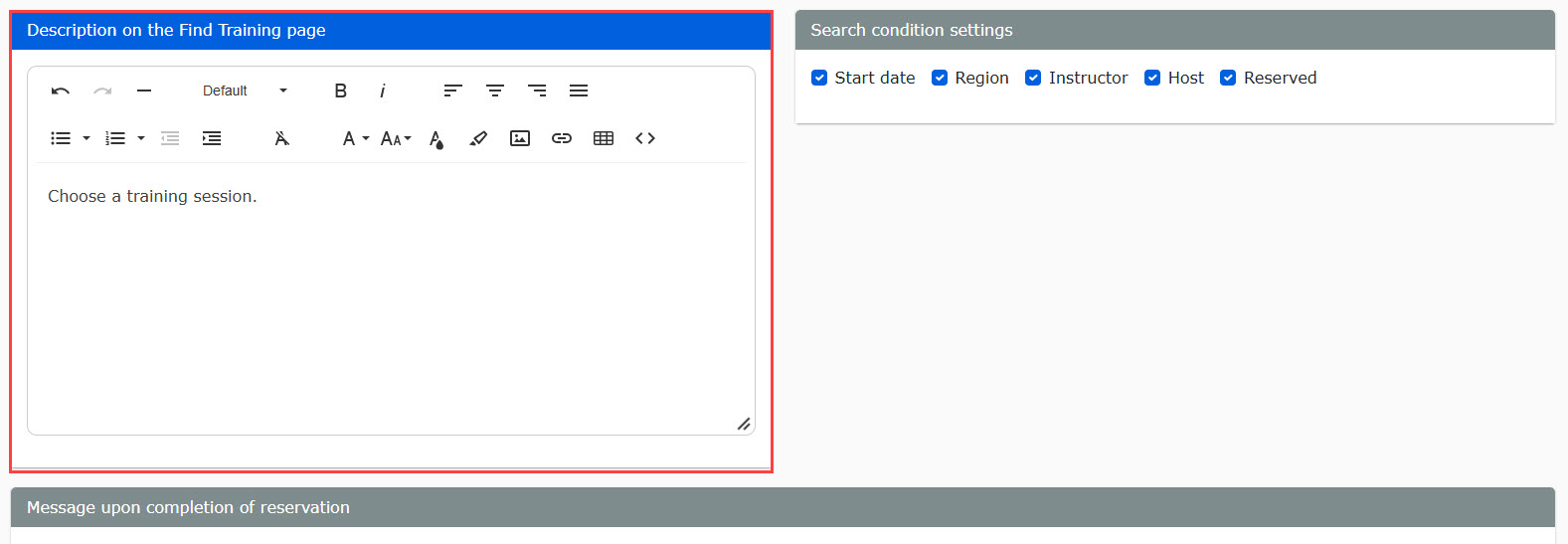
03. Description on the Search training page
Add custom text to display at the top of the Search training page.
04. Default values
Choose default display values and parameters for the Search training page layout.
Select the default value of each item.

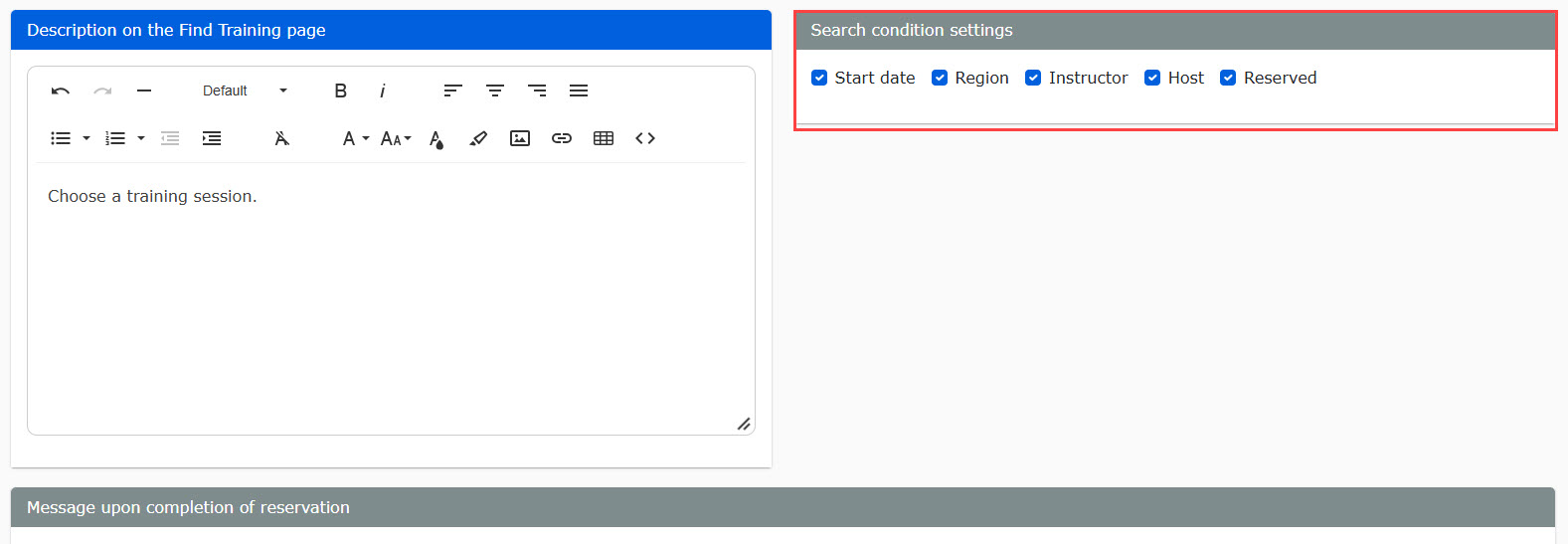
05. Search filters
Select which search criteria to display on the Search training page.
Select the items next to each filter you want to show.
06. Reservation confirmation message
Edit the message displayed after a user successfully reserves a training session.
You can customize different messages depending on whether automatic approval is turned on or off.

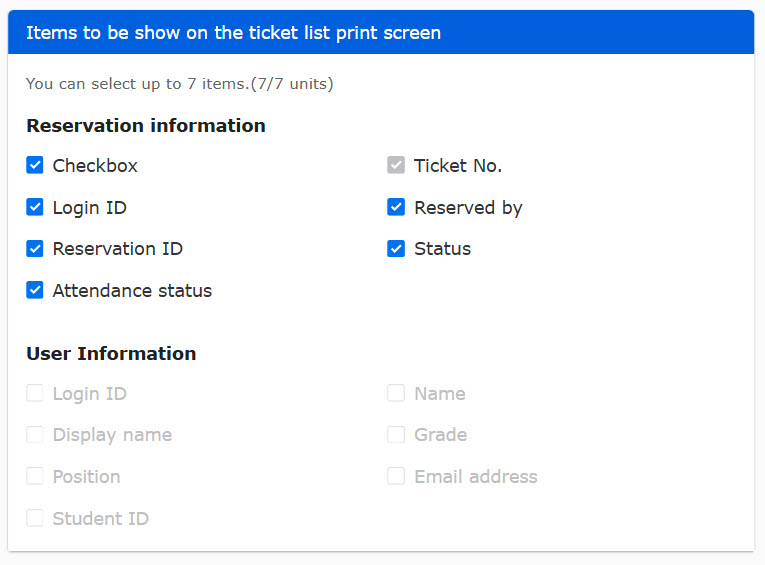
07. Ticket printing layout
Select up to 7 items to display on printed training tickets.
Ticket number is required and cannot be unselected.
08. Instructions for Reservation & attendance pages
▼Message for managers
Displays instructions or operator notes at the top of the Manage Reservations and Attendance screen.
Enter your custom message in this field.

▼Message for learners
Displays instructions at the top of the Reservation and attendance page for learners.
Enter your custom message in this field.
