
Manage reservations and attendance by user
You can manage training reservations and attendance for each individual learner.
Note that this screen is divided into three tabs: "Reservation Change / Reservation Request Status / Attendance Status".
*The same setting is also available in Manage training reservations and attendanceOpen the "Users" tab of the "Users" screen and click on "Details" for each user to open this screen.
Required
Customization option, Management role of Training organizer/Instructor, Reservation/Attendance manager
A message for operators can be displayed at the header of the page.
This is the same information that is displayed in all tabs of "Reservation Change/Reservation Request Status/Attendance Status".
For the settings, refer to Basic settingsThis is done in the "Messages for Administrators" section of the "Message to Administrators" screen.

Change reservation
For specific learners, you can check their current schedule or make bulk reservations/cancellations for available training sessions.
The following explain the steps to update a reservatioin.
- Select a training session on the calendar
- Add the training to the list of reservation updates
- Update in bulk
01. Calendar
To open a calendar, select "Change reservation" tab.
You can switch the view mode by week, day or list.
Also, the <> icons allows to move between pages.
To select a specific date, click on the calender icon.
Click "Today" to move back to today's page.
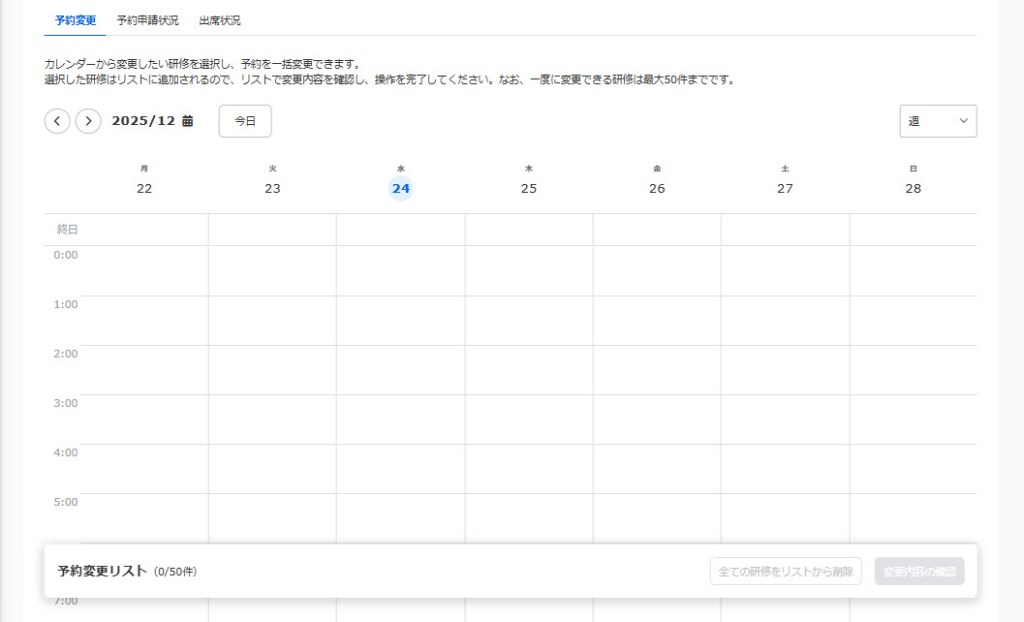
You can limit the time slots displayed on the calendar, and exclude Saturdays and Sundays.
For the settings, refer to Schedule.
02. Display training
The calendar displays training sessions that are currently open to the learner, pending approval, or already scheduled.
*Training sessions for which either the start date or end date has not been set will not be displayed on the calendar.
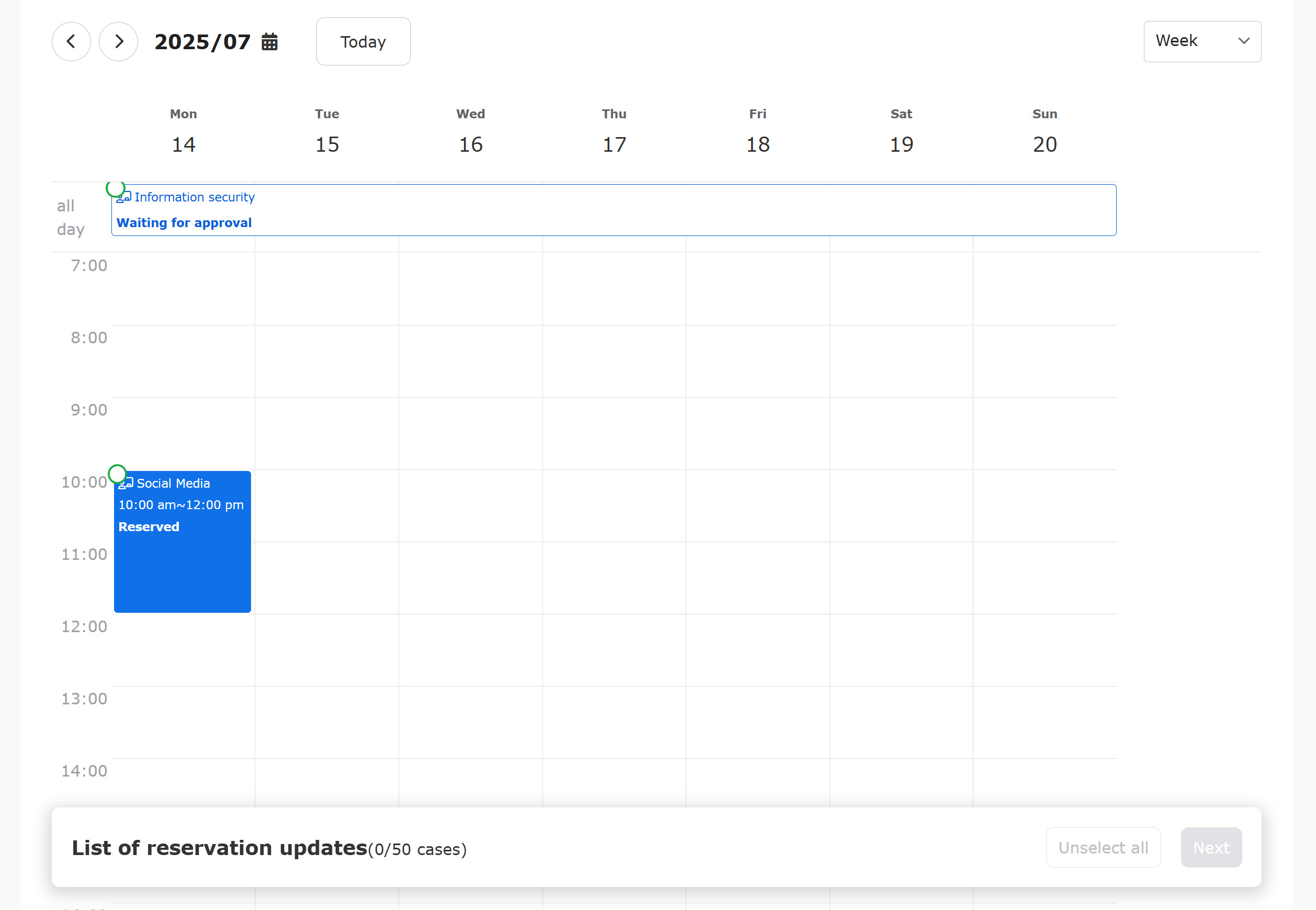
Items displayed by management role
Depending on the management roles, the items displayed on the calender will be different.
*To update a reservation, the management role of the Lecturers, Organizer or Reservation manager is required.
| Status | Lecturers, Organizers, Reservation managers | Attendance managers | No management roles |
|---|---|---|---|
| Unreserved | ✔ | ✕ | ✕ |
| Waiting for approval | ✔ | *Displayed as "Training" | *Displayed as "Training" |
| Reserved | ✔ | *Displayed as "Training" | *Displayed as "Training" |
| Unavailable | ✔ | ✕ | ✕ |
Multi-day training
For the multi-day training, the appearance will be as shown below.
e.g.) Onboarding is held from April 20 (Monday) 11:00 - April 22nd (Wednesday) 12:00
▼ Weekly
It will appear in the "all day" row from April 20th to 22nd.

▼ Daily
It will appear in the "all day" row from April 20th to 22nd.

▼ List
It will be displayed from April 20th to 22nd as follows:

Unavailable training
Learners cannot reserve training in the following cases:
*The management role of either the Lecturer, Organizer or Reservation manager is required.
- No vacant seat
- Overlapping reservations are limited + Multiple training with the settings exists during the same time slot + one of the training has already been reserved.
- Outside of the reservation period
Other items on the calendar:
In addition to trainings, the calendar displays the following panels:
*Only training sessions can be updated.
The following items will not be displayed on the calendar when:
- The start date or end date of the seminar is not set
- Seminars which is not purchased
- Timetable set in the Schedule function
03. Add to the list of reservation updates
Click on a training in the calendar, and a pop-up window will be displayed.
You can add training sessions up to 50 cases to the list of reservation updates.
*To update a reservation, the management role of the Lecturers, Organizer or Reservation manager is required.
When the training status is the same, you can select multiple training sessions.
The following table shows each status before and after the reservation updates.
| Before update | After update |
|---|---|
| Unreserved | Reserved |
| Waiting for approval | Approved (Reserved) or Rejected (Unreserved) |
| Reserved | Cancelled (Unreserved) |
▼When the status is Unreserved
Confirm the contents and click "Add to the list of reservation updates."
When there are multiple items, select one from the list.
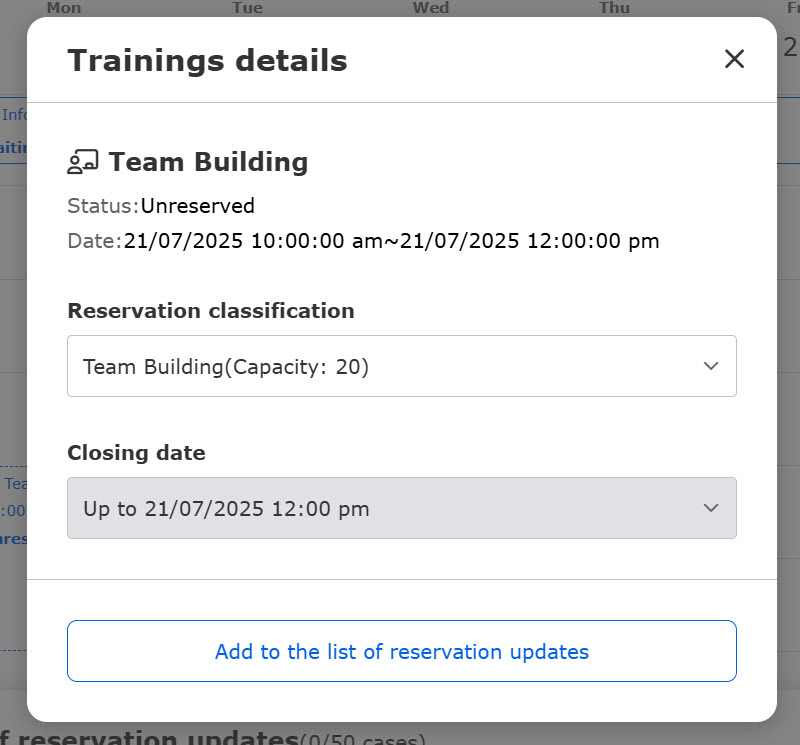
▼When the status is Waiting for approval or Reserved
Click "Add to the list of reservation updates."
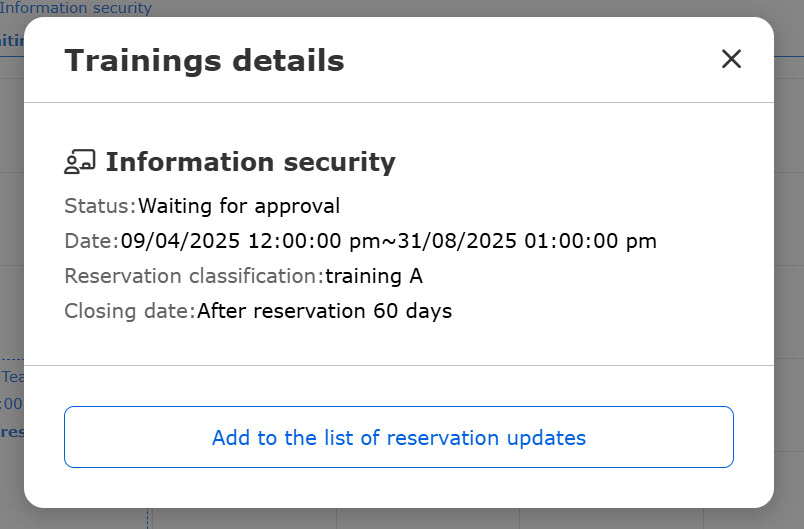
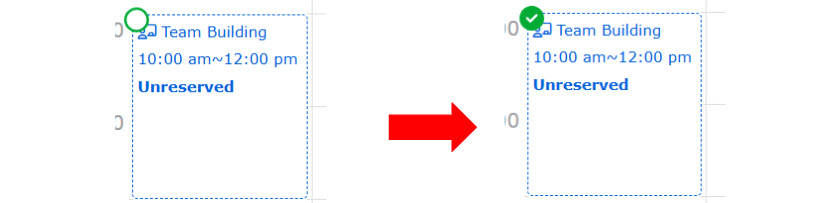
When you add a training to the list, the training wil be ticked on the calender.
04. Unselect from the list of reservation updates
Click on the panel that you have added to the list of reservation updates, and click on "Unselect."
Or, you can click on "Unselect all" at the bottom of the page.
05. Preview reservation updates
Click "Next" at the bottom to preview the content.
To remove from the list, click "Unselect" to the right of each training course.
To unselect all items, click "Unselect all."
If the status is "Unreserved" and multiple capacity and closing dates have been set, the content can be edited from "Edit."
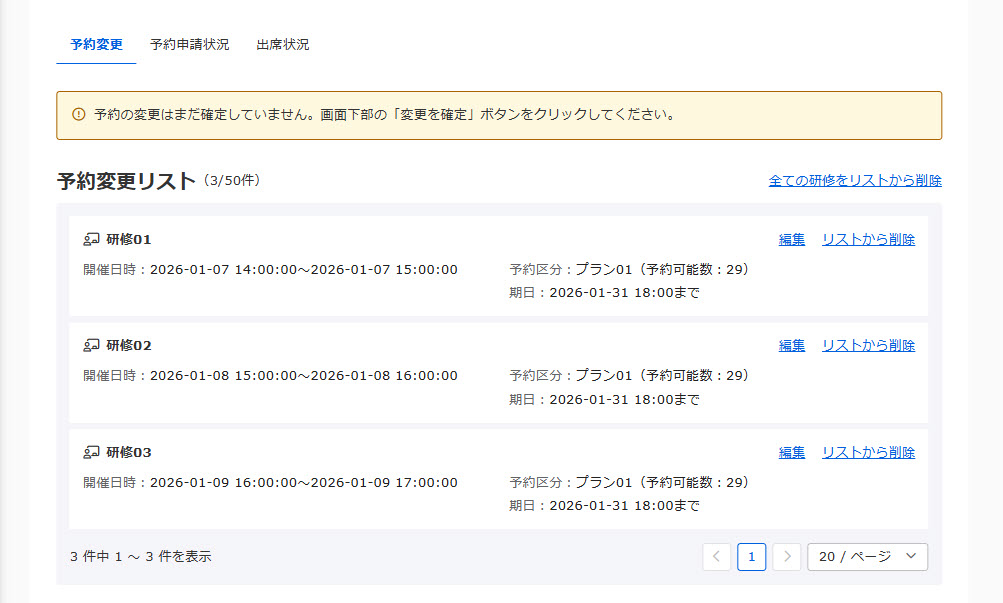
The Status column shows the status before and after the change.
If the status before the change is "Waiting for approval," select the approval status from the list.
To send an email regarding the updates to the users, select "Send" from the list in the email section.
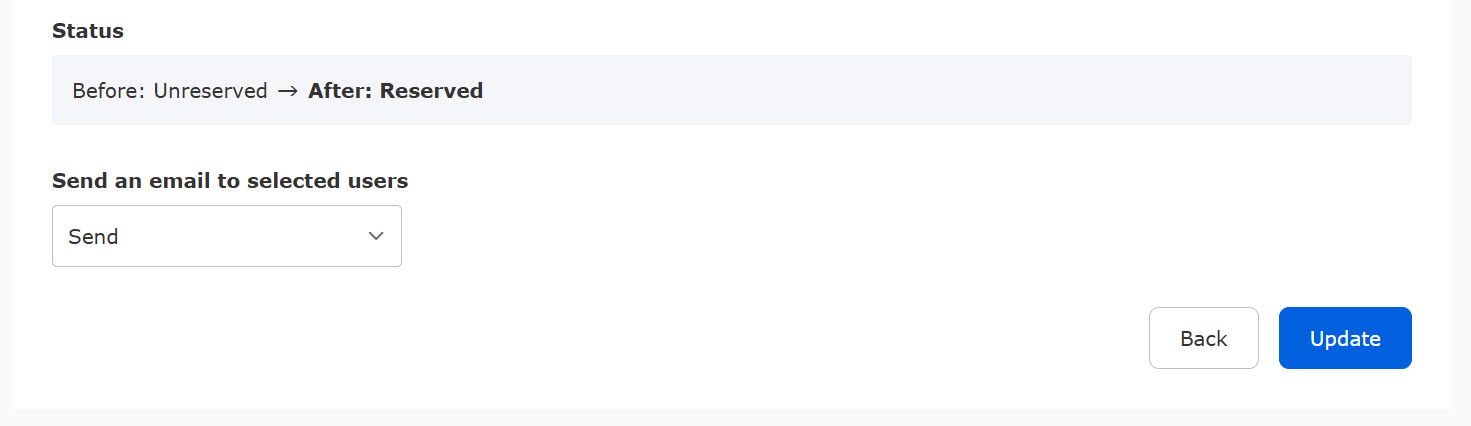
To move back to the calendar, click "Back."
To confirm the reservation updates, click "Update."
When the changes are successfully updated, the result will be displayed as shown below.

Notification of training reservation change
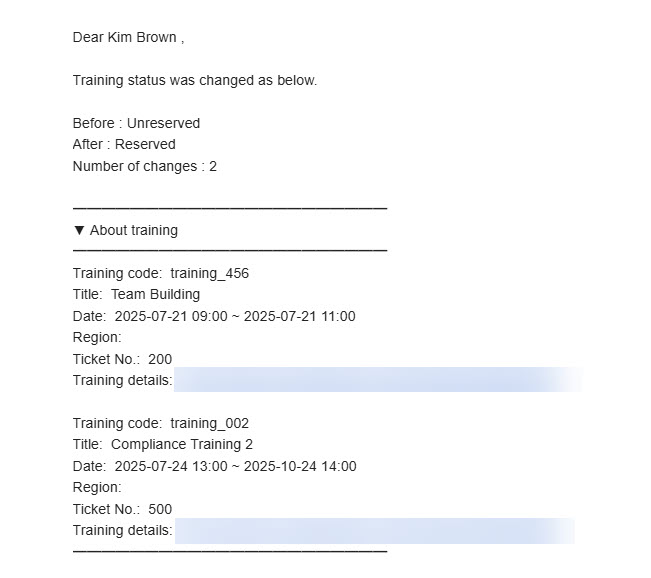
As explained above, when administrators modify a learner's training reservation, they can notify the learner of the change.
The e-mail will include the status before/after the change and the number of changes made.
Also, updated information will be listed.
*For more details on how to edit the template, refer to Email settings - Training function.
Reservation status
A list displays the reservation status for training sessions booked by specific learners that fall under the operator's authority.
The Reservation status tab will not be displayed to the Attendance manager.
To display the tab, the manager must be either Instructor, Organizer or Reservation manager.
01. View reservation status
Click the Reservation status tab to view the list of the status.
*Only the training assigned to the manager will be displayed.

To search training, filter items in the search field.
Tick "Show archives" to view archived training sessions.

02. Action
Click "Manage reservations and attendance" to the right of each training course.
Here, you can approve or reject learner reservations and perform other related actions.
*For more details, refer to Manage reservations by training.
03. Confirmation of details
Clicking on "Details" for each training course will bring up a screen where you can see the courses included in that training.
Click "Back to List" to return to the reservation application status list screen.

Attendance status
A list displays the attendance status for scheduled training sessions of specific learners that fall under the operator's permissions.
To update the attendance status, you must be either Instructor, Organizer or Attendance manager.
01. List of attendance status
Click on the Attendance status to view the list.
*Only the training assigned to the manager will be displayed.

The "Refine Search" allows you to narrow down the training programs to be displayed based on information such as training name and reservation category.
Tick "Show archives" to view archived training sessions.

02. Update attendance status
Click "Training reservation management" to the right of each training course.
Here, you can take actions such as changing a learner's attendance status.
*For more details, refer to Manage reservations by training.