
Manage training reservations and attendance
This page explains how to manage reservations and attendance of training on learningBOX.
Note that this screen is divided into three tabs: “By Training,” “By User,” and “List.”
*Select "Training Functions" > "Training Reservation and Attendance Management" from the side menu to open the "Training Reservation and Attendance Management" screen.
[What is the Training function?]
Multiple courses can be combined to build a single training program.
This allows learners to select and reserve training courses from the list, and take it within the specified period.
Required
Customization option, Management role of Training organizer/Instructor, Reservation/Attendance manager
If you subscribed the Customization option prior to January 21, 2026 (Ver. 4.1), you will be able to use this function by adding a menu on Manage menuYou will need to change the menu name in the "Menu Name" section.
Changes to the side/header menu of the learningBOX 4.1 series
By Training Program
Here is an explanation of the actions you can perform on the “By Training” tab.
01. Reservation list
Reserved training by users will be displayed.
All training will be displayed to Admin while non-Admins can view only relevant training.
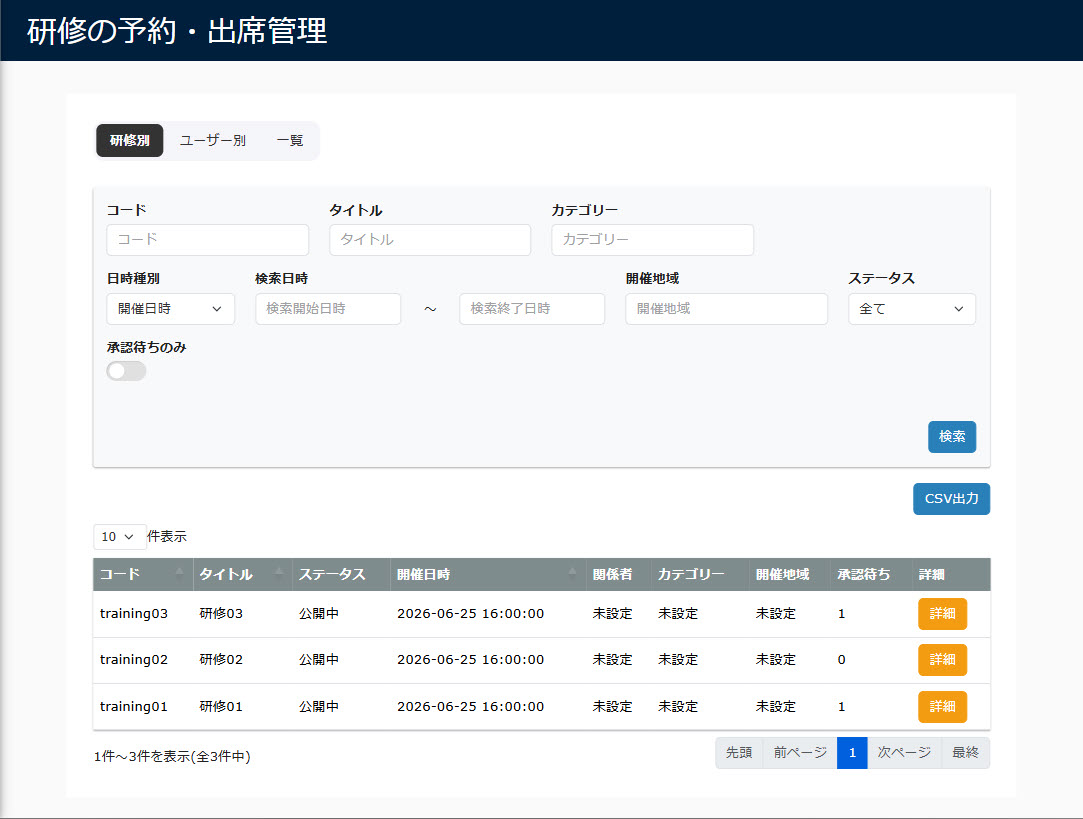
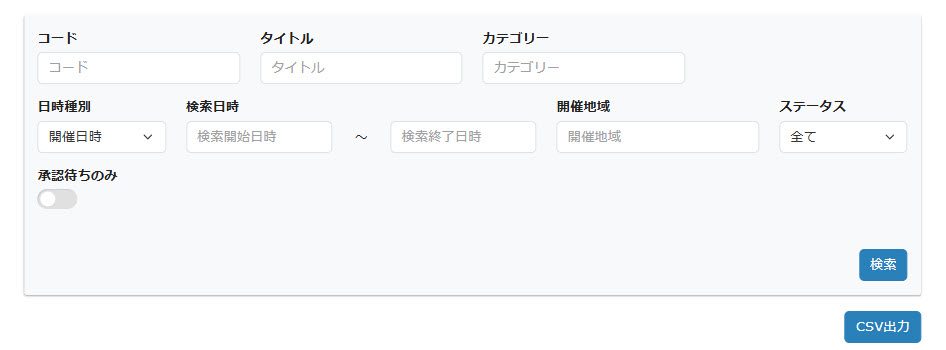
To filter training, select items on the search field.
The result can be exported via a CSV file.
02. Go to the Details
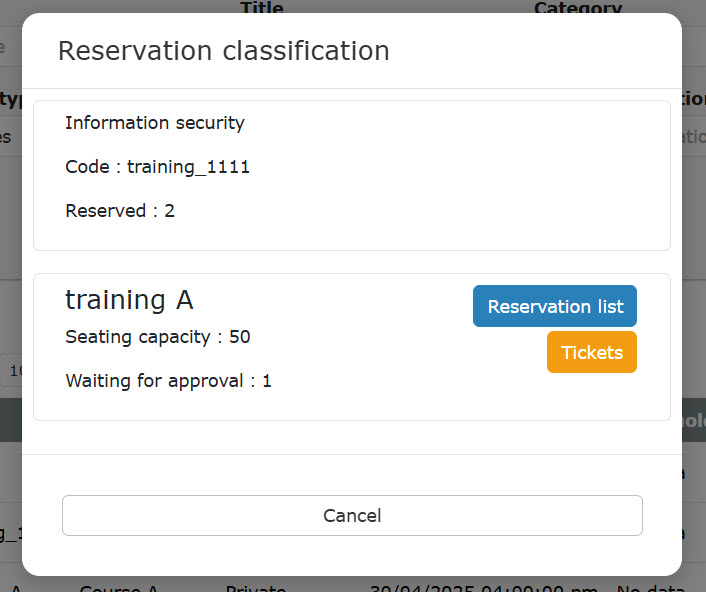
Click on the "Details."
Click on "Reservation list" or "Tickets" to move to each tab.
*For more details, refer to Manage reservations by training.
By User
Here is an explanation of the actions you can perform on the "By User" tab.
Required
Management role of Group manager (Edit/View)
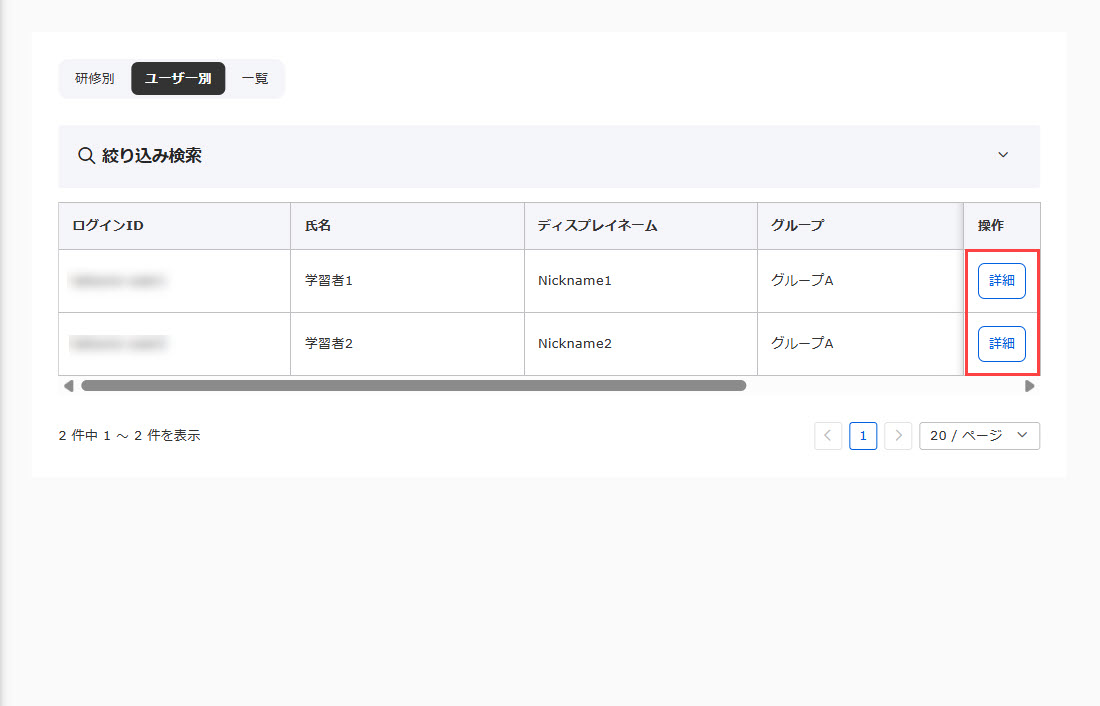
01. Listing of users
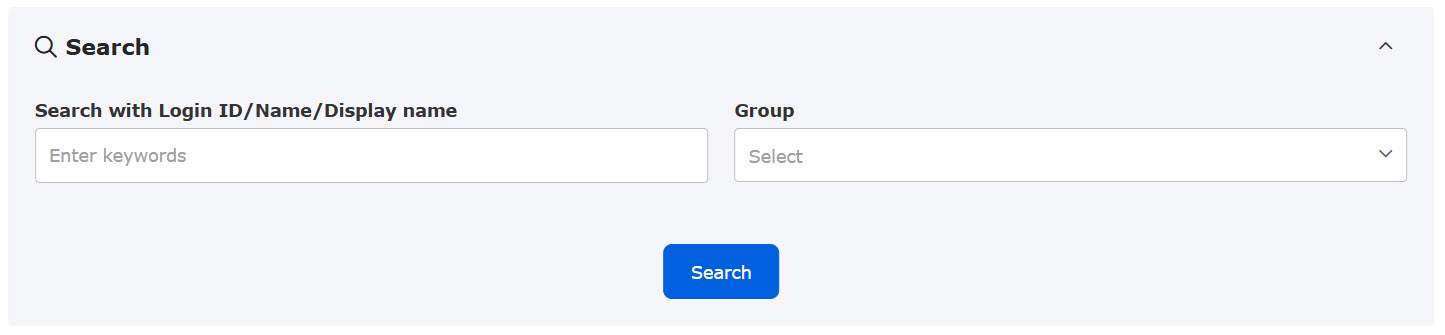
Users who you have a management role to will be listed.
Only users whose user status is "Valid" will be displayed.
You can search users by login IDs, groups, etc.
02. View reservation details
Click on the "Details" to view the reservation and attendance details.
*For more details, refer to Manage reservations and attendance by user.
List
Here is an explanation of the actions you can perform on the "List" tab.
This page is divided into two tabs: “Reservation Status” and “Attendance Status.”
Reservation status
A list of the training session reservation status for which the user has access permissions is displayed.
Required
Training Organizers/Instructors, Permissions to Manage Reservations
01. List of reservations
When you open the "Reservation Status" tab, a list of the reservation statuses for the training sessions covered by the operator's permissions will be displayed.
Depending on the assigned management roles, items displayed will be different.
- Training Organizer/Instructor: All reservations are displayed
- Reservation Administrators: Only users with Group Management, Edit, or View permissions will be displayed in the reservation list.

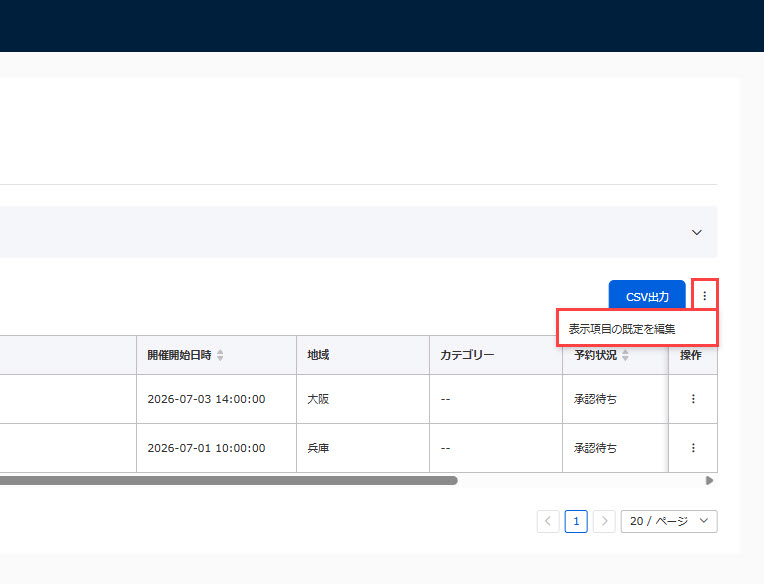
You can edit the items displayed on the list screen.
Click "︙" > "Edit Default Display Settings" on the right side of the screen.
*Only owner administrators and users with access permissions to the settings page can perform this operation.
The pop-up shown below will appear; please check the boxes next to the items you want to display.
(Items that are grayed out are required fields.)
You can also change the order of the items by clicking and dragging the “⋮⋮” icon.

02. Filter
Click "Filter" at the top of the screen to expand the following content.
Here, you can filter the displayed reservations based on information such as reservation type and training status.

03. Changing Your Reservation Status
You can change your training reservation status.
The following explain two methods.
*To make changes to the reservation status, you must have either “Instructor,” “Organizer,” or “Reservation Management” permissions for the training session.
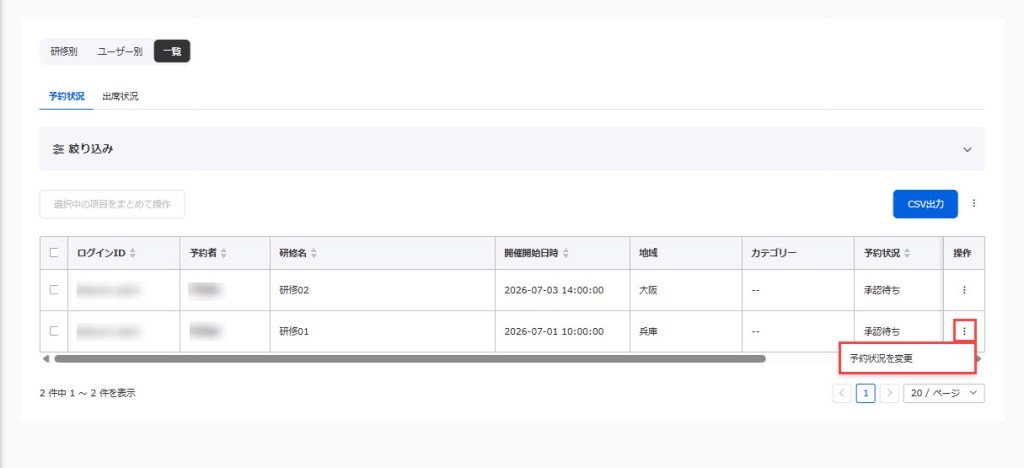
▼ Setting individually
Click the "︙" to the right of the reservation in question, then select "Change Reservation Status."
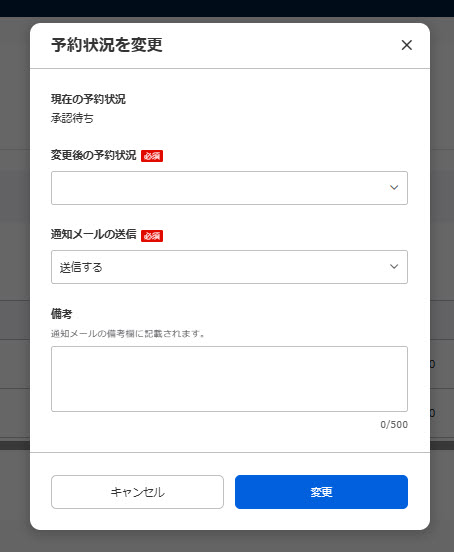
When the pop-up below appears, please select your preferred option from the "Updated Reservation Status" drop-down menu.
From the "Send Notification Email" drop-down menu, you can choose whether to send an email notification to the person who made the reservation.
You can also use the "Remarks" field as needed.
Click "Edit" to finish the setting.
▼ Setting in bulk
Check the boxes next to the relevant reservations (✔) (※Multiple selections allowed), then click “Bulk Action on Selected Items” > “Change Reservation Status.”
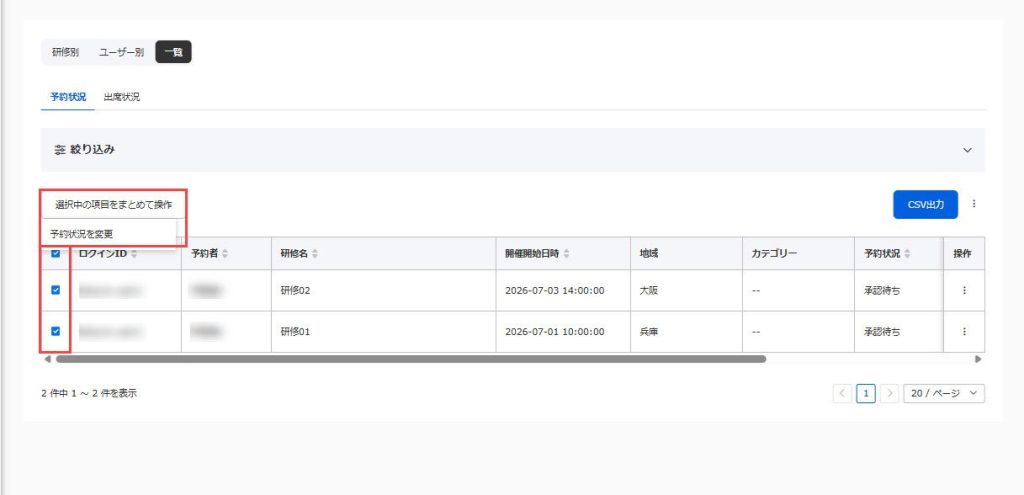
When the pop-up below appears, please select your preferred option from the "Updated Reservation Status" drop-down menu.
From the "Send Notification Email" drop-down menu, you can choose whether to send an email notification to the person who made the reservation.
You can also use the "Remarks" field as needed.
Click "Edit" to finish the setting.

04. CSV export
You can export a list of training session reservations as a CSV file.
Click on "CSV Export."
*Up to 10,000 records can be exported.

Attendance status
A list of attendance records for training sessions covered by the operator's permissions is displayed.
Required
Training Organizers/Instructors, Permissions for Managing Reservations and Attendance
01. List of attendance status
Click on the Attendance status to view the list.
*Only the training assigned to the manager will be displayed.
Depending on the management roles, the items displayed will be different.
- Training Organizer/Instructor: All reservations are displayed
- Reservation Administrators / Attendance Administrators: Only users with "Edit/View Group Management" permissions will be displayed in the reservation list.
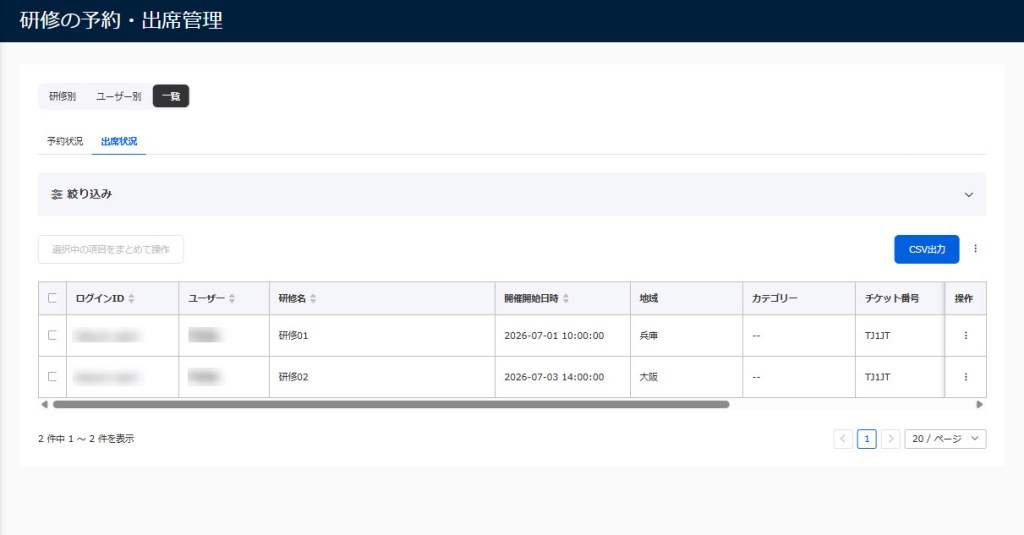
You can edit the items displayed on the list screen.
Click "︙" > "Edit Default Display Settings" on the right side of the screen.
*Only owner administrators and users with access permissions to the settings page can perform this operation.
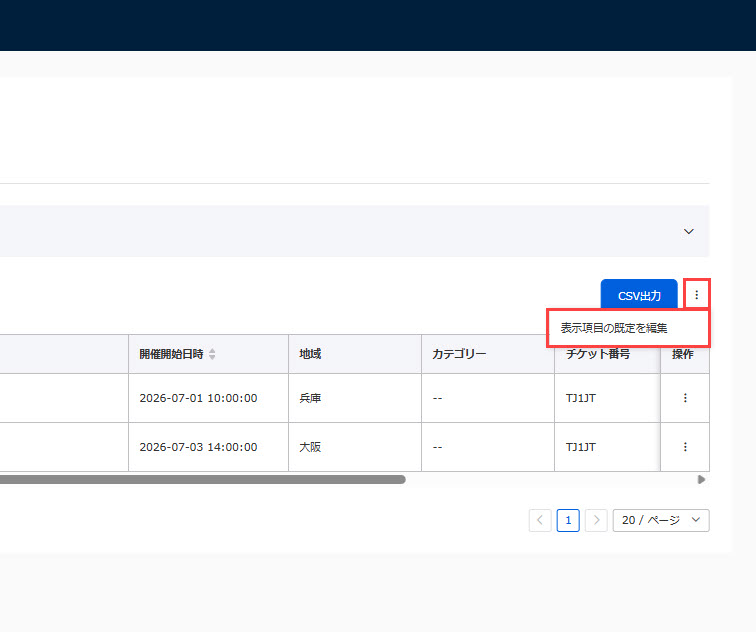
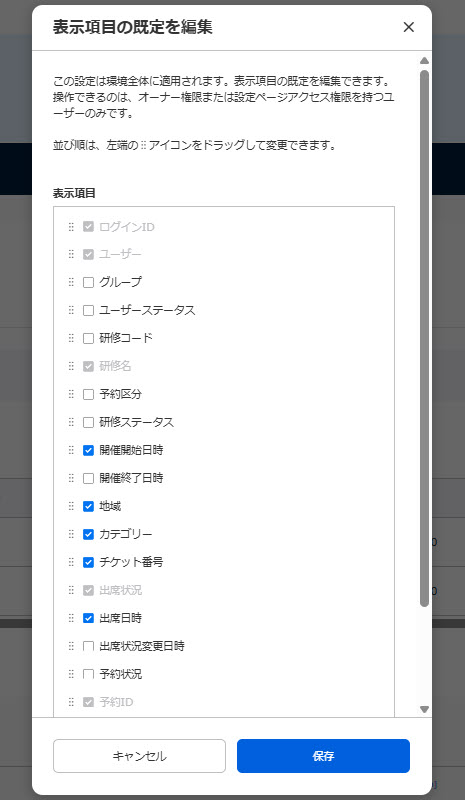
The pop-up shown below will appear; please check the boxes next to the items you want to display.
(Items that are grayed out are required fields.)
You can also change the order of the items by clicking and dragging the “⋮⋮” icon.
02. Filter
Click "Filter" at the top of the screen to expand the following content.
Here, you can filter the reservations displayed based on information such as reservation type and status.

03. Changes to Attendance Status
You can change your training attendance status.
The following explain two methods.
*To change attendance status, you must have either “Instructor,” “Organizer,” or “Attendance Management” permissions for the training session.
You can only change your attendance status for reservations with a “Reservation Status” of "Reserved."
▼ Setting individually
Click the "︙" icon to the right of the reservation in question, then select "Change Attendance Status."

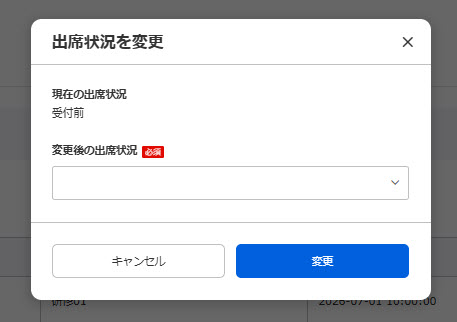
The following window will appear.
In this window, you can check the current attendance status.
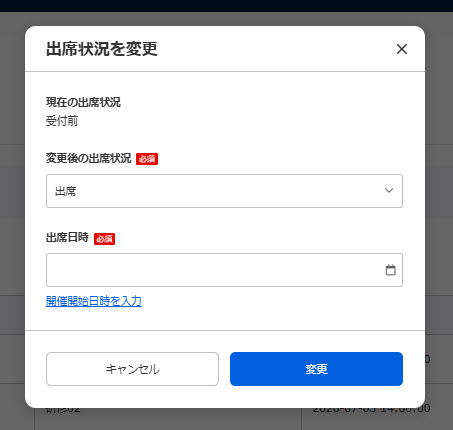
Select an attendance status after change from the list.
When "Attend" is selected, specify the date and time from the calendar.
(*When you click "Enter the start date and time of the training," the start date and time of the training will be automatically entered.)
When all settings are completed, click "Edit."
▼ Setting in bulk
Check the boxes next to the relevant reservations (✔) (※Multiple selections allowed), then click “Bulk Action on Selected Items” > “Change Attendance Status.”

The following window will appear.
Select an attendance status after change from the list.
If you select "Attendance," please specify the date and time of your attendance from the calendar.
Once you have finished making all the settings, click "Change [number] items."

04. CSV export
You can export a list of training attendance records as a CSV file.
Click on "CSV Export."
*Up to 10,000 records can be exported.
