
Email settings - Training function
You can manage email templates regarding training functions.
*Select "Notifications" on the side menu > "Email settings"
Click on the "Training" tab.
What is the Training feature?
Multiple courses can be combined to build a single training program.
This allows learners to select and reserve training courses from the list, and take it within the specified period.
Required
Customization options, management role of Email template manager
Email settings
01. Template types
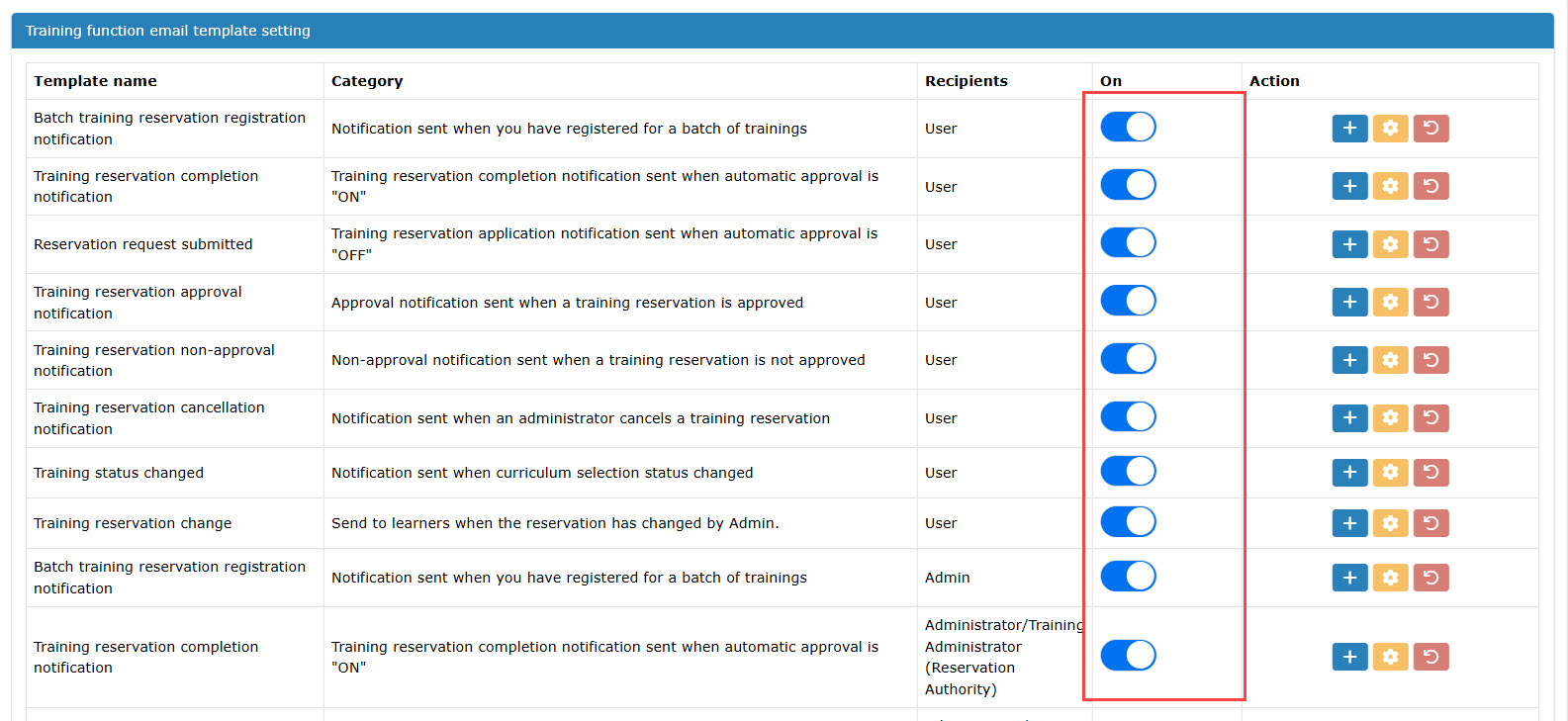
Email templates for the training function are listed in the Email setting page.
Template name/Category describes the content of each template.
You can check the recipients who you are going to send the email to.
02. Enable the feature
To use the templates, turn on the toggle keys.
03. Action
You can create or edit a new mail template from the icon in the "Action."
Create new template
Click on the "+" icon in the Action column.
The following page will be shown.
You can edit the template on the left and preview on the right.
The following describe each step.

01. Template name
The template name will be shown in the upper left corner of the page.
*This template name cannot be edited.
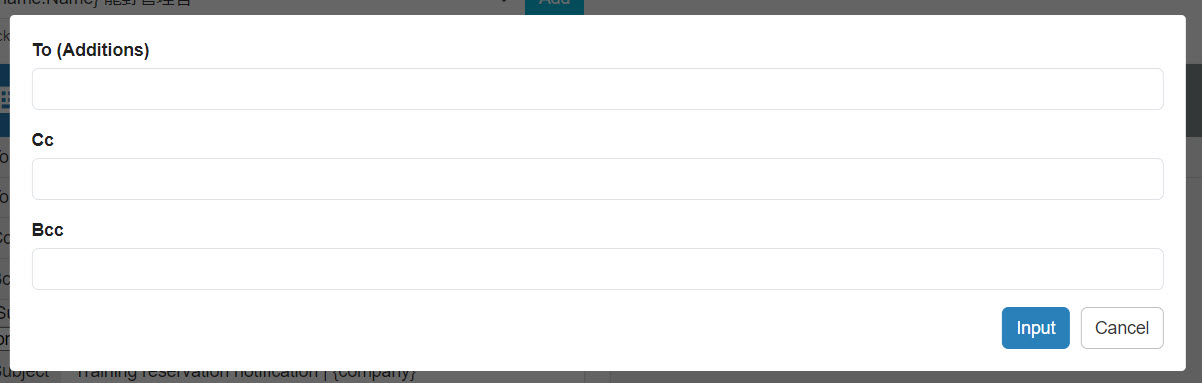
02. Add recipients
To add a recipient, click the icon on the right.

Enter a recipient.
▼Email that can be sent to Reservation managers
You can send email notifications to both Admin and Rservation managers for the following templates by selecting the item as recipients:
- Training reservation confirmation - To Admin
- Training reservation approval request
- Training Reservation Change Notification - To Administrator
*Management role of Reservation manager and Group manager (Edit/View) for users reserved are required.

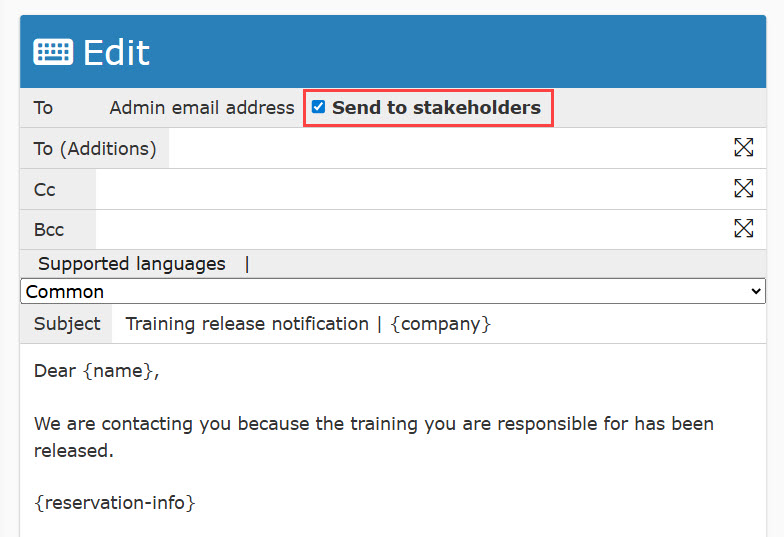
▼ Send notifications to stakeholders
You can send emails to both Admin and stakeholders for the following templates:
- Training release notification
- Training contact notification
03. Language
Select a language from the list.
The list will be shown under the Supported languages.
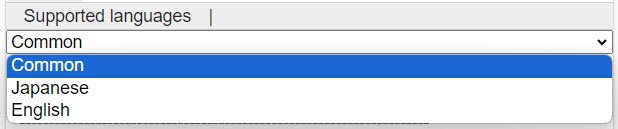
The Supported languages is linked to each user's language settings on the Manage users page.
*For more details, refer to Add user.
- When a language is not selected, or other than Japanese and English are selected, the Common template will be applied.
- When Japanese is selected, the Japanese template will be applied.
- When English is selected, the English template will be applied.
04. Subject and body
Enter a subject and body.
You can revert or reset the edited content of the notification.

To add an item, select the item from the list at the top and click Add.

05. Preview
The preview will show an example with a user name.
To send a test email, click on Send a test email.
The test email will be sent to the admin.

When all settings are completed, click Create new.
Edit template
Click on the gear icon to the right of the template.
For more information , refer to Create new template.
Restore template to default
To restore a template to the default settings, click on the vortex icon.