
Typing content <Operation in Manage contents (Old)>
You can create your original typing practice on learningBOX.
Also, time limit, passing score, difficulty level and more options can be selected.
Create typing content
01. Create a course
First, create a course in the Manage contents.
*For details on creating a course, refer to Course/Folder.
02. Open the creation form
Click on the course you created.
Click the "+" icon > Content > Typing > Create
03. Creation form
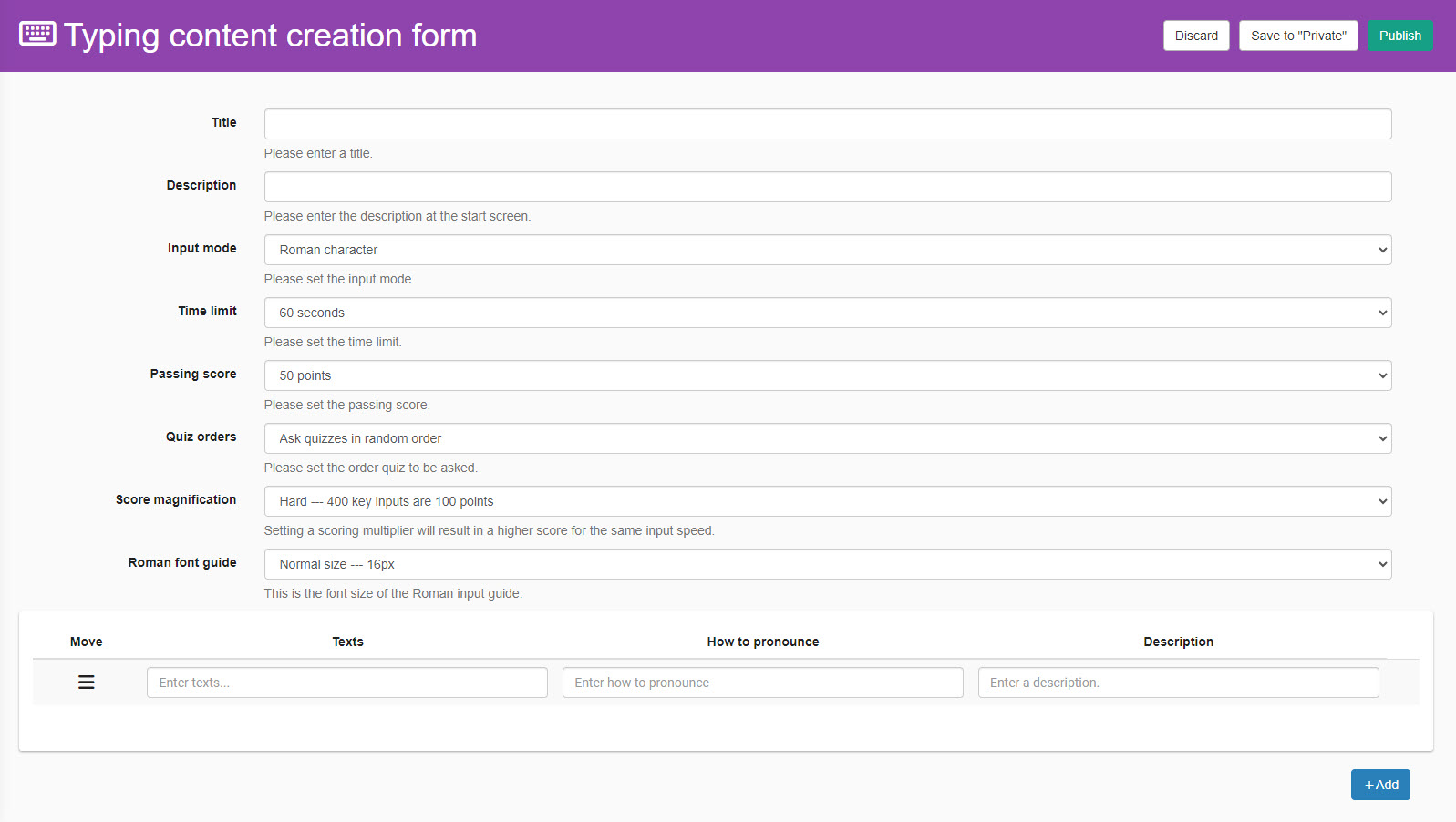
The creation form contains the following:
-Title
-Description
-Input mode
-Time limit
-Passing score
-Quiz orders
-Score magnification
-Font size
-Text
-How to pronounce
-Description
04. Add/Delete
To add a question, click on "+ Add."
Click "✕" to delete the question.
Click "Publish" in the upper right corner of the page to finish.
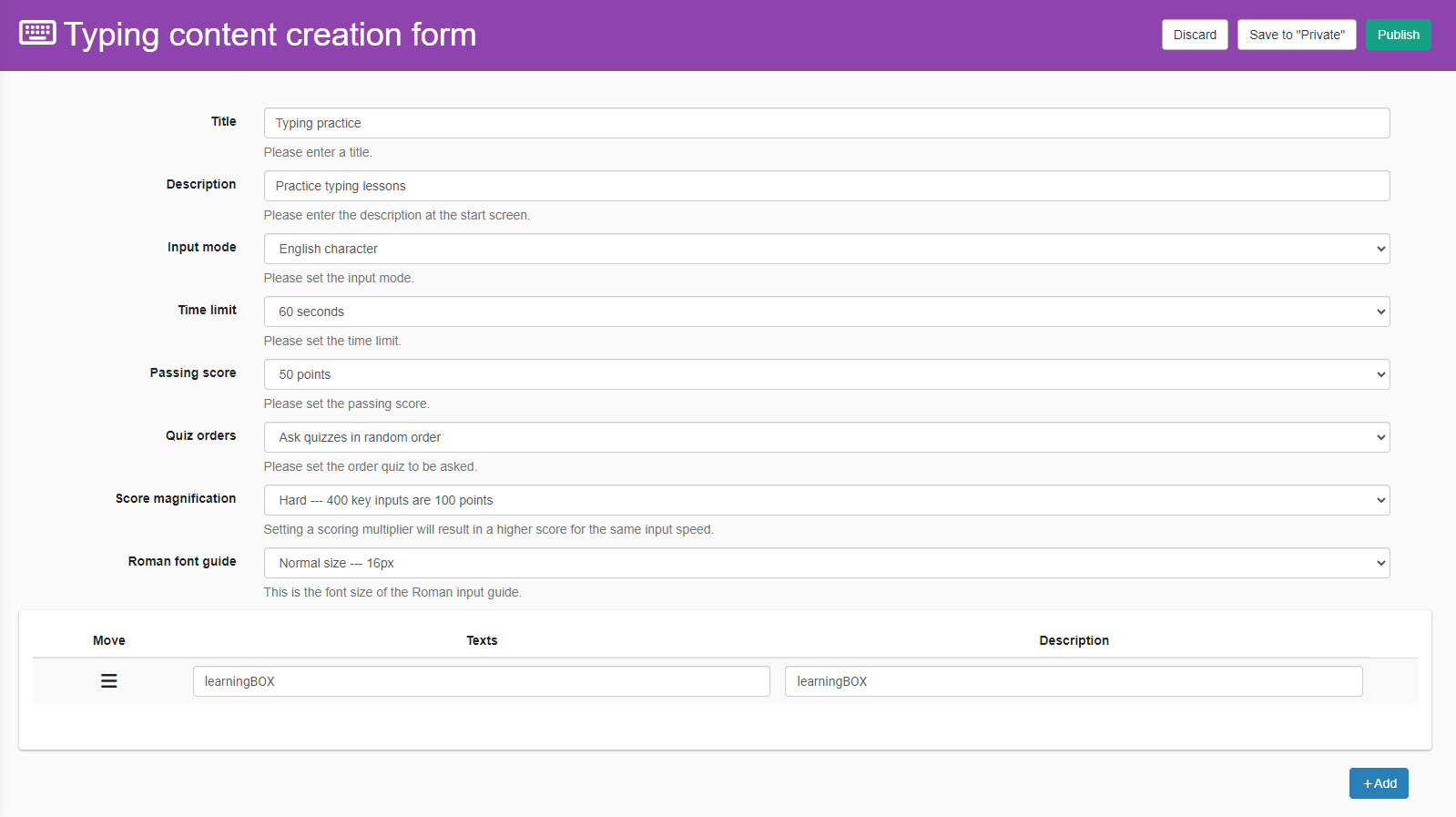
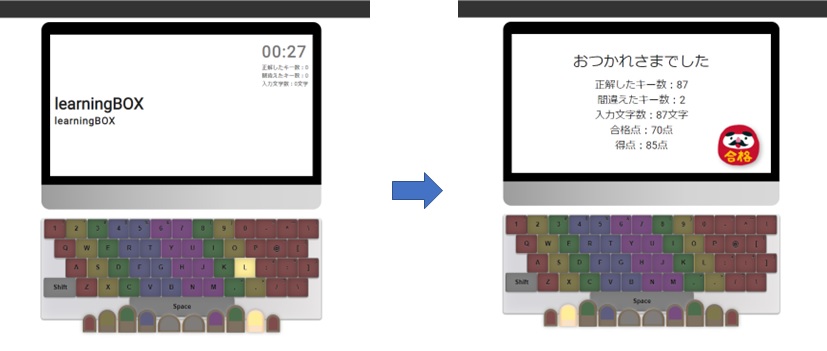
User interface
The following is the learner's page.
Upload typing content
Typing copntent you created can be uploaded.
01. Create a course
First, create a course in the Manage contents.
*For details on creating a course, refer to Course/Folder.
02. Open the creation form
Click on the course you created.
Click the "+" icon > Content > Typing content > Upload typing content
03. Settings
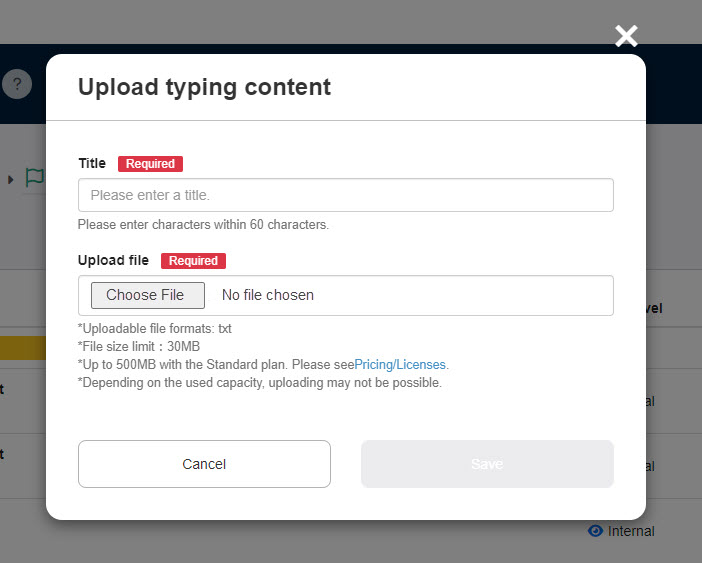
Enter a title.
Click on "Choose File" to upload your typing practice.
Save the settings.
Download typing content
Created content can be downloaded.
01. Go to Manage contents
Click on the Manage contents in the side menu.
02. Download
Right-click on the content or click the gear icon > Download
Re-upload typing content
You can re-upload the typing content that you have created.
01. Go to Manage contents
Click on the Manage contents in the side menu.
02. Re-upload
Right-click on the content or click the gear icon > Re-upload
Edit typing practice
01. Go to Manage contents
Click on the Manage contents in the side menu.
02. Edit
Right-click on the content or click the gear icon > Edit