
Web page
Web page-style content can be created by inserting images and using different colors and sizes of text.
Create Web page
01. Create a course
First, create a course in the Manage contents.
*For details on course creation, refer to Course/Folder.
02. Open the Web page creation form
Click on the course you created.
In the upper left corner of the page, select "+ Create new" > "Content" > "Web page" > "Create."
03. Creation form
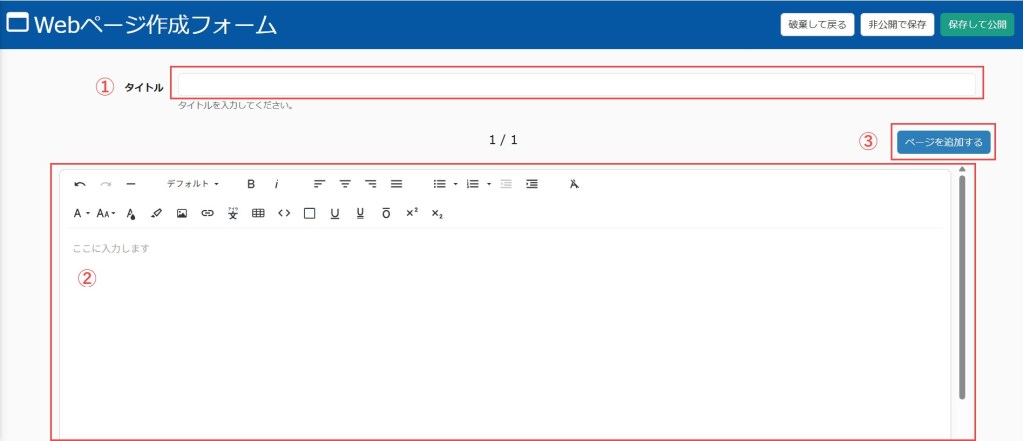
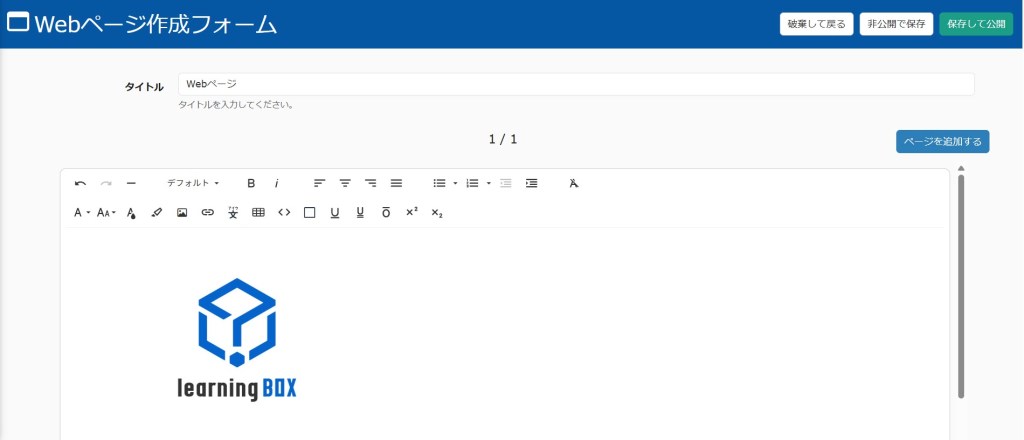
The creation form contains the following items:
1. Title
2. Body
3. Add page (Up to 20 pages can be added)
04. Customize the content
The following explain how to customize the body mentioned above.
You can change the font size, colors and other options.
In addition to text, images and tables can be inserted.
Insert image
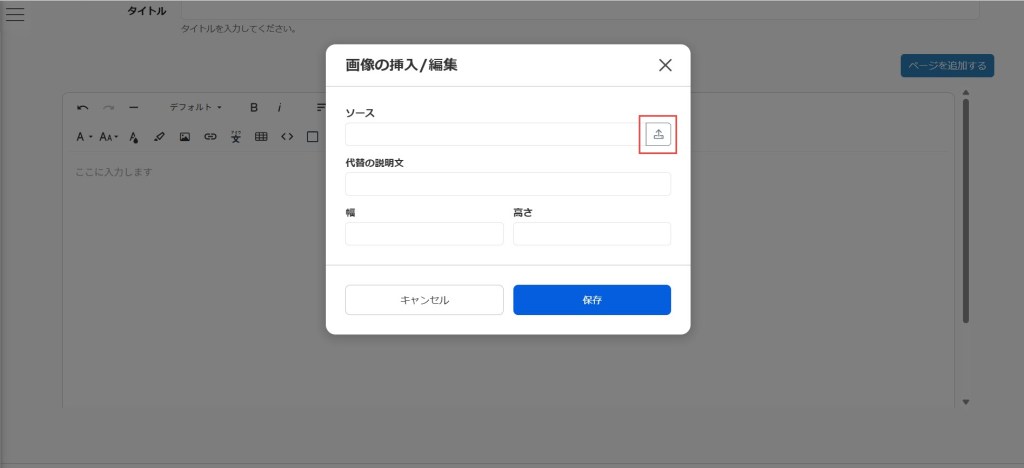
STEP1: Click on the image icon.

STEP2: Click on the upload icon.
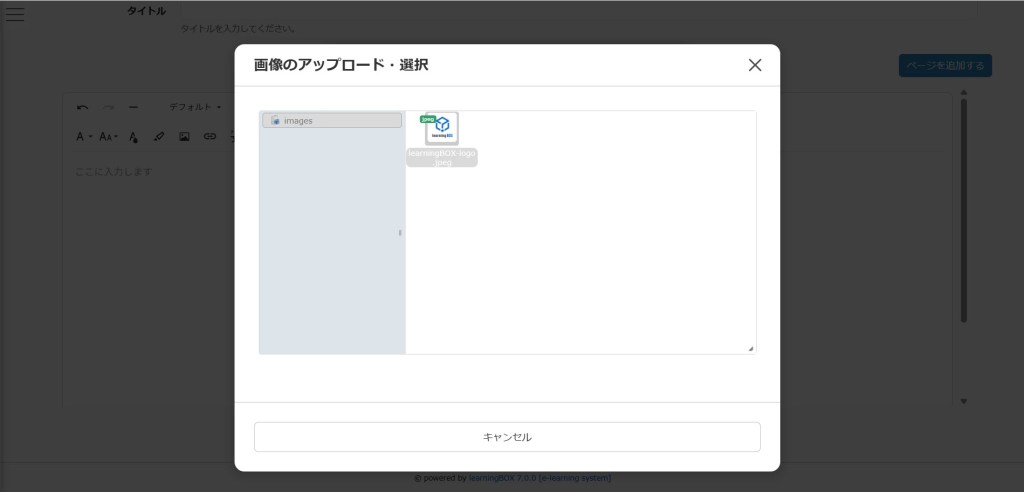
STEP3: Drag and drop the file you want to insert.
Double-click on the file.
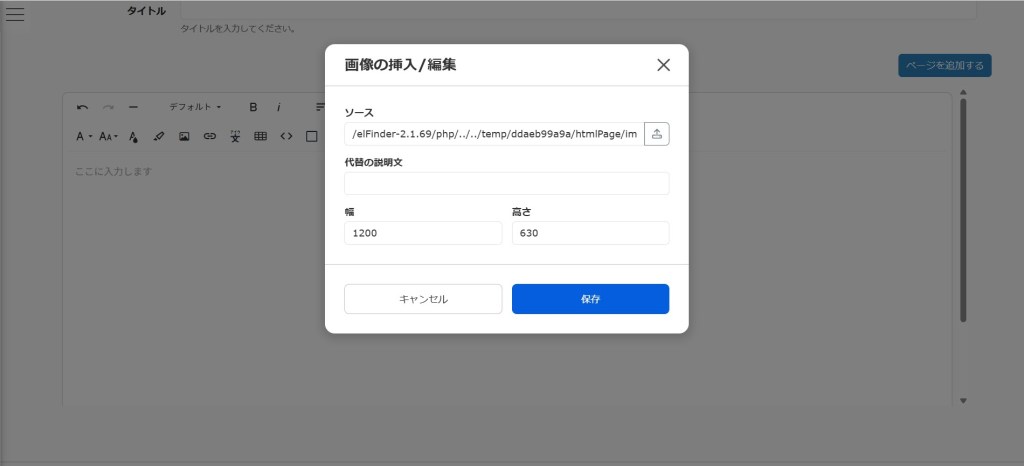
STEP4: Set the description and image size, and save it.
The image will be inserted as shown below.
05. Save
Select one from the following:
- Save and Publish: Publish to assigned users as soon as it is saved.
- Save as Private: The content is saved, but it is private and not available to the user.
Download Web page
The created Web page can be downloaded.
Select Manage contents in the side menu.
Right-click on the target web page or select the "︙" icon > "Download".
It will be downloaded in zip format.
Upload Web page
Downloaded web page can be uploaded.
01. Create a course
First, create a course in the Manage contents.
*For details on course creation, refer to Course/Folder.
02. Go to PDF page
Click on the course you created.
In the upper left corner of the page, select "+ Create new" > "Content" > "Web page" > "Upload file."
03. Settings
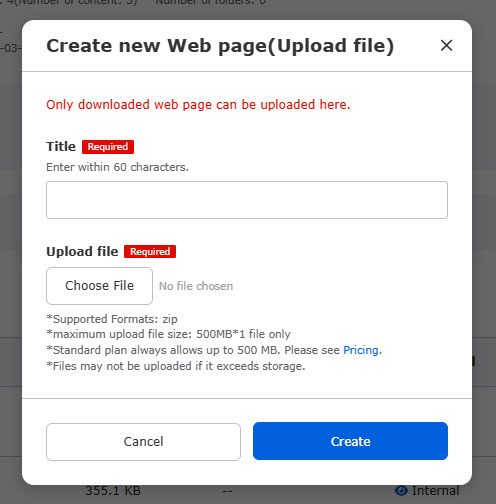
Enter the title of the web page.
Click "Choose File" to upload your web page file.
Click on "Create."
Re-upload Web page
Re-uploading allows you to overwrite the web page content that you have created.
Select Manage contents in the side menu.
Right-click on the target web page or select the "︙" icon > "Re-upload."
Click "Choose File" to upload your web page file.
Click Save to finalize.
Edit Web page
Select Manage contents in the side menu.
Right-click on the target web page or select the "︙" icon > "Edit Web page."
To edit the content, refer to Create Web page.