
Voice recording
You can record and submit your voice directly to quiz and exam questions.
Submitted audio files can be played back directly from the Details or Grading pages within Manage grades.
Also, the file can be downloaded from the Grading status page.
Required
【QUIZ-7.0.0】+ management role fo Content manager for the settings
Settings
The following exolain how to use the voice recording function.
01. Create quiz/exam
Click "Contents" on the Dashboard or "Manage contents" on the side menu.
*For more details, refer to Create quiz/exam.
02. Requirements
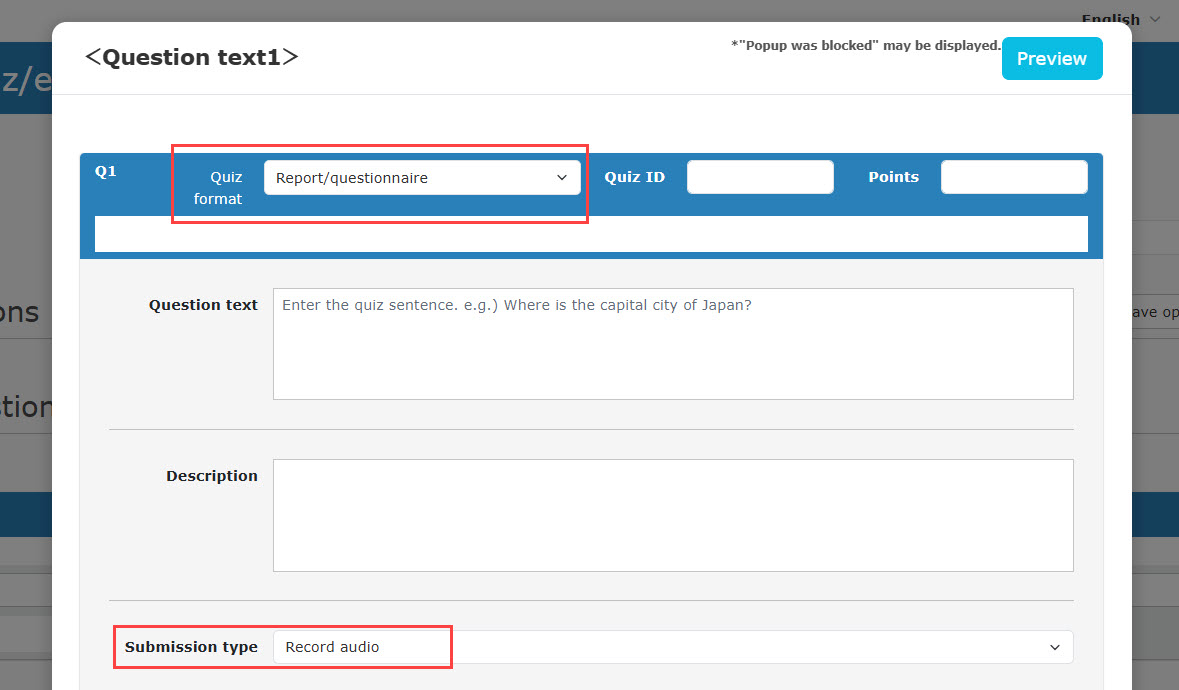
The quiz format and the submission type must be specified as follows.
After the settings, the start and stop buttons will be displayed on the user interface when learners are working on the quiz/exam.
- Quiz format: Report/questionnaire
- Submission type: Record audio
03. Maximum recording length
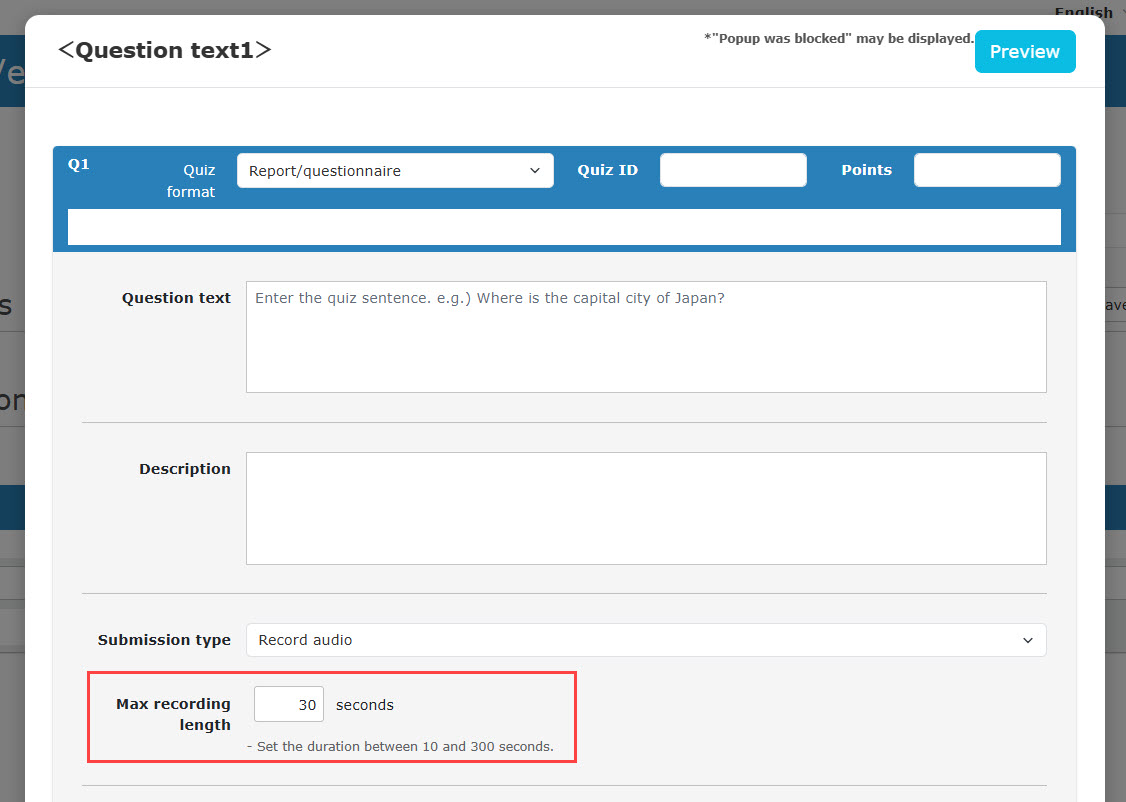
The maximum recording length can be set from 10 to 300 seconds for each question.
04. Scoring Method
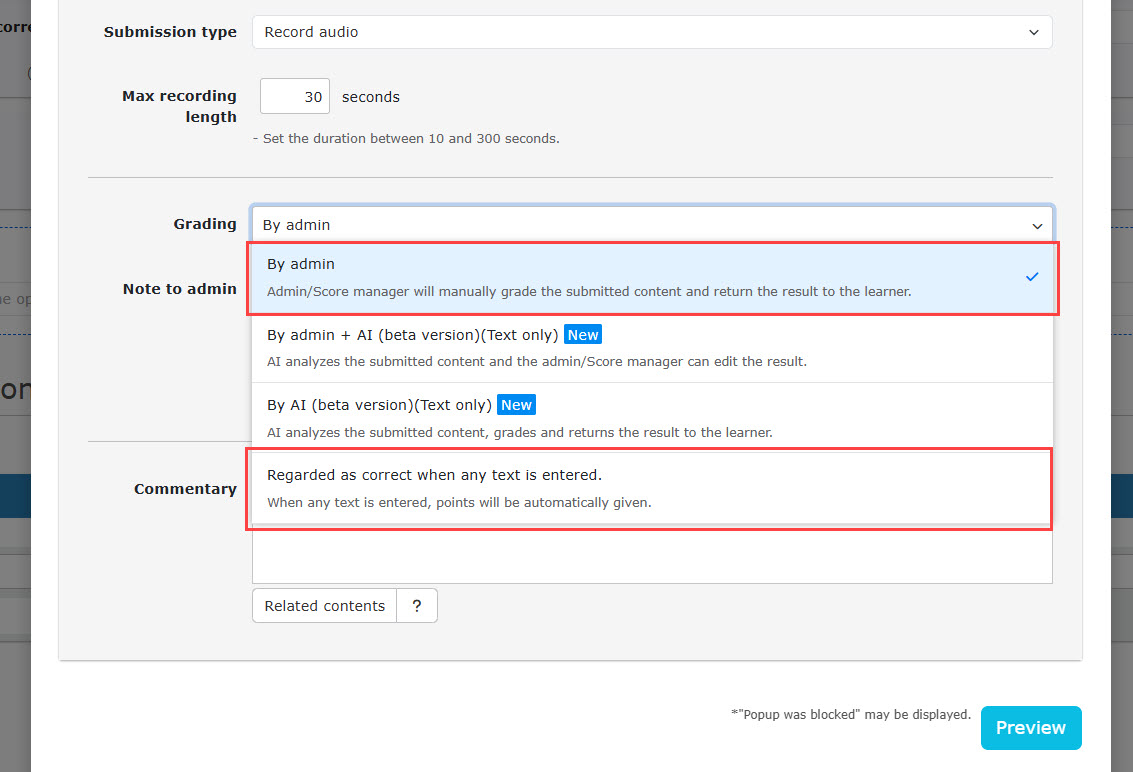
Two methods, "By admin" or "Regarded as correct when any text is entered," are available.
User interface
The following explain the user interface.
01. Start content
Click on the Select a course on the Dashboard or the side menu.
Next, select a course and click on the quiz/exam which you have created following above steps.
02. Recording
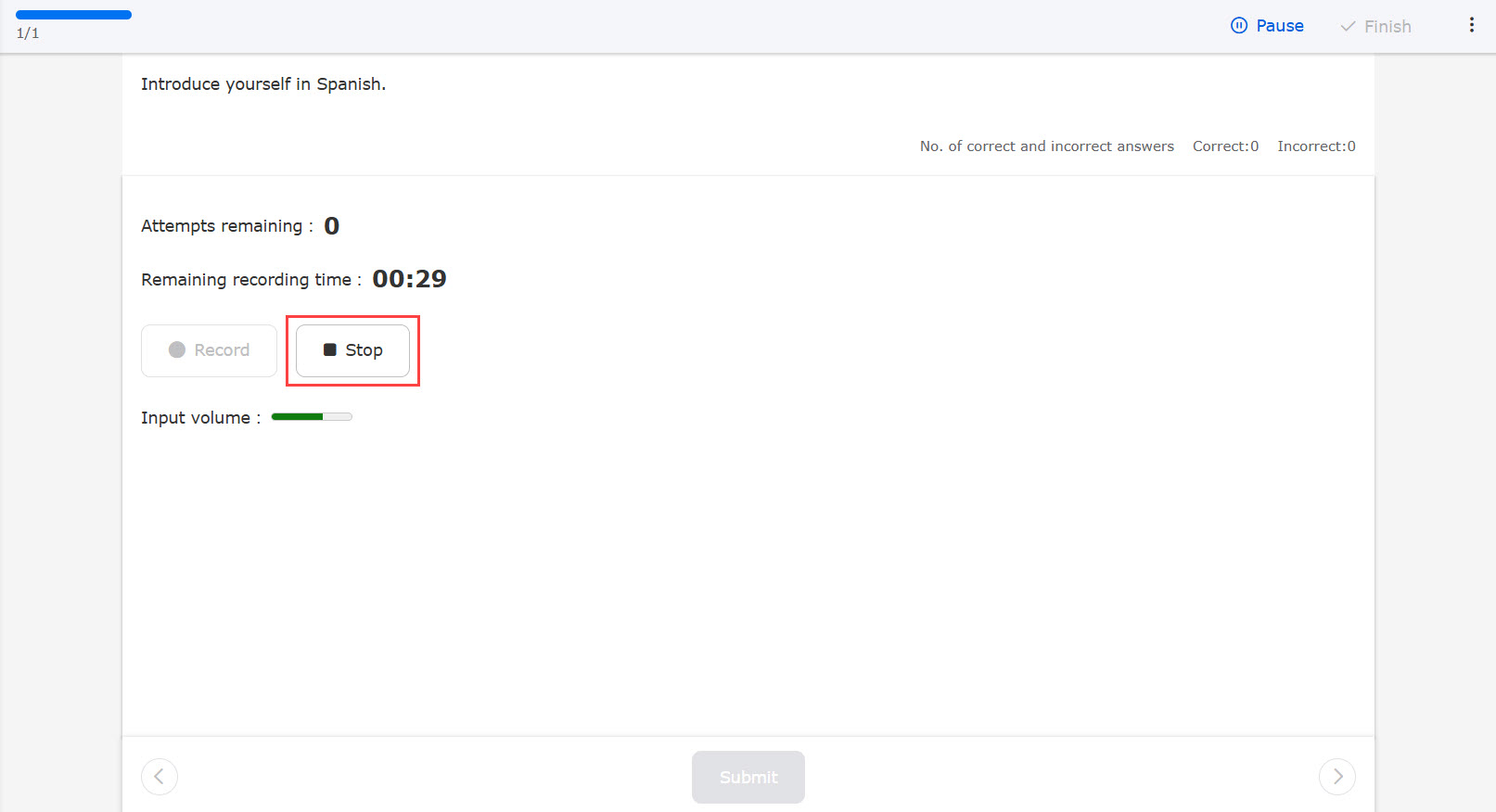
Click on the Record button to start recording.
After clicking the button, the remaining recording time will be counting down.
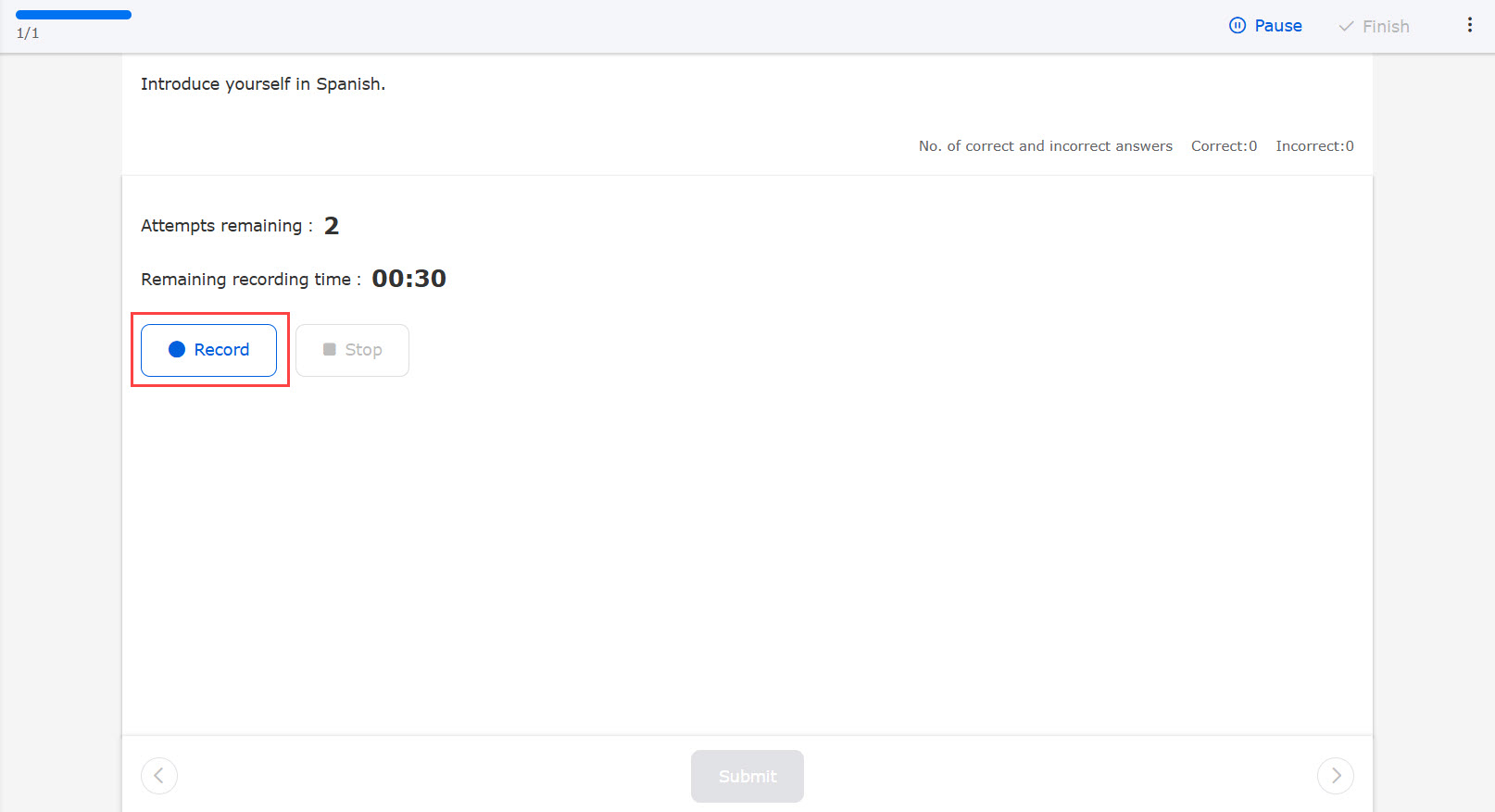
When recording is complete, click the Stop button.
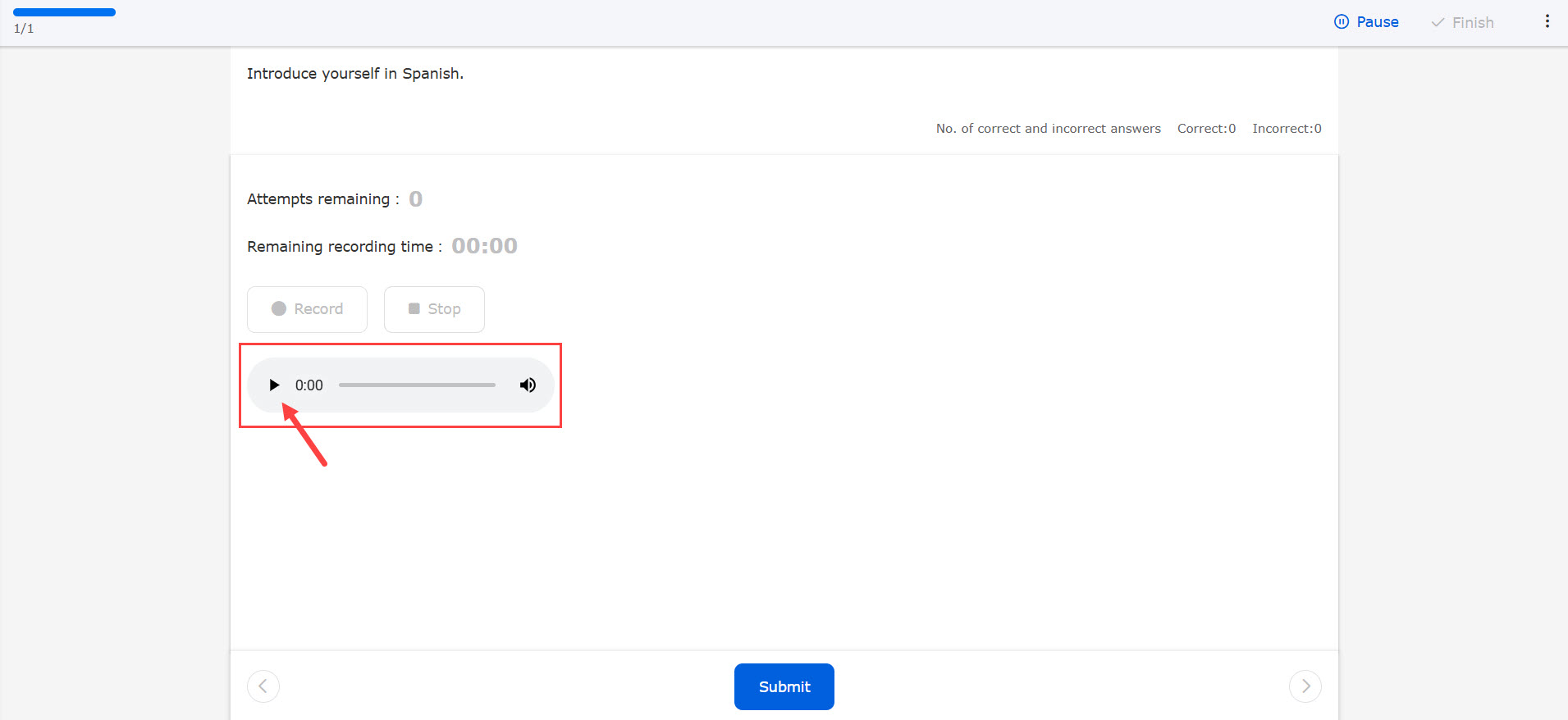
After the recording, learners can review the audio from the playback button.
Note
Please note that the attempt limits are two times. After the limit, learners will not be able to click the Record button.
*For the second attempt, the audio file will be overwritten.
Grading
Submitted responses are graded from Grading status.
01. Open the Manage grades page
From the side menu, select "Manage grades" > "Grading status."
02. Review the submitted response
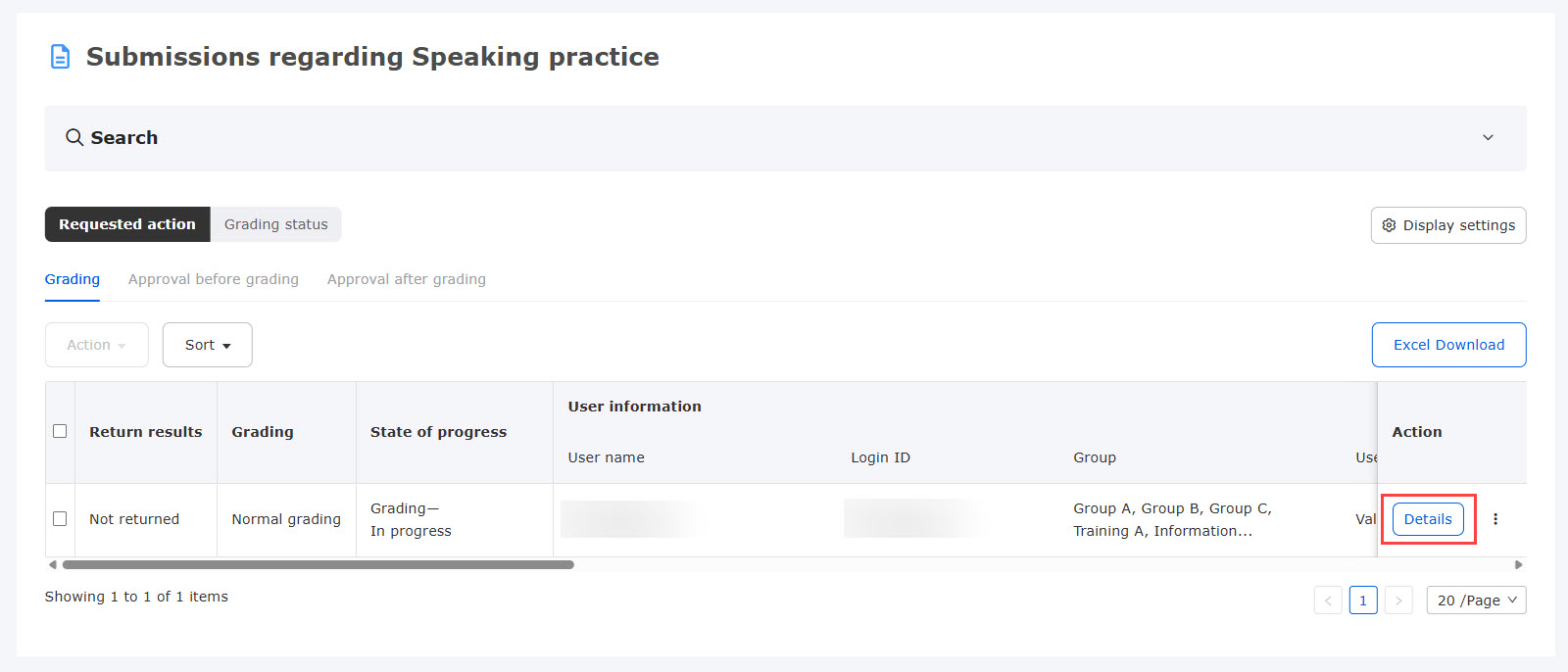
On the Manage grades page, click the target content from the list.
The submissions list page will appear. Click Details for the relevant grade record.
03. Grade the submitted answer
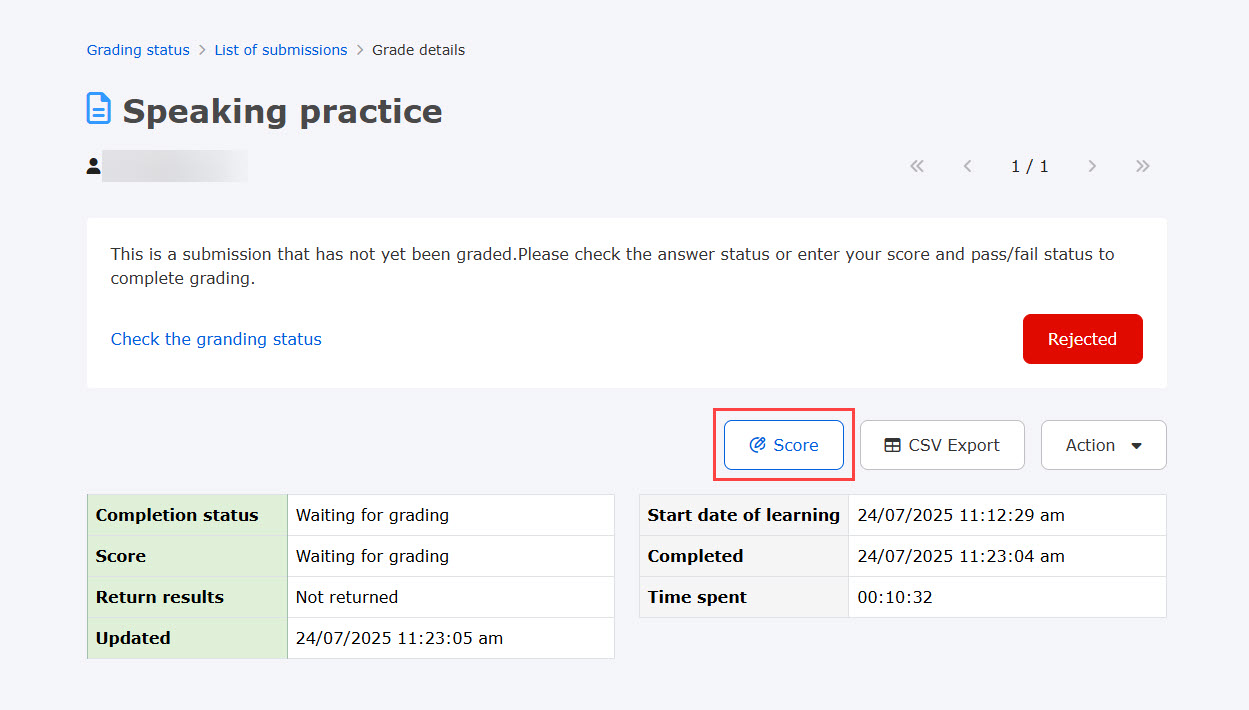
The grade details will appear.
Click the Grade button to grade the submitted response.
Click on the play button.
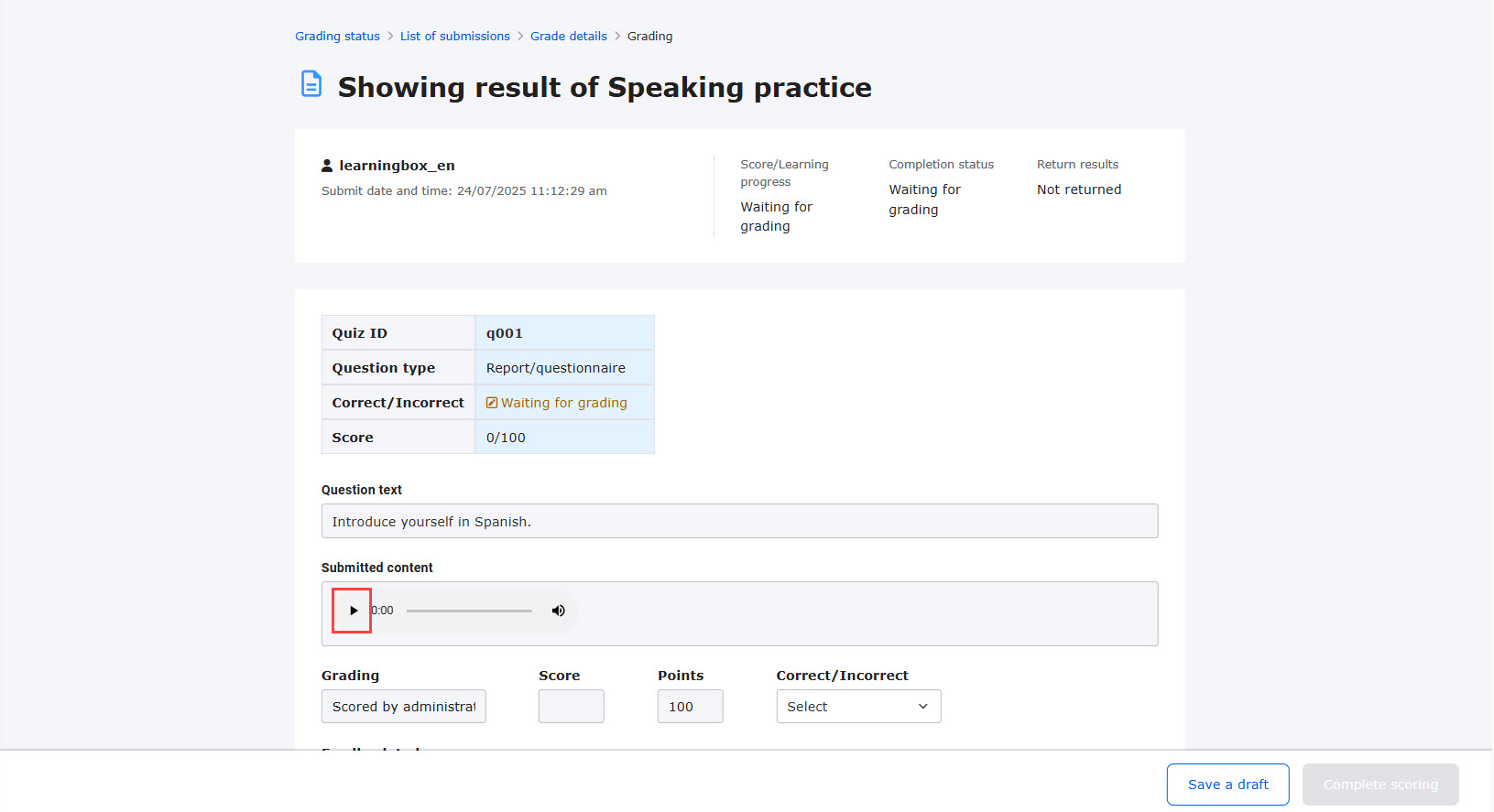
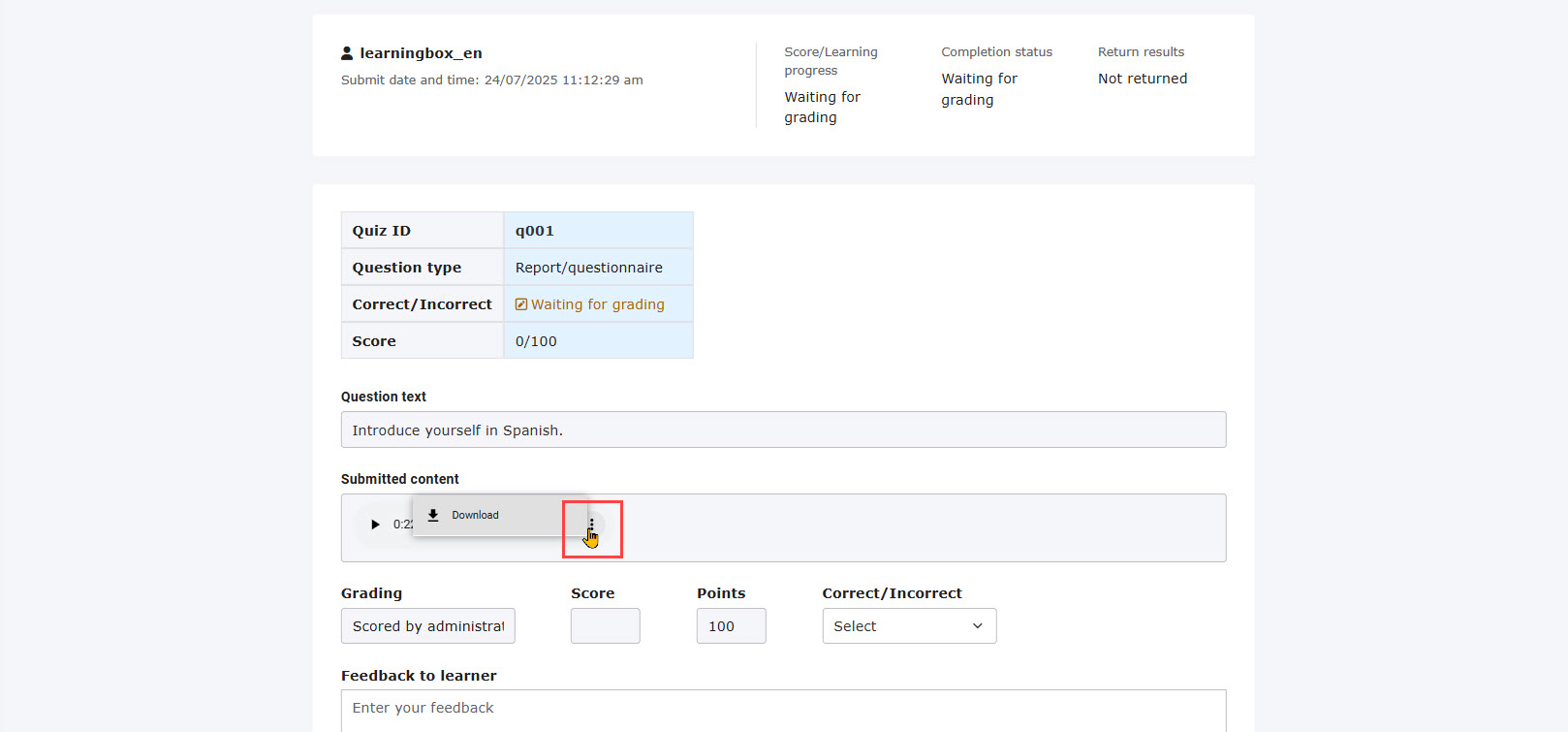
When playback is finished, the "︙" icon will be displayed.
You can download the submitted data by clicking the Download button.
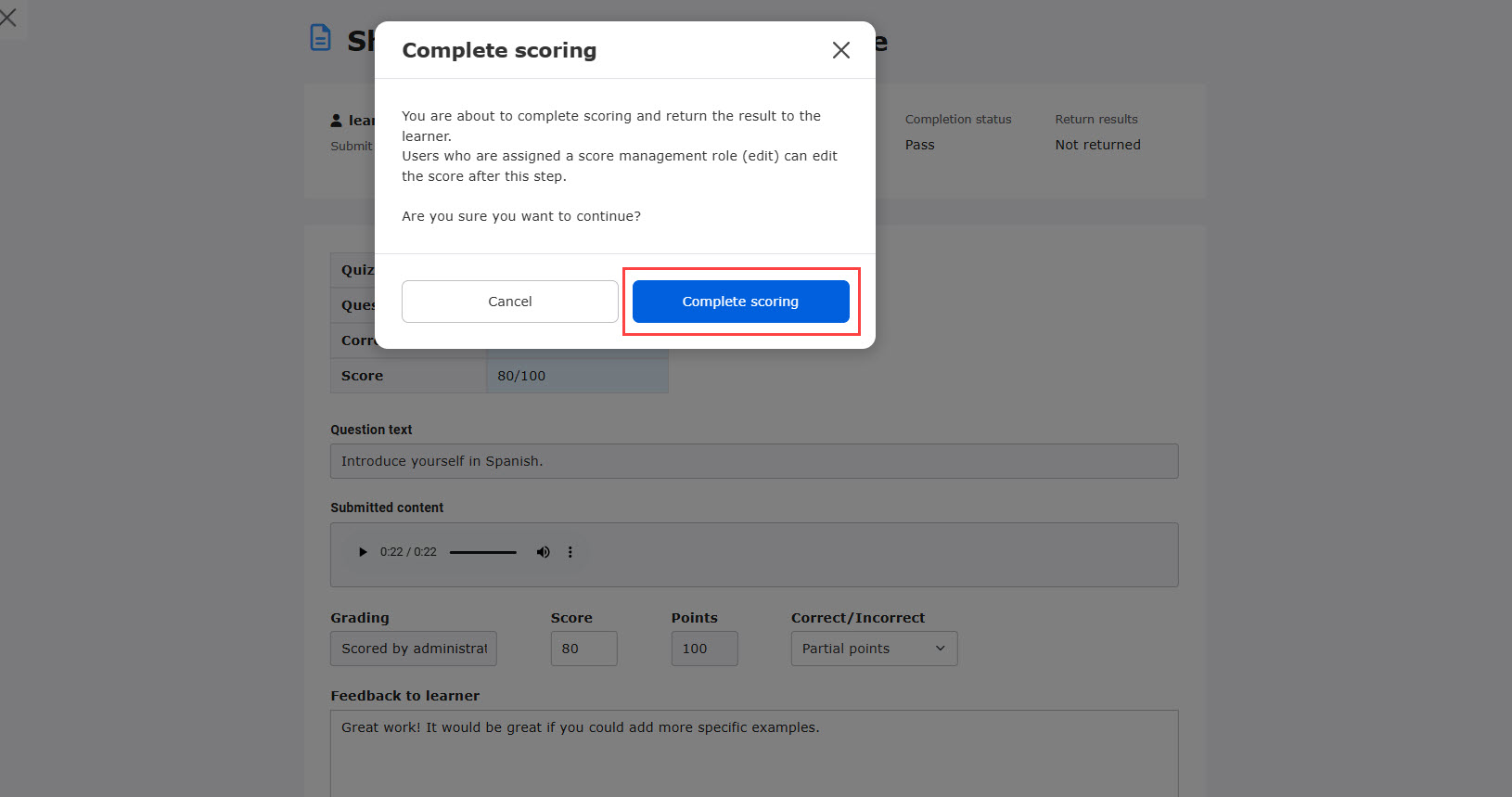
Complete scoring by clicking the button.
When the grader uses Safari to check the audio recorded by the learner using Firefox, depending on the version of Safari, the audio may not be displayed as audio, and "Download" would be displayed. In this case, the audio cannot be played on learningBOX, so please download the file filrst and check the content.