
Contents List (across courses and folders) <Operation in Contents Management (old)
View an aggregated master list of all content assets and their respective settings.
Required
Management role of Content manager (Edit) for all content
Instructions
01. Go to Content list
Click "Contents" on the Dashboard or "Manage contents" on the side menu.
Click on the gear icon in the upper left corner of the page and select "Content list."
02. User interface
All content information is displayed in a list.
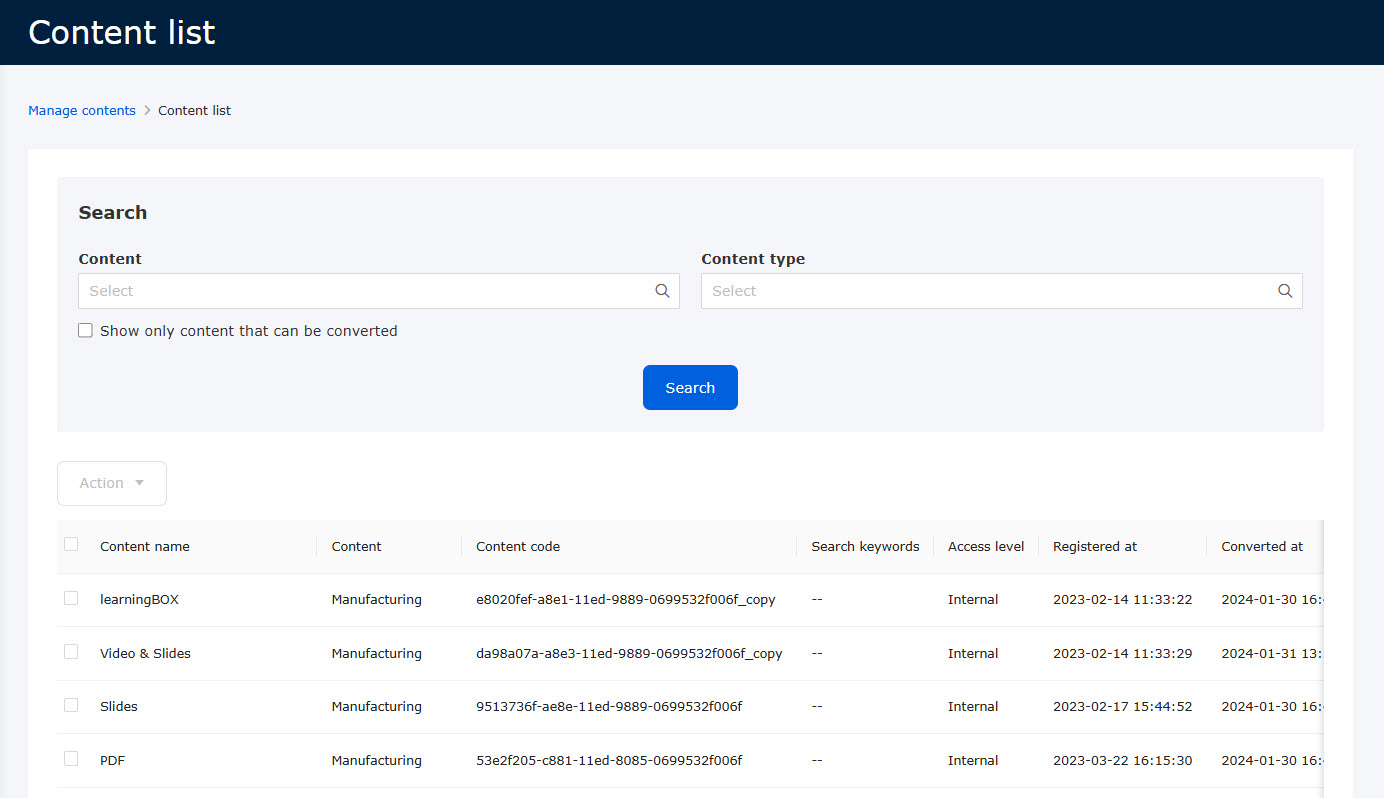
The items are as follows:
| Items | Note |
|---|---|
| Content name | |
| Content | |
| Content code | |
| Search keyword | |
| Access level | Internal/Public/Private |
| Registered at | |
| Converted at | |
| Content type | |
| Current version | |
| Converted version | |
| Version conversion | Available/- |
| Exam mode *1 | Default settings/Custom settings/- |
| Grading | Normal grading/Grading workflow |
| Display settings for re-submission | Show/Hide |
| Attempt limit | Yes/No |
| OS restriction *2 | Yes/No |
| Functional test | Yes/No |
| Modify scores | On/Off/-- |
*1: Any changes from default settings are considered custom settings.
*2:
None: Setting is not configured for any OS.
Allow to take content: Setting is enabled.
Yes: Any restrictions are active.
The Search keywords column displays the keywords you have set for each piece of content.
03. Search
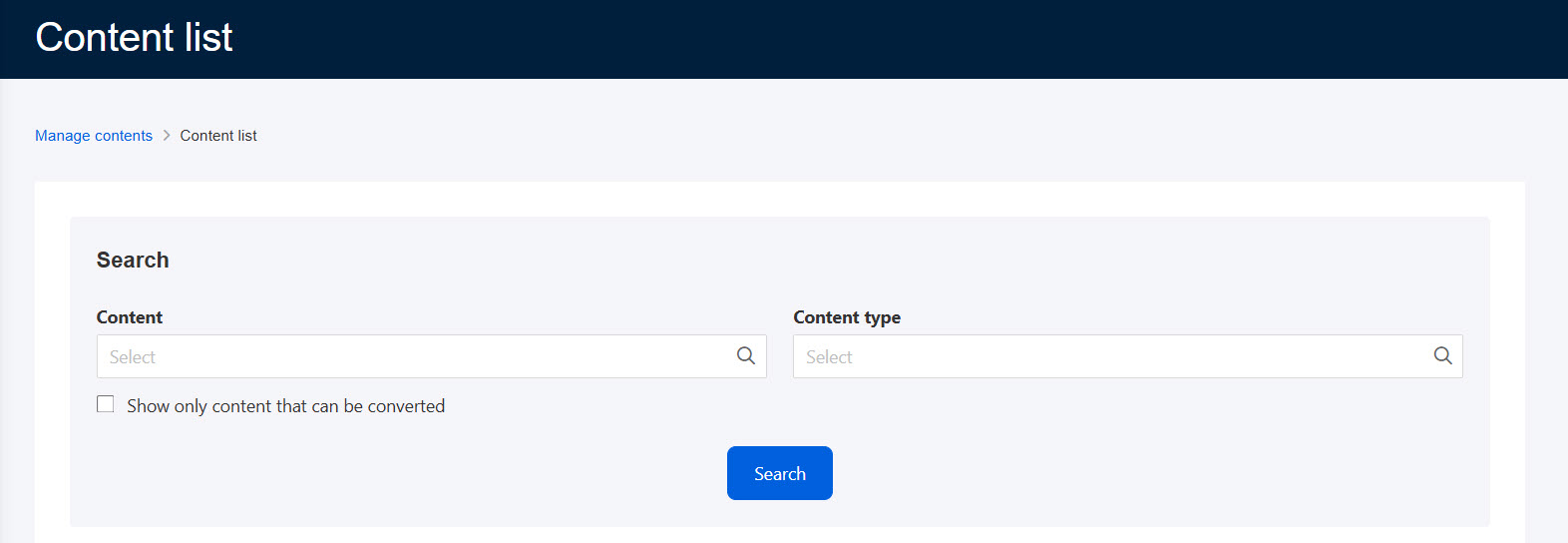
Select content or content type to search.
To specify content that can be converted, tick the box in the search field.
04. Batch operation
For batch operations, select the items and click Action.
The following actions are available:
▼Convert to specified version
Content can be converted to a specific version.
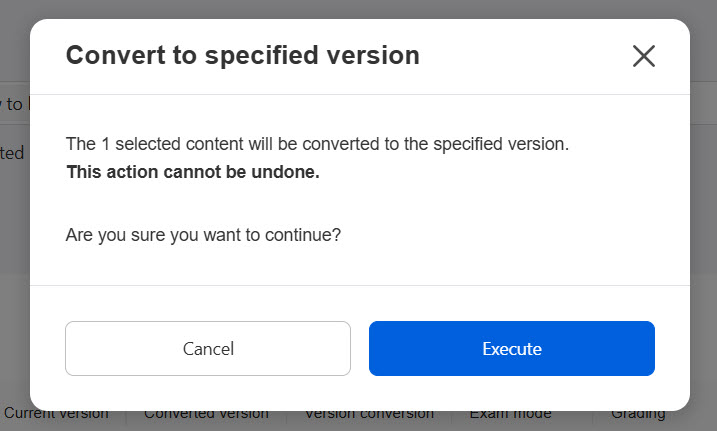
Shortcut content cannot be converted to a specified version.
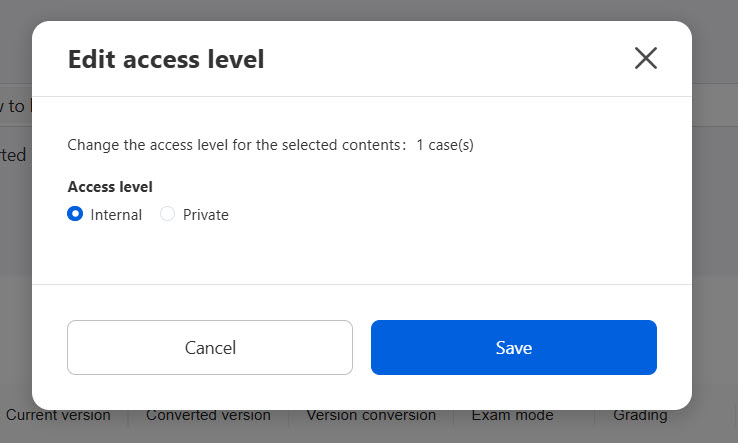
▼Edit access level
You can switch the access level between internal and private.
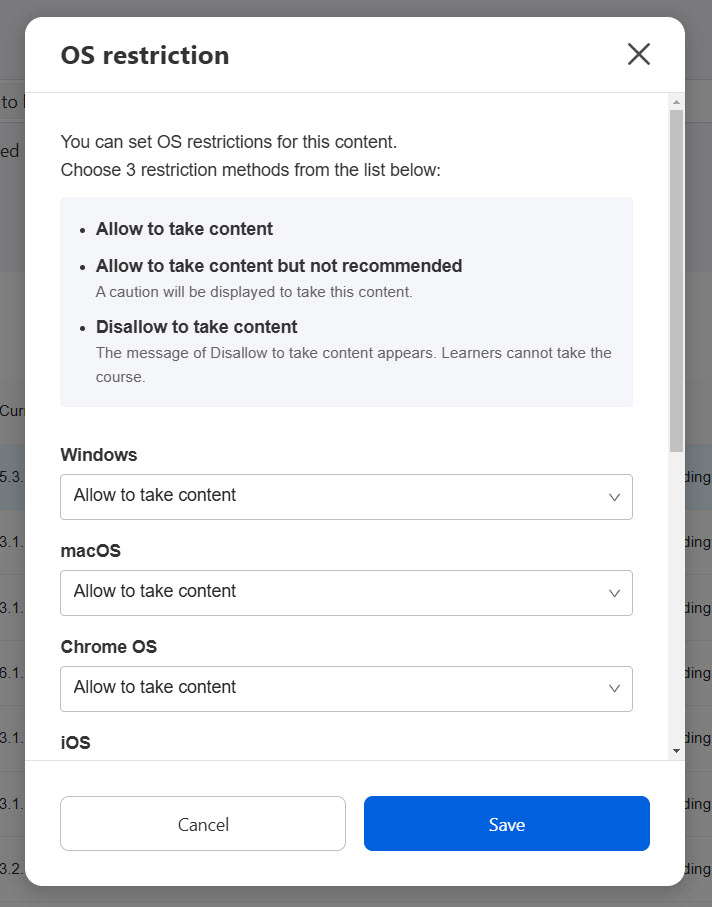
▼ OS restriction
You can restrict learners from starting content on specific operating systems.
▼Change settings in bulk (Quiz/exam and report assignment only)
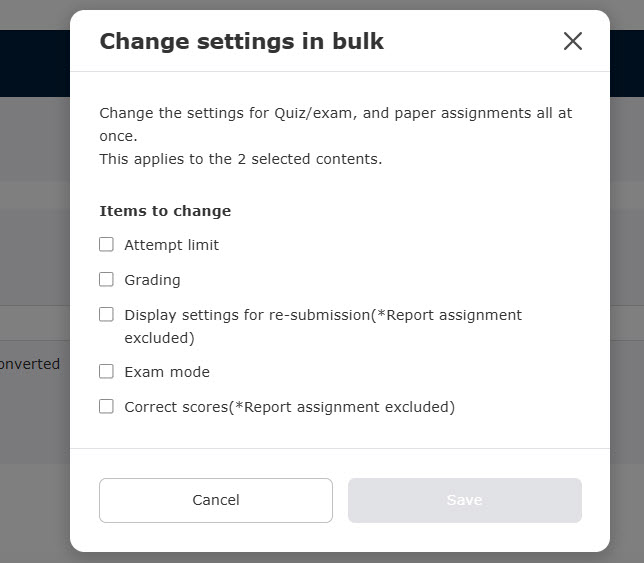
You can change the settings for the following items:
・ Attempt limit
・ Grading method
・ Show the previous answers (*Report assignment excluded)
・ Exam mode
・Correct scores (*Report assignment excluded)
Tick the box to edit an item.
For more details, refer to the following pages:
・ Attempt limit
・ Grading workflow
・ Exam mode
・ Correct scores
Display settings for re-submission and Modify scores are available only for quizzes/exams in Normal mode.