
Setting functions on the contents list screen <Operation in contents management (old)
The following explain the functions which can be set on the Manage contents.
Access level
You can set the duration to open the course/content.
This function can be set from the gear icon on each content.
*For more details, refer to Edit contentPlease refer to "Publication Restrictions" under "Publication Restrictions".
Attempt limit
You can limit attempts for each content.
*This function cannot be set to courses/folders.
Required
Management role of Content manager (Edit)
01. How to set the attempt limit
Select Manage contents in the side menu.
Click on the Limit attempts icon on the content.
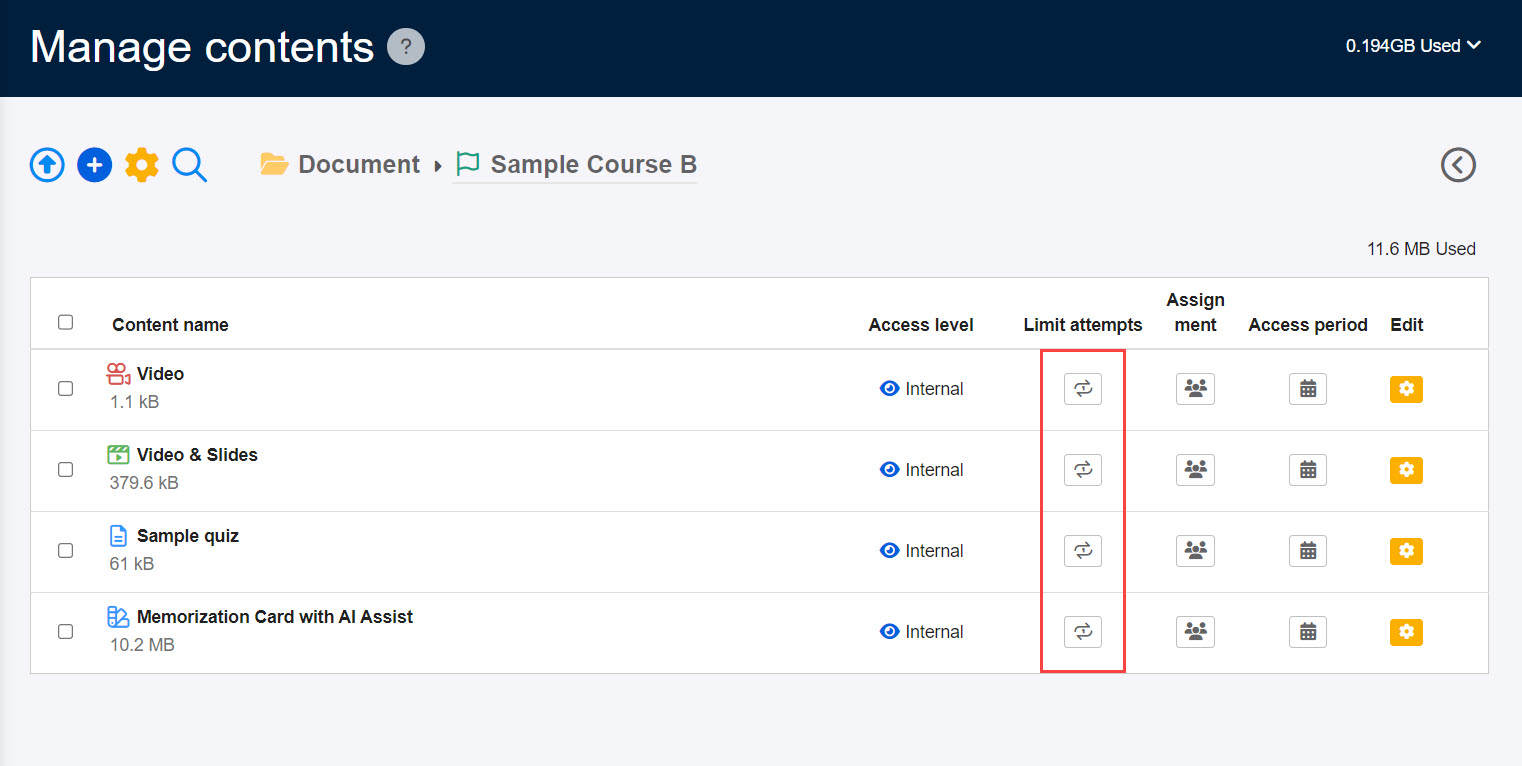
02. Fill in the form
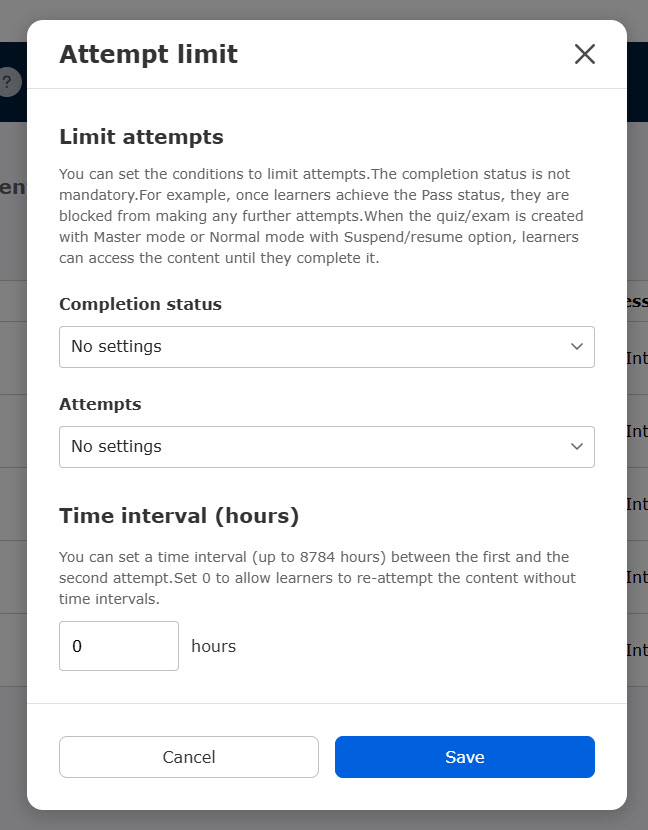
The following two settings are available:
▼Limit attempts
You can limit the number of times a user can attempt content.
You can also choose which completion status triggers this specific limit.
・ Completion status: Select the status
・ Attempts: Select the number of attempts between 1 and 10
Select "No settings" if you do not want to apply any restrictions.
*The completion status is not mandatory to select.
▼ Time interval (hours)
You can set the time interval between the attempts.
Set from 1 to 8784 hours.
e.g.) 24 hours → Enter 24 in the field.
Leave 0 when you do not set any interval limit.
03. Icon
When attempts are limited, the color of icon will be changed to blue.
Assign course/content
Learners can take content on their pages by assigning content.
*This feature can also be set in the Manage users.
*For more details, refer to Assign content on the Manage contents.
Access period
You can set the duration to open courses, folders, and content to learners.
Groups and all users can be selected.
*For more details, refer to Access period.
Edit
Click on the gear icon or right-click on each course, folder or content.
Detailed menu will be listed.
*For more details, refer to Edit content.