
Edit menu for each content <Operation in Content Management (old)
The following explain each menu in the list of the Edit icon on the content.
Depending on the content type, course or folder, the menu will be different.
Edit content
Required
Management role of Content manager (Edit)
Depending on the content type, displayed menu will be different.
The main menu options are as follows:
- Create content
- Upload
- Download
- Re-upload
- Edit
Video and slide settings
You can edit the content of videos, movies, and slides.
*For more details, refer to Video and slide settings.
Advanced video settings
*For more details, refer to Display time of video.
Access level
Duration to show courses/content can be set.
Required
Management role of Content manager (Edit)
Available options depend entirely on the type of content selected.
The main menu options are as follows:
- Internal: Content is only visible within your specific environment.
- Public: Content appears in Open quizzes for outside users to access.
- Private: Content is hidden from the users' pages.
Attempt limit
*For more details, refer to Functions on the first page of Manage contentsPlease refer to the "Course Restrictions" section of the "Course Limitations" section.
OS restriction
Required
Management role of Content manager (Edit)
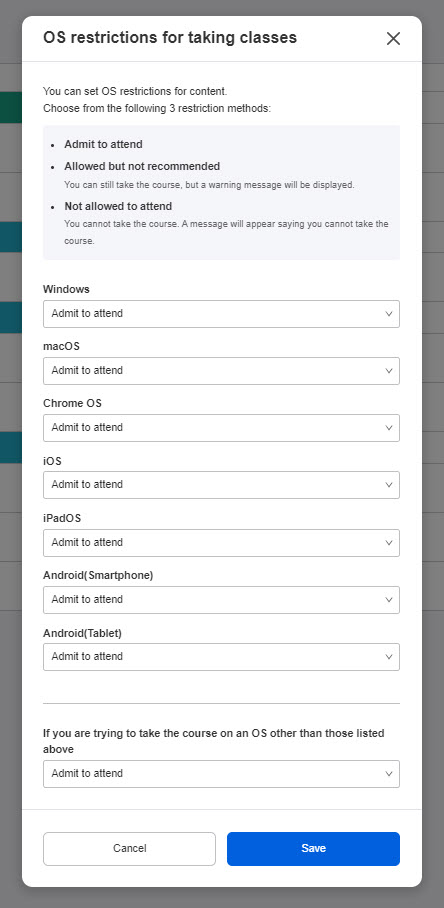
You can restrict access based on the user's operating system for specific content.
The following settings are available:
- Allow to take content
- Allow to take content but not recommended
- Disallow to take content
You can also define what happens for any unlisted operating systems.
Select one from the list on the bottom.
Save your changes once all settings are complete.
Optional content mode
Content can be included/excluded from the completion rate within the course/folder.
*For more details, refer to Optional content mode.
Completion notification
Email notifications can be sent to learners depending on their status.
*Notifications can be sent to the admin, manager(s) or learners respectively.
Required
Management role of Content manager (Edit)
To use this function, turn on the toggle key and select the trigger timing.

Email settings page has the same settings. However, these individual settings will always take priority.
Grading workflow
You can set the grading method for content.
*For more details, refer to Grading workflow.
Correct scores
You can correct scores after learners submit quizzes/exams.
*For more details, refer to Correct scores.
Exam mode
You can choose whether users see pass/fail results or detailed scores.
*For more details, refer to Exam mode.
Proctoring
Proctoring settings can be changed for each content.
Select a template from the dropdown menu (*These must be created beforehand).
Click New to open the Proctoring page and build a template.
Select a template and click Edit to modify its existing settings.
For details on template creation, refer to Proctoring.

Appearance
You can set the thumbnail image, title and other options regarding appearance of the content.
*For more details, refer to Appearance.
Access period
*For more details, refer to Access period.
Deadline
*For more details, refer to Deadline.
Interlocking content
*For more details, refer to Interlocking content.
Convert to specified version
You can convert the existing content to the version specified on the Manage generator version page.
Required
Management role of Content manager (Edit)

IP address restriction
*For more details, refer to Manage IP restrictions.
Assign content
*For more details, refer to Assign content to group.
Course size limits
You can limit the amount of data that can be registered in a course.
*For more details, refer to Course size limits.
Create shortcut
You can create a shortcut.
*For more details, refer to Shortcut.
Duplicate
Content can be duplicated.
The duplicated content is different from the original content.
You can edit it apart from the original content and the grade will be saved as another one.
Required
Management role of Content manager (Edit)
To duplicate a course, you must have a management role of Content manager (Edit) for all content.
Duplicate (Content as shortcut)
When a course/folder is duplicated, the content in the course/folder will be created as a shortcut.
Required
Management role of Content manager (Edit)
To duplicate a course, you must have a management role of Content manager (Edit) for all content.
Badge
Badges can be set for courses, folders and content.
Required
Management role of Content manager (Edit)
Right-click or click on the gear icon on the content and select "Set badge."

Display settings
You can show/hide badges on the learner's page.
Tick the box to show a badge.
Choose badge
Select a badge from the list.
You can also create a new badge.
▼ None
No badges will be given.
▼Create a new badge
You can create a new badge.
*For more details, refer to Manage badges, Add badges.
▼Use an existing badge
Select the badge from the list.
Content category settings
The content category set for the badge will be displayed.
*For more details, refer to Manage badges, Content category settings
Leaderboard
*For more details, refer to Leaderboard.
Tally board
*For more details, refer to Tally board.
Device test
Learners can check if their device is compatible before starting content.
*For more details, refer to Device test.
Instruction
Display instructions to learners before they begin the content.
*For more details, refer to Manage instruction.
Delete
You can delete content.
Check grades
Grade managers can access to the list of assigned grade.
*For more details, refer to Scores.
Required
Management role of Content manager (Edit) & Grade manager (Edit/View)
Content URL
Required
Management role of Content manager (Edit/View)
The following actions are available:
▼Copy URL
You can copy the URL of the content on the Select a course page.
▼Access URL
This URL opens the content's page on the Select a course page directly.
*When the content is out of the Access period or any other reasons to hide it, the page will be redirected to the Dashboard.
Information
Detailed information including the content version, registered date and data storage.
Required
Management role of Content manager (Edit/View)