
Embedded video
You can use embed codes to create YouTube and other videos as content.
Live videos from YouTube and Vimeo are also available within the learningBOX.
Upload embedded videos
01. Create a course
First, create a course in the Manage contents.
*For details on course creation, refer to Course/Folder.
02. Open the embedded video page
Click on the course you created.
In the upper left corner of the page, select "+ Create new" > "Content" > "Embedded video."
03. Settings
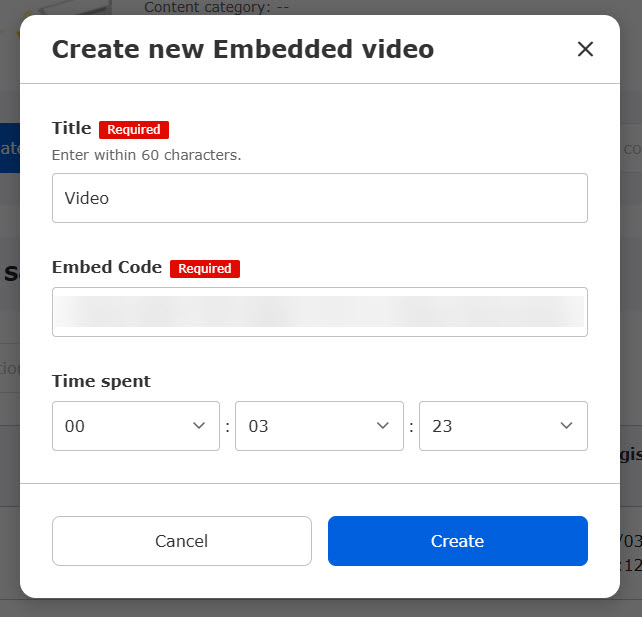
First, enter the title of the video.
Next, paste the embed code.
*The playback time will be automatically entered.
Click Save to finalize.
When "Enable privacy-enhanced mode." is ticked, the playback time will not be automatically entered.
User interface
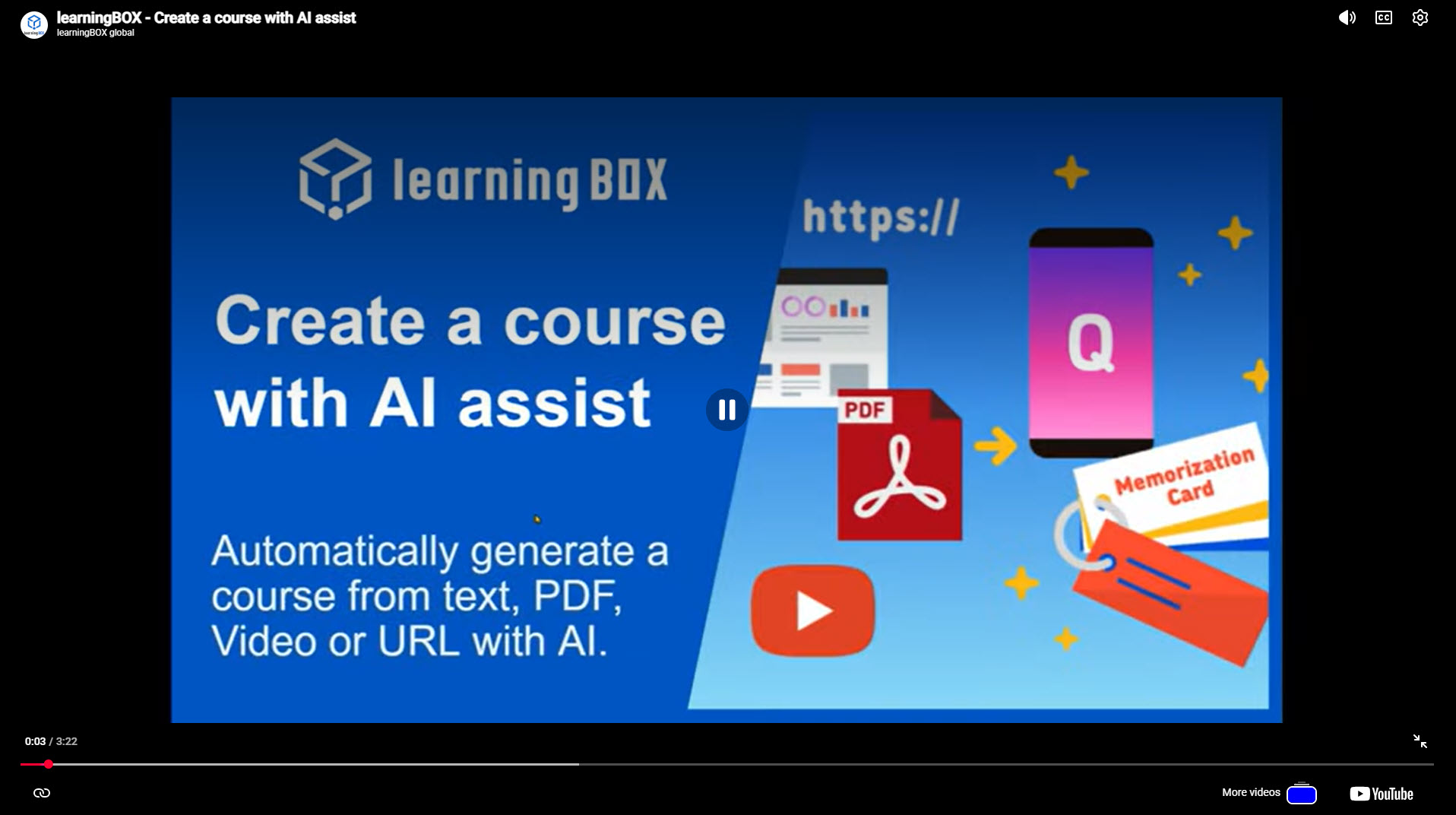
The following is a sample playback page.
Edit embedded video
Select Manage contents in the side menu.
Right-click on the target embedded video or select the "︙" icon > "Edit embedded video".
To edit the content, refer to Upload embedded videos.