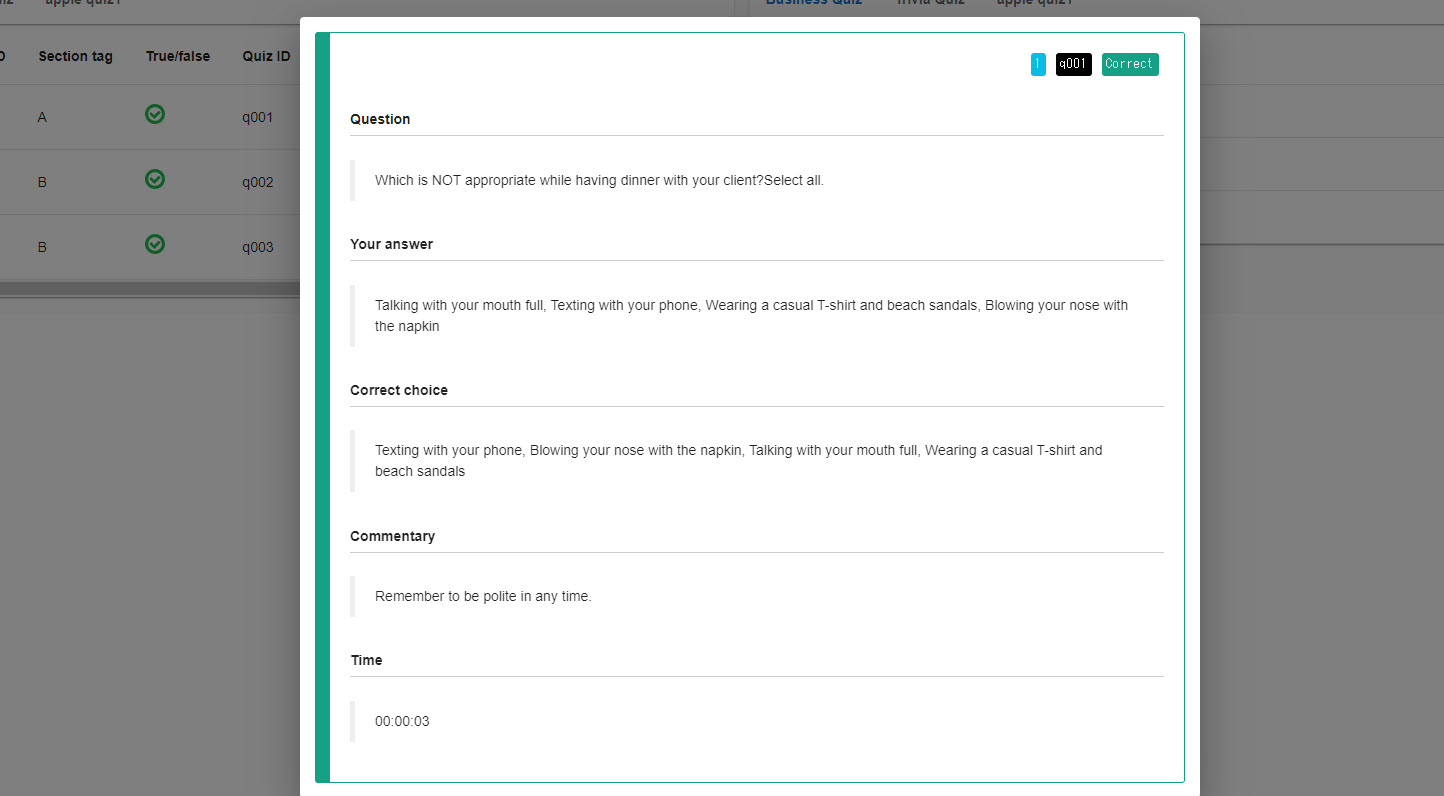
Gradebook (Linked with quizzes/exams)
Quizzes/examscan be linked to a gradebook, visualizing and analyzing individual's results.
Basic settings
01. Create a course
First, create a course in the Manage contents.
*For details on course creation, refer to Course/Folder.
02. Create a score chart
Select a course you created and click "+ Create new" > "Score chart."
The following page will be displayed.

On this screen, first configure the following items.
▼ Title
Enter a title between 1 and 60 characters.
▼Select content
Select content and click "Apply."
*Multiple selections are available.
▼Passing score
Set the passing score between 0 and 10000.
▼ Rounding of total points
Select a rounding method.
- Sum the values, then round to first decimal place
- Total only (no rounding)
- Rounded to the first decimal place, then sum the value
- Round down to the first decimal place, then sum the values
▼Display format of number
Select a number display format from the following.
- Displayed up to first decimal place
- Display integer (Round-off)
▼ Display scores by status
Select an options from the list.
- By content with scores
- By content with/without scores
▼ Priority of grades to be displayed
Select the priority of grades to be displayed from the following options:
- Highest
- Latest
▼Help
Enter text when the "?" icon is clicked in individual's score chart.
*If not set, the "?" icon will not be displayed.
Description of each panel
01. Add a panel
Add a panel to the score chart.
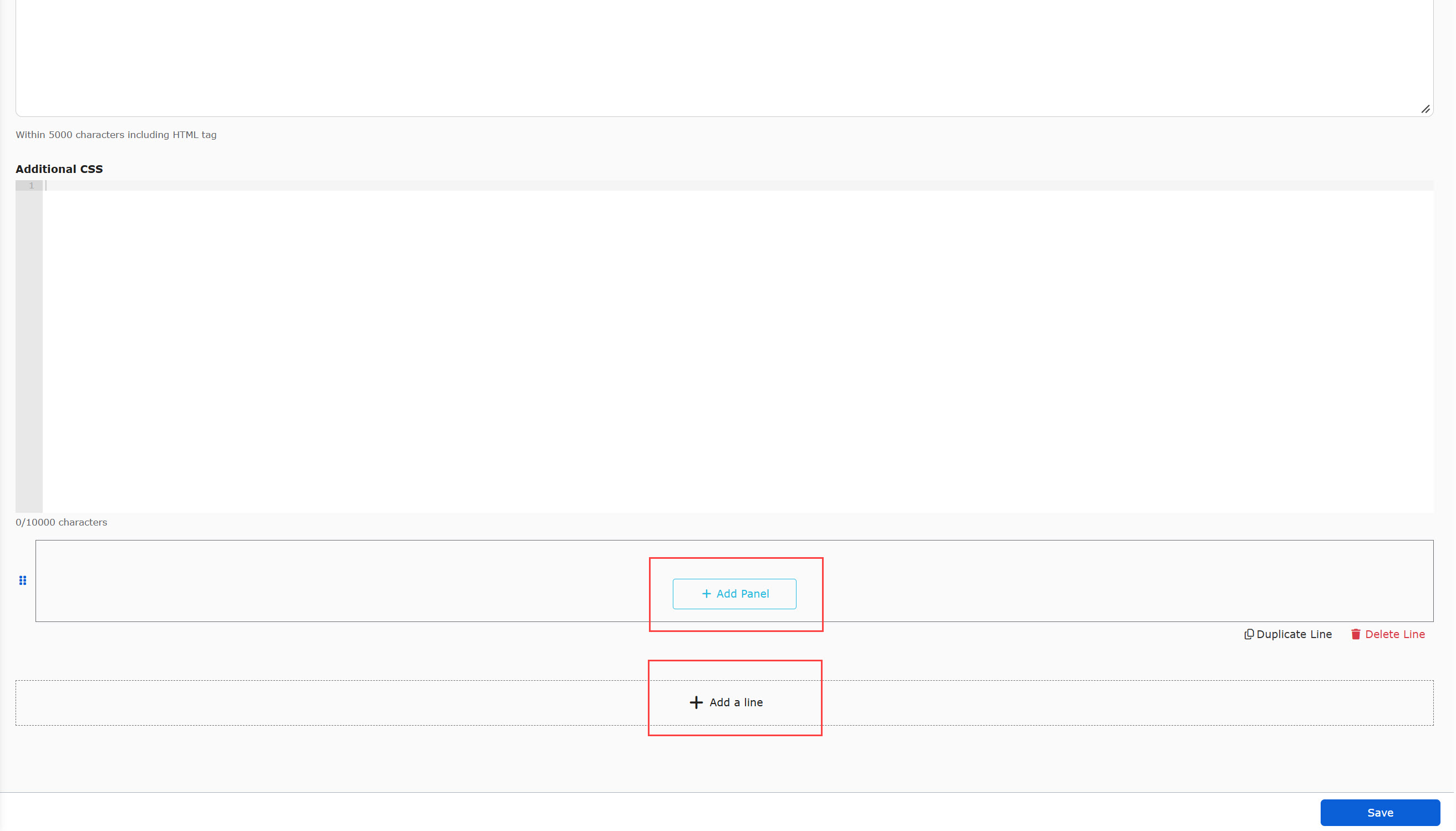
Click on "Add a line" at the bottom of the page, then click on "+Add Panel."
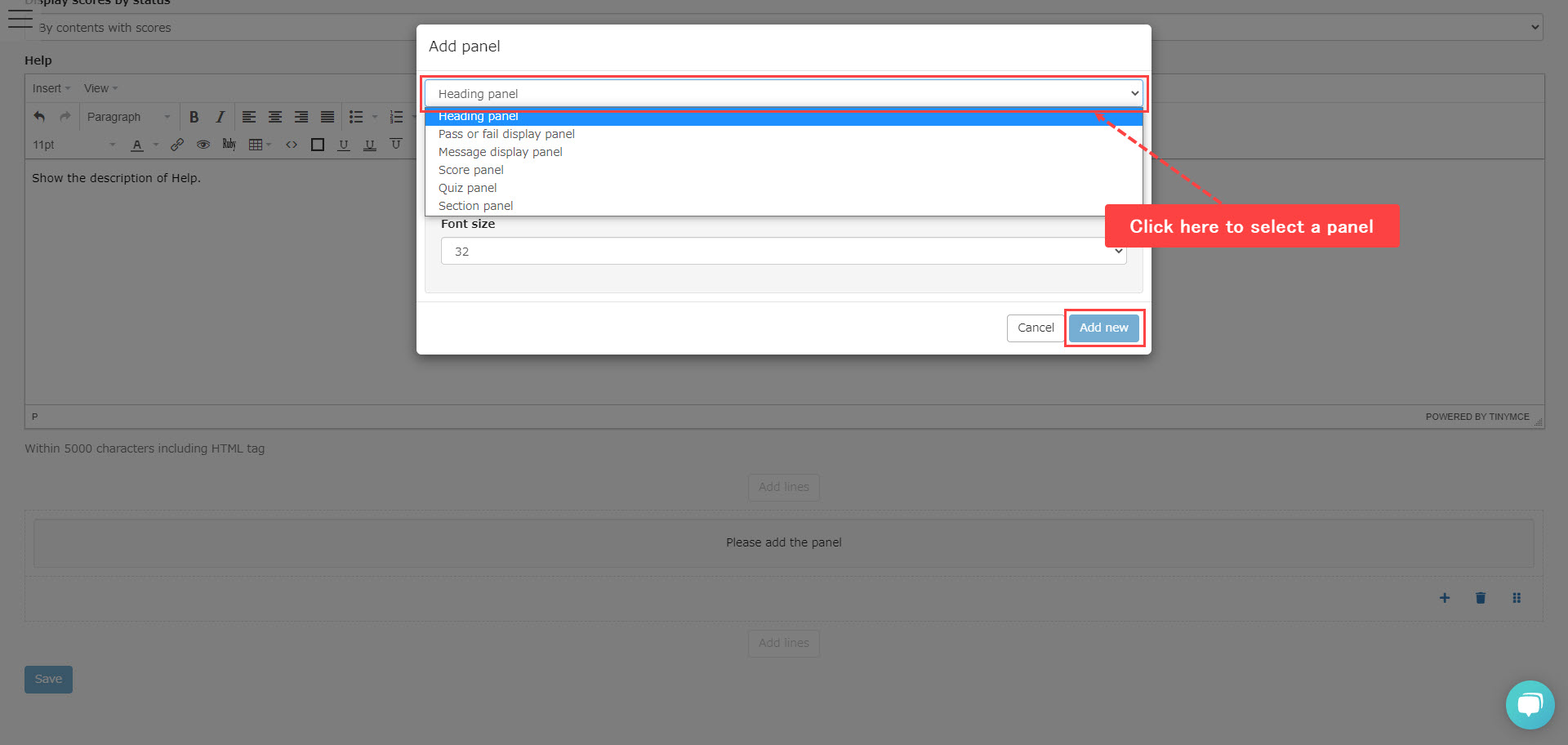
Select a panel from the list and click "Add new."
*10 types of panels are available.
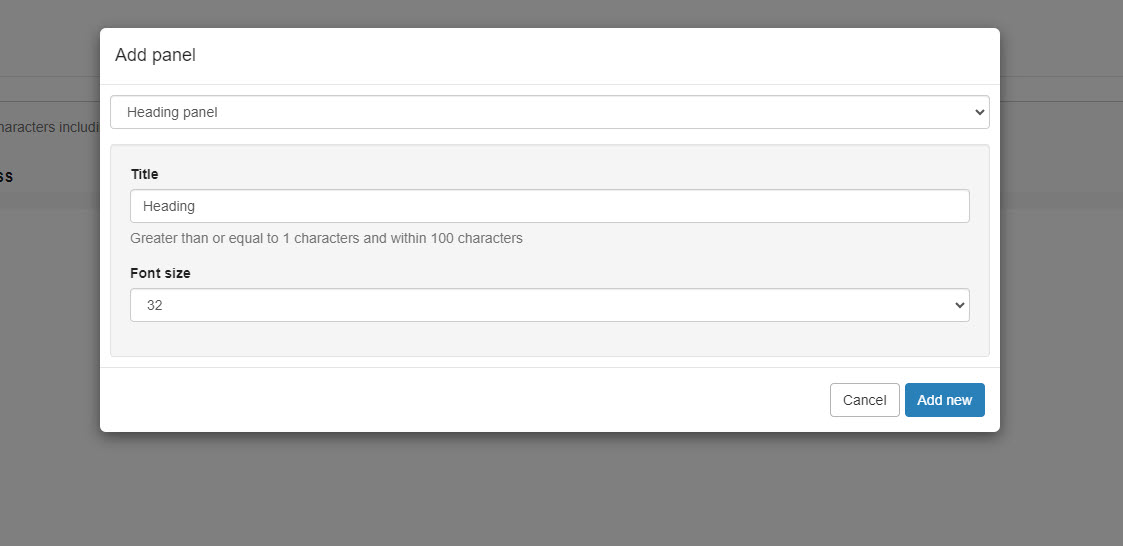
Heading panel
Enter a title and select a font size.
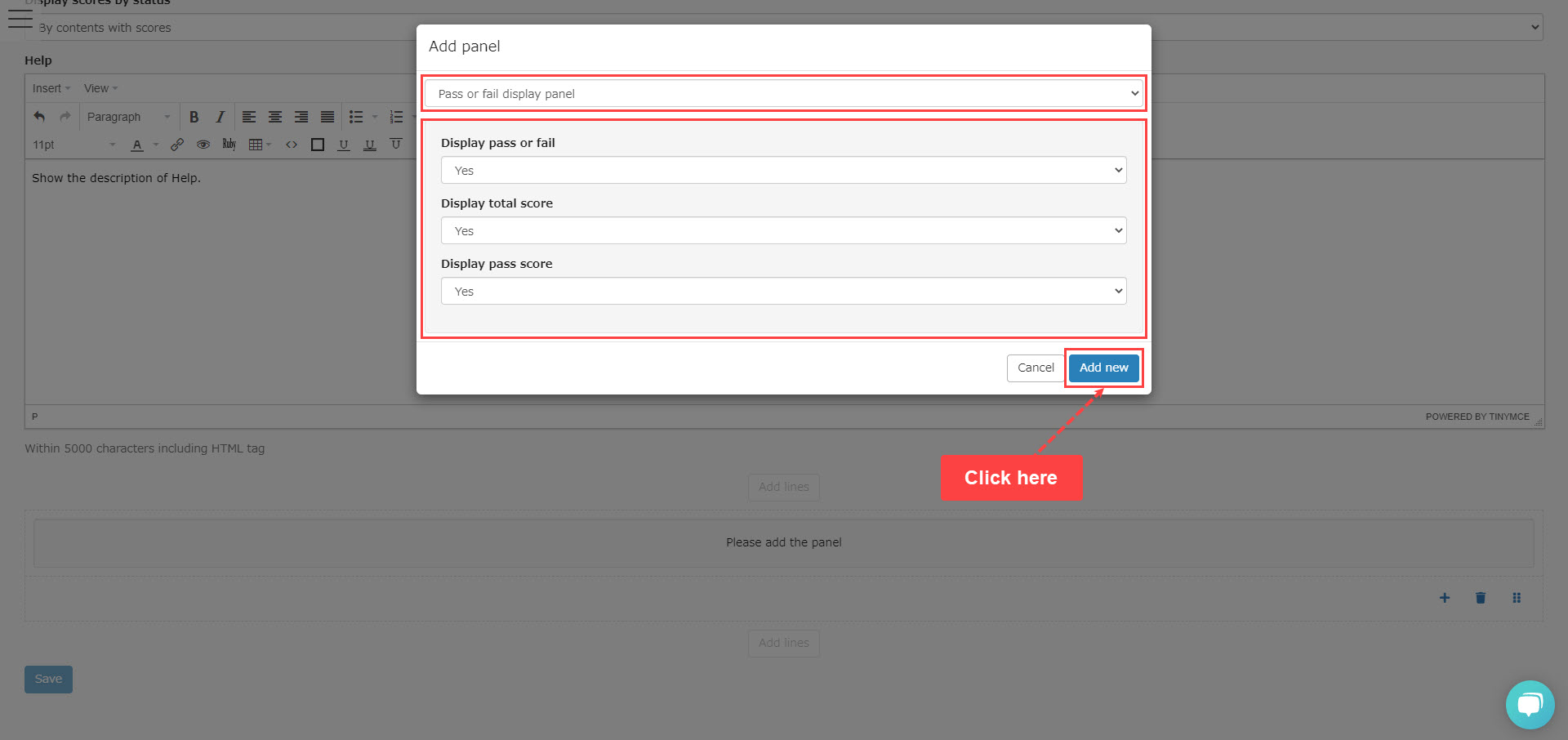
Pass/Fail panel
You can show/hide the following three items.
Click "Add new."
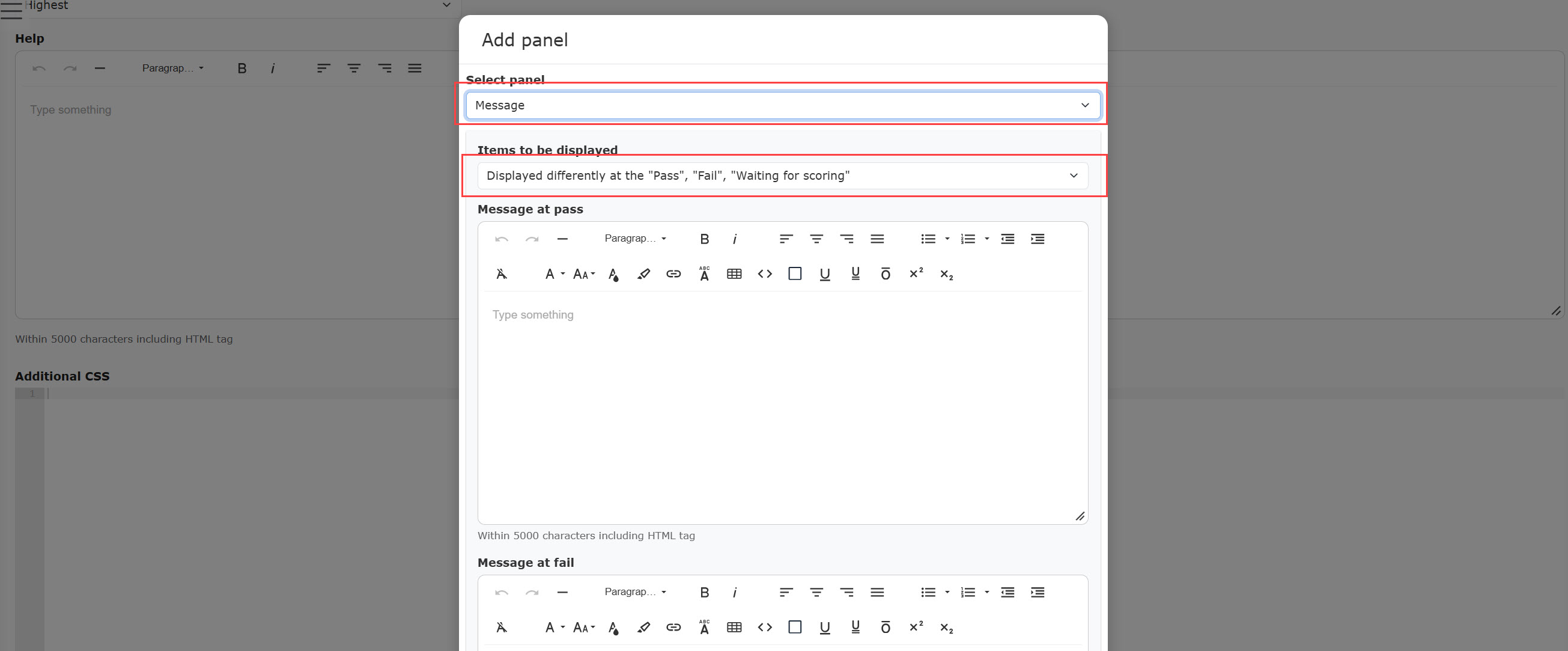
Message panel
You can show a message to learners on the score chart.
- Text for the Pass, Fail, Waiting for scoring: Entered text will be shown according to the status.
- Common message: Regardless of the status, the same message will be shown.
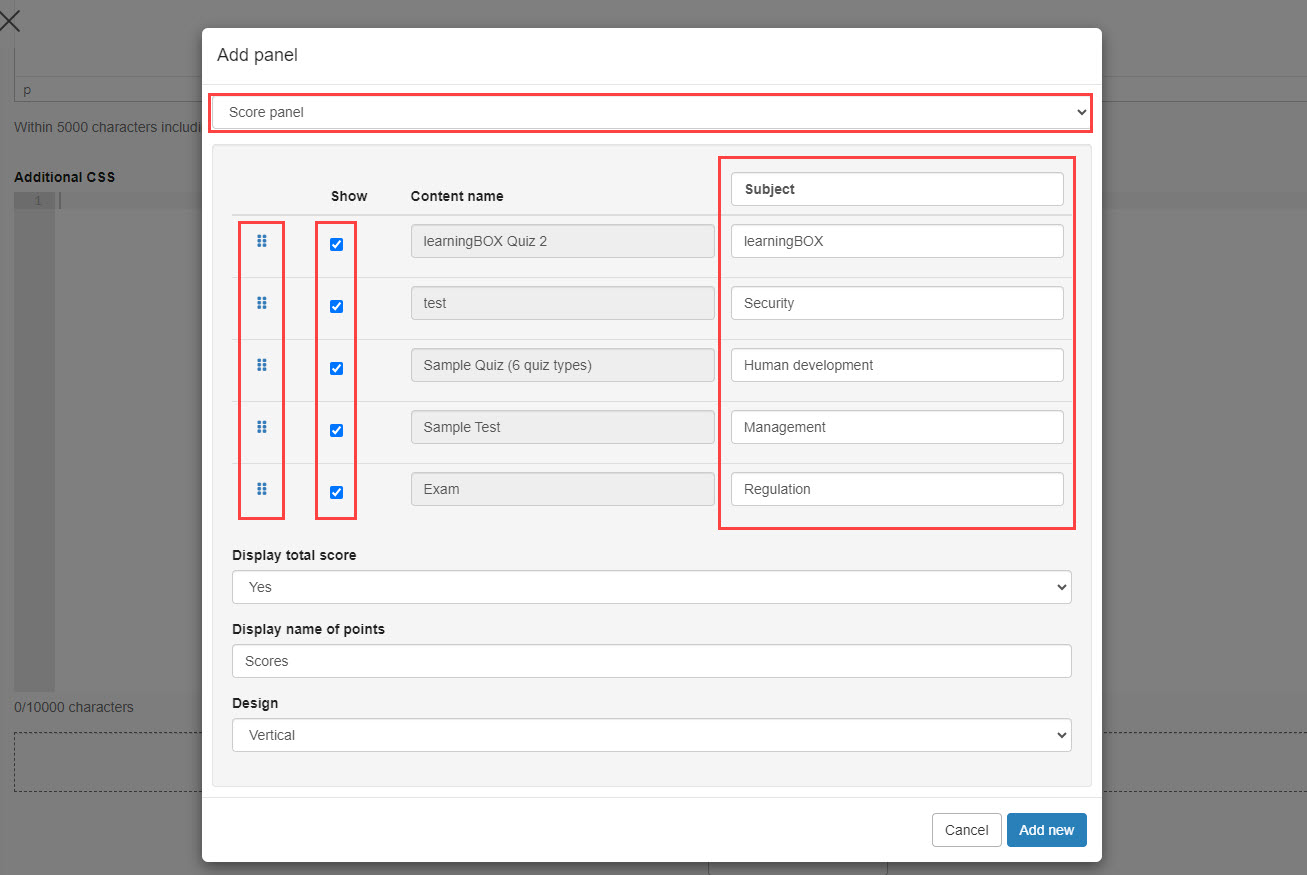
Score List Panel
Set the following items:
- Subjects: Change the text if necessary.
- Grip icons: Drag & drop the order of the content.
- Content: Tick/Untick boxes to show/hide the content on the score chart.
- Content name: Change the content name if necessary.
- Total score: You can show/hide the total score for each subject.
- Display name of score: Set any display name.
- Design: Select from Vertical/Horizontal to display the panel.
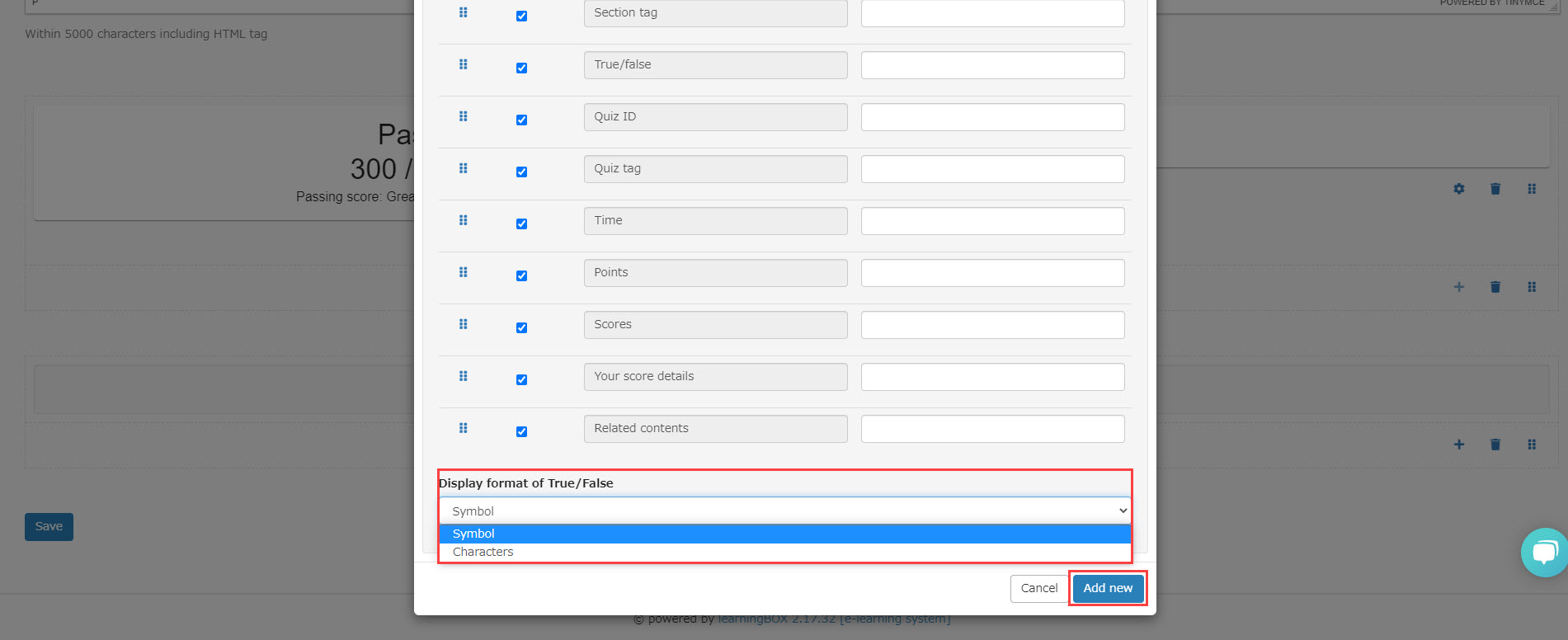
Quiz panel
This panel allows you to display the results for each question.
You can set content names/item names, show/hide each item, and sort order.
Correct/incorrect can be shown with symbols or letters.
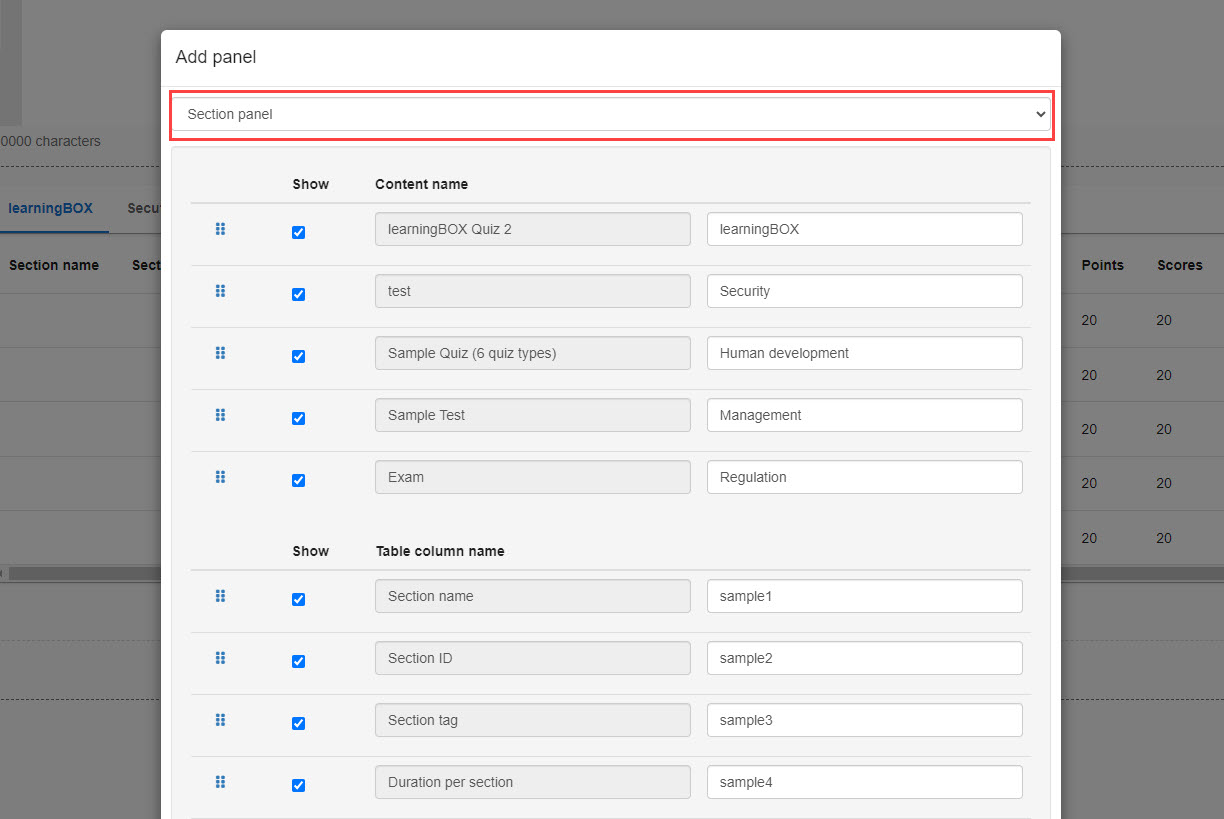
Section panel
The results by section can be shown.
You can set content names/item names, show/hide each item, and sort order.
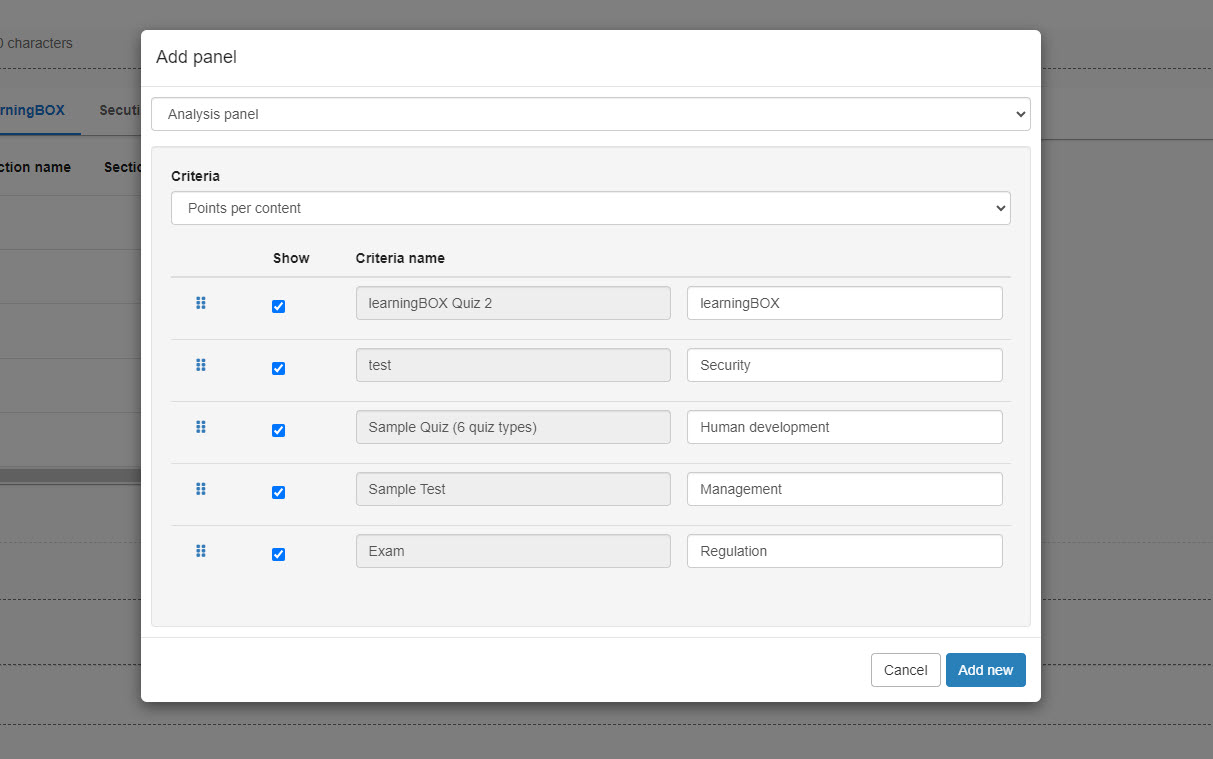
Analysis panel
The following three types of chart can be created.
Also, you can set the content name/item name, show/hide each item, and sort order.
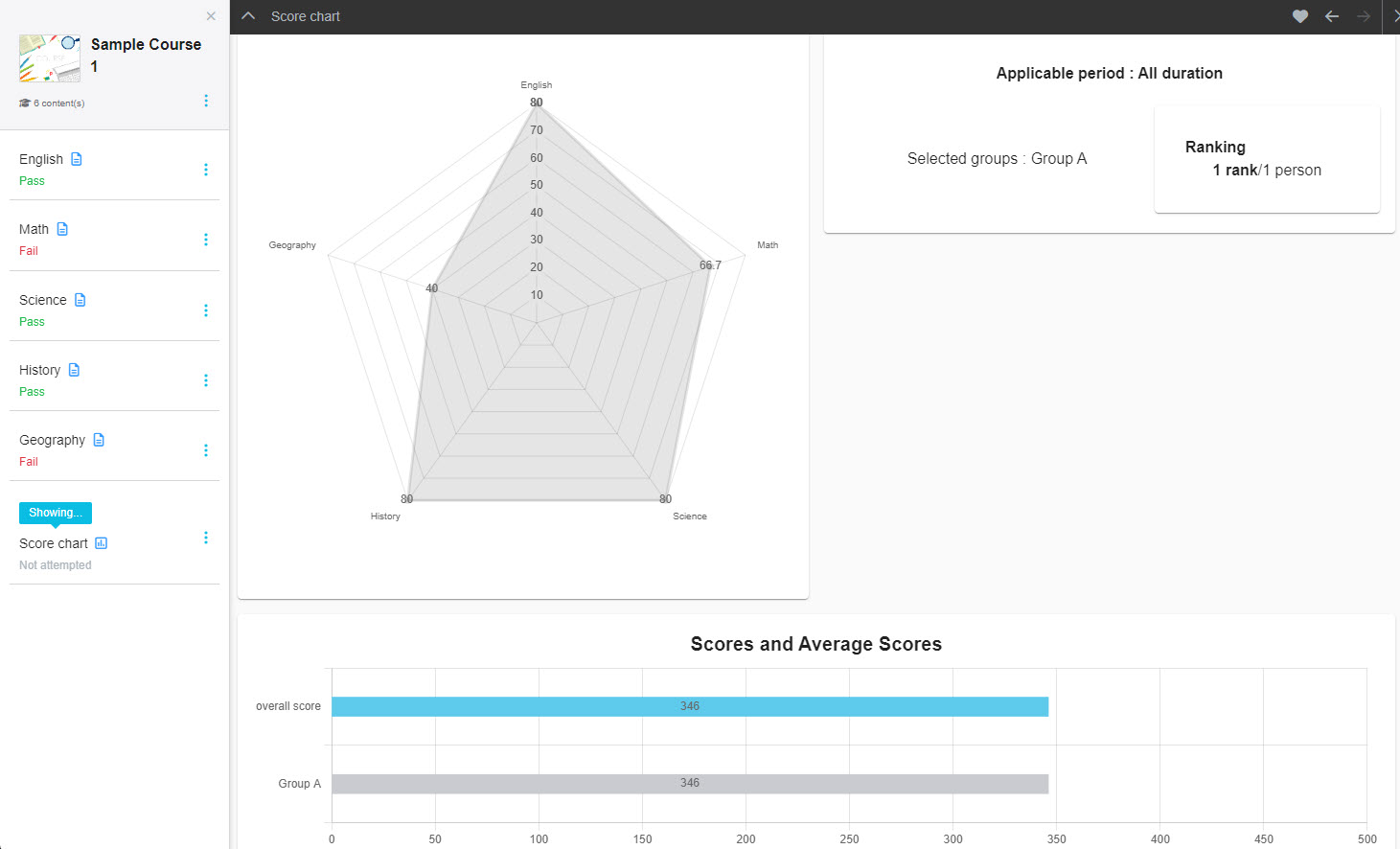
- Scores per content
- Percentage of scores per section tag
- Percentage of scores per question tag
*Three or more content must be selected in the "Select content" to display the above items on the score chart.
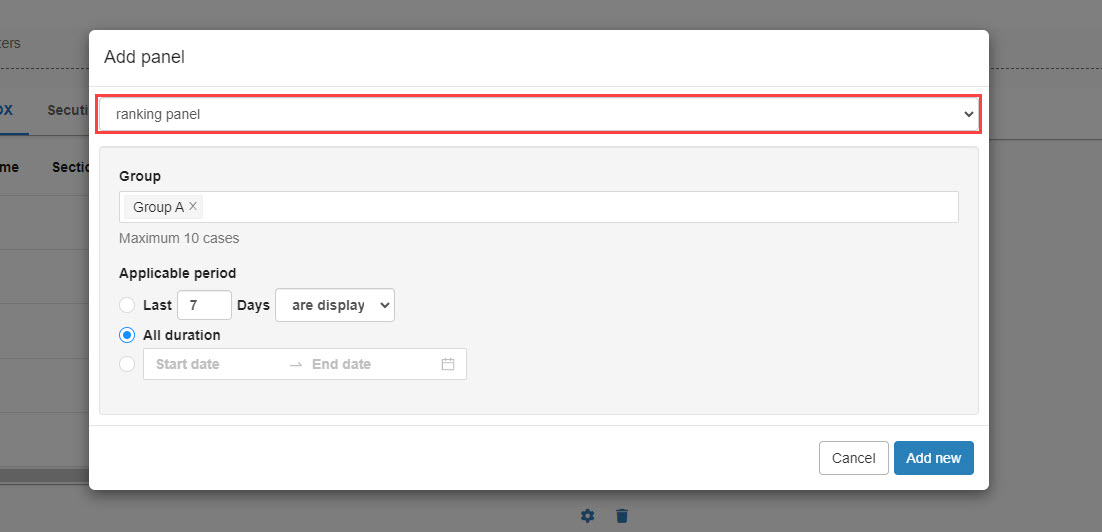
Ranking panel
The score results within a group will be shown on the score chart.
Specify the group and set the duration.
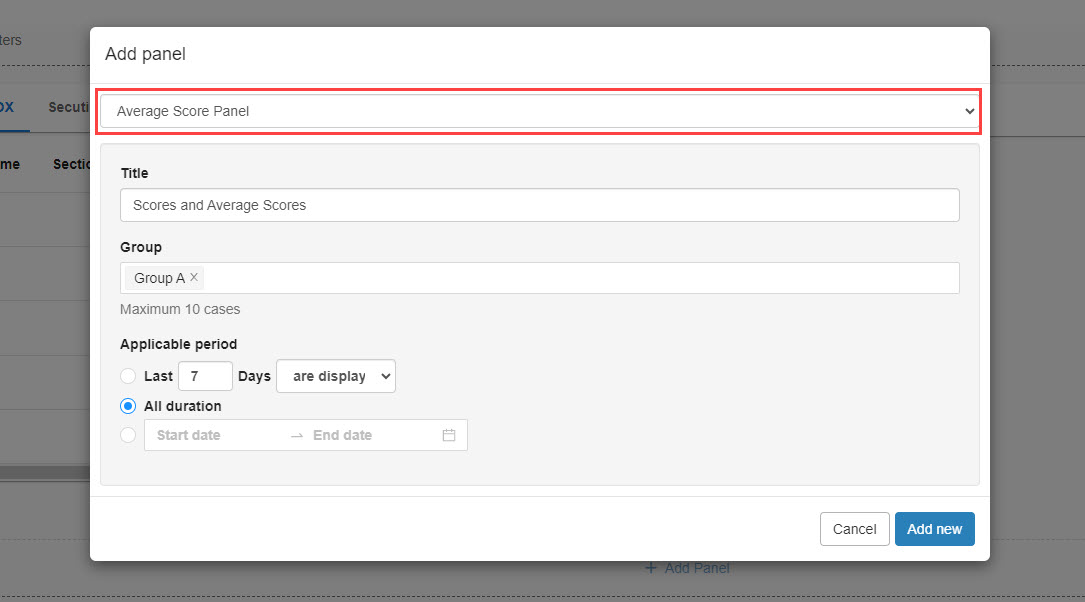
Average score panel
The learner's scores and the average score within a group will be shown.
Set the title, group and duration.
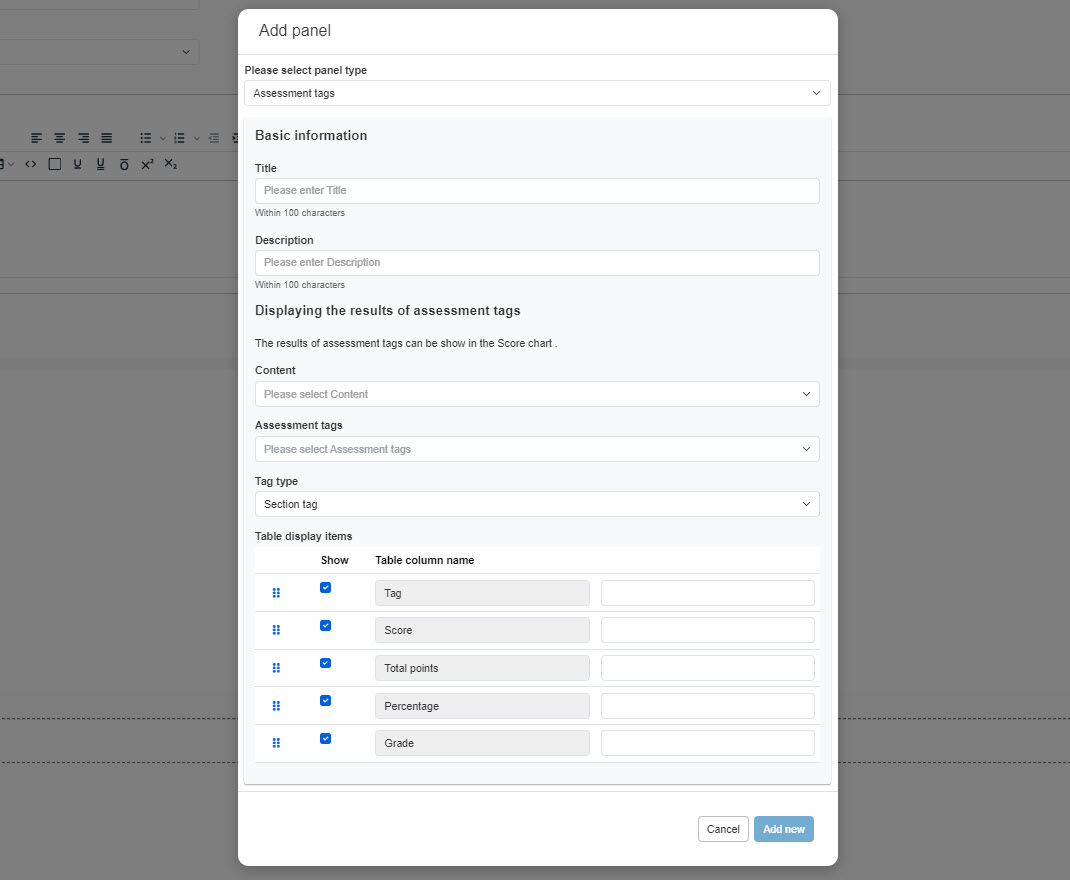
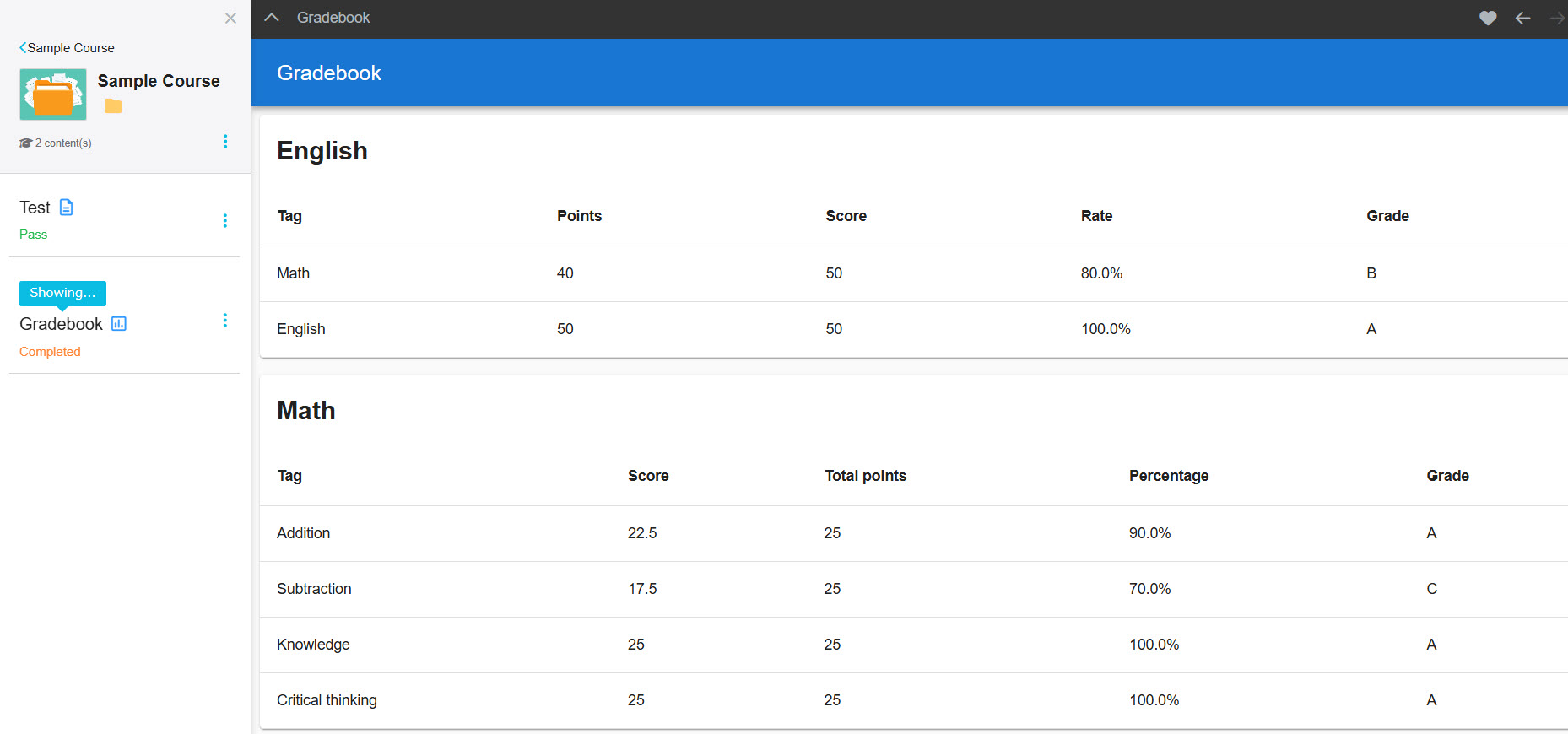
Assessment tags
Assessment tags" displays the results of analytics with the tags.
The title and description can be set in the basic information of the panel.
Select each item on the Content, Assessment tags and Tag type.
Tick the items to display and sort order by drag & drop.
This function is available when assessment tags have been set to the selected content.
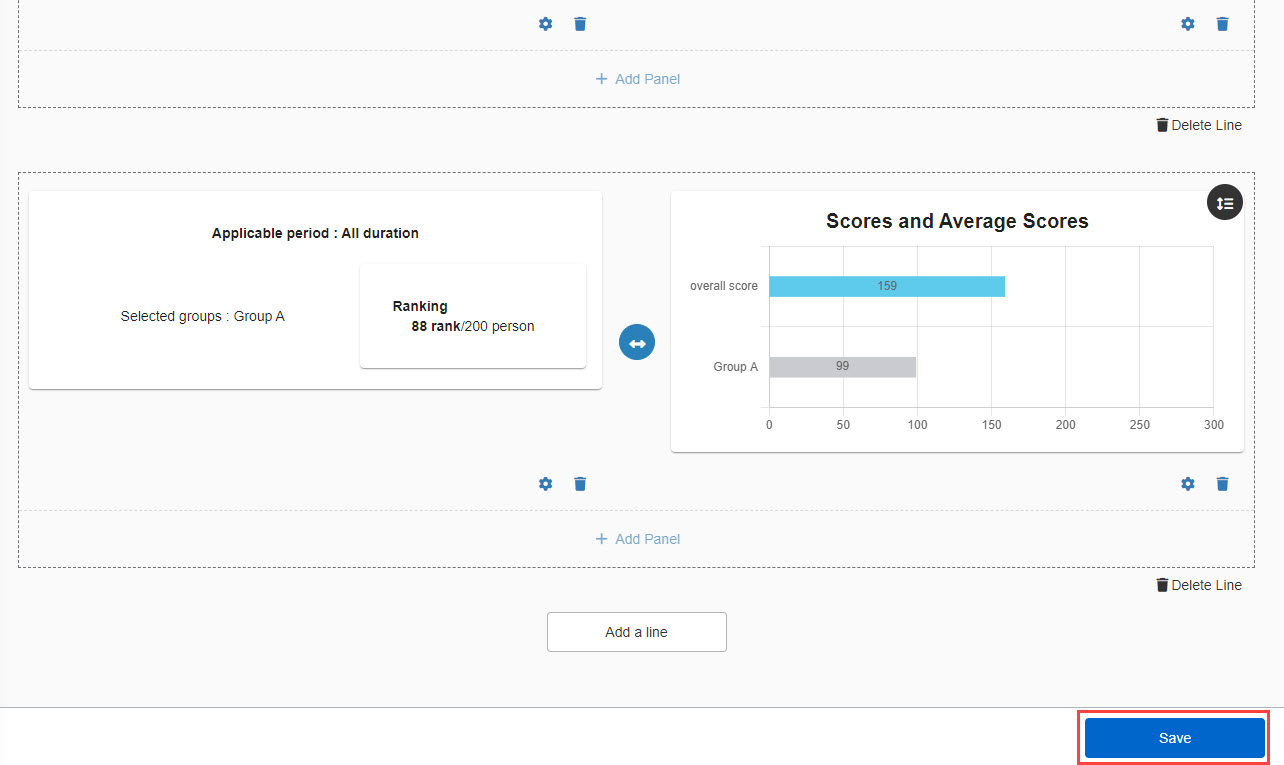
02. Save
Click "Save" to finish the settings.
Check score chart
01. Interface on the Manage content
The created score chart will be displayed as follows.

02. User interface
The latest performance data will be displayed.
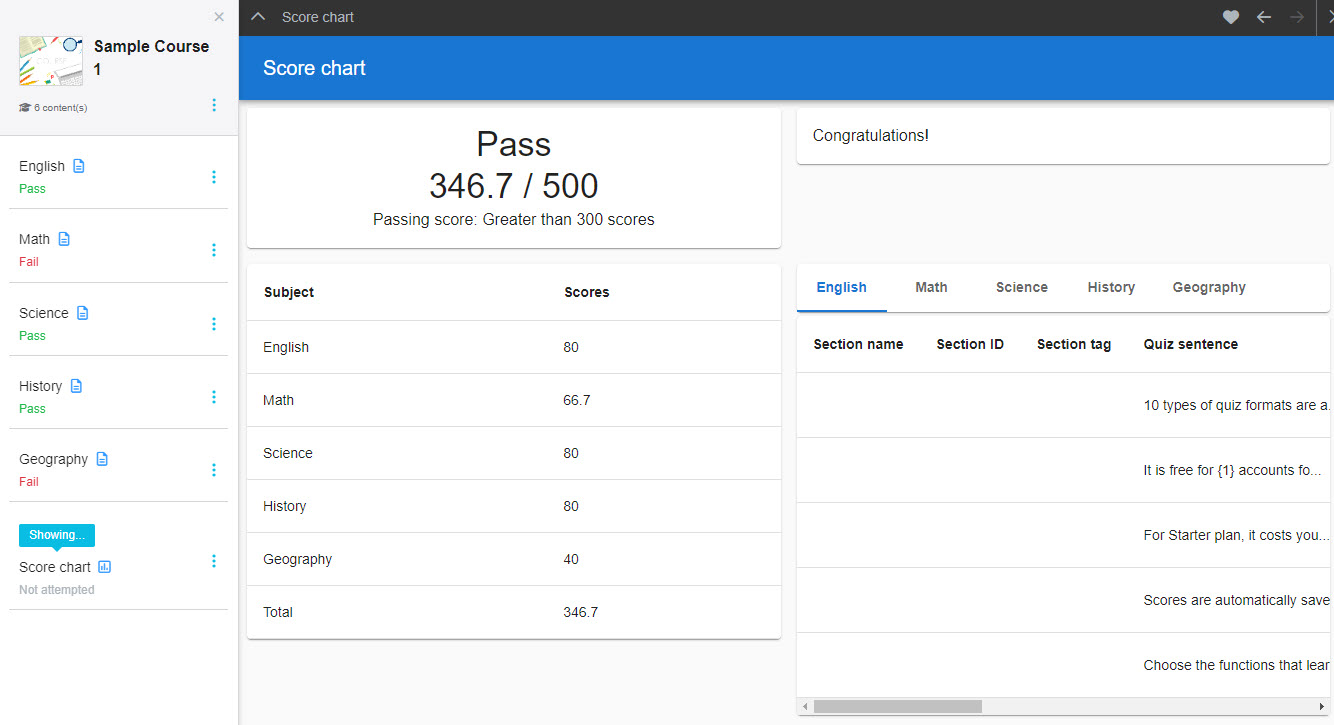
▼ Section list & Chart analysis
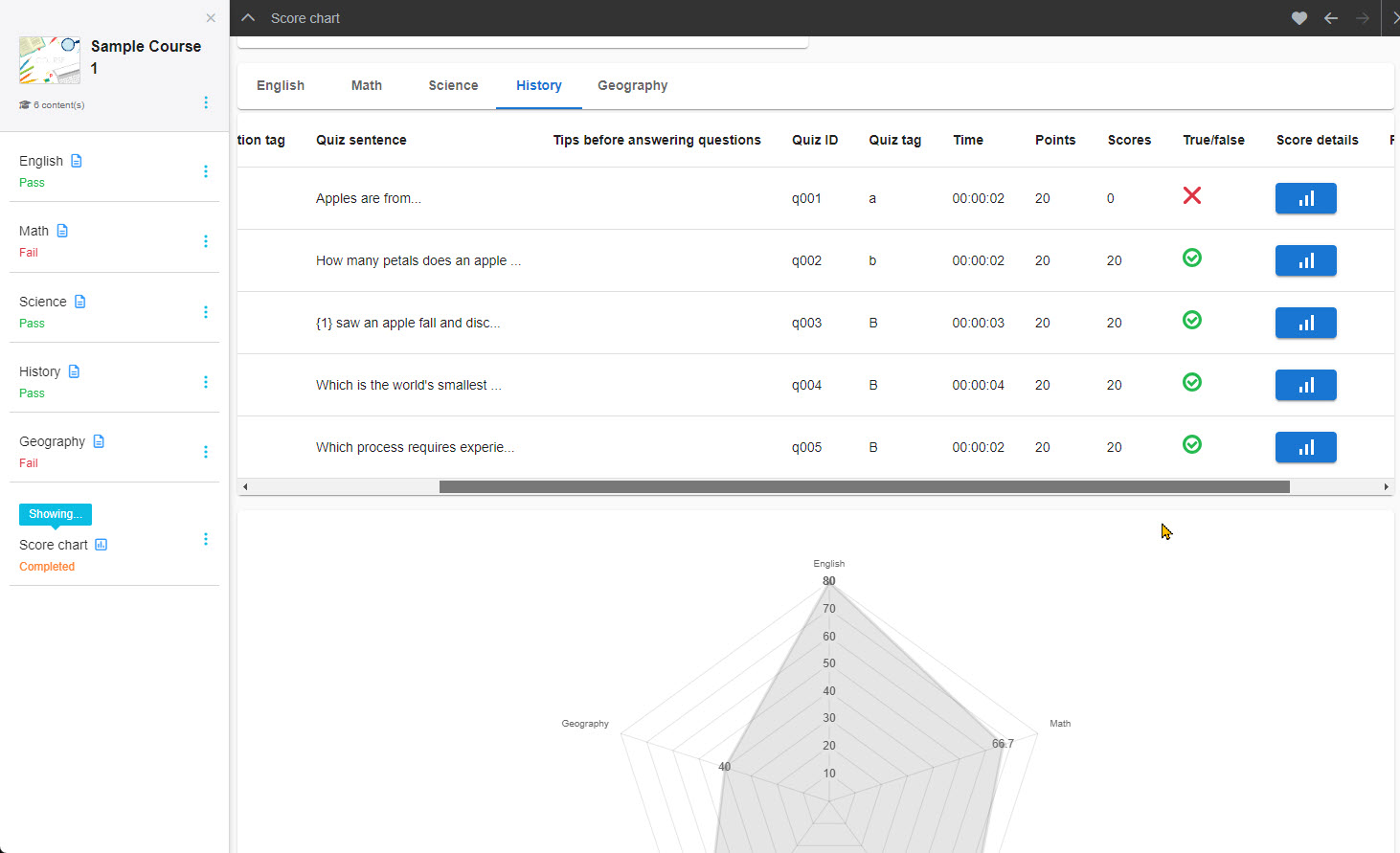
▼Ranking & Average score
▼ Evaluation Panel by Tag
Display settings for grade details
If you cannot check the answer details, the following settings are required.
▼System Settings
Go to "System settings" in the side menu > Settings
Turn the toggle key on as shown in the below image.

▼ Manage content
In the subject content, the "︙" icon >"Exam mode."
Turn the toggle key on for the "Show details."
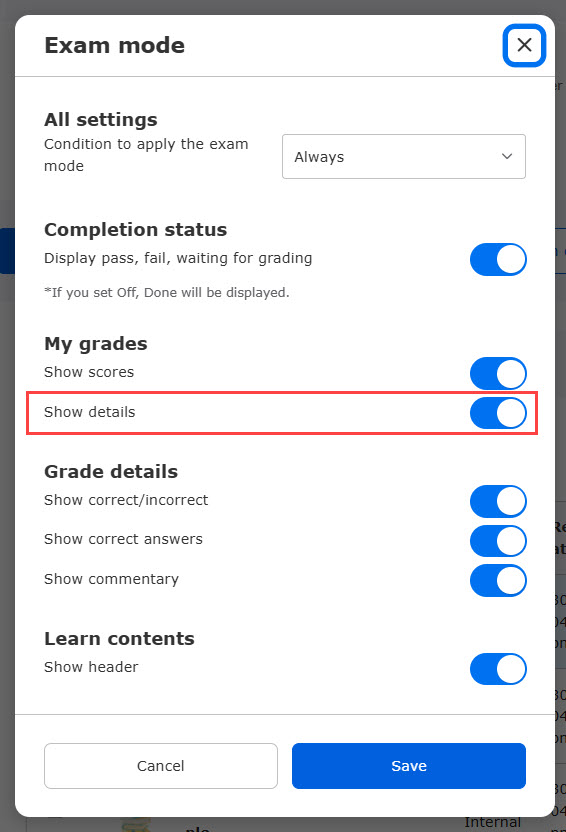
The above settings will allow you to view the grade details.