LTI1.3 Tools <Operation in Content Management (old)
Content can be created in conjunction with tools that support LTI 1.3.
Required
Customization options, managment role of Content manager (Edit)
Create LTI 1.3 tool
01. Create a course
First, create a course in the Manage contents.
*For details on course creation, refer to Course/Folder.
02. Open the LTI1.3 page
Select the "+" icon > Content > LTI 1.3 tool
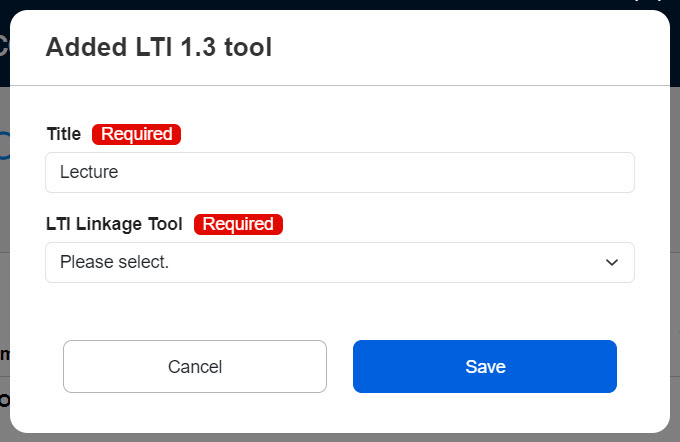
03. Settings
Set the following two items.
Click Save to finalize.
・ Title: Enter a title.
・ LTI Tool: Tools added on the "LTI Link Tool" can be selected from the list.
*For more details, refer to Manage LTI tools.
The following is an example when creating a lecture using ZOOM
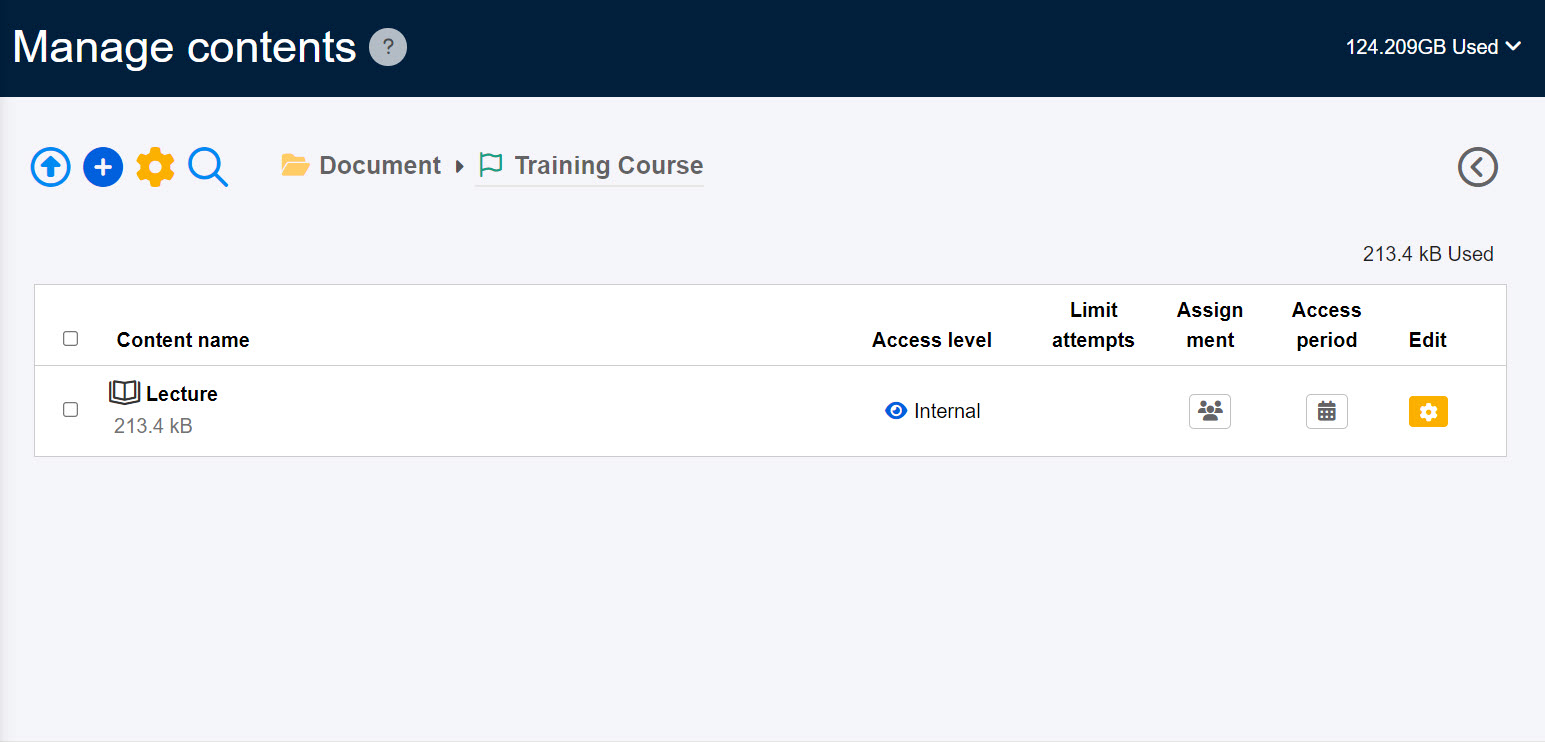
Content titled "Lecture" has been created.
Set up meetings after content creation
After content creation of the LTI 1.3 tool in the Manage content page, set up the Zoom meeting.
01.Login
Log in to learningBOX with an account with the same e-mail address as the Zoom account that was used for the LTI linkage.
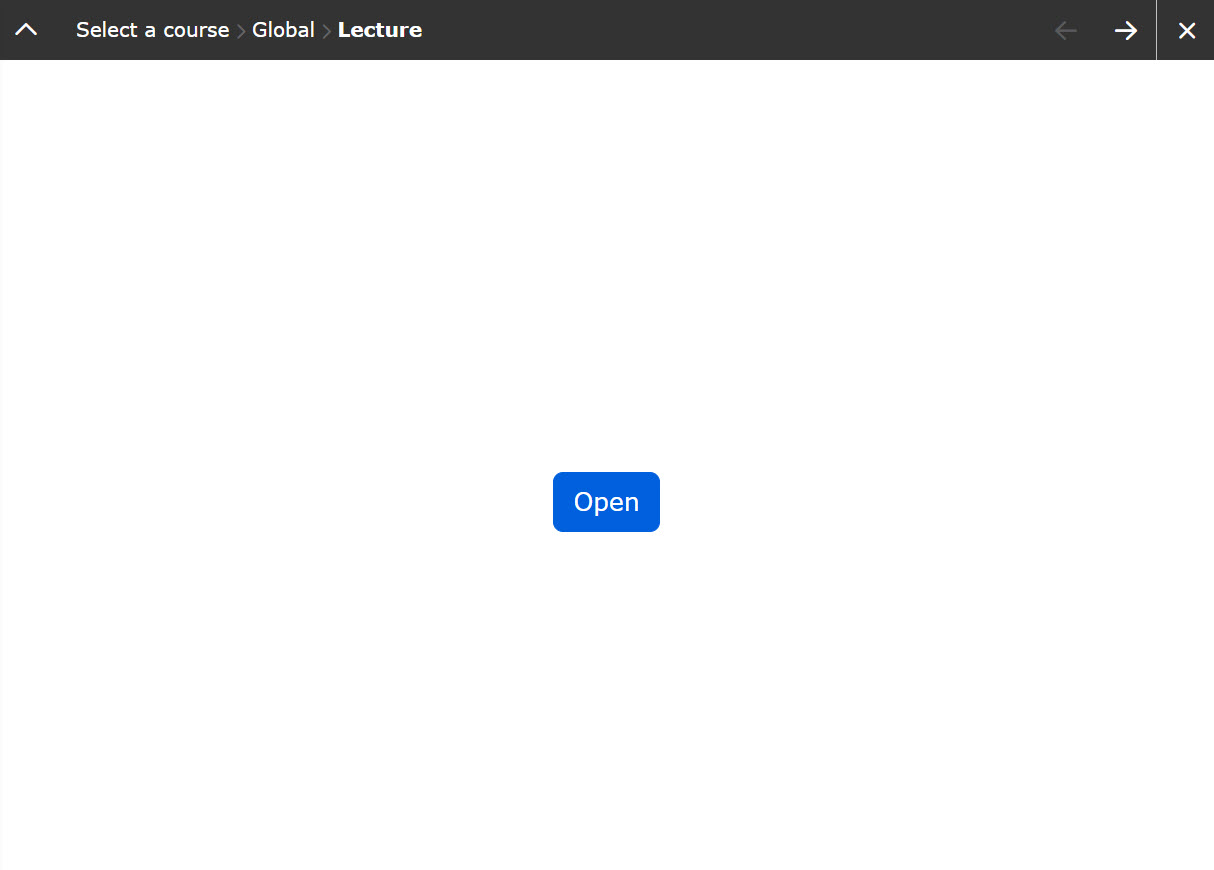
02.Open the preview of the LTI1.3 tool
Click on the LTI 1.3 tool content you created in the Manage content page to open the preview window.
03. Open Zoom
Click "Open" to open the Zoom page.
*If the pop-up is blocked, click "Click here" to go to the Zoom page.
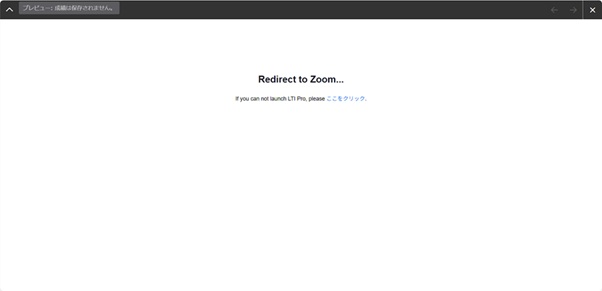
04. Open the settings page
Click on "Schedule a new meeting."
05. Setting of each item
Set the topic, date and time of the event, time required, etc.
Save the settings.
Edit LTI 1.3 tool
01.Open the edit page
Right-click on the content or click on the gear icon and select "Edit LTI 1.3 tool."
02. Settings
You can edit the content in the same way as creation. Refer toCreate LTI 1.3 tool.
User interface
The following describe the user interface.