Message box
This function allows you to send messages in learningBOX.
According to the Management roles, recipients will be different.
*For more details, refer to Management roles.
Important
The Message box function will be discontinued in Ver. 8.0 (December 2026).
Please note that data will not be transferred upon discontinuation.
The following two functions will be alternatives:
Create new message
The following is the sender's page.
01. Go to Message box
In the side menu, select "Messages" > "Message box."
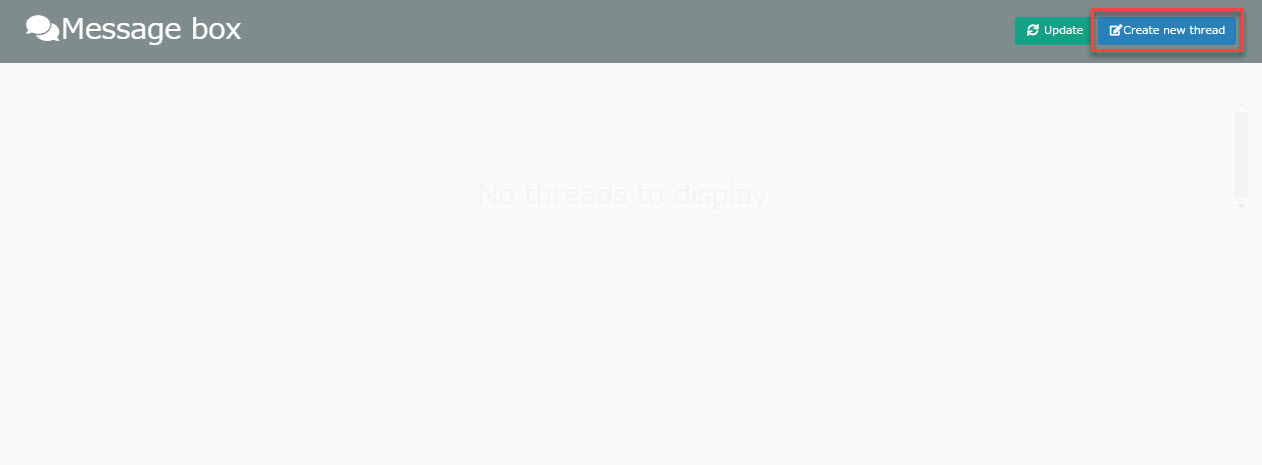
02. Create New Thread
Click on "Create new thread."
03. Create thread
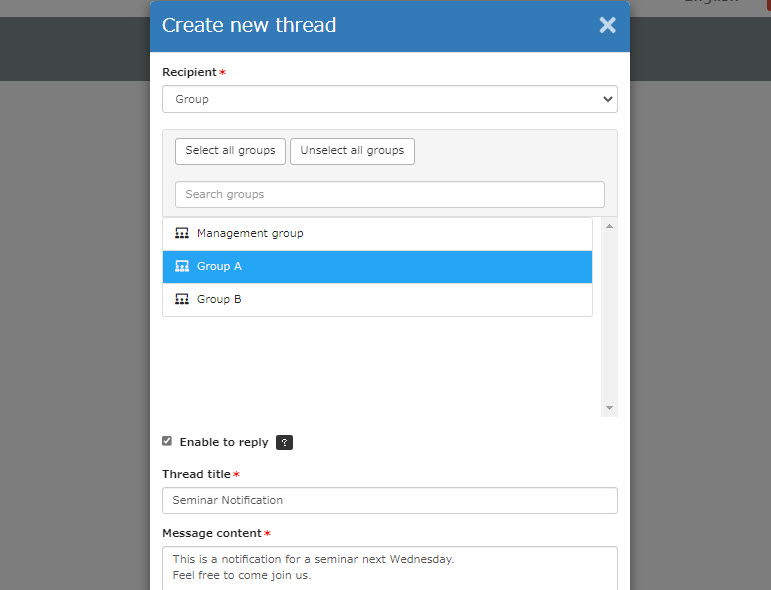
Set the following items.
Click "Create" to complete the settings.
▼ Recipient
Select recipients of the message.
Recipients displayed vary depending on the Management roles.
*For more details, refer to Differences by Account.
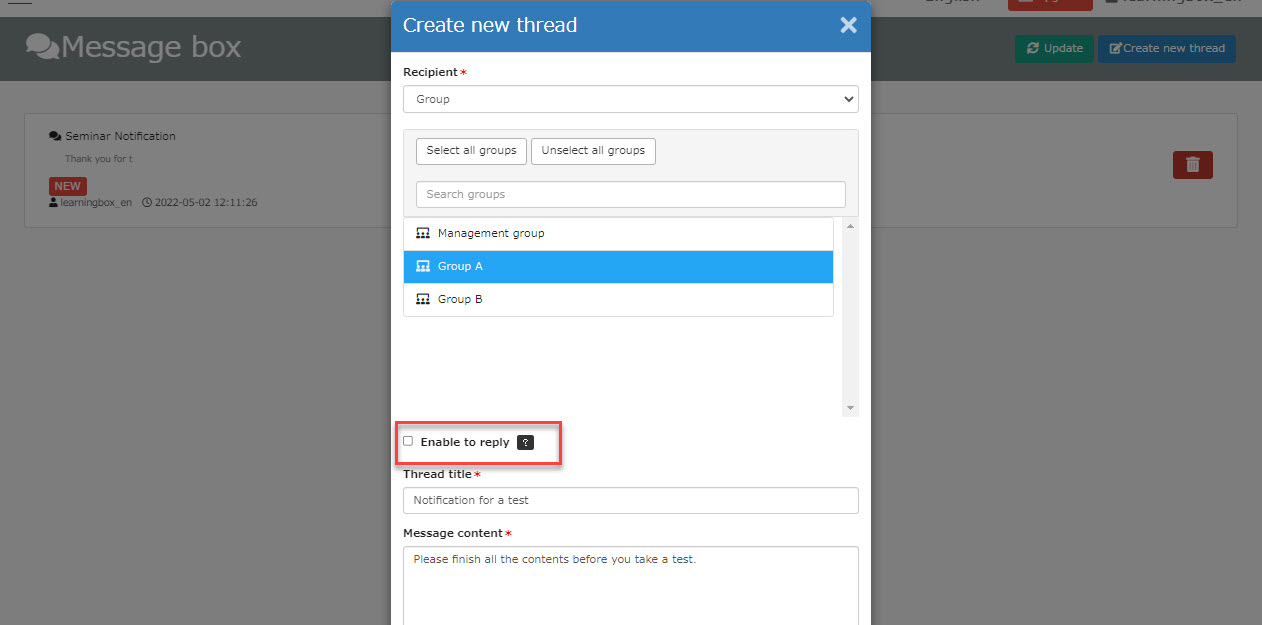
▼Enable to reply
Tick the box to allow users to reply the message.
▼Thread title
Enter a title of the thread.
▼Message content
Enter the body of the message.
04. Delete thread
To delete a thread, click on the trash can icon to the right of the thread.
Reply to message
The following is a recipient's page.
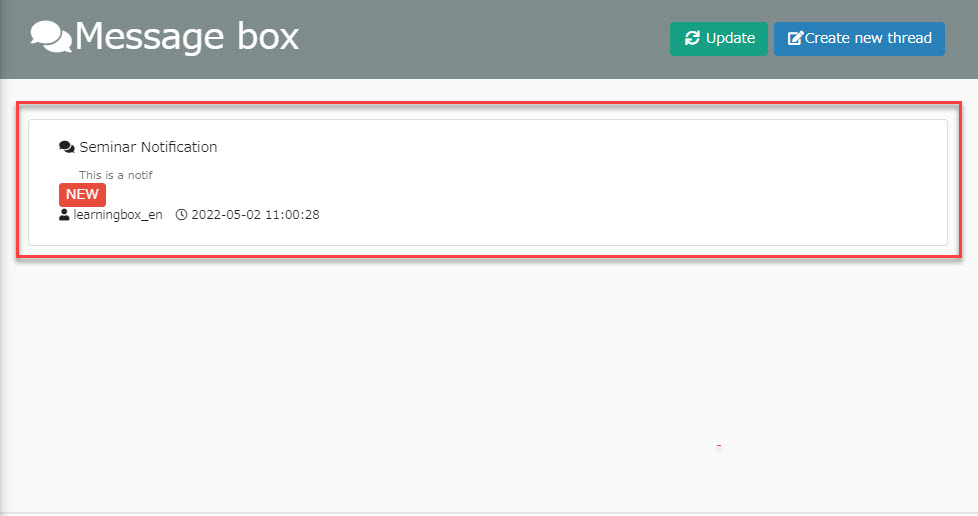
01. Check message
Go to the Message box.
02. Click thread
Click on the received thread to view the details.
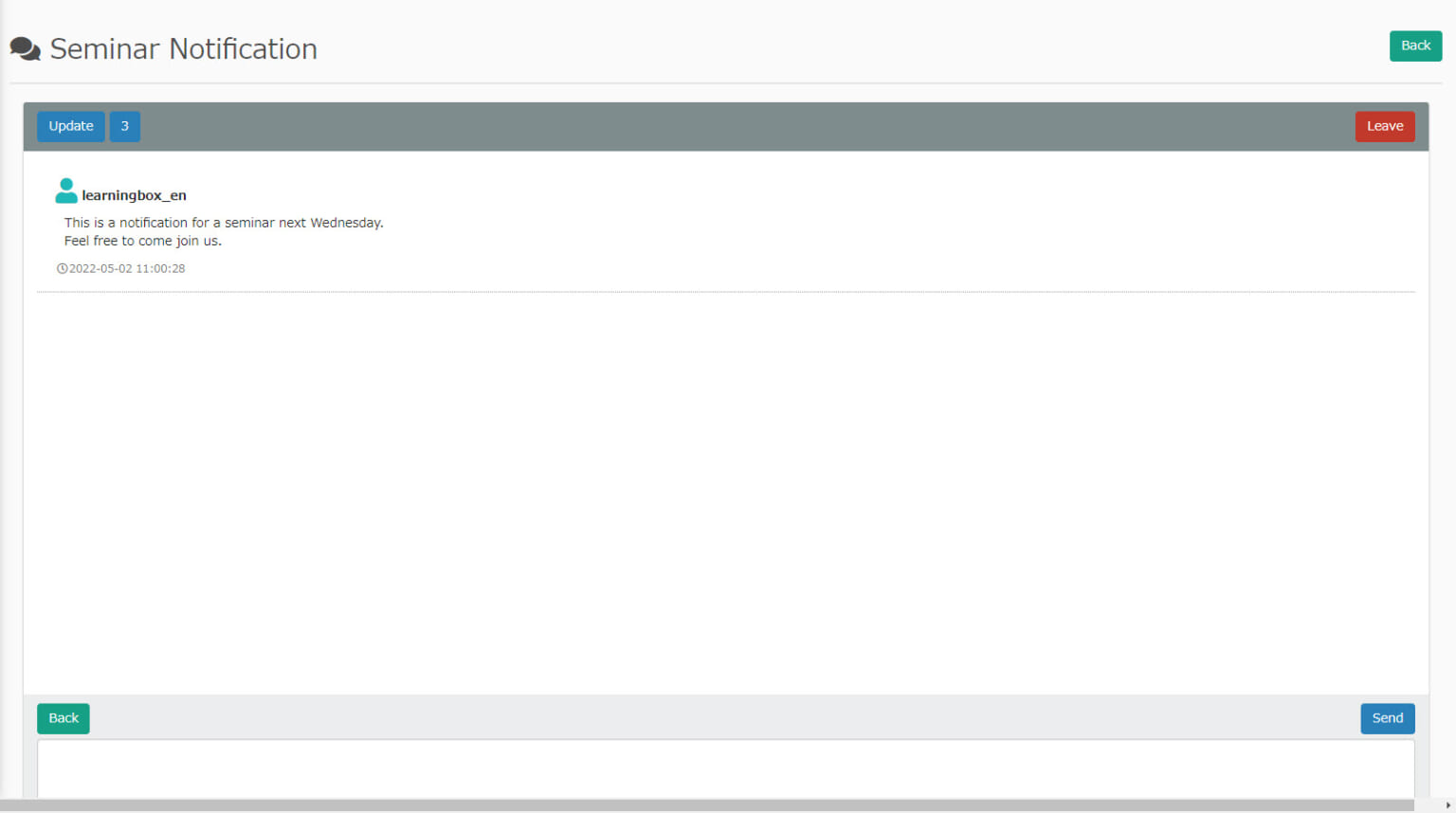
The details of each button are as follows.
▼Back
Back to the thread list page.
▼Update
Reloaded to check new messages.
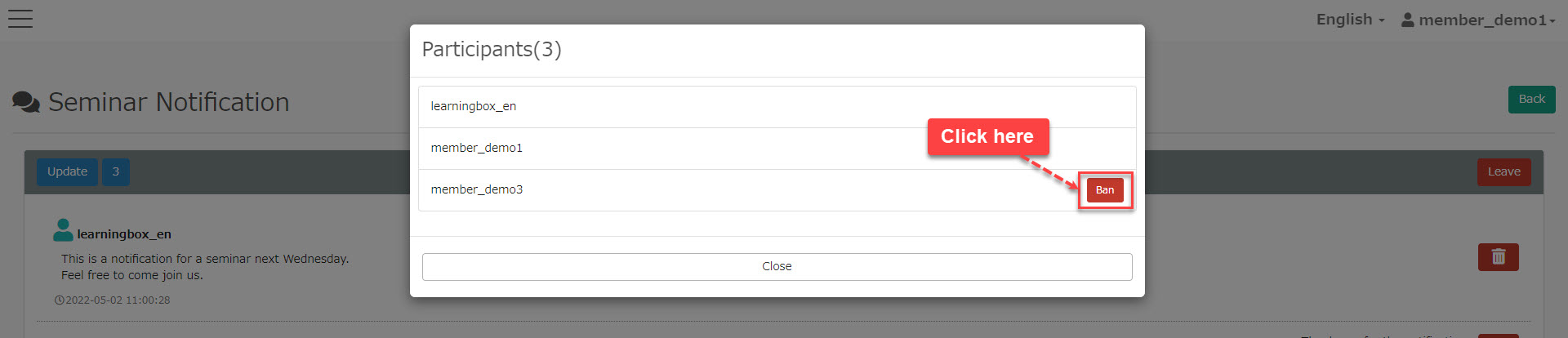
▼Participants
The number to the right of the Update button indicates the number of members in the thread.
Click to view the members in the thread.
▼Leave
Leave the thread.
*When you leave, you will not be able to view or reply to the messages you have exchanged.
03. Reply
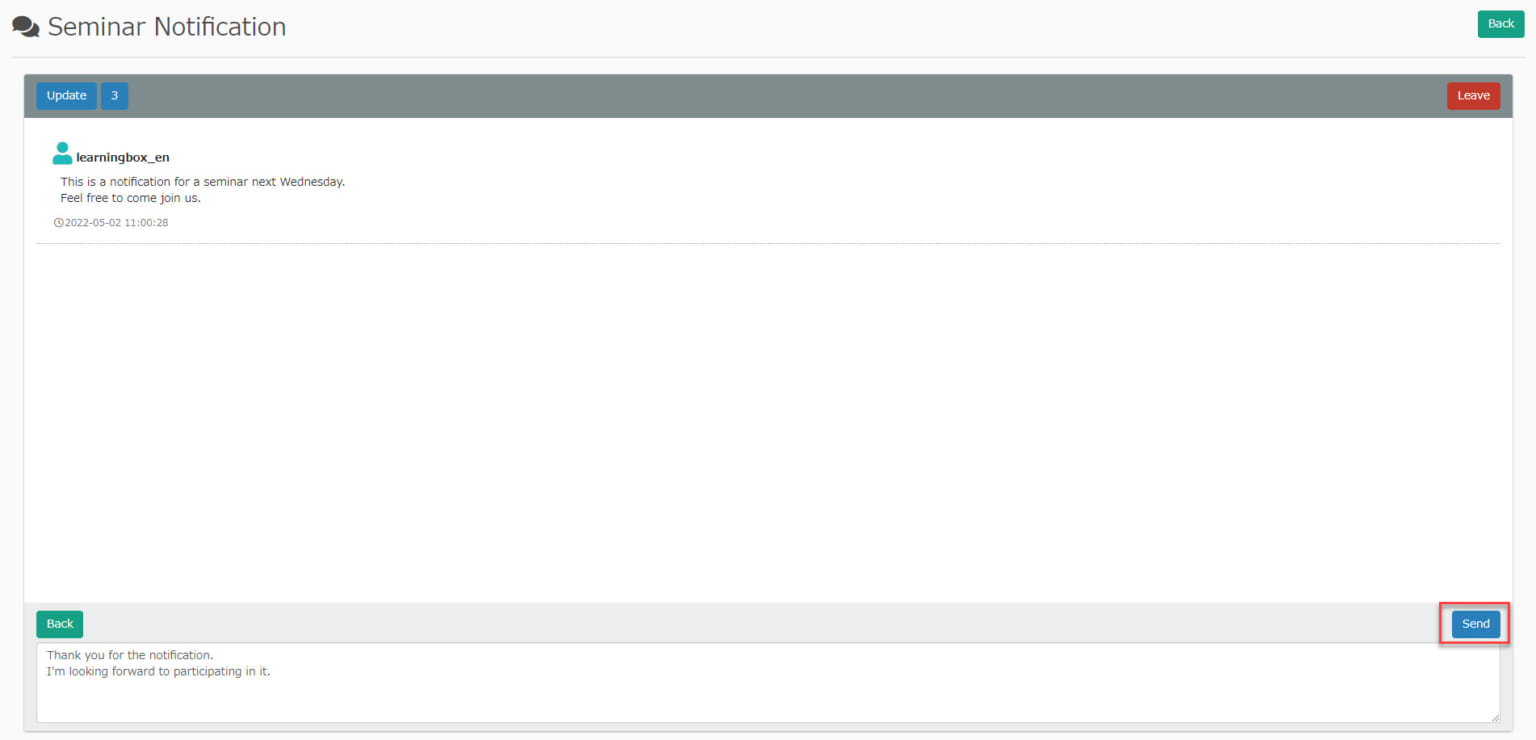
Enter text in the input field and click "Send."
Members in the same thread can exchange messages.
04. Disallow replies
▼ Sender's interface
Untick "Enable to reply" when you create a new thread.
▼ Recipient's interface
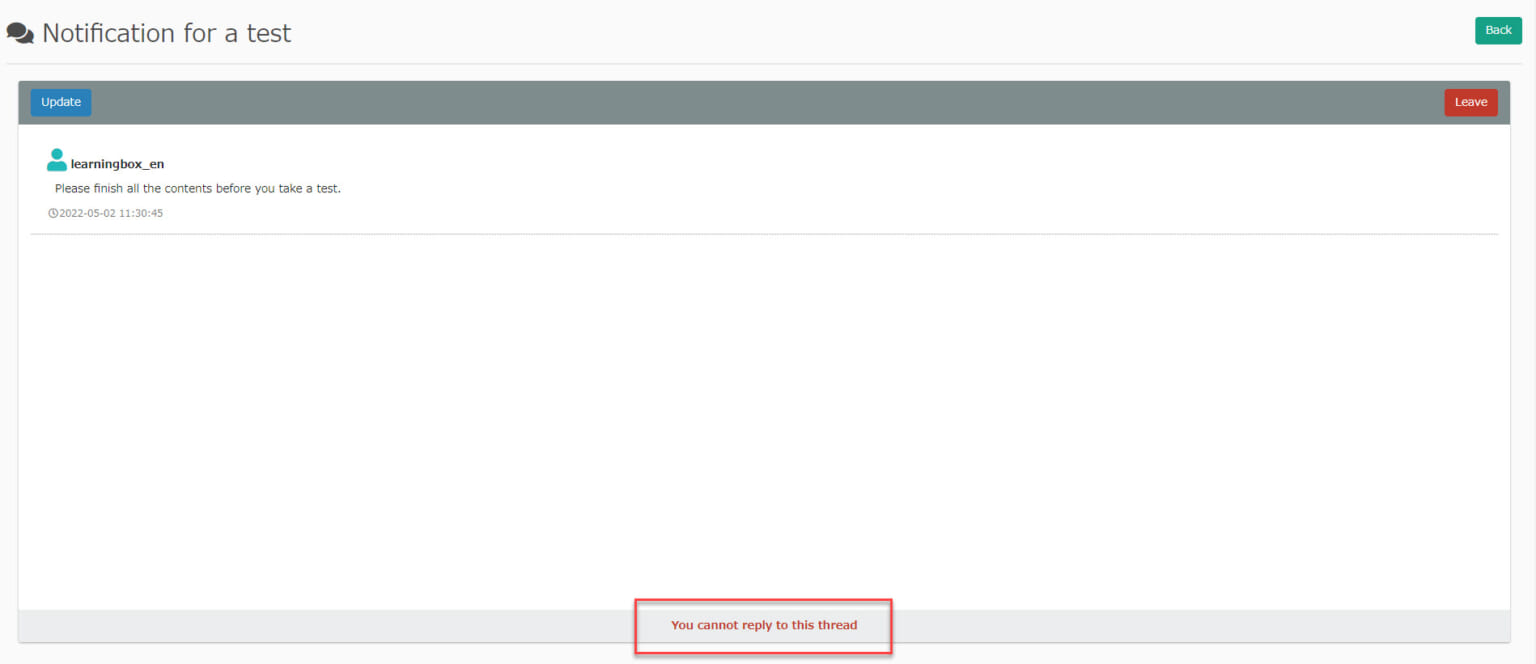
Recipients can view the message but cannot reply to it.
Differences by Account
Depending on the Management roles, selectable recipients will be different when creating a new thread.
Admin/Message box manager
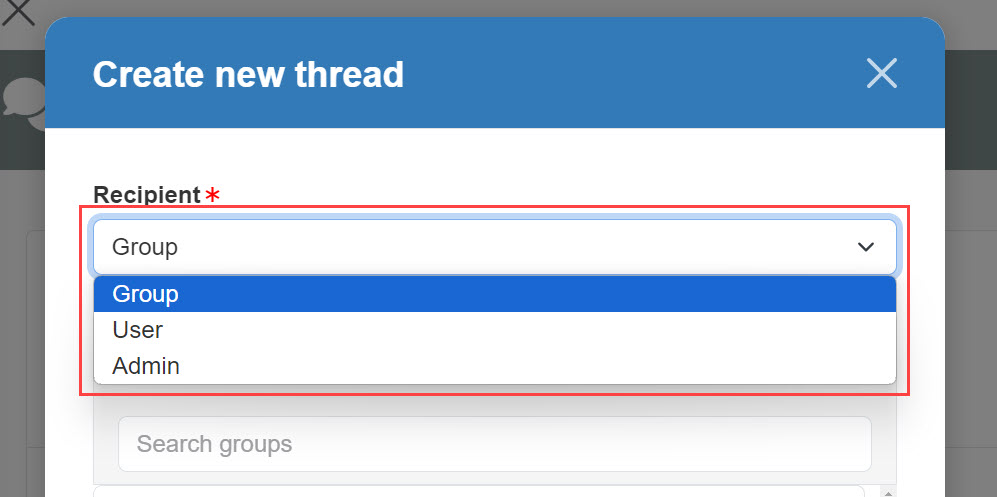
Admin/Message box manager can select the recipients from the following:
- Group: Groups within the Management roles
- Users: users within the Management roles
- Admin: Admin and users with the Management roles in the higher hierarchy than yours
*Multiple recipients cannot be selected.
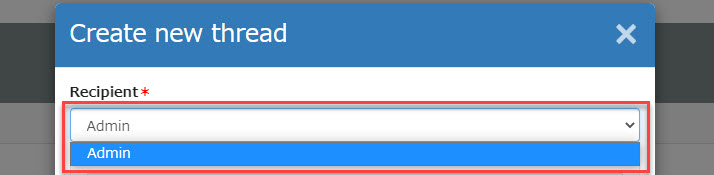
Users with no Management roles
Only admin can be selected as a recipient.
Attention
Viewable threads
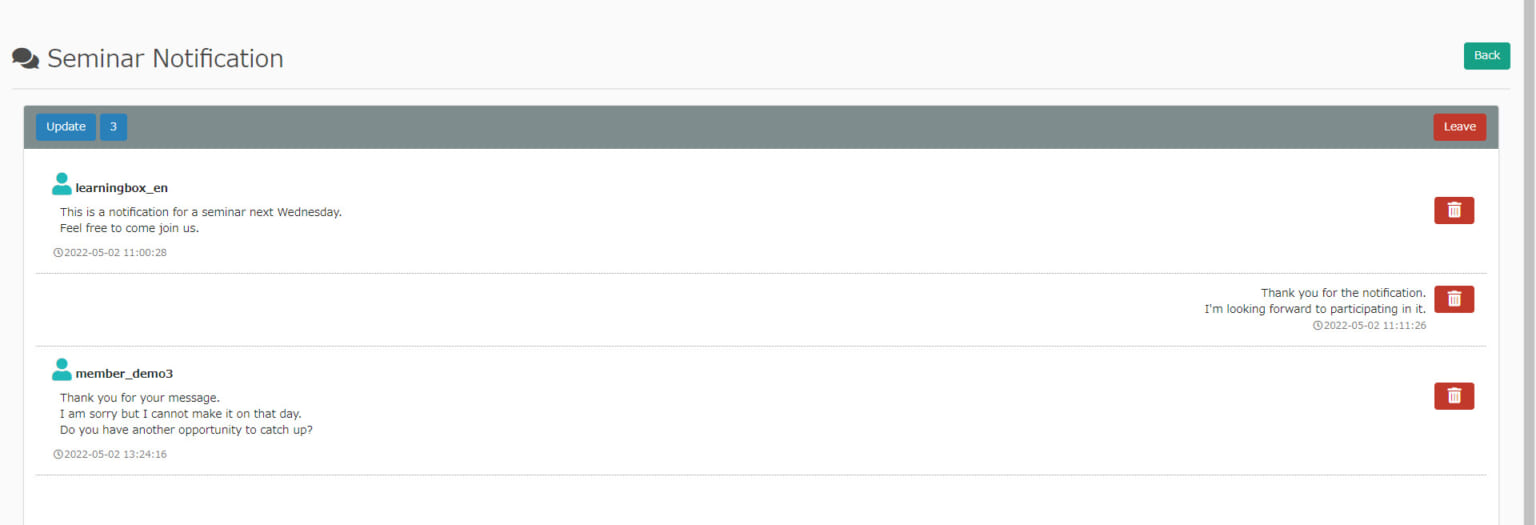
When the thread is created by the Message box manager you belong to, you can view threads and the list of participants.
*For the thread which you are not in, you do not have the permission to send messages but to view the threads.
Ban
Members can be forced to leave a thread.
*Management role of Message box managers (all users) is required for this action.
The thread creator, Admin and Message box manager for all users cannot be forced to leave the thread.
Admin and Message box managers (all users) can remove participants from the thread.
*The thread creator, Admin and Message box managers (all users) cannot be removed from the participants.