
Via course navigation
A complete directory of all content within the same course is displayed for easy navigation.
This allows learners to check the entire course or jump to another content in the same course without going back to the previous page.
How to set
*For more details, refer to Activate course navigation.
User interface
01. Create a course
The following is an example.
This course contains three types of content and a prerequisite.

02. Start a course
Click on the course created above.
The following navigation window will be shown on the user interface.
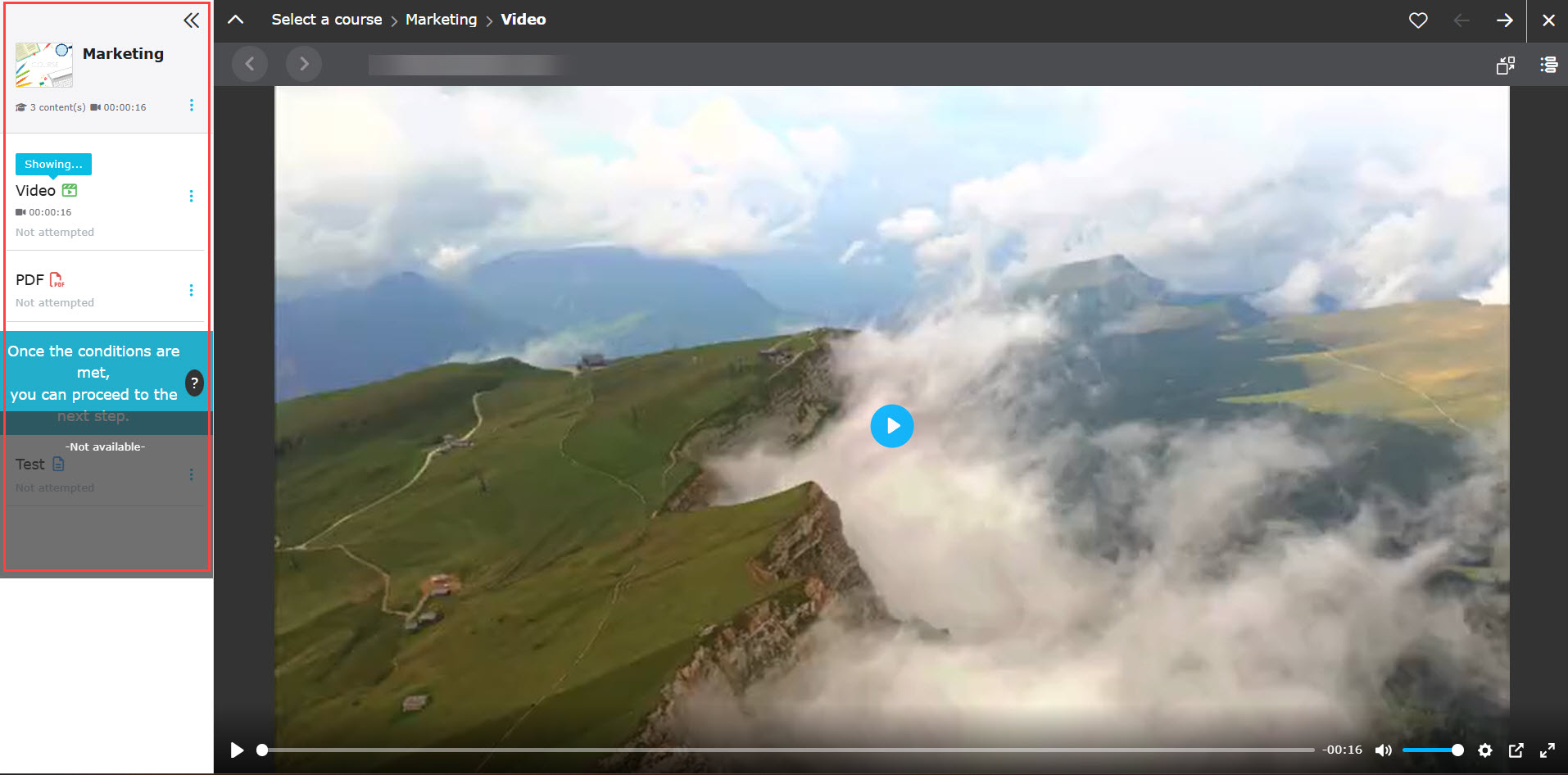
03. Navigation window
The following explain the each item.
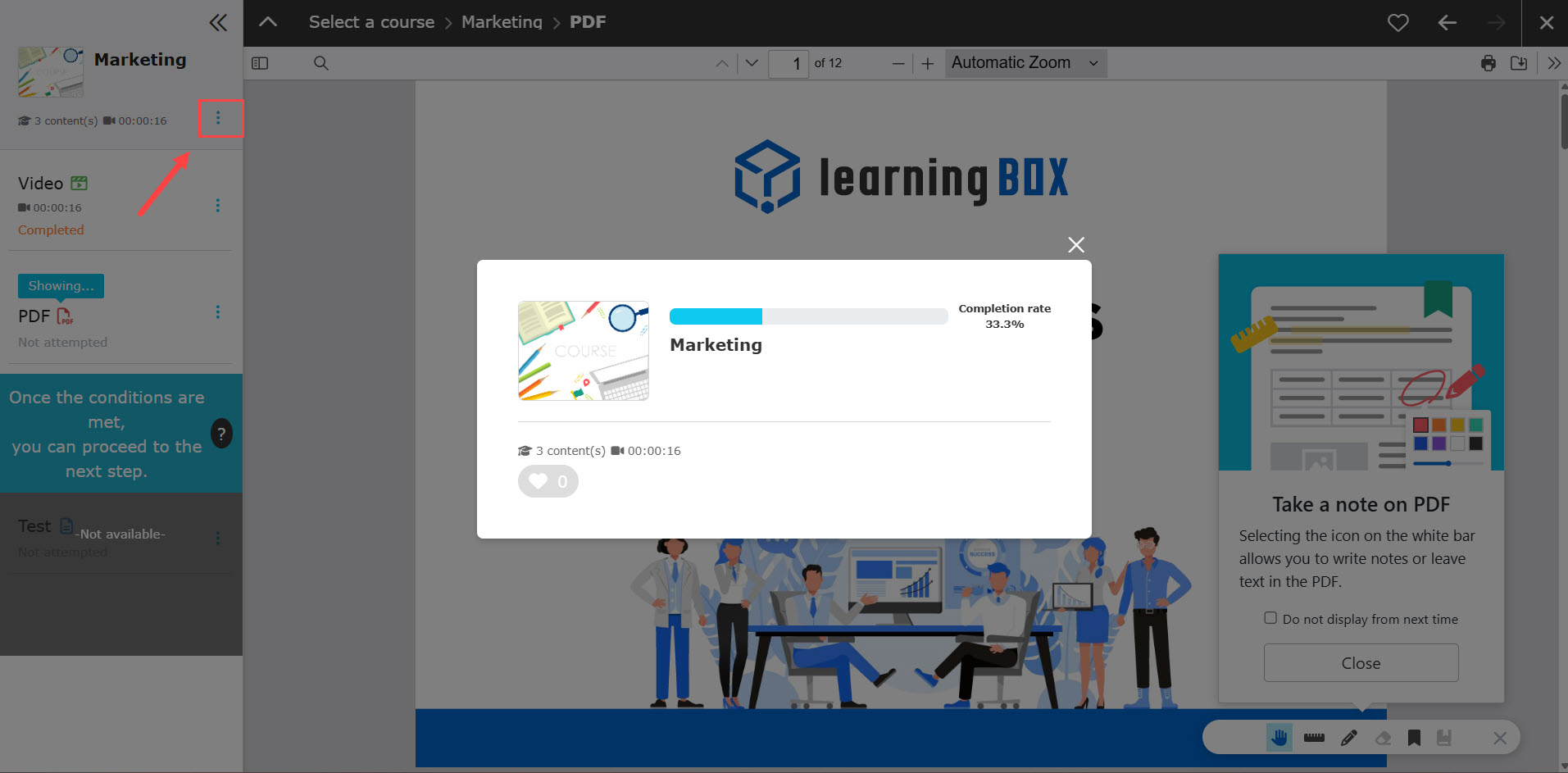
▼ Course
Click on the three-dots icon.
Click on the "︙" icon to learn more about the course and to see the learning rate.
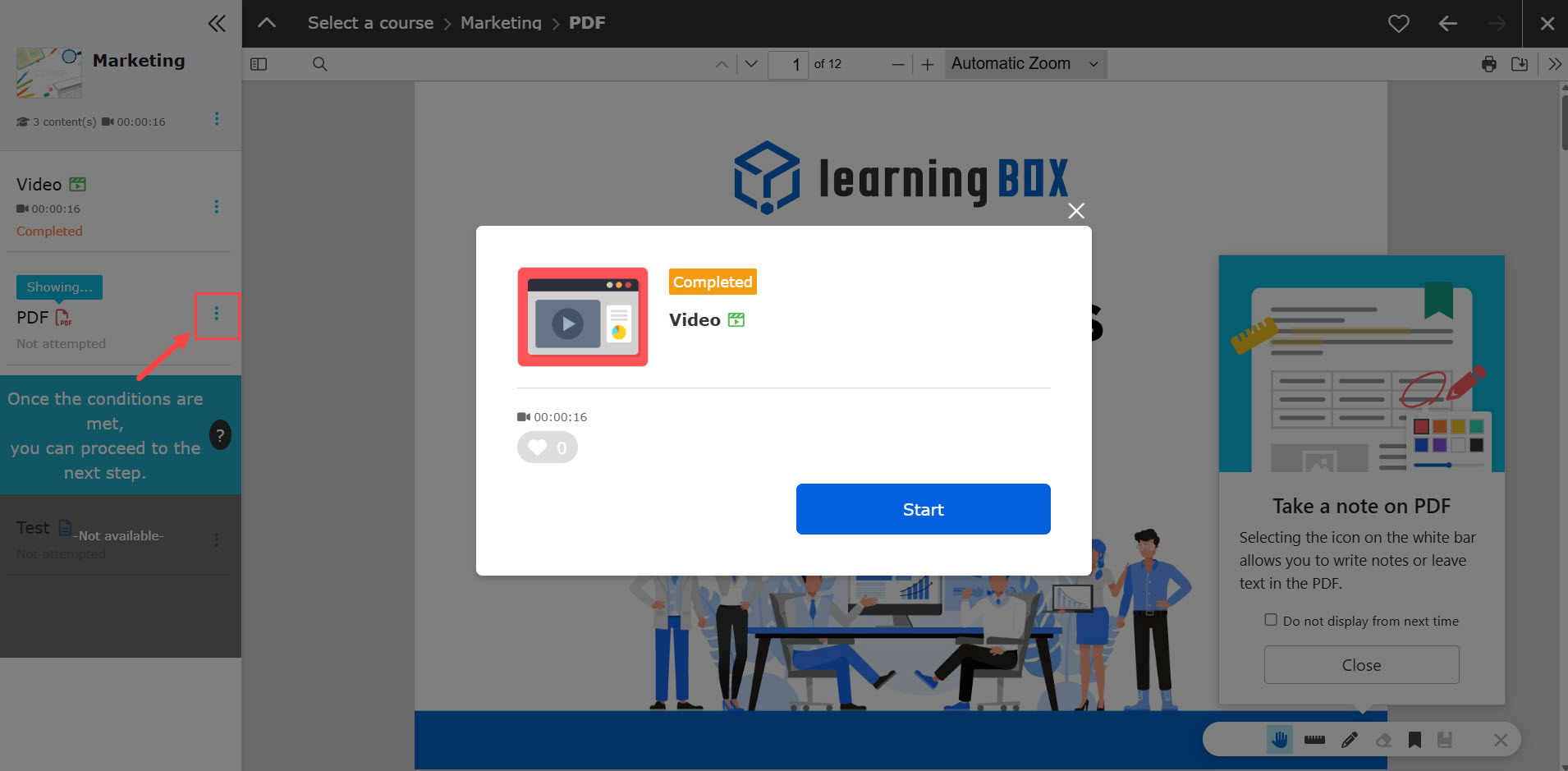
▼ Content with a "Showing" icon
While learning, "Showing" icon will be shown on the content.
Learners can also check the status.
Click on the "︙" icon to learn more about the content.
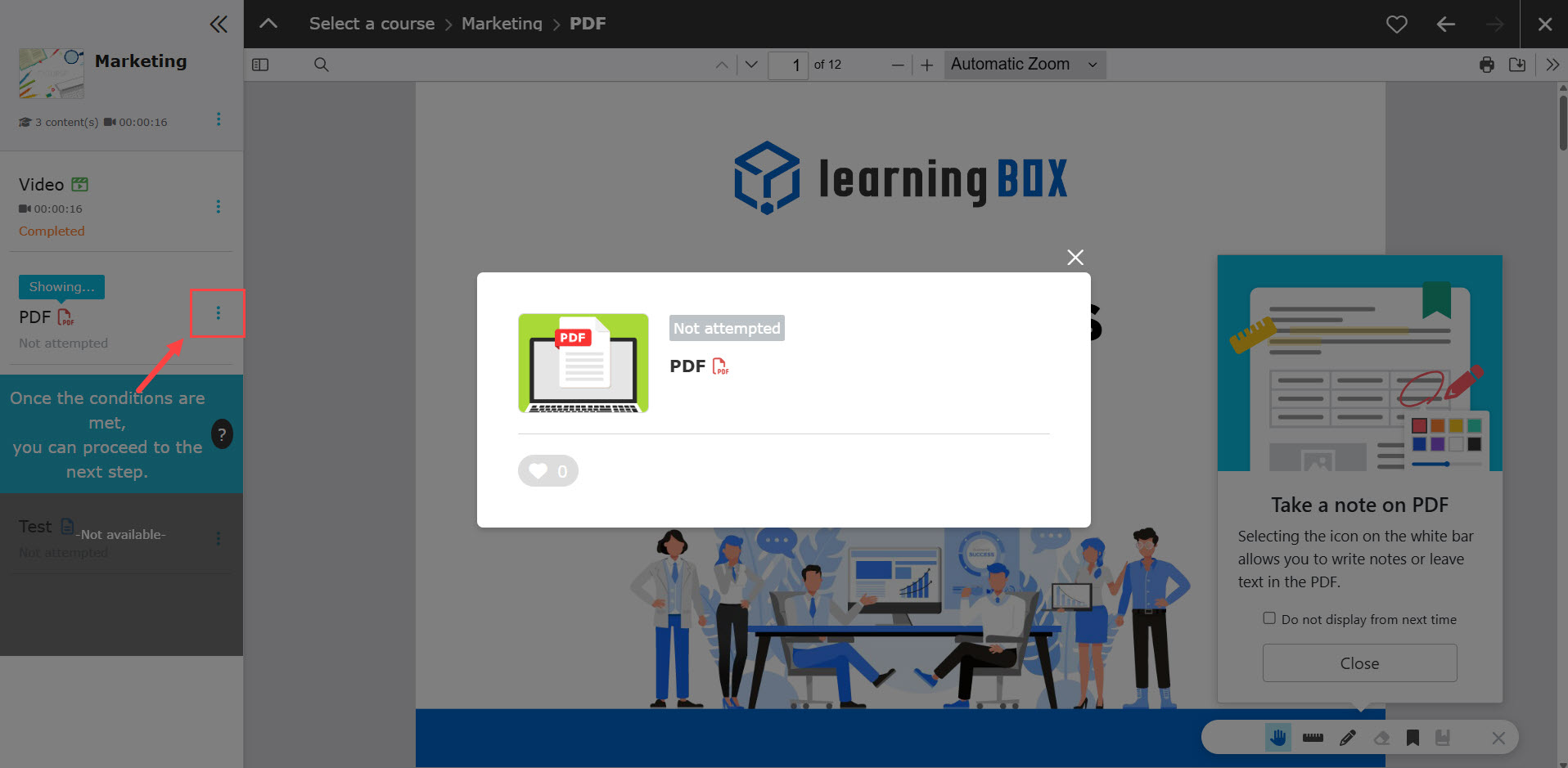
▼Others
Clicking on another content allows learners to jump to it.
Click on the "︙" icon to learn more about the content, and "Start" to begin learning.
▼Prerequisites
Learners can check the details of the prerequisites
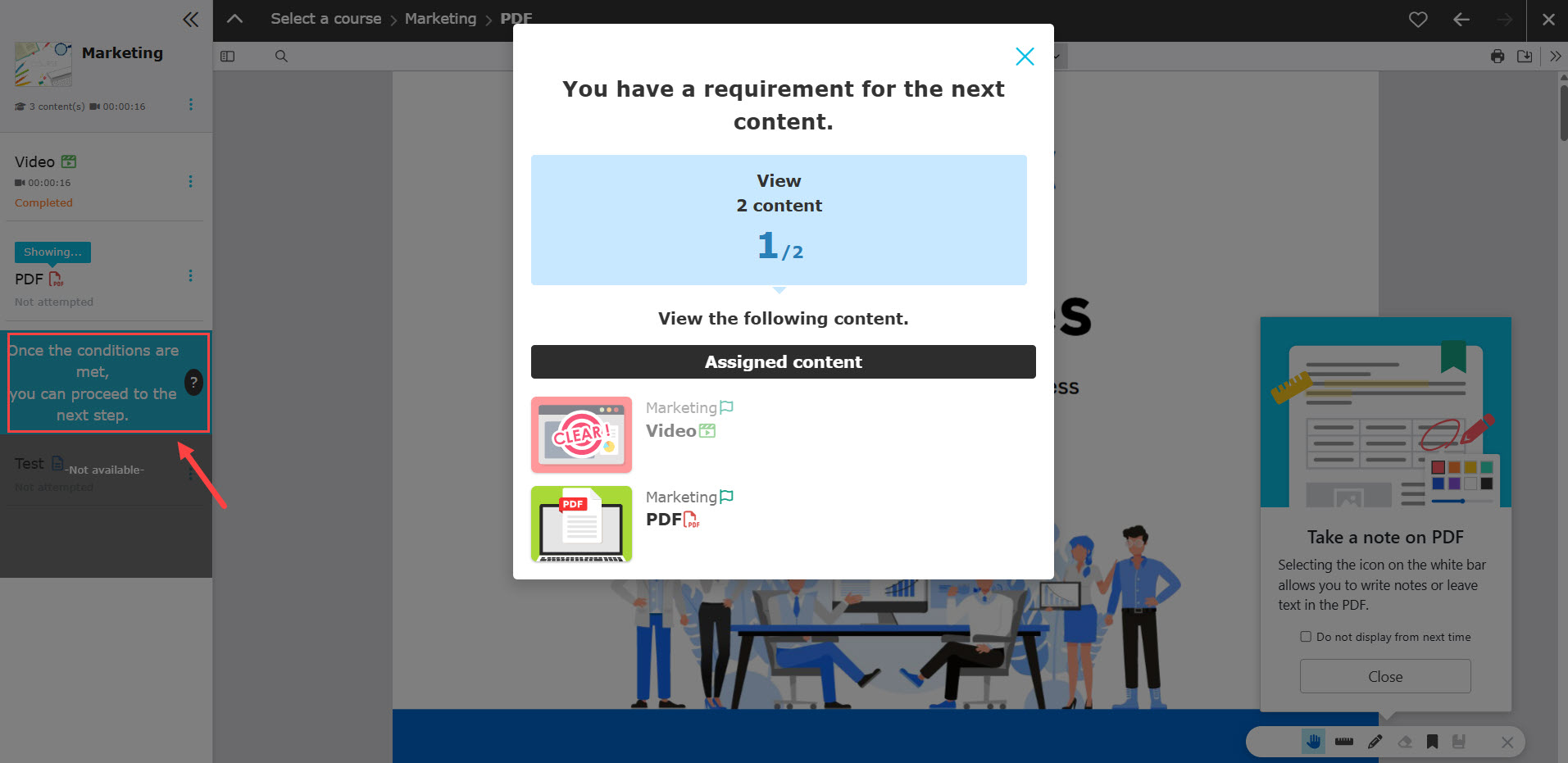
Learners cannot start content in the navigation window when:
-it is out of the access period
-it does not meet the prerequisites
-it is not selected as a selective content
-it has reached the limited attempt
-it does not meet conditions of IP restrictions
Note
When using a course navigation, learners might accidentally click on the content which the number of attempts is limited. In order to prevent such accident, you can set an instruction before they start the content.
*For more details, refer to Manage instruction.
04. Display navigation
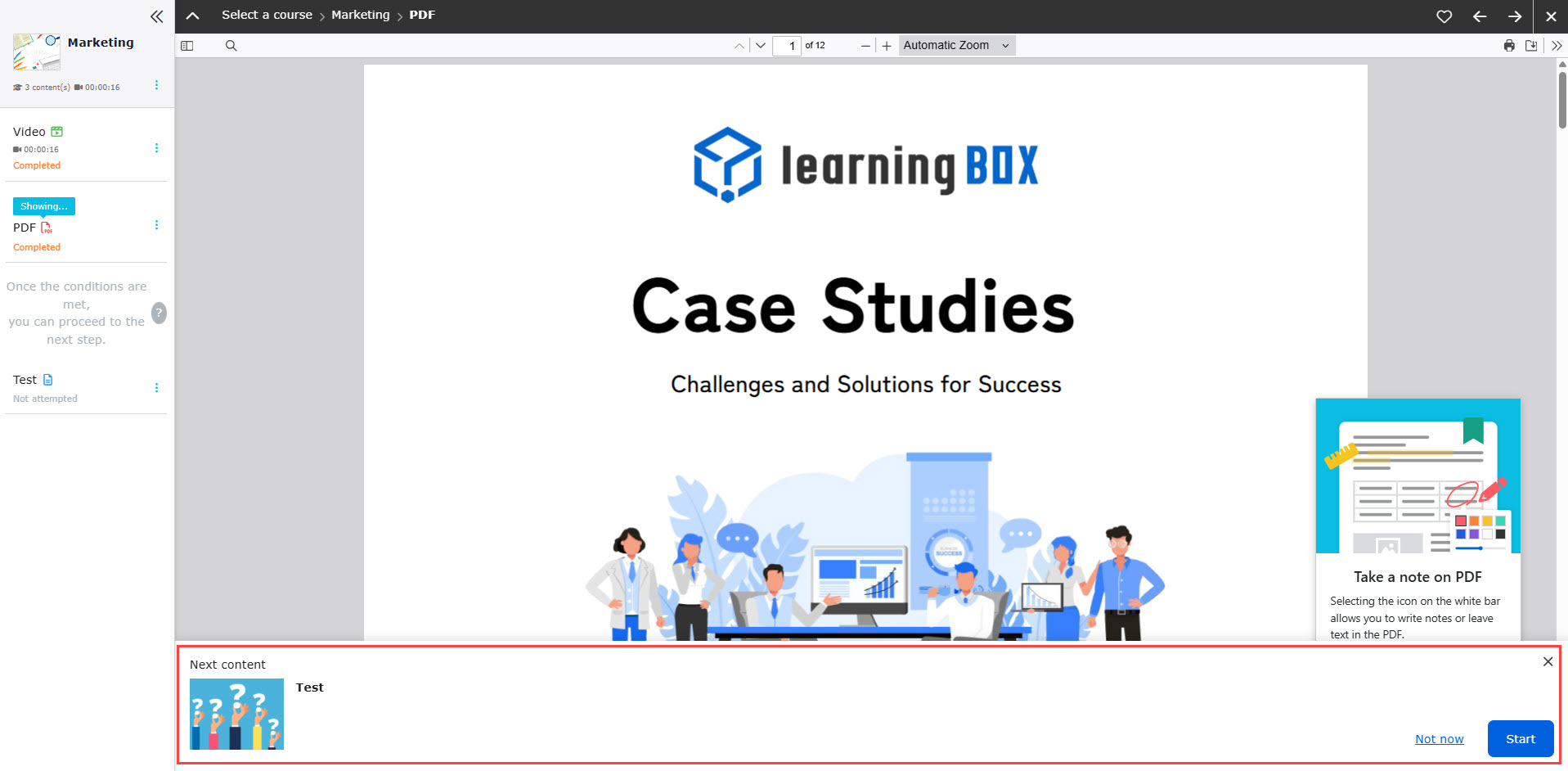
You can set whether or not navigation to the next content should be displayed when the user completes the content.
*Not displayed by default.
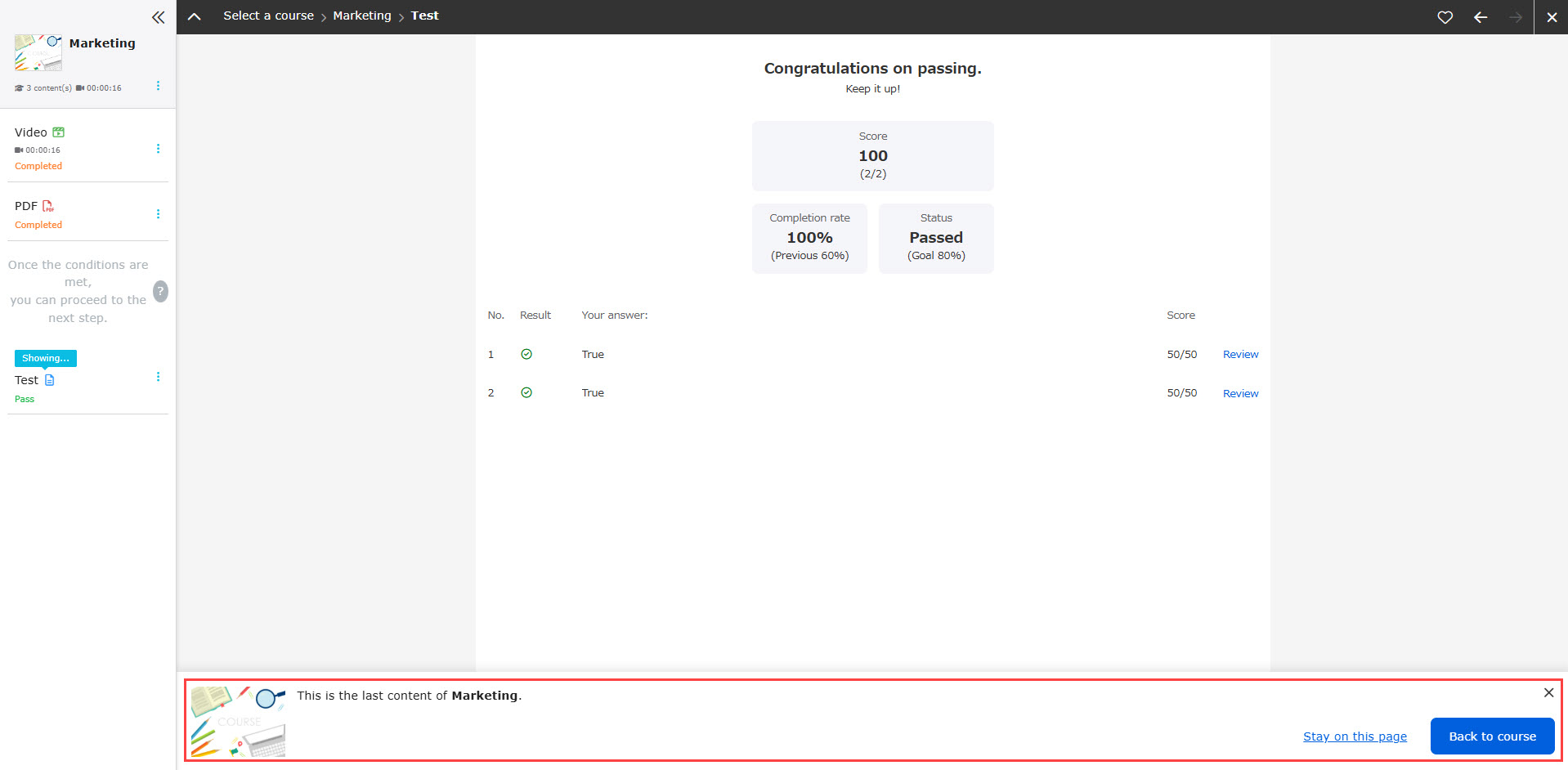
When you finish the last content of the course, you will receive an invitation to finish the course.
Refer to the table below to find when the navigation appears.
*Discussions do not support navigation.
| Content list | Display timing |
|---|---|
| Quizzes/exams | When all questions are answered and the results page is opened |
| Flashcards | When the completion rate reaches 100% |
| Video | When you finish watching the video to the end |
| When you reach the last page | |
| Web page | When you move to the last page |
| Show/hide workbook | When the completion rate reaches 100% |
| Upload file | When you download an attachment |
| Report assignment | When you submit a report assignment |
| Typing practice | When you reached the last page after the completion |
| Personality test *1 | When you reached the last page after the completion |
| iSpring | When a status of completion is set |
| SCORM | When a status of completion is set |
| URL link | When you open the link |
| Embedded video | When the page is opened |
| iframe | When the page is opened |
| PowerPoint | When the last slide is displayed |
| Questionnaire | When you submit the questionnaire |
| Certificate | When the page is opened |
| Gradebook | When the page is opened |
*1: The content displayed depends on what the results are linked to the score chart.
Linked: Navigation to the personality test results will be displayed.
Unlinked: Navigation to the next content will be displayed