
Course settings
This page allows you to configure settings that apply across all courses.
*Access this page by selecting Environment settings in the side menu > Course settings.
Required
Management role of Co-admin
Important
With the new feature additions, Segment settings have been moved to a separate page starting from Ver. 5.2.
Access the following pages after Ver. 5.2.
Select a course page
Configure settings for the Select a course page.

01. Resume icon
Display a Resume button on each course so users can begin learning immediately by clicking it.
Tick the box to use this function.
02. Show badge details
On the Select a course page, users can click a badge assigned to a course, folder, or content item to view a detailed description of that badge.
Tick the box to display badge details.
03. Description on Select a course page
A description can be set at the top of the page of Select a course.
You can change text color, insert images and links and more.

▼ User interface on Select a course

04. Course list
Choose whether to display courses in Panel or List format as the default view on the Select a course page.
05. Course order
Select a course order shown on the Select a course.
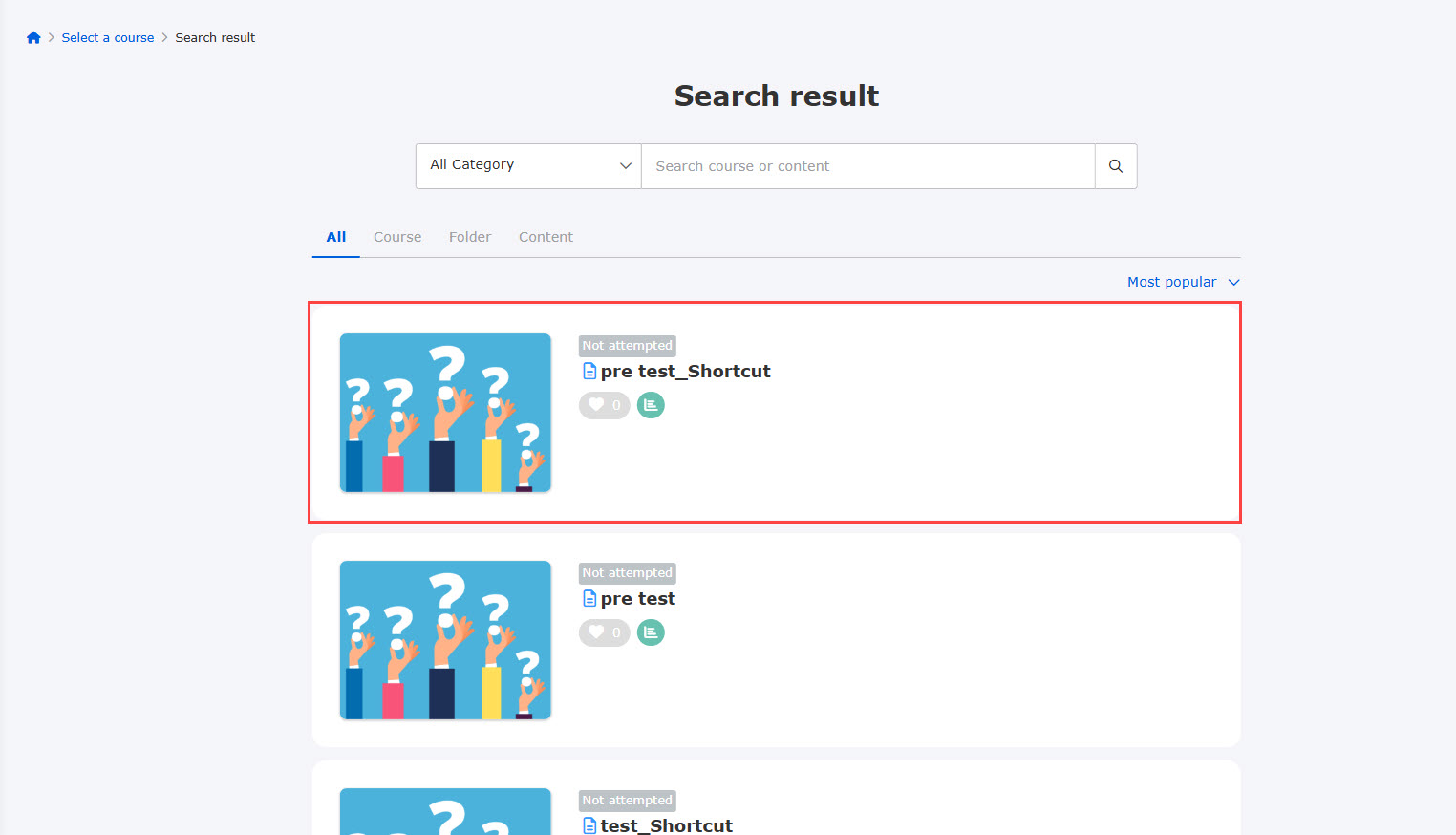
06. Customize search results
Choose whether to display shortcuts to courses, folders, or content items in the search results on the Select a course page. To display shortcuts, tick Show shortcuts in search results.
▼ When displayed
▼When not displayed
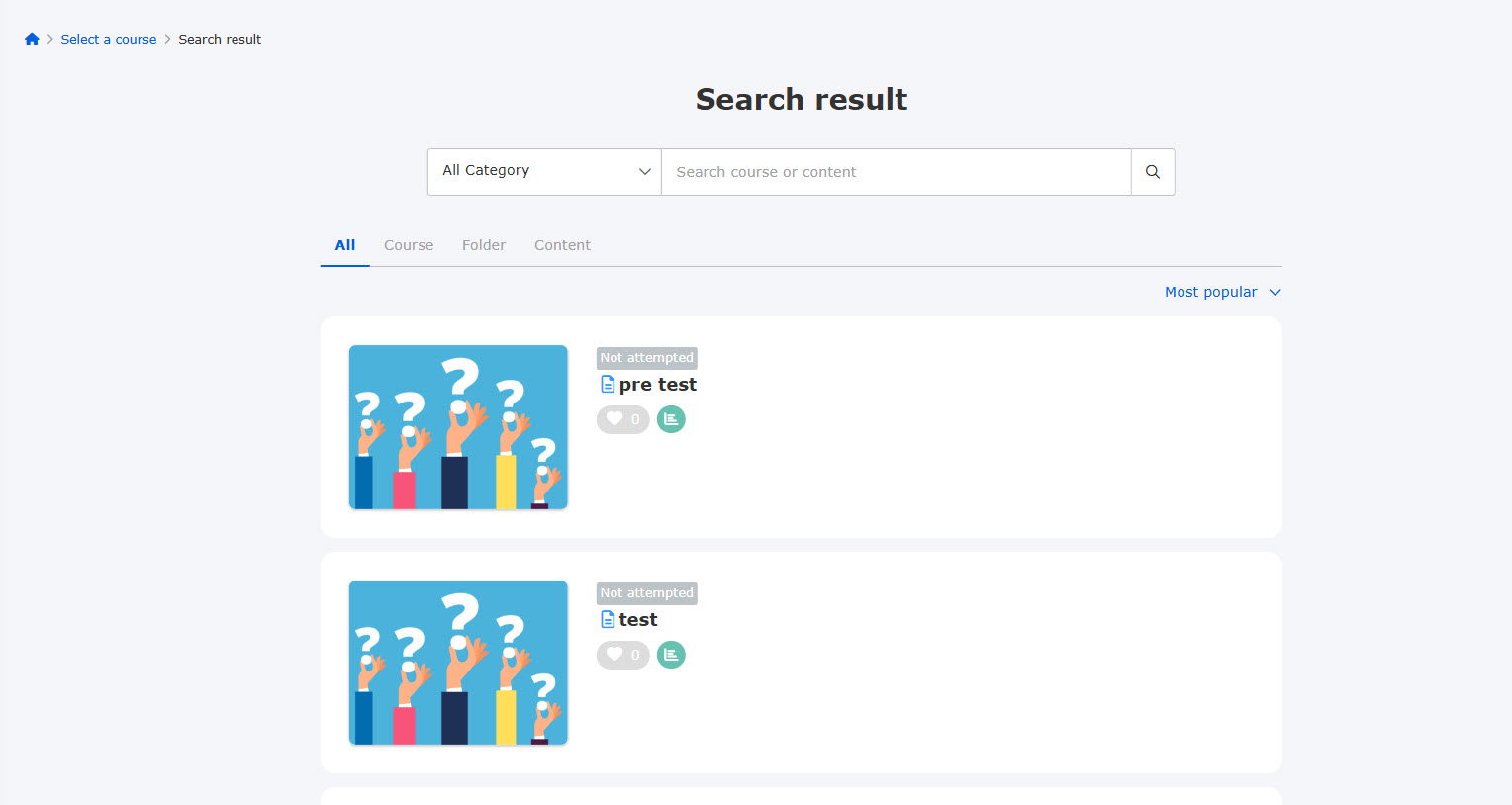
Settings made here are also applied to the Courses and Content panels on the Dashboard page.
learningBOX ON (JPN only)" is displayed regardless of the settings configured here.
Display settings
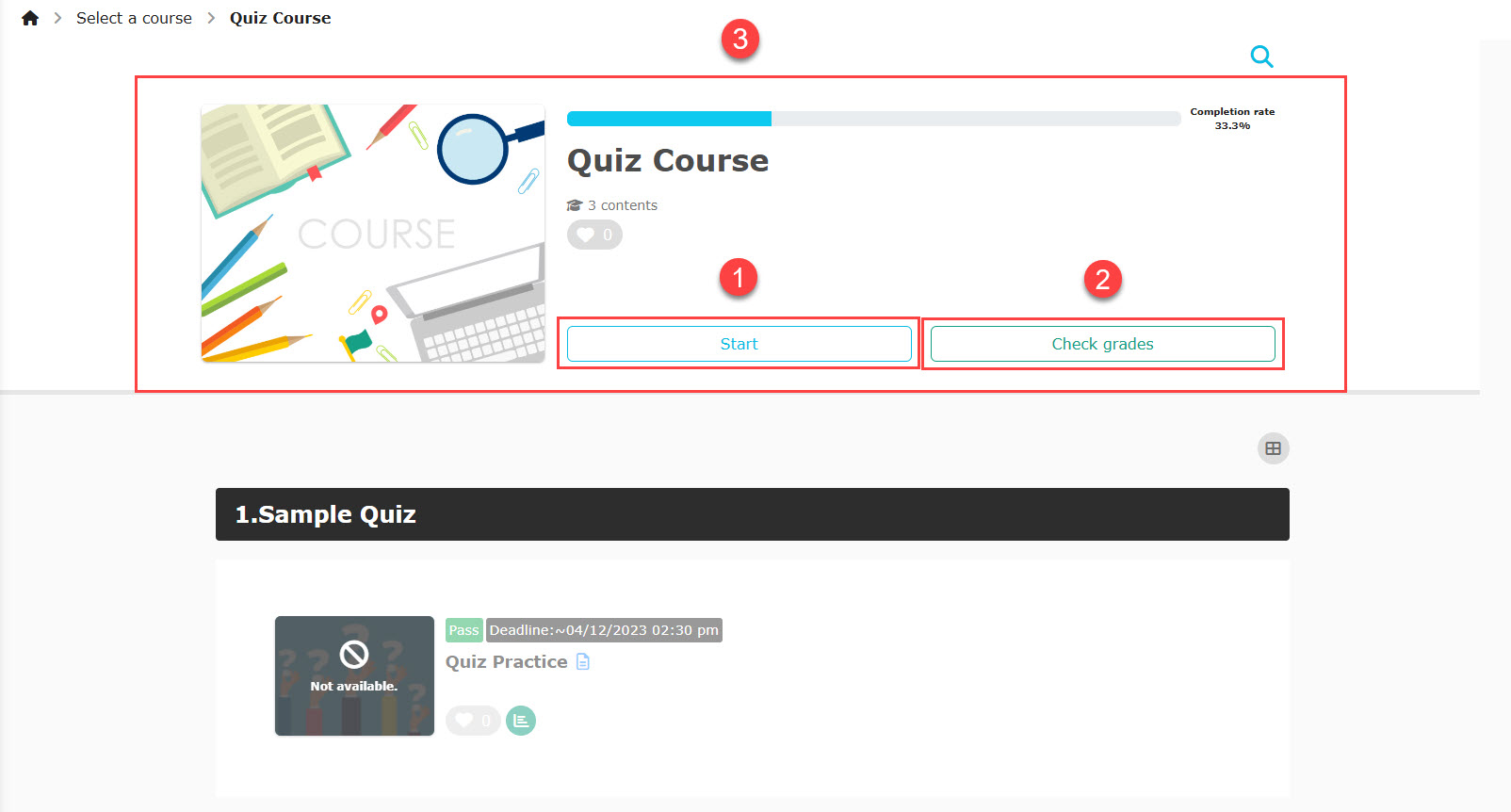
Configure settings for the course start page, which appears when a user selects a course.
01. Display settings for each item
You can choose whether to display each of the following three items on the course start page.
Tick the box next to any item you want to display.
- Start button
- Check grades button
- Course description
02. Default appearance
Choose whether to display content items in Panel or List format as the default appearance on the course start page.
Start content
Configure whether to enable various features during learners access content.
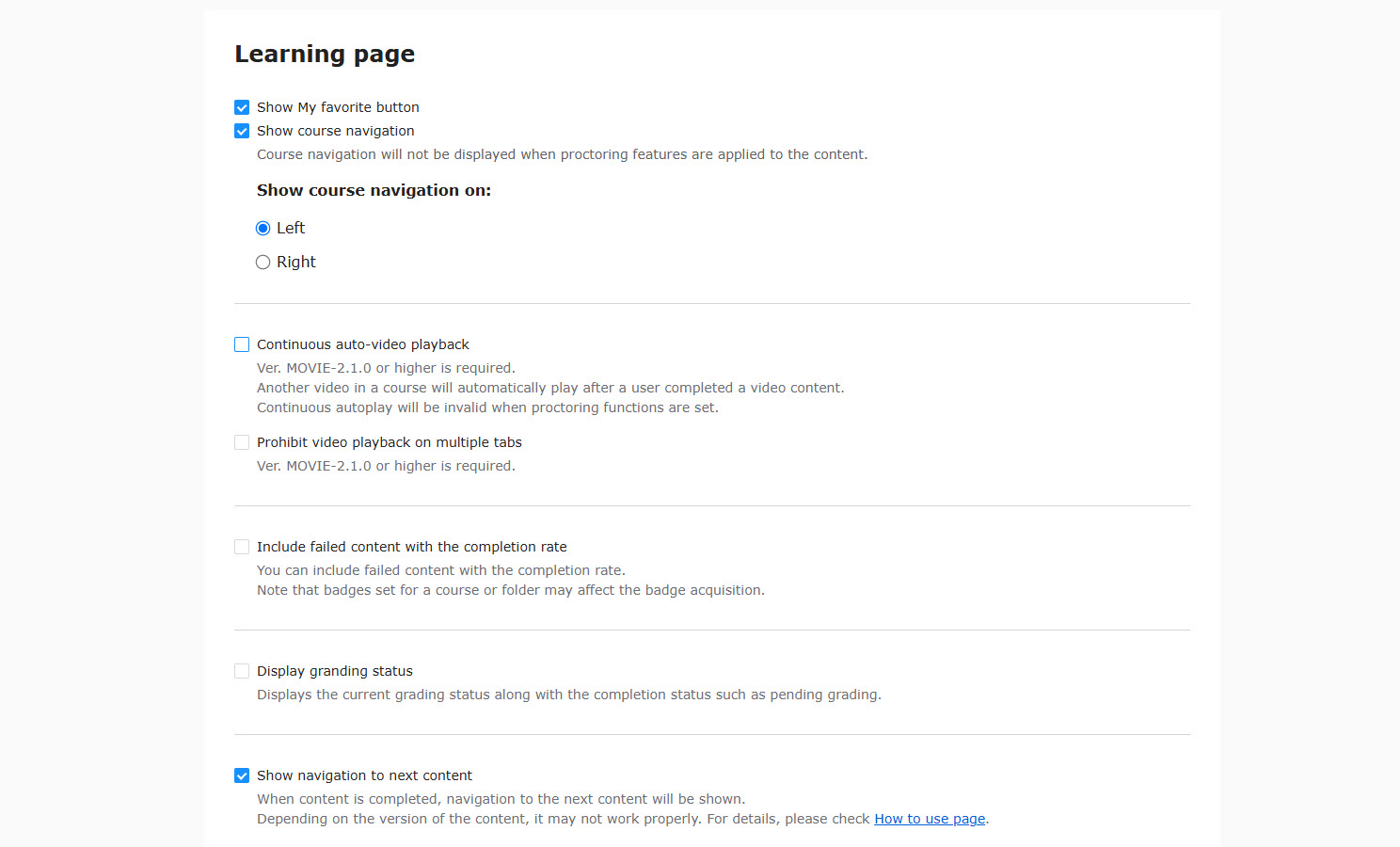
01. My favorites
Allow users to save courses, folders, or content items as favorites.
Tick the box to enable this feature.
*For details on favorites, refer to Select a course, Register my favorites.
Configure whether to use Course navigation.
Tick the box to use this function.
Note that the course navigation is hidden when the Proctoring feature is applied to content.
03. Video settings
Configure the following two video-related settings.
Required
MOVIE-2.1.0 or later
▼Auto-playback
When multiple video content items (MOVIE-2.1.0 or later) are created in sequence, this setting automatically plays the next video upon completion of the current one.
Tick the box to enable it.
This feature is enabled by default.
*For more details, refer to Auto-playback.
Continuous autoplay is disabled for content with Proctoring applied.
▼Disallow video playback on multiple tabs
Prevent users from opening multiple learningBOX video content items in separate browser tabs and playing them simultaneously.
Tick the box to enable this function.
By default, this is not restricted.
*For more details, refer to Disallow video playback in multiple tabs.
04. Completion rate settings
▼ Include failed content with the completion rate
Configure whether content with a learning status of Failed is included in the completion rate calculation.
Tick the box to include it.
*For more details, refer to Include failed content in the completion rate.
05. Grading status settings
For content with a grading workflow applied, choose whether to display the current grading status on the content panel on the course start page.
Tick the box to enable this warning.
06. Navigation settings
Configure whether to display a navigation to proceed to the next content upon completing the current one.
Tick Show navigation to next content to display a navigation.
This setting applies to all courses.
*Course Basic Information, where it can be configured on a per-course basis.
Navigation display conditions vary by content type.
Refer to the table below for details.
*The LTI 1.3 tool is available only to customers who have subscribed to the paid Customization option.
*Discussions do not support navigation.
| Content list | Type | API Name (Generator Version) |
| Quizzes/exams | QUIZ | 6.7.0 or later |
| 5.5.0 or later | ||
| Flashcards | CARD | 4.3.0 or later |
| Embedded video | YOUTUBE | 1.1.0 or later |
| iframe | IFRAME | 1.1.0 or later |
| Certificate | CERTIFICATE | 3.3.0 or later |
| Questionnaire | WRAPPER | 3.4.0 or later |
| Video | MOVIE | 3.2.2 or later |
| SCORM | SCORM | 3.4.0 or later |
| Questionnaire | ENQUETE | 3.4.0 or later |
| Web page | HTML | 3.4.0 or later |
| Show/hide workbook | MARKER | 3.4.0 or later |
| URL link | URL_LINK | 3.4.0 or later |
| LTI 1.3 | LTI | 3.4.0 or later |
| Upload file | DOWNLOAD | 2.4.0 or later |
| Typing practice | TYPING | 2.5.0 or later |
| Gradebook | RESULT | 1.8.0 or later |
| Personality test | ASSESSMENT | 1.5.0 or later |
Public course settings
You can show course details to learners before they log in.
*For more details, refer to Open course.
Required
Customization option
01. Show course information before login
Tick the box and select groups.
Course information will be shown to the selected groups before login.
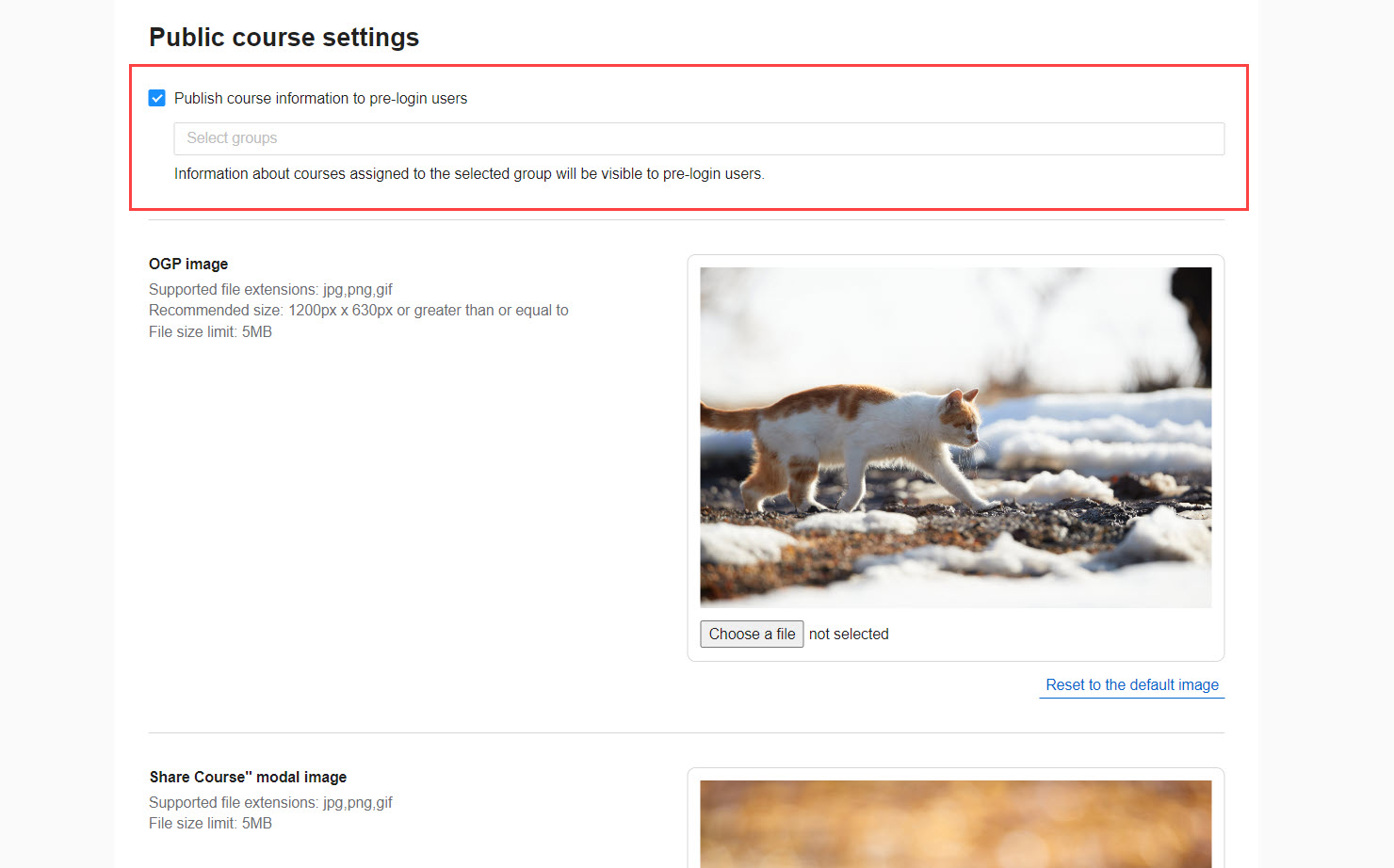
02. Fill in the form
Configure the following items.
You can upload a file from Choose File.
Click on the default image to reset the settings.
▼ Open Graph image
You can set an Open Graph image for the Open course.
What is Open Graph Image?
Open Graph Image is a mechanism that displays a page's title, URL, description, and image when the page is shared on social media or when the URL is sent.
▼ Modal image shown when sharing a course
Set the image displayed in the pop-up that appears when users click the SHARE button on each course on the Public course page.

▼ Hashtags
Set the hashtags to include when sharing courses on social media.
Click the blank field, enter a hashtag, and press the Enter key (multiple hashtags can be added).
To remove a hashtag, click the ✕ button.
*To share on social media, click the SHARE button on a course on the Open course page, then click the X (formerly Twitter) or Facebook icon.
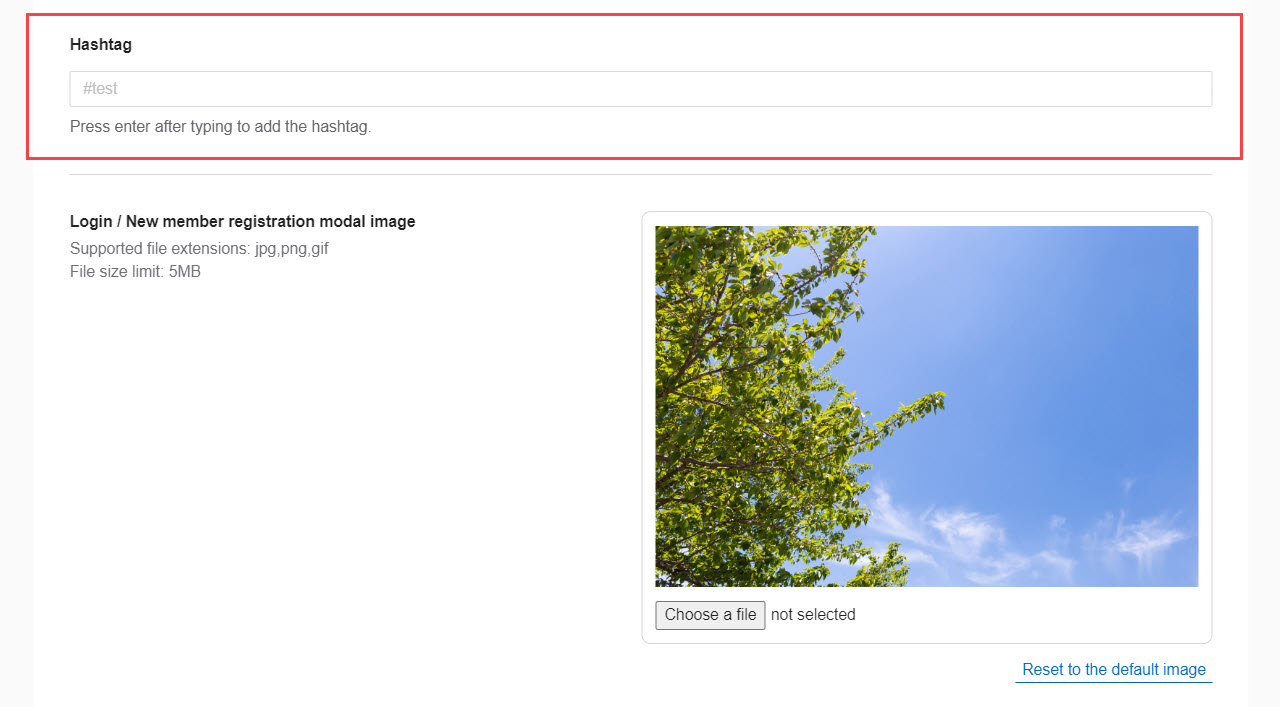
▼Modal image on the login/sign-up page
You can set an image on a pop-up shown when users click a heart icon on the Open course.