
Segment settings
You can manage Segments here.
This feature filters the courses displayed to learners so that only specific courses are visible to them.
*Select "Environment settings" from the side menu > "Segment settings."
Required
Management role of Co-admin
If you signed up for the Customization option prior to May 20, 2026, you can manage this feature via the Manage menu within the Site customizer.
Steps
01. Enable the feature
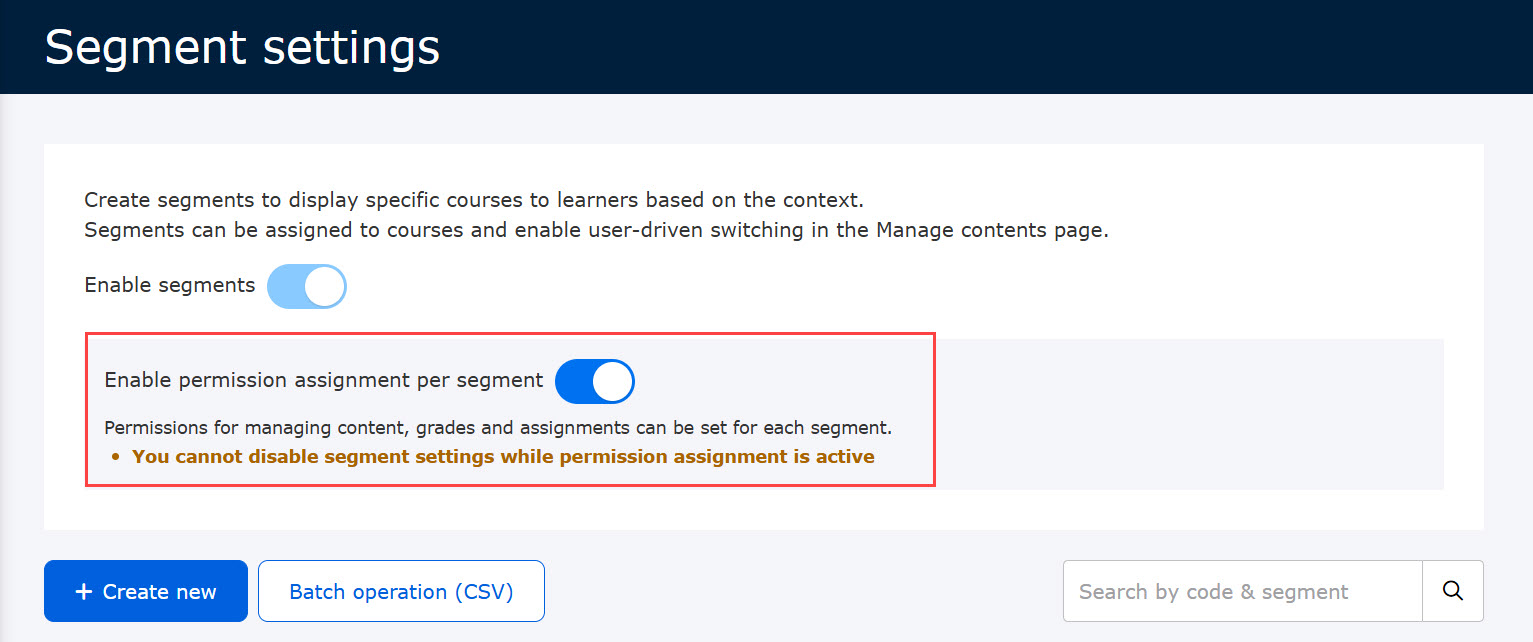
To use the Segment feature, turn on the Enable segments toggle.
02. Permission assignment per segment
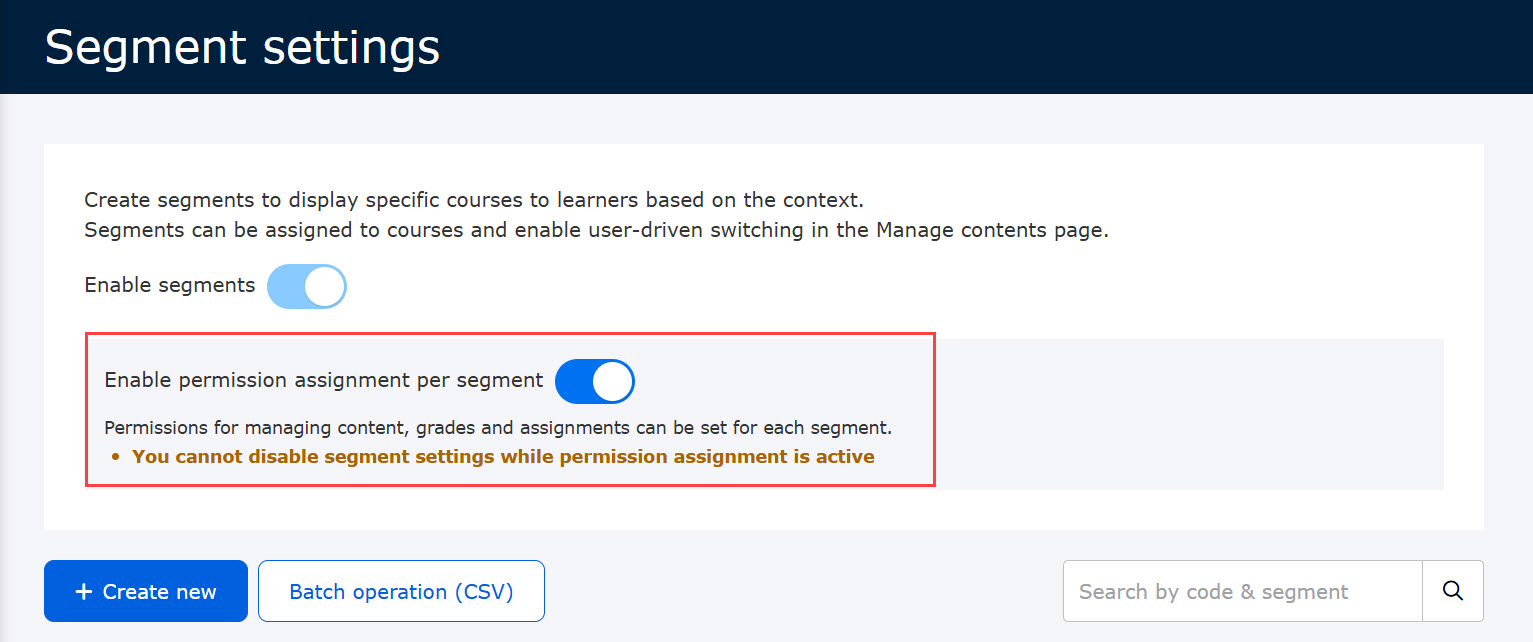
You can choose whether to allow the permission assignment per segment.
To use this feature, turn on the "Enable permission assignment per segment" toggle.
Note that the available Management roles are as follows:
- Content manager
- Grade manager
- Content manager (Assign)
03. Default segment
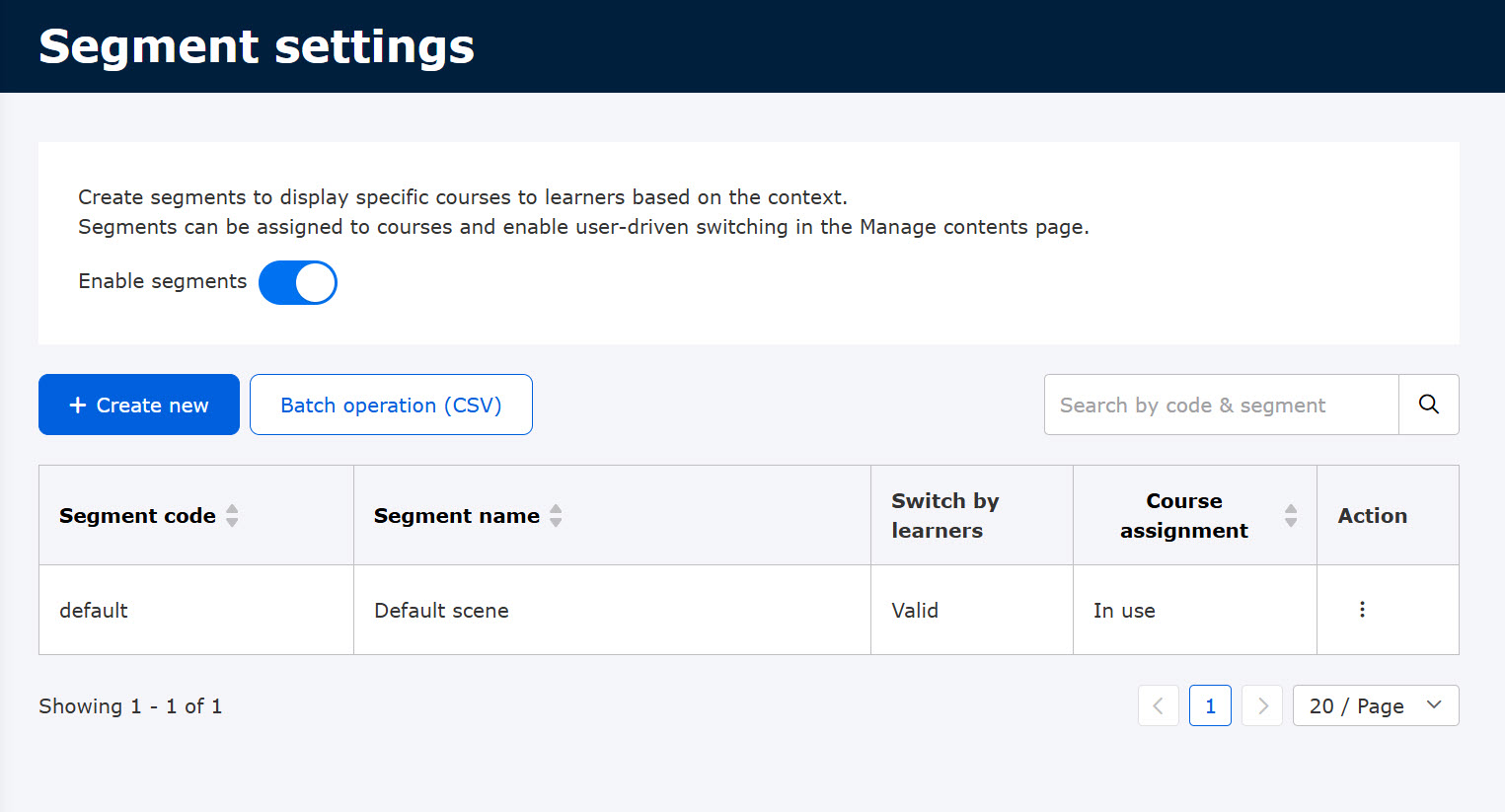
Initially, only the default segment is displayed.
04. Creating a segment
You can create up to 5,000 segments.
Click "+ Create new."
The following window will appear.
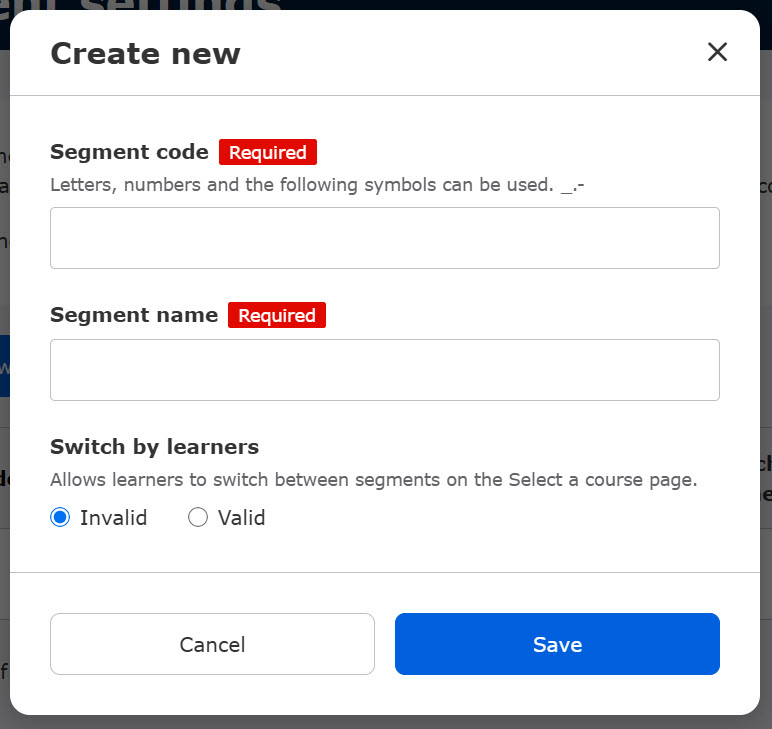
Configure each item as follows:
- Segment code: Enter a unique code for the segment (up to 60 characters).
- Segment name: Enter a unique name for the segment (up to 60 characters).
- Switch by learners: Choose whether to allow learners to switch between segments themselves.
05. List of segments
All created segments are displayed in a list.
You can filter the items by segment code or segment name using the search bar.

06. Editing segments
You can edit existing segments.
Click the ︙ icon >"Edit"
*The segment code of the default segment cannot be edited.
07. Deleting a segment
You can delete a segment.
Click the ︙ icon > "Delete"
*The default segment cannot be deleted.
*If a segment is in use, you must first go to the Manage content page and unassign the segment before it is deleted.
08. Batch operation (CSV)
You can import segments in bulk (to add or update them) and export your current segment data using a CSV file.
Click "Batch operation (CSV)."
Click "Export current segments" to download all segment data at once.
To upload segment data, drag and drop your CSV file into the gray area, or click "Choose File" to select it from your device.
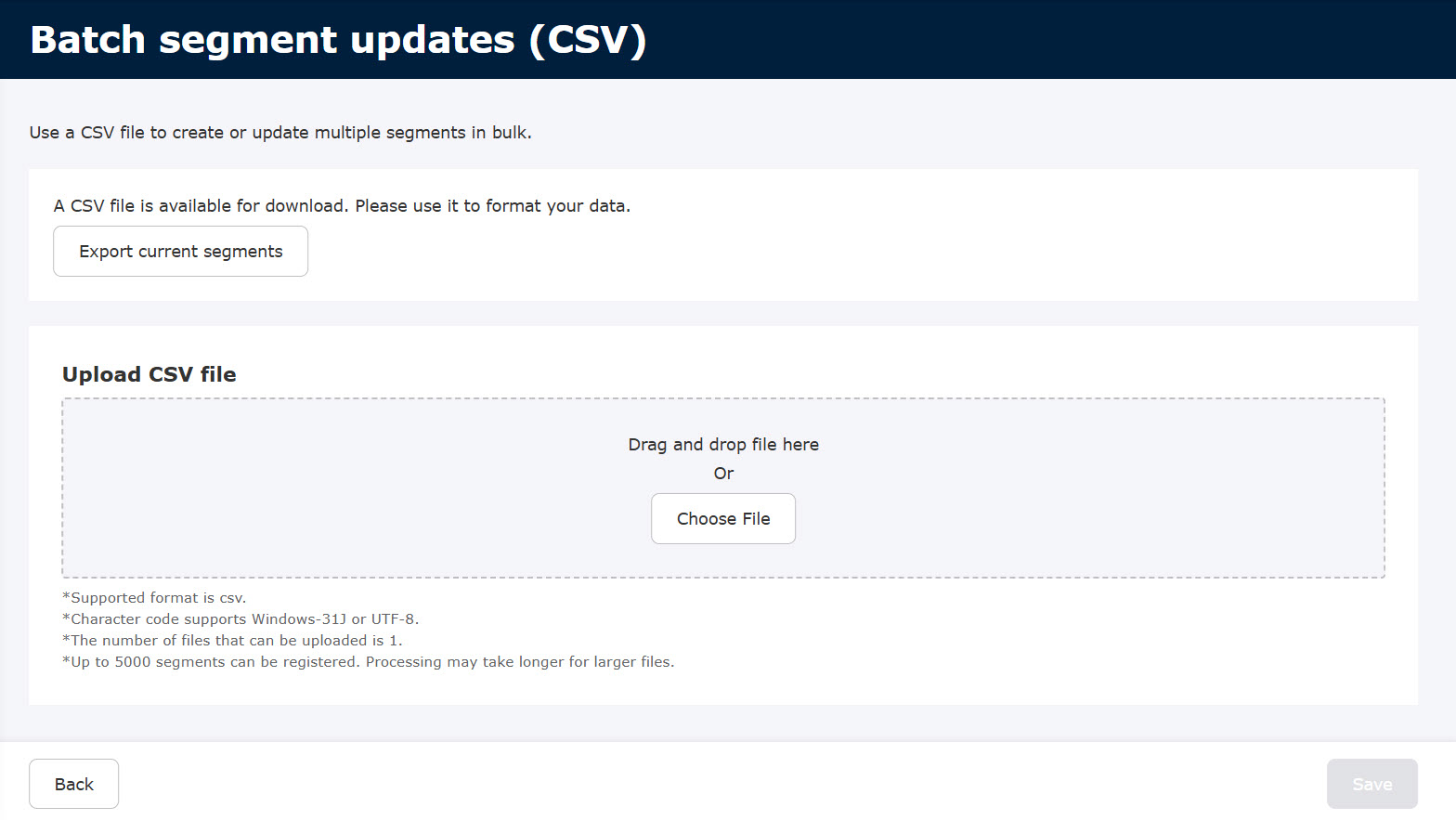
If the file contains any issues, they will be flagged as errors.
Turn on the "Show only errors" toggle to display only the rows containing errors.
Click "Retry upload" to re-upload the corrected file.

Actions on other pages
01. Register courses to a segment
After creating a segment, go to the "Manage content" page and register the relevant courses to that segment.
*For more details, refer to Segment settings.
02. Switch between segments
For segments that have user-driven switching enabled, learners can switch between segments by clicking the icon on the Select a course page.
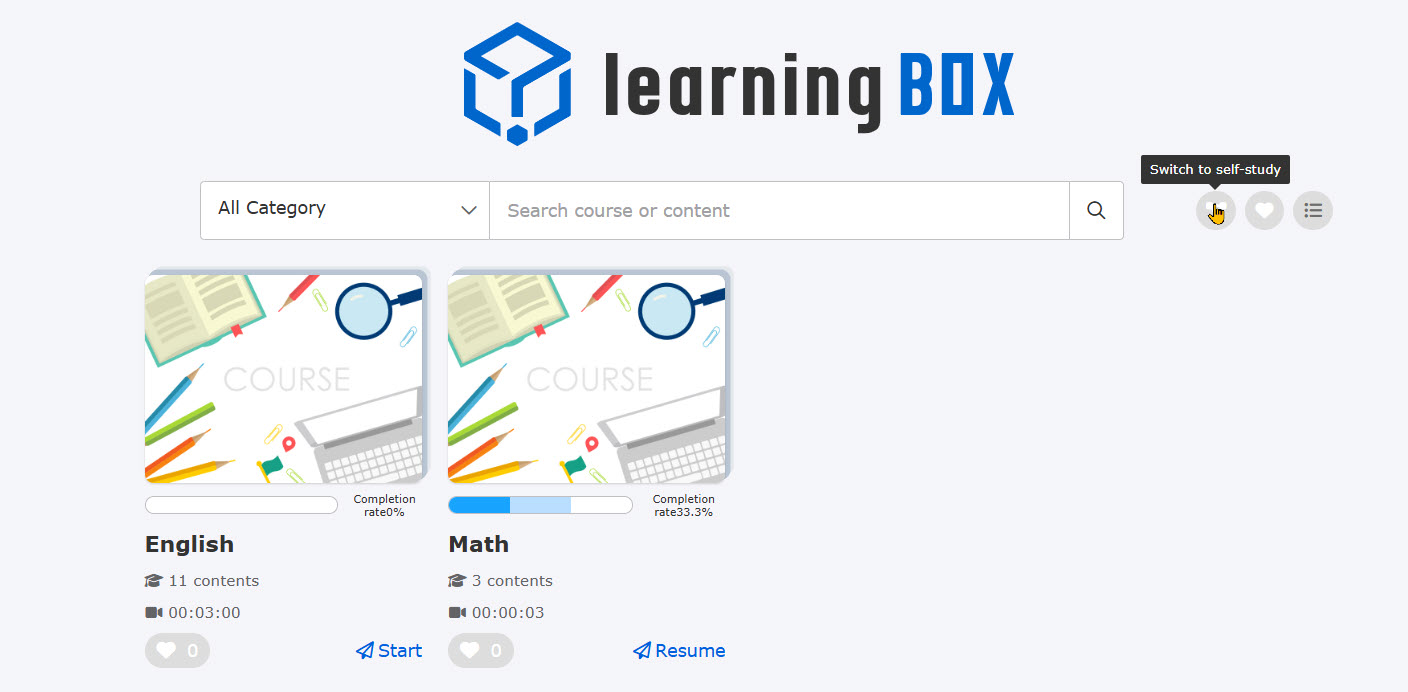
For segments with user-driven switching disabled, you can display a specific segment on the Select a course page by specifying the segment code when configuring SSO.
*For more details, refer to here.