
Edit menu of a course
This page explains the edit menu that appears in Manage content when you right-click a course or click the ⋮ icon.
Required
Management role of Content manager (Edit/View)
Users with the Content manager (View) role can access only the following two menu items:
- Content URL
- Information
Edit Appearance of course
Content managers can edit the appearance of a course, including titles and thumbnail images.
*For more details, refer to Appearance.
Duplicate
Required
Management role of Content manager (Edit) for all content
The following options are available:
▼ Duplicate
Content managers can duplicate a course or create a shortcut.
A duplicated course is independent of the original.
Content can be edited separately, and learner grades are recorded as new data.
▼Create shortcut
Content managers can duplicate a course or create a shortcut.
When a shortcut is created, the content within the course is not duplicated.
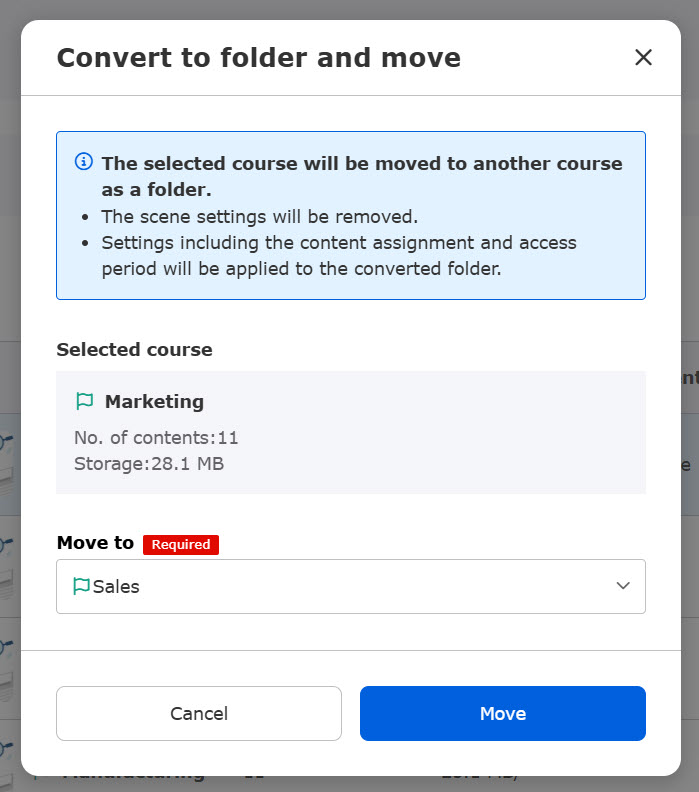
Convert to folder and move
Courses can be converted to folders and moved to other courses.
Required
Management role of Content manager (Edit) for all content
The following window will appear.
Select a course from the list and click Move.
Create shortcut
You can create shortcuts of courses.
This eliminates the need to create the same course multiple times.
*For more details, refer to Shortcut.
Required
Management role of Content manager (Edit) for all content
Manage access
Manage content assignment can be accessed from Manage access.
From here, you can view, add, or edit settings for Content assignment / Deadlines / Access period organized by content, group, or user.
Required
Management role of Content manager (Edit/View + Assign)
Assign content
This function allows you to restrict access to a course by member or group.
This can also be configured from Manage users.
Required
Management role of Content manager (Edit/View + Assign)
To assign content to individual users, the Group manager (Edit/View) management role is also required.
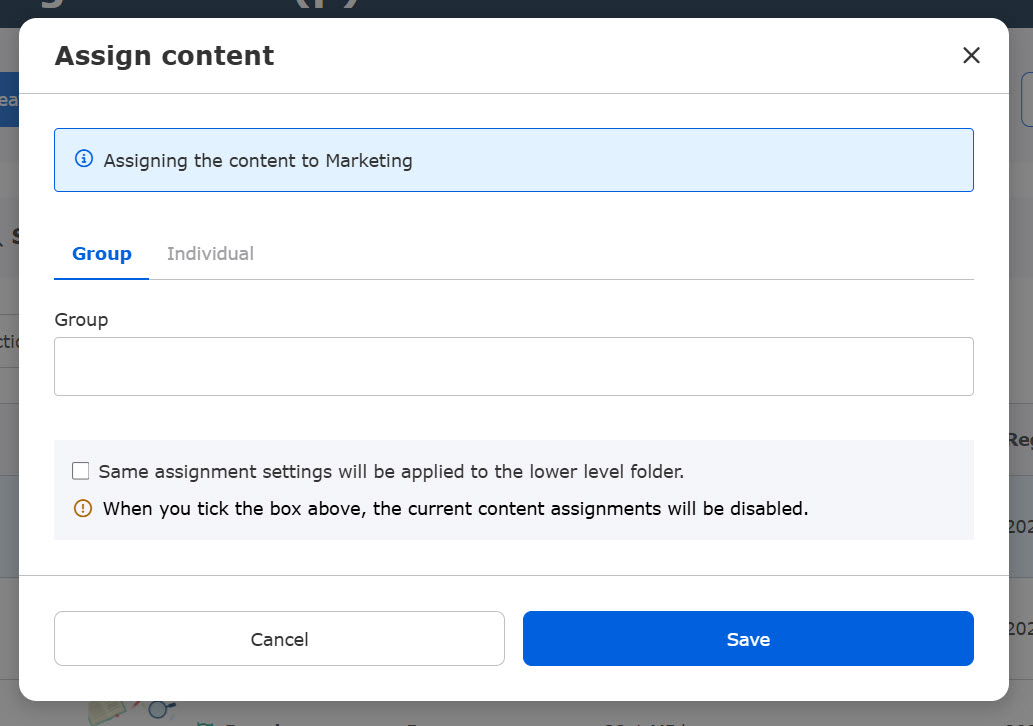
Assign content to groups
Click the empty field and select a group to assign the content.
Click again or select the X button to deselect a group.
Select All users to assign the content to all users in the system.
To apply the same group assignment to folders within the course, tick the box.
Click Save to apply the settings.
Assign content to individuals
Select users to assign.
*Batch selection is available on each page.
You can search users in the search field.
Untick the box to remove a user from your current selection.

Selected users will be listed at the bottom.
Click Unassign to remove them from the list.
To apply the same group assignment to folders within the course, tick the box.
Click on Save to complete the settings.

*If already assigned to individuals:
To find users already assigned, tick Users already assigned in the search field.
After searching users and unselect them, they will be listed in the Selected users section.
Click Save to assign them again.
Access period
You can set the accessible duration of the course.
*For more details, refer to Access period.
Required
Management role of Content manager (Edit/View + Assign)
Deadline
You can set a time limit for the course.
*For more details, refer to Deadline.
Required
Management role of Content manager (Edit/View + Assign)
Badge
Badges can be set for courses.
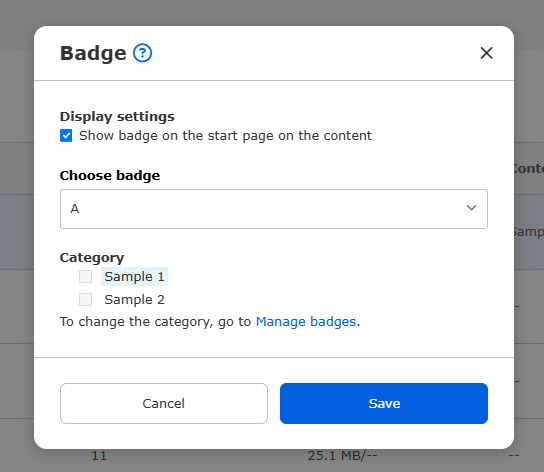
Display settings
You can show/hide badges on the learner's page.
Tick the box to show a badge.
Set badges
Select a badge from the list.
You can also create a new badge.
▼ None
No badges will be given.
▼Create a new badge
You can create a new badge.
*For more details, refer to Manage badges, Add badges.
▼Use an existing badge
Select the badge from the list.
Content category settings
The content category set for the badge will be displayed.
*For more details, refer to Manage badges, Content category settings
Course size limits
You can limit the amount of data that can be registered in a course.
*For more details, refer to Course size limits.
Required
Management role of Content manager (Edit) for all content
Segment settings
You can display only the courses registered to a specific segment on the Select a course page, and allow users to access content within that segment.
To set segments, register them in the Segment settings in advance.
*For more details, refer to Segment settings.
Required
Management role of Content manager (Edit)
The following window will appear.
Available segments are listed in the drop-down.
Select the desired segment(s) and click Save.

The name of the configured segment will appear in the Segment column.
When only the default segment is configured, -- is displayed.

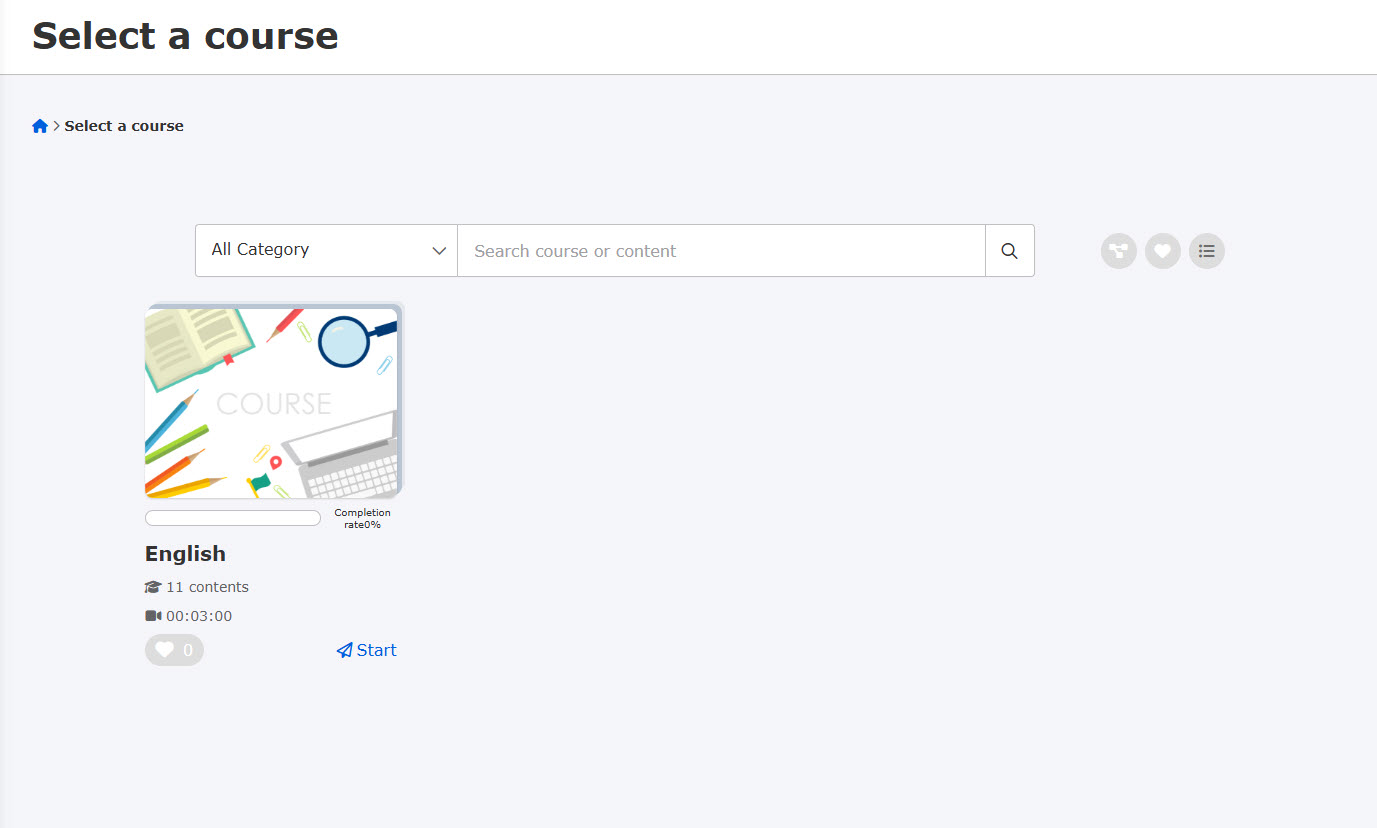
Only courses registered to the selected segment will be displayed on the Select a course page.
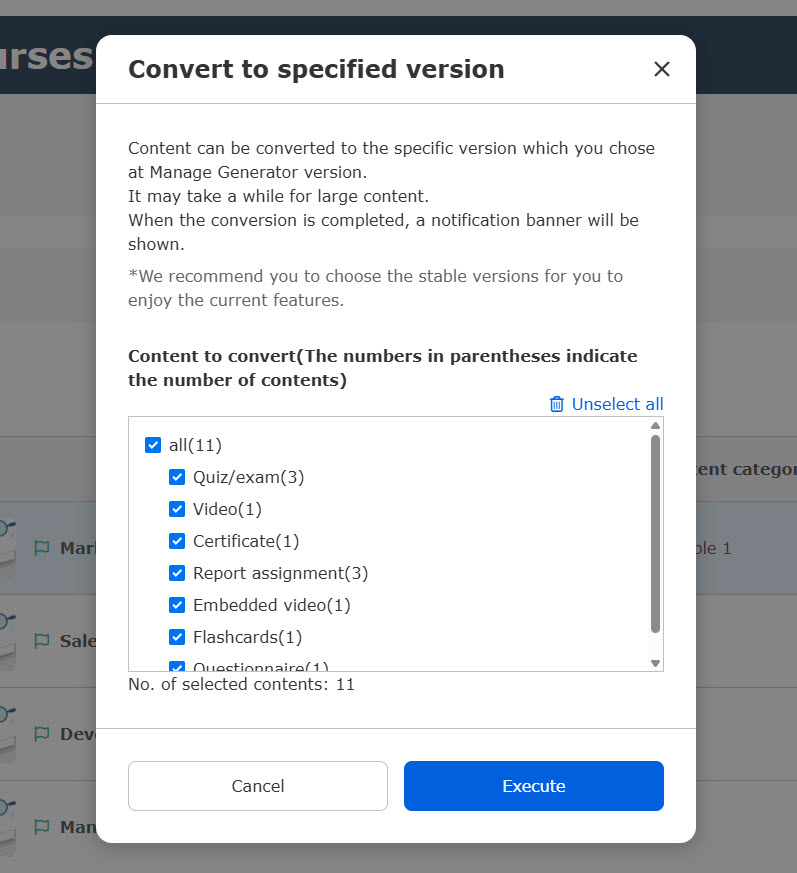
Convert to specified version
Content in a course can be converted to the system version set in the Manage generator version.
Select content you wish to convert and execute.
Content URL
The following actions are available:
▼Copy URL
Copies the URL of the course start page for the target course.
▼Access URL
Opens the course start page directly.
*If the access period has not started or the set conditions have not been met, you will be redirected to the Select a course page.
IP address restriction
Restrictions can be configured so that only specified IP addresses can access the course.
*For more details, refer to Manage IP restrictions.
Required
Management role of Content manager(Edit) + Content manager(Assign) + Co-admin
Information
The registered date and the registrant are displayed when you hover over the icon.
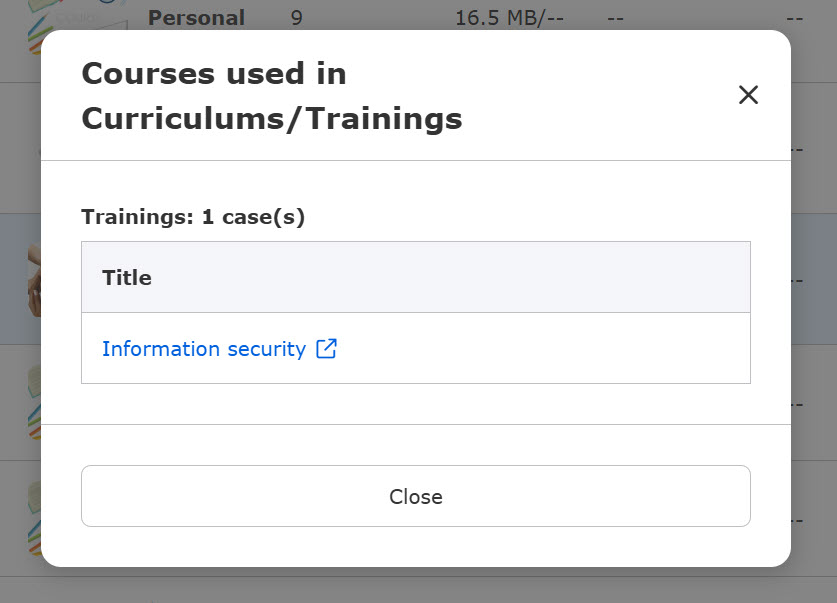
If the selected course is used in a curriculum/training or a product/seminar, the following information will be displayed:
- Courses used in Curriculum/Trainings
- Courses used in Product/Seminars
When you click the information icon, the following pop-up will appear.
Clicking the link will open the relevant settings page.
Delete
Courses can be deleted.
Required
Management role of Content manager (Edit) for all content
Deleting a course will also delete all folders and content within it, as well as any related content including shortcuts and gradebooks for personality tests.