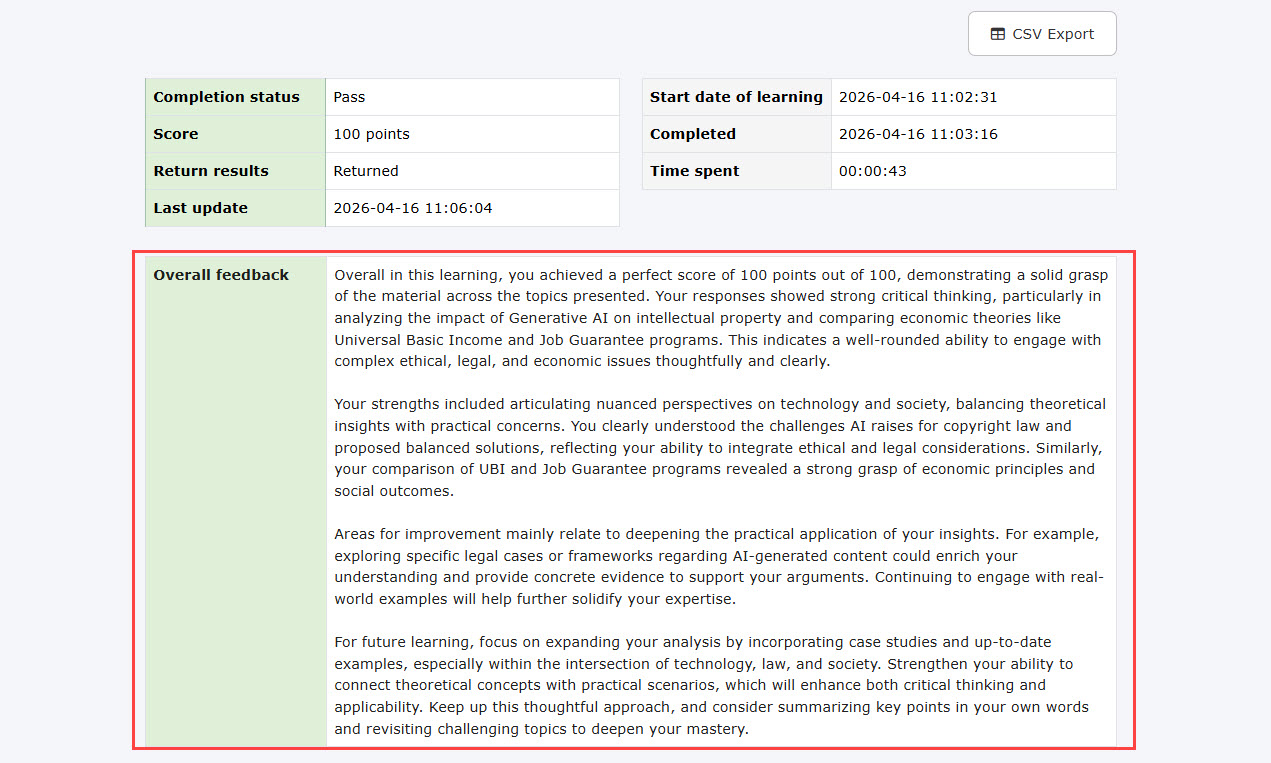
Overall feedback
You can add a summary comment for the entire quiz/exam.
Feedback can be entered manually or generated automatically by AI.
Steps
01. Go to Manage grades
Select the List tab on the grade page.
Click "Grading" when grading by a Grade manager is required.
For auto-grading content, click on "Details."
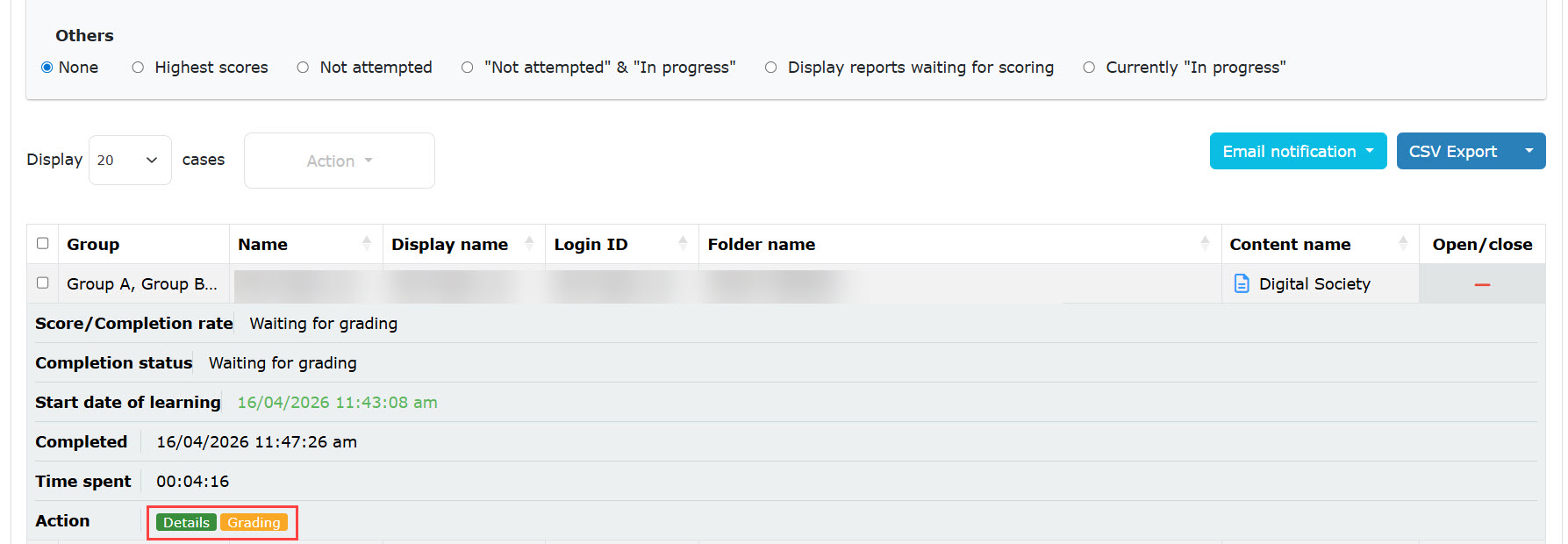
02. Manual entry
At the bottom of the page, enter feedback in the field.
*Up to 10,000 characters can be entered.
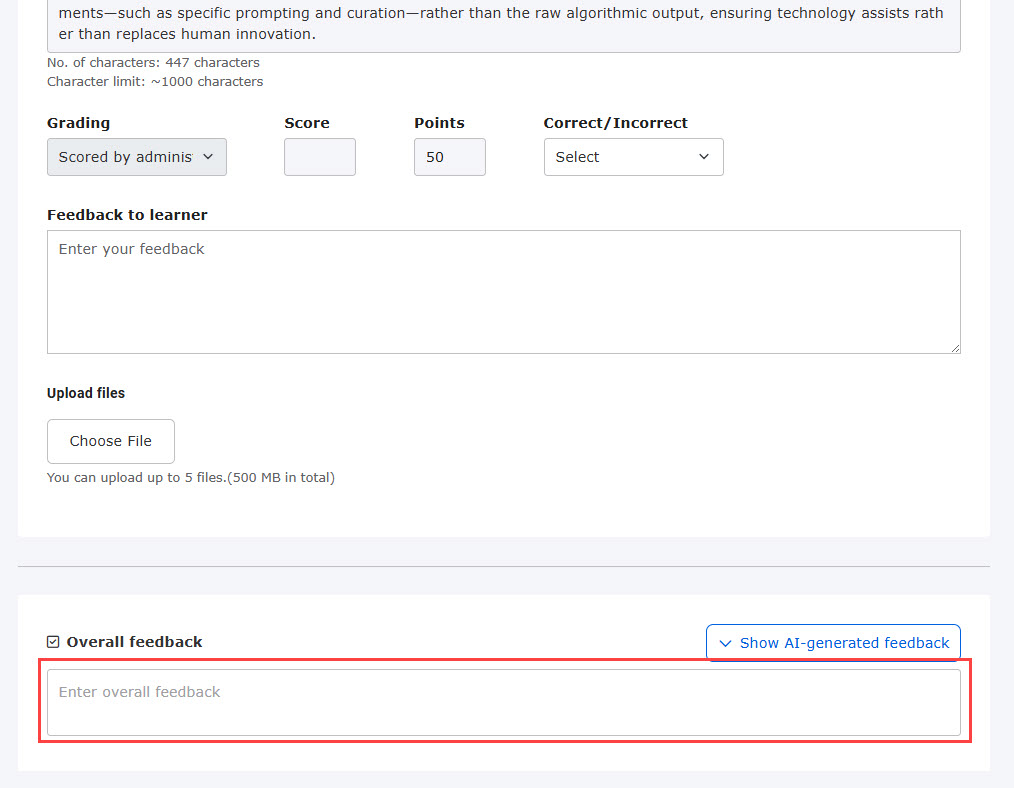
03. Automatic generation by AI
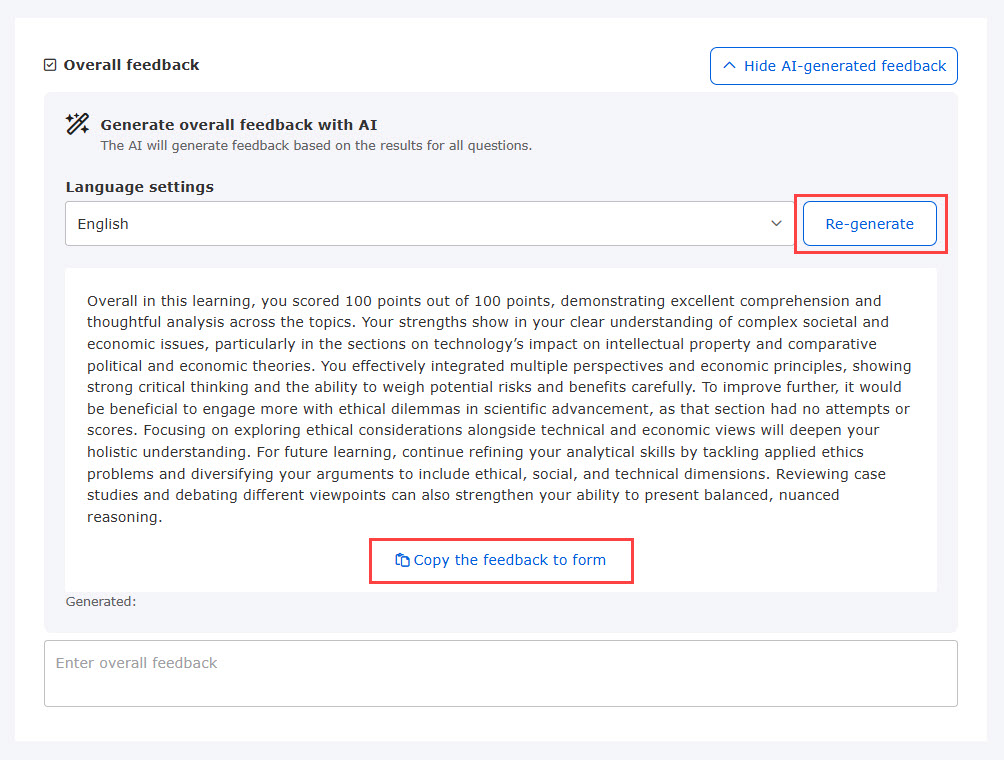
AI can automatically generate overall feedback.
Click on "Show AI-generated feedback."

Select a language and click "Generate with AI."

Feedback will be generated.
To retry the feedback generation, click "Re-generate."
Click "Copy the feedback to form."
*You can manually modify the content after it is copied.
To use AI-assisted feedback generation, all questions must be scored.
Custom prompt
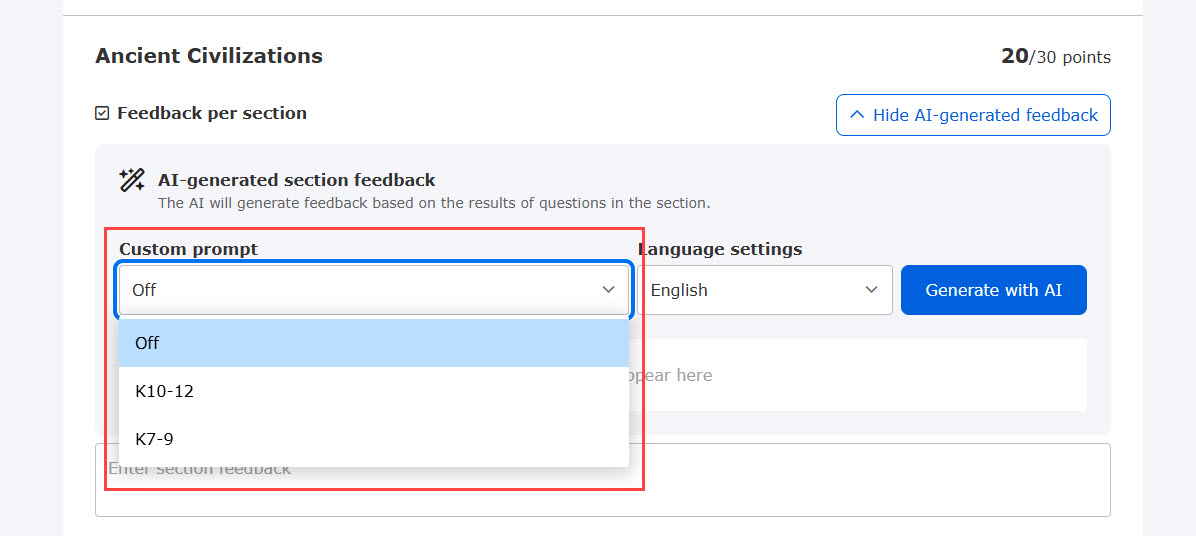
When the AI generates overall feedback, custom prompts can be created as supplemental information for more accurate analysis.
*For more details, refer to AI report analysis and feedback settings.
Practical use cases and guidance on what to enter are introduced on a separate page.
*For more details, refer to Custom prompt.
Created cusom prompts will be selectable from the list.
04. Learner's interface
Learners can view the overall feedback on the grade details.