
PowerPoint
Files created with PowerPoint can be uploaded directly to learningBOX as content.
*The option, "PowerPoint Material Import," is required to use this function.
*For more details, refer to Pricing.
Important
We are currently not accepting new contracts for PowerPoint training materials.
This location is scheduled to be renovated in the spring of 2027.
After the relaunch, we plan to resume accepting new contracts.
Import PowerPoint content
Required
PowerPoint import options, content management editing permissions
01. Create a course
First, create a course in the Manage contents.
*For details on course creation, refer to Course/Folder.
02. Open the PowerPoint upload page
Click on the course you created.
In the upper left corner of the page, select "+ Create new" > "Content" > "PowerPoint content."
03. Upload CSV file
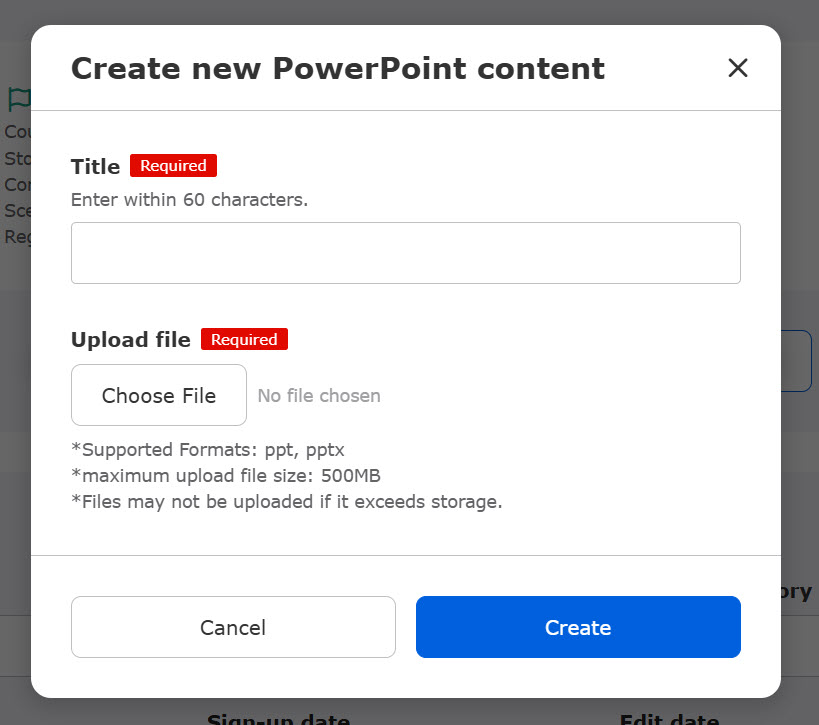
Enter a title and select a PowerPoint file from "Choose File."
Click on "Create."
Download PowerPoint content
Select Manage contents in the side menu.
Right-click on the target PowerPoint content or select the "︙" icon > "Download."
Re-upload PowerPoint content
By re-uploading a file, the content will be overwritten.
Select Manage contents in the side menu.
Right-click on the target PowerPoint content or select the "︙" icon > "Re-upload."
User interface
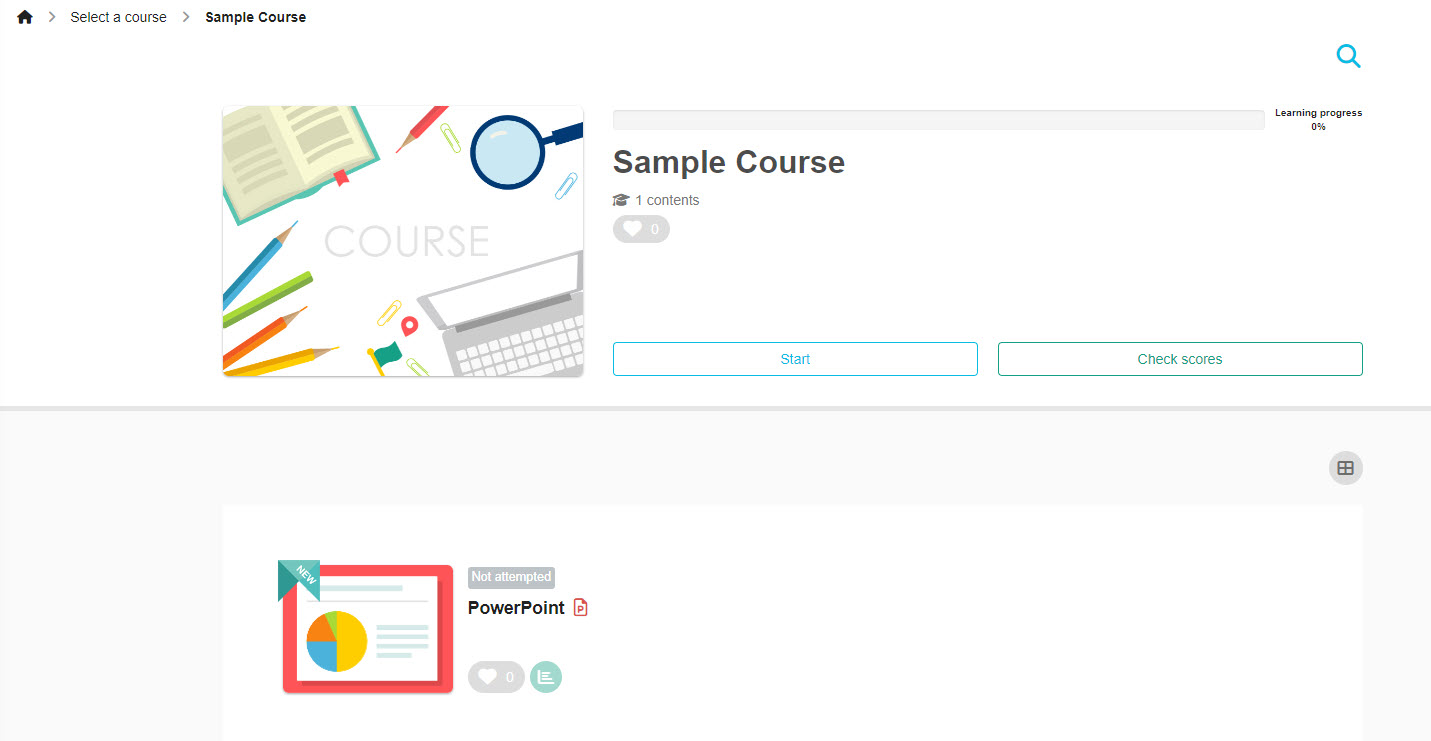
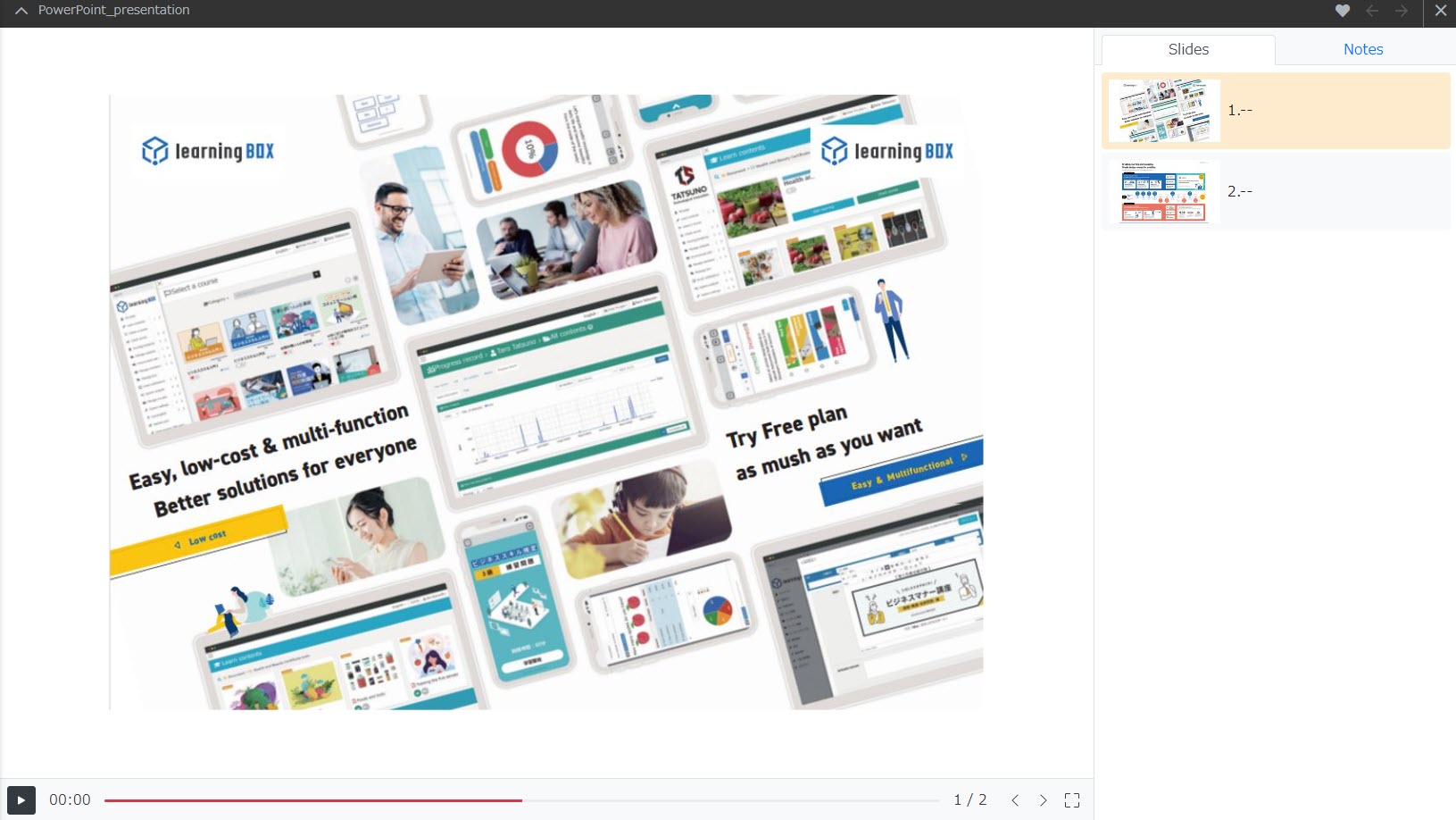
Click on the PowerPoint content you have created.
Slides will be displayed on the right, and can be switched by clicking the arrow icons.
When an audio file does not play
*For more details, refer to 【PowerPoint content】How to solve Audio file not playing.